How to update Roblox on PC and fix all common issues
Updating Roblox is key if you want to continue playing the game.
Roblox is one of the most popular platforms for online games. To enjoy new features, better performance, and a smooth experience, you need to keep the Roblox app up to date. In this article, you will learn how to update Roblox on PC and how to solve common update problems!
What to do if your Roblox version is out of date?
If Roblox shows that your version is out of date, you must update the app before playing. Roblox does not let players use old versions.
Updates often include fixes, new tools, and performance improvements. If you continue to use an older version, you may see error codes or crashes. Roblox checks for updates every time you try to open a game. If the app cannot update, it shows a message.
When this happens, you need to update Roblox yourself. In the next section, you will learn how to do that. After that, we will explain how to fix any update issues that may happen during the process.
How to update Roblox on PC
Normally, Roblox updates when you launch a game. If it does not, you can try two methods to update it yourself: using the Roblox website or using the Microsoft Store.
Method 1: Update from the website
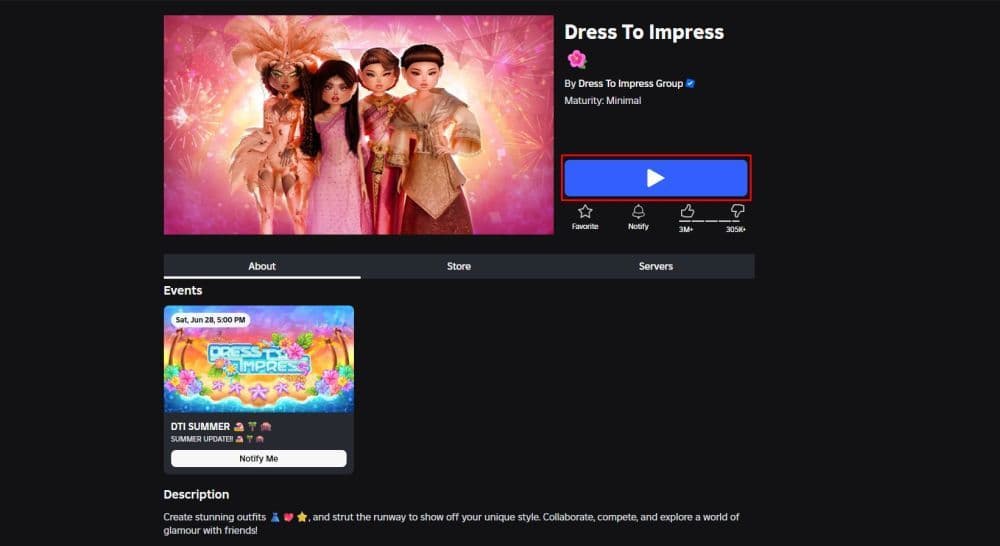
- Open your browser and go to the Roblox website.
- Log in to your account.
- Click on any game and press the green Play button.
- If your version is old, this step starts the update process.
- Wait for the update to finish. The game will launch when it’s done.
Method 2: Update through Microsoft Store
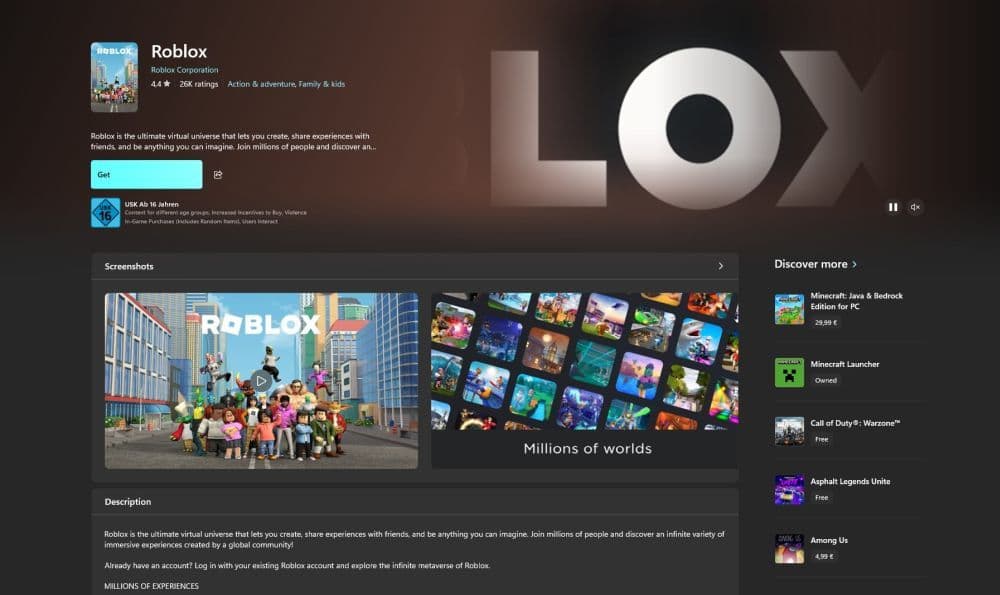
- Open the Start menu and click on the Microsoft Store.
- Type Roblox in the search bar and click on the app.
- If there is an update, you will see an Update button.
- Click Update and wait for the download to finish.
- Open Roblox from the Start menu or the Microsoft Store.
Both ways help you get the latest version. If you still have issues, there might be other problems.
Why is my Roblox update stuck?
Many users say that their Roblox update gets stuck. This can happen for many reasons, mainly due to unexpected errors.
One common reason is busy servers. This often happens after a big update or when many users try to connect at the same time. Slow internet connections also cause problems. In some cases, antivirus programs or firewalls block the update. Damaged or leftover files from older versions can also stop the process.
These issues are common. The next section explains how you can solve them easily.
How to fix Roblox update problems
Here are five common problems that can stop Roblox from updating and how you can fix them.
1. Broken or missing Roblox files
Sometimes, an incomplete update can break the Roblox files. This can stop future updates.
Fix: Remove Roblox completely from your computer. Then go to the Roblox website or Microsoft Store and install it again.
2. Blocked by antivirus or firewall
Some antivirus software or firewall settings may block Roblox from connecting to update servers.
Fix: Open your antivirus or firewall program. Find the settings and add Roblox to the allowed apps list. This gives it the access it needs.
3. Slow or unstable internet
A weak internet connection can stop or delay the update.
Fix: Restart your modem or router. If possible, connect with an Ethernet cable instead of Wi-Fi. Avoid downloading large files while Roblox is updating.
4. Not enough free space
Roblox needs enough space on your drive to update.
Fix: Check your disk space. Delete files or apps you no longer use. Try the update again after making space.
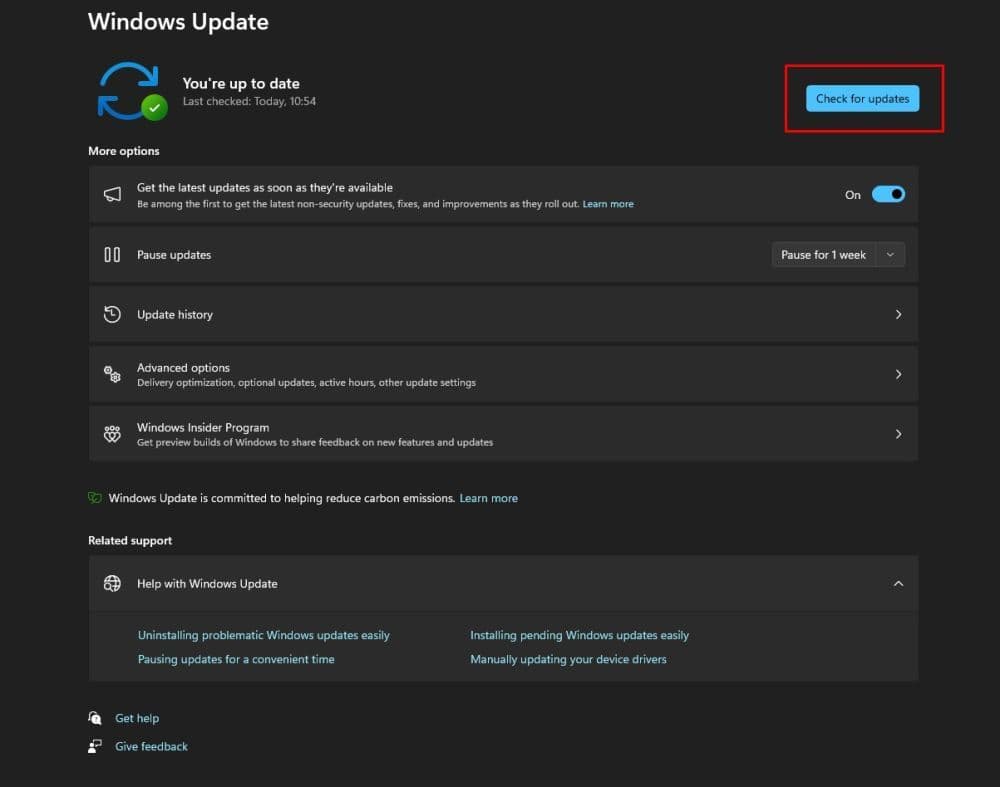
5. Outdated Windows system files
If your Windows files are old, Roblox may not update or run properly.
Fix: Go to Settings > Windows Update. Download and install the latest updates. Then restart your PC and try Roblox again.
How to fix Roblox auto-update issues
If Roblox does not update automatically, here are some common causes and how you can fix them.
1. Microsoft Store auto-update turned off
If you use the Microsoft Store version of Roblox, the app may not update automatically if the settings are wrong.
Fix:
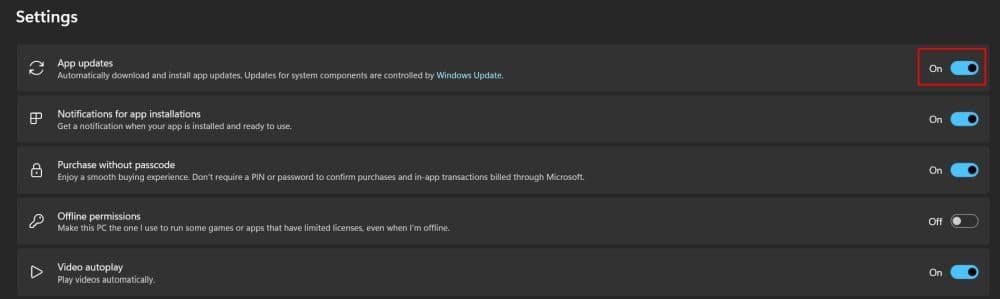
- Open the Microsoft Store.
- Click your profile picture and select App Settings.
- Make sure App Updates is turned on.
- Go back and check manually for updates.
2. Too many apps running at once
Apps that run in the background can slow down your system. Roblox may fail to update if your PC is too busy.
Fix:
- Close all extra apps before opening Roblox.
- Press Ctrl + Shift + Esc to open Task Manager.
- End tasks that use a lot of CPU or memory.
- Try launching Roblox again.
3. Old cache files
Roblox stores temporary files to load faster. These files can cause problems during updates if they are damaged.
Fix:
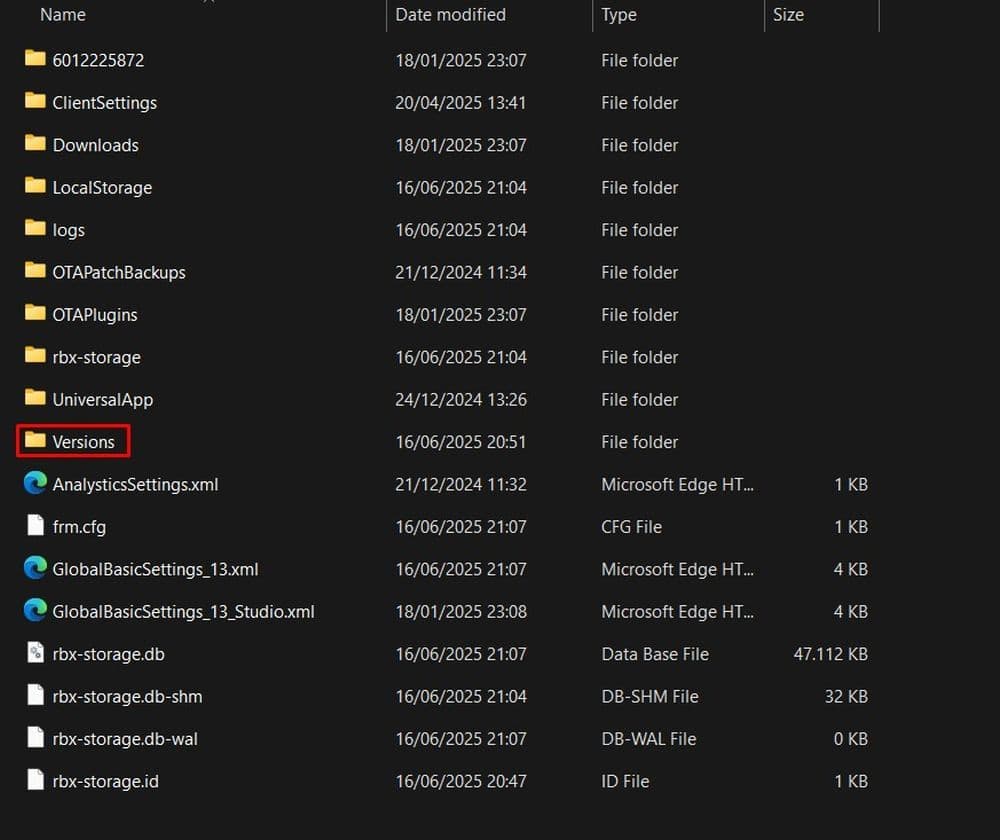
- Open File Explorer.
- Go to C:\Users\YourUsername\AppData\Local\Roblox.
- Delete the Versions folder.
- Open Roblox to download a clean set of files.
4. Corrupted Microsoft Store data
If you use Roblox from the Microsoft Store, broken app data may stop updates.
Fix:
- Go to Settings > Apps > Installed Apps.
- Find Microsoft Store and click Advanced Options.
- Scroll down and click Reset.
- Reopen the Microsoft Store and check for updates again.
5. No admin access
Roblox sometimes needs admin rights to install updates. Without these rights, the update can fail silently.
Fix:
- Find the Roblox shortcut on your desktop or Start menu.
- Right-click on it and select Run as administrator.
- Confirm the prompt if asked.
- Try updating the game again.
Here are more guides for you to check out:
- Latest Roblox Elemental Dungeons codes & how to redeem them
- Make winner Met Gala Dress to Impress outfits in 4 easy steps
- Is there a way to get free Robux in Roblox?
- The ultimate guide to Roblox PS4: Best games, tips, and more
- Best Decal IDs in Roblox with Guides & Codes
Featured Image Credit: Roblox
All Related Guides
 Roblox Robux codes (October 2026): Gift cards, free items & moreFind Roblox Robux codes & redeem gift cards, claim free avatar items, convert Roblox Credit, and fix codes tha...
 How to see Roblox purchase historyLearn how to see your Roblox purchase history, check Robux transactions and find real-money receipts on deskto...
 How to find the Monochrome Roblox code and escapeFind the Monochrome Roblox code, collect all four keys, survive the basement maze and open the elevator to com...
 How to connect Claude to Roblox StudioConnect Claude to Roblox Studio with the current MCP method and see how Claude can work with your scripts and ...
 How to fight in Gakuran RobloxLearn how to fight in Gakuran Roblox, from basic attacks to blocking, parrying, posture, and fighting styles....
 How to get a free avatar in RobloxFind out how to get a free Roblox avatar without spending Robux, from free character bundles to Marketplace it...
 How to reduce lag in Roblox: Comprehensive guideRoblox feeling slow or choppy? Find out how to reduce lag in Roblox and improve your game with a few simple ch...
 How to check Roblox player countHow many people play Roblox in 2026? Check the latest Roblox player count and learn what the numbers actually ...
- 1
- 2
- 3
- 4
- 5
- 6
- 7
- 8
- 9
- 10
- 11
- 12
- 13