How to fix the “Roblox no response from server” error in a few steps
ON THIS PAGE:
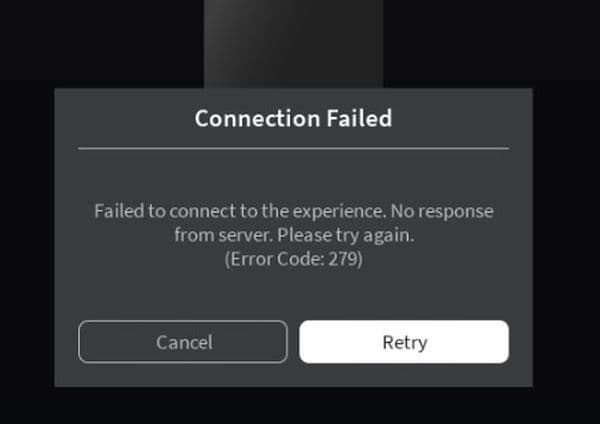
When you launch a game in Roblox and see a message like “No response from server” or “Failed to connect to the game”, the client cannot reach the game host server. This stops you from playing and can appear on PC, mobile, console, or browser versions. The error means your device did not complete the link to the Roblox server. Here is more information about how and why you’ve encountered this problem and how to fix it in just a few steps!
What is the “Roblox no response from server” error and where does it come from?
This error may start either from Roblox’s servers or from your own setup. By knowing both sides, you can solve it faster. Unfortunately, this error affects both regular players and Roblox Premium users.
Here are the common causes and where they originate:
- Server-side issue or game instance shutdown: Roblox servers may go offline or a specific game server may stop responding. Error code 279 / ID 17 often means the game server failed to accept your connection.
- Internet connection issues: Your network may be unstable, your WiFi may be weak, latency may be high, or DNS resolution may be slow. These things block a clean link to Roblox servers.
- Firewall, router, or blocked ports: Roblox uses outbound UDP ports 49152-65535; if your router or firewall blocks them, the client cannot connect.
- Corrupted client files, cache, or installation: If the Roblox app or executable on your device is damaged or misconfigured then the handshake with the server can fail entirely.
- Browser or device configuration problem: If you play via browser, extensions or ad-blockers may interfere. Older browser versions may lack support for the necessary connection scripts.
- Regional routing, IP restriction,s or network path issues: Sometimes your ISP or country routing causes trouble reaching Roblox server IPs. In some cases a VPN or alternate network fixes it.
Understanding where the issue starts helps you apply the correct solution and avoid unnecessary steps. Don’t forget to check our piece on all Roblox error codes!
How to fix the “Roblox no response from server” error
This error is very similar to another connection error that also returns Error Code 279. Here are five practical fixes. Follow them in order. If one works, you can stop. If not, go to the next.
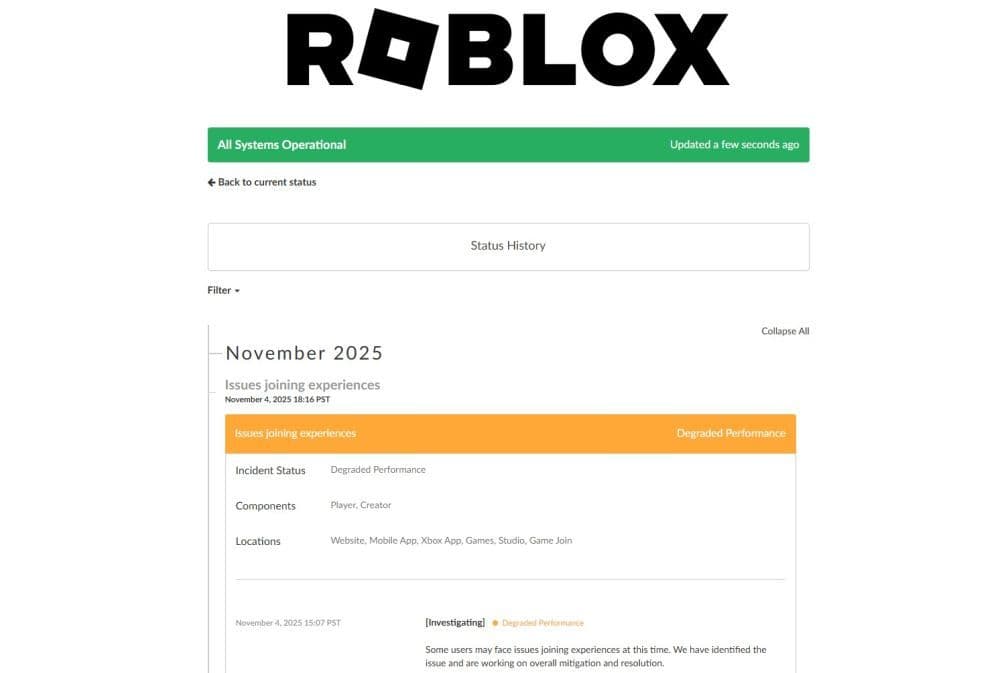
Fix 1: Check Roblox Server Status
- Visit the official Roblox status page or check a tracker like DownDetector.
- If the servers are reported down or degraded, wait until they recover.
- Do not proceed with local fixes until you verify if the outage is global.
If the problem lies with Roblox infrastructure, your changes won’t help.
Fix 2: Reset or Improve Your Internet Connection
- Restart your modem and router.
- Flush DNS (on Windows: open Command Prompt and type ipconfig /flushdns).
- Switch from WiFi to a wired connection if possible.
- Try using a mobile hotspot to test whether your home network causes the issue.
It eliminates network instability or ISP routing faults as the cause.

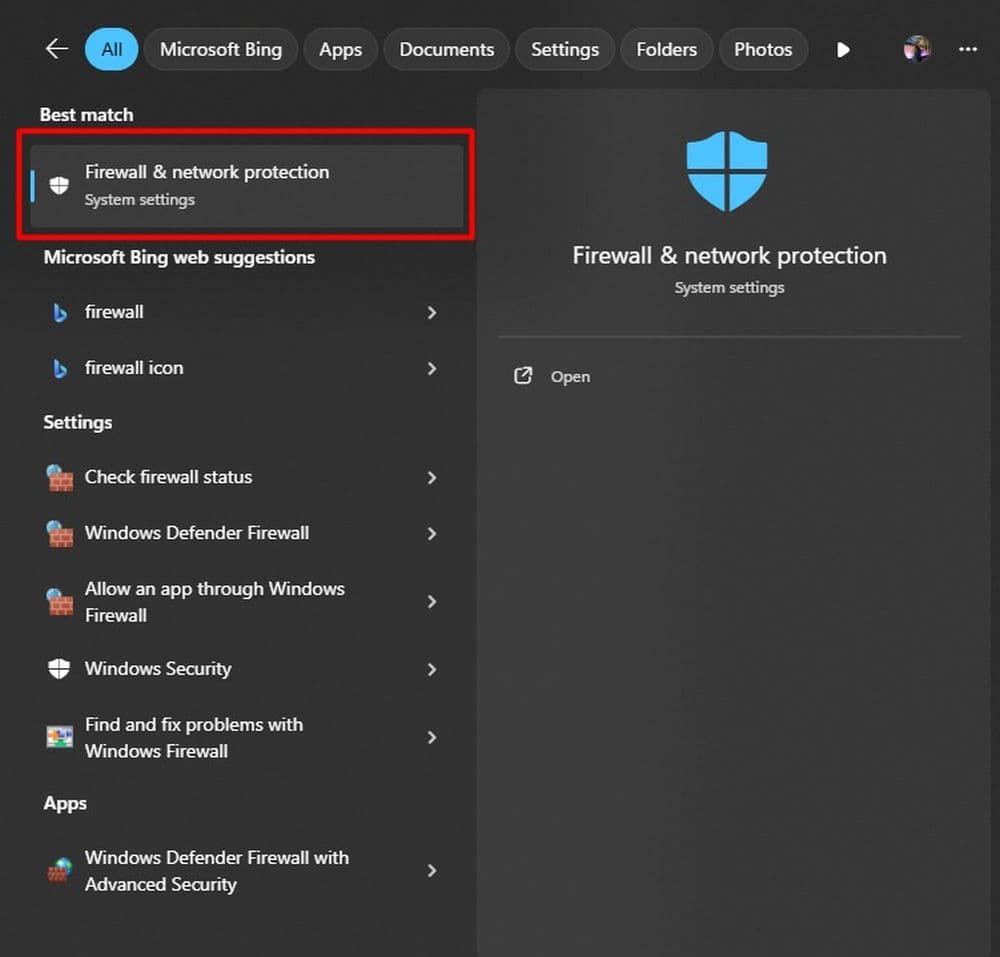
Fix 3: Adjust Firewall, Router and Port Settings
- On your computer, open your firewall settings (Windows Defender or third-party).
- Allow Roblox (Roblox.exe) through the firewall.
- On your router, go to port forwarding or firewall settings and ensure UDP ports 49152-65535 are not blocked.
- Temporarily disable antivirus/firewall and test Roblox again.
If ports or connection path are blocked, the game cannot reach the server.
Fix 4: Clear Cache or Reinstall Roblox
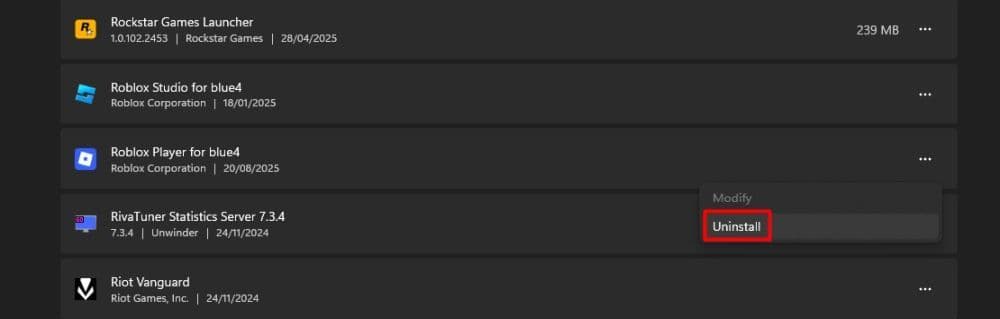
- Uninstall Roblox from your device.
- On Windows, delete the leftover folder: AppData\Local\Roblox.
- Reboot your device.
- Download and install Roblox from the official site.
It removes corrupted files or misconfigurations that may prevent server connection.
Fix 5: Try Another Browser, Device or Use VPN
- If you play via browser, switch to another one such as Edge, Chrome or Firefox.
- Try Roblox on a different device to see if the issue is device-specific.
- If your network or ISP might block the path, try using a reputable VPN to change your IP and routing.
It isolates device or network path issues and can bypass IP or region blocks.
Begin by checking server status, then move to network fixes, firewall and port checks, reinstalling the app, and alternative devices or VPNs. With these steps, you can restore access and return to playing with confidence.
We have plenty more Roblox guides for you to check out. Start with the ones below:
- Latest Roblox Elemental Dungeons codes & how to redeem them
- Make winner Met Gala Dress to Impress outfits in 4 easy steps
- Is there a way to get free Robux in Roblox?
- The ultimate guide to Roblox PS4: Best games, tips, and more
- Best Decal IDs in Roblox with Guides & Codes
Featured Image Credit: Roblox
All Related Guides
 Roblox Safety Dashboard: How to check account status & ban riskLearn how the Roblox Safety Dashboard works, check your Account Status, review recent violations, and see whet...
 How to get the Blossoming Gift of New Beginnings in Roblox (Mystery box)Learn how to get the Blossoming Gift of New Beginnings in Roblox, including Roblox Plus requirements, eligibil...
 Roblox Vortex guide: Tornadoes, vehicles, codes & moreLearn how to play Roblox Vortex with our beginner guide covering tornadoes, radar, vehicles, intercepts, money...
 What is shift lock in Roblox nad how to use itUse Shift Lock on Roblox PC with this simple guide to setup, controls, common problems, and reasons the option...
 How to do a blood test in Charisma Hospital (Roblox)Learn how to do a blood test in Charisma Hospital, unlock the feature, collect samples, send them to the lab, ...
 How to get the Good Ending in Verity (Roblox)Learn how to get the Good Ending in Verity on Roblox by finding all six books, unlocking hidden badges, and av...
 How to create a player whitelist in RobloxNeed to limit Roblox game access? Learn how to create a player whitelist in Roblox using UserIds and a server-...
 How to start a hunt in Demonology (Roblox)Learn how to start a hunt in Demonology using cursed objects, Energy management, and hunt triggers to identify...
- 1
- 2
- 3
- 4
- 5
- 6
- 7
- 8
- 9
- 10
- 11
- 12