How to change Roblox to dark mode
Roblox now supports built-in themes, so you can switch the interface from bright white to a darker look. Dark mode helps many players feel more comfortable during late sessions, and it can make menus easier to read in low light. How? This guide explains how to change your Roblox interface color settings!
What is dark mode?
Dark mode changes Roblox’s interface colors from light backgrounds to darker tones. It affects areas like navigation menus, settings pages, and many UI panels. If you are a beginner, Roblox also offers a “System” option, which matches the theme set on your device or browser.
You typically see three choices:
- Dark: Forces dark mode.
- Light: Forces light mode.
- System: Follows your device or browser theme.
How to change Roblox to dark mode
Roblox uses different preference menus depending on where you play. Use the steps that match your platform.
Desktop app (Windows and macOS)
- Open the Roblox app and log in.
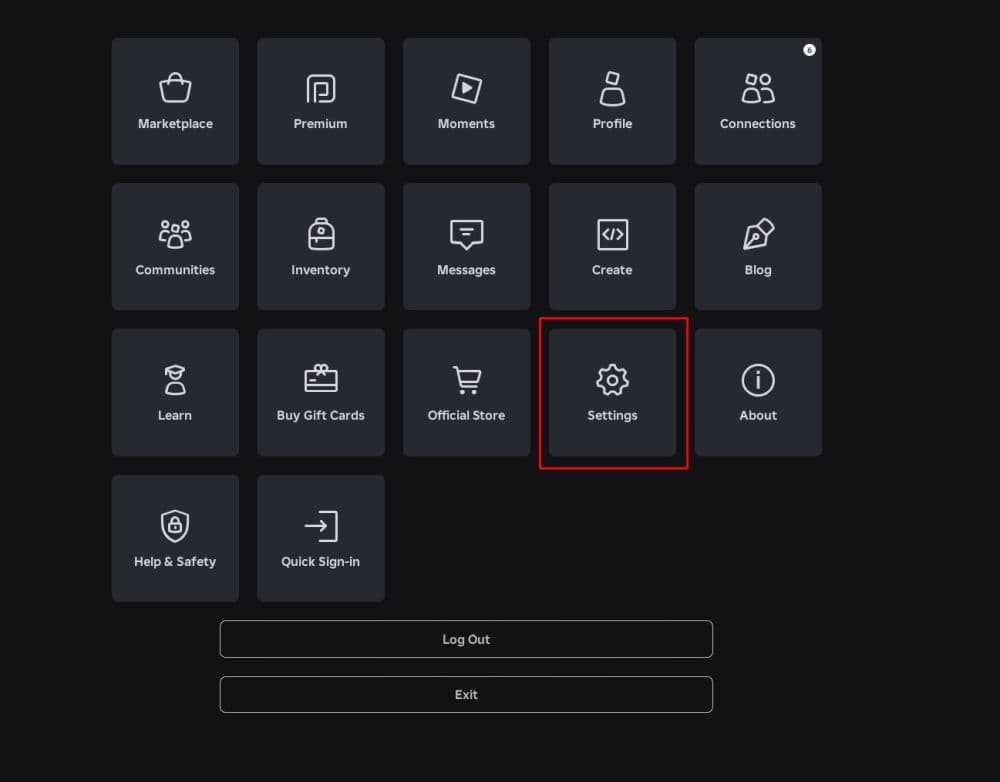
- Click the More icon (three dots) in the left menu.
- Click Settings.
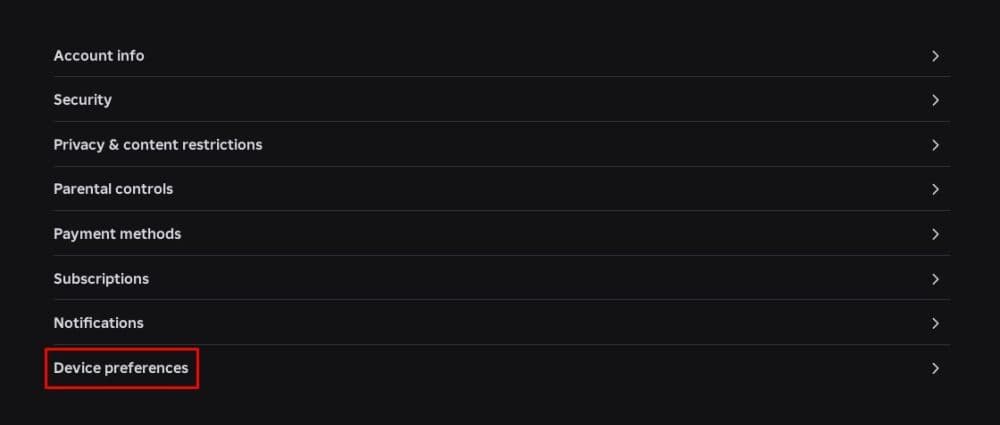
- Open Device preferences.
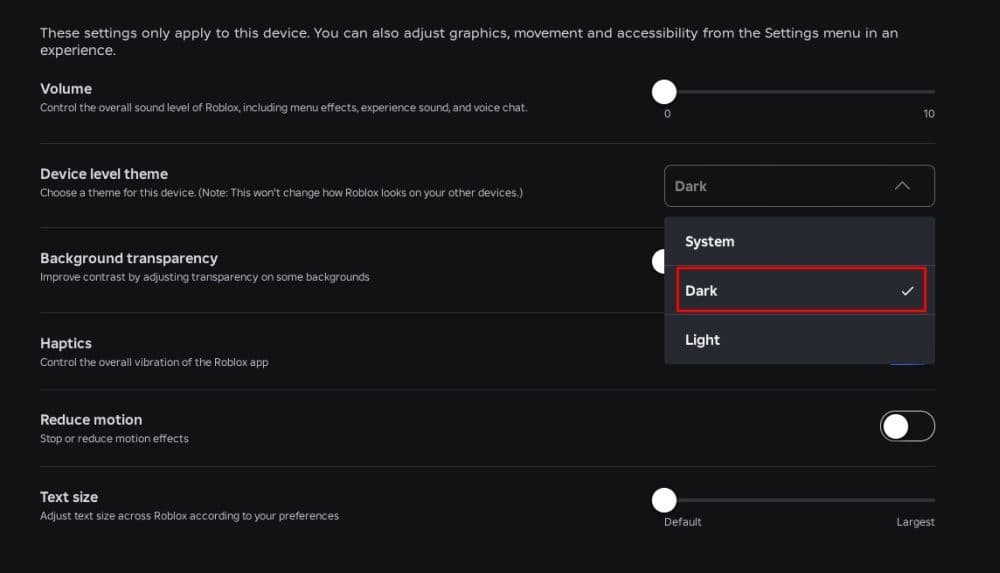
- Find Device level theme.
- Select Dark (or select System).
Quick tips:
- Roblox applies the change only on that computer.
- If you use multiple Windows accounts, each account can show different theme behavior.
Mobile app (iOS and Android)
- Open Roblox and log in.
- Tap More.
- Tap Settings.
- Tap Device preferences.
- Open Device level theme.
- Select Dark (or select System if you want Roblox to follow your phone theme).
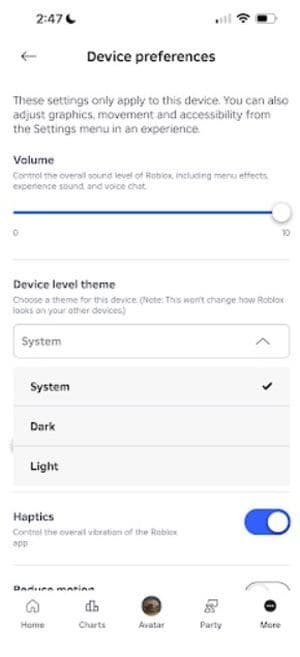
Quick tips:
- Roblox changes the theme only on the phone or tablet you use.
- If you choose System, turn on Dark appearance in iOS or Android settings too.
Web browser (Chrome, Safari, Firefox, Edge)
- Go to the Roblox website and log in.
- Click the gear icon in the top-right.
- Click Settings.
- Open Browser preferences.
- Find Theme.
- Select Dark (or select System).
Quick tips:
- If you select System, your browser or OS theme can override the look.
- A page refresh often applies the change faster
Why can’t I change Roblox to dark mode
Several common issues can block the theme toggle or make it look like it fails. Use the fixes below in order.
You use the wrong settings area
Roblox splits theme controls by platform. The mobile and desktop apps use Device preferences, while browsers use Browser preferences.
Fix:
- Mobile/Desktop app: Settings, then Device preferences, then Device level theme
- Browser: Settings, then Browser preferences and,Theme
You changed the theme on one device, but not on the one you use now
Roblox saves theme settings per device and per browser. Dark mode does not always sync across every place you log in.
Fix:
- Set Dark mode again on each platform you use.
- Check the exact client you open (mobile app vs browser vs desktop app).
You selected “System,” but your device stays in Light mode
System mode follows your device or browser appearance. If your phone or PC uses Light theme, Roblox will show Light theme too.
Fix:
- Switch Roblox to Dark instead of System, or
- Turn on Dark appearance in your device or browser settings.
Roblox looks mixed, or parts of the UI stay bright
Some screens can look inconsistent after a theme change. This often happens after updates, cached pages, or session glitches.
Fix:
- Refresh the page or restart the app.
- Log out, then log back in.
- Update Roblox to the latest version from the App Store, Google Play, or your desktop installer.
- Clear browser cache if you play on the web, then sign in again.
Which setting should you choose?
If you want the most reliable result, choose Dark. It forces the theme, even if your device switches appearances during the day.
Use System if you want Roblox to match your routine across apps. It works best when you already use OS-level dark mode and you prefer one consistent look on your device.
Looking for more Roblox guides? Start here:
- How to link your Medal account to Roblox: Step-by-step explained
- How to check Roblox play time: How many hours have I played
- What is the Roblox memory dump error and how to fix it
- Latest Roblox One Touch codes (February 2026)
- Latest Roblox Elemental Dungeons codes (February 2026)
Featured Image Credit: Roblox
All Related Guides
 How to get Dark Ring in Roblox Sailor Piece fastLearn how to get Dark Rings fast in Sailor Piece, including Jinwoo boss location, drop rate, respawn timer, an...
 Opera GX Forsaken rewards guide (2026)Opera GX Forsaken rewards guide: unlock exclusive skins, XP Boosters, Killer Chance Tokens, and daily event re...
 All Roblox color codes list & how to use themComplete Roblox color codes guide: BrickColors, RGB values, Color3, HEX conversion, and how to use colors in R...
 Guide to the Roblox Bite By Night x Medal Quest: Get your free Fighter Class skinRoblox Bite By Night x Medal Quest guide: how to unlock the free Fighter Class Skin fast and redeem the reward...
 What is Roblox Reality? A detailed look at Roblox’s new hybrid architectureWhat is Roblox Reality? Learn how Roblox’s new AI-powered hybrid architecture brings photorealistic multiplaye...
 What is Roblox Plus? Benefits, Robux, Premium changes & how to get itWhat is Roblox Plus? Learn benefits, pricing, Robux bundles, Premium changes, private servers, and whether Plu...
 How to cancel Roblox PremiumLearn how to cancel Roblox Premium on mobile, PC, iPhone, and Android with simple steps to stop renewal and av...
 How to change your avatar in RobloxRoblox Avatar Switcher lets you swap saved avatars in game. Learn how it works, where to find it, and how to c...
- 1
- 2
- 3
- 4
- 5
- 6
- 7
- 8
- 9
- 10