How to Fix Rocket League Error 0 on PS5
Another pesky error to deal with if you're on PS5. Here's how to deal with it.
Rocket League is one of the most played competitive games on PlayStation 5. However, some players run into Error 0, which stops them from joining online matches. The good news is that Error 0 is not a permanent failure. Most of the time it happens because of network issues, server problems, or corrupted data. In this guide, we explain what Error 0 means, why it appears, and the best ways to fix it so you can get back into the game!
What is error 0 on Rocket League PS5?
Error 0 is a connection problem between your PS5 and Rocket League’s servers. For beginners, it may be quite intimidating. It blocks you from entering online matches and sometimes shows up after a short loading screen. The issue is not caused by your console but by a failure in communication with Epic Online Services. You may be able to fix it through Rocket League settings.
This error often comes with the message “Having problems communicating with Epic Online Services. Please try again in a few minutes (Error: 0).”
The main reasons for Rocket League Error 0 on PS5 are:
- Server downtime or maintenance: If Rocket League servers are offline, the game cannot connect.
- Wrong date and time settings: If your console clock is not correct, the server may reject your request.
- Corrupted save data: Damaged local files can block Rocket League from syncing with online services.
- Network restrictions: Strict NAT type, poor Wi-Fi, or router issues can prevent stable connections.
- Account or login issues: An inactive or unsigned Epic Games account can also cause the error.

How to Fix Rocket League Error 0 on PS5
If you see Error 0 on your PS5, try the solutions below. Work through them one by one until the problem is gone.
Check Rocket League server status
Before changing anything, make sure the servers are working.
- Visit the Epic Games Status page or check Rocket League’s official Twitter account.
- Look for server outages or scheduled maintenance updates.
- If servers are down, you only need to wait until they go live again.

Set the correct date and time on your PS5
Incorrect system time is a common reason for Error 0.
- Go to Settings > System.
- Select Date and Time.
- Turn on Set Time Automatically and Set Time Zone Automatically.
- If the time is still wrong, set it manually and save changes.
Enable daylight saving adjustments if your region uses them.

Delete Rocket League save data
Corrupted save data can block the connection. Back up your files to cloud storage before removing them.
- Open Settings > Storage.
- Select Saved Data.
- Find Rocket League.
- Delete the saved files.
- Restart the game and allow it to sync again with the cloud.
This often fixes the issue without losing long-term progress.
Restart your router
A quick network refresh solves many connection problems.
- Power off your router.
- Unplug it for at least 30 seconds.
- Plug it back in and turn it on.
- Reconnect your PS5 to the internet.
If possible, use a wired Ethernet cable for a stronger connection.
Change your NAT type
NAT settings control how your console communicates with servers. A strict
- NAT can block Rocket League.
- Log in to your router settings using its IP address.
- Go to advanced network settings.
- Enable UPnP (Universal Plug and Play) if it is disabled.
- If it is already enabled, try port forwarding for Rocket League. Use TCP 1935, 3478–3480 and UDP 3074, 3478–3479.
- Save the settings and restart your router.
Switching to an open or moderate NAT type usually improves connectivity.
Disable restrictive networks
If you play on a school, office, or public Wi-Fi, network restrictions may block Rocket League. Test the game on a home Wi-Fi or mobile hotspot to confirm if the error is related to your network.
Reinstall Rocket League
If none of the above fixes work, reinstalling the game can clear hidden corrupted files.
- From the PS5 home screen, highlight Rocket League.
- Press Options and choose Delete.
- Download and install the game again from the PlayStation Store.
A clean install often removes leftover files that block connections.
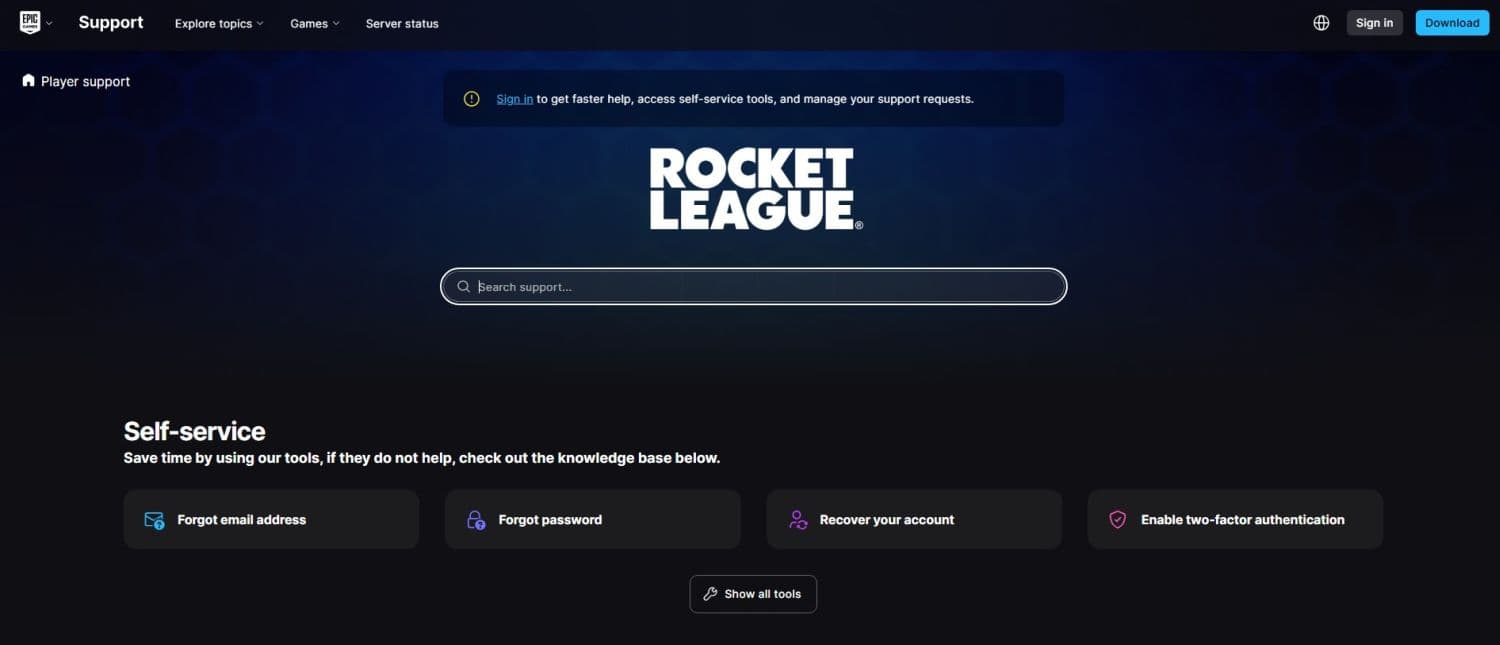
Contact Rocket League support
If you still see Error 0 after trying all steps, reach out to Rocket League support. Provide your PlayStation Network ID, details about the error, and the troubleshooting steps you already tried. They may guide you through additional fixes or confirm if the issue is server-side.
Why can't I connect to Rocket League servers on PS5?
Many players struggle to connect to Rocket League servers on PS5 because the game requires a stable and open network path. If your internet is unstable or your NAT type is strict, the servers may reject the connection.
Rocket League Error 0 on PS5 is annoying, but it is usually simple to fix. The best approach is to first confirm server status, then test your home network and check for any corrupted data or account conflicts.
By checking the servers, correcting your console time, restarting your router, and clearing corrupted data, you can resolve most cases. More guides for you to check out:
- Rocket League Lightning McQueen: Price, hitbox & how to get it
- A guide to Rocket League Nissan Fairlady Z: Price, hitbox & availability
- How to get the Cybertruck in Rocket League? Is it still possible?
- How to get Fennec in Rocket League for free on PS5, PS4 and more
- 10 best Rocket League workshop maps and how to get one
Featured Image Credit: Rocket League
Guide Categories
All Related Guides
 Did Rocket League get stuck on “Press any button to start”? Here is how to fix it on PCRocket League stuck on press any button to start? Try these PC fixes for cache, files, login issues, controlle...
 Rocket League codes (July 2026): All active redeem codes & free rewardsLooking for Rocket League codes? Redeem all active Rocket League redeem codes to unlock free Player Titles, th...
 How to get Jynxzi Rocket League skin & moreLearn how to get the Jynxzi Rocket League decal, title, and exclusive rewards through the Season 23 community ...
 How to fix latency variation in Rocket LeagueLearn how to fix Rocket League latency variation with Ethernet, CSTS input buffer, correct server region, and ...
 Rocket League TikTok Drops guide: How to get free rewardsRocket League TikTok Drops guide: earn free cosmetics, reward codes, RLCS drops, and learn how to redeem TikTo...
 Guide to the Ratatouille Rocket League EventRatatouille Rocket League event guide: all rewards, challenges, cosmetics, Goal Explosion, and Fortnite integr...
 Rocket League Easy Anti-Cheat (EAC) explainedRocket League Easy Anti-Cheat explained: how EAC works, online requirements, mod support, Linux compatibility,...
 How to play custom maps in Rocket LeagueDiscover how to play custom maps in Rocket League with a quick guide to setup, loaders, and the best maps for ...
- 1
- 2
- 3
- 4
- 5
- 6
- 7
- 8