How to link Rocket League to Fortnite
Linking Rocket League to Fortnite may seem like an abstract idea at first. But hear us out as there are certain perks!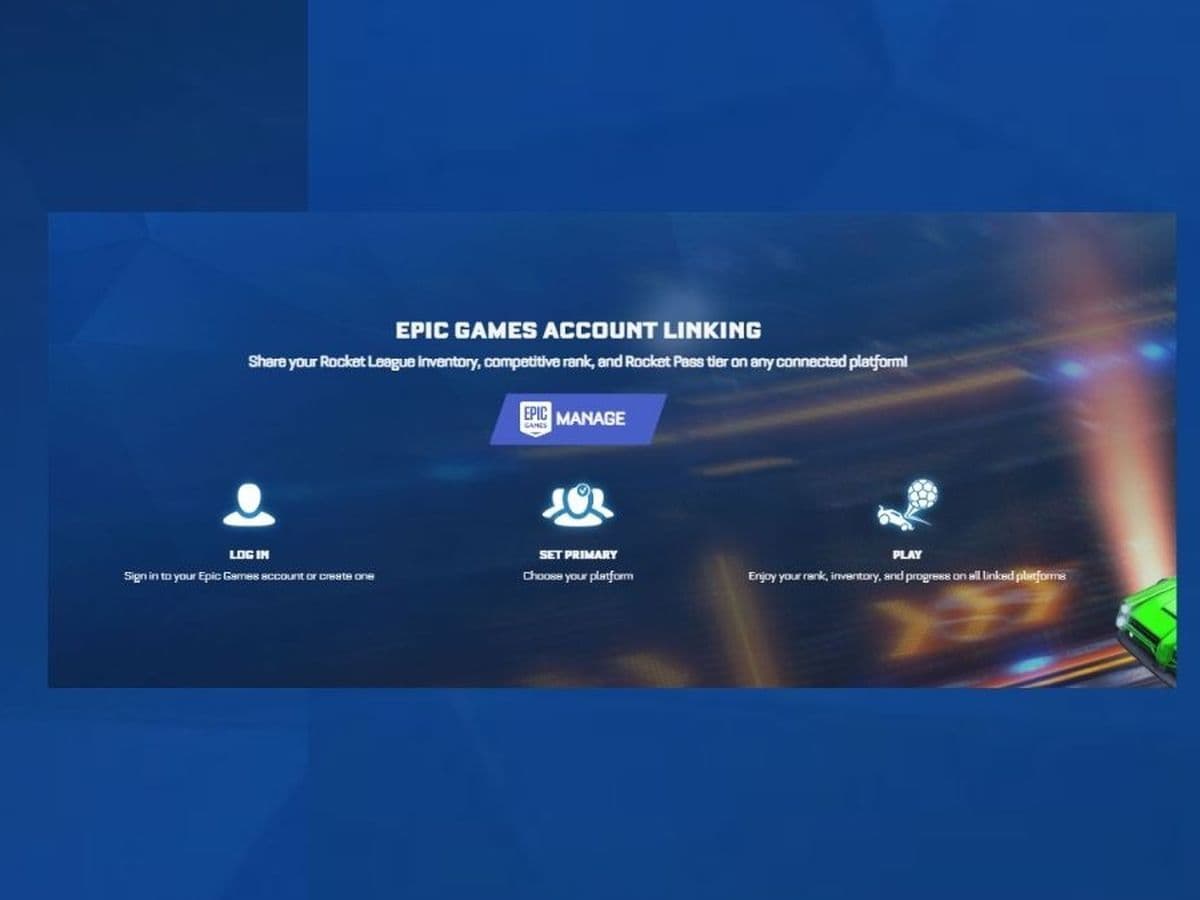
You should learn how to link Rocket League to Fortnite! By doing so, you’ll not only gain access to unique cross-game rewards but also dive into exciting challenges that bridge both universes. Sounds good? Here is everything you need to know about the process.
Why to link Rocket League to Fortnite?
Linking your Rocket League account to Fortnite via your Epic Games account allows you to enjoy cross-game benefits, including sharing certain items and completing challenges that span both games.
How to link Rocket League to Fortnite
Here’s a detailed RL guide on how to link these two popular games together:
Step 1: Create or sign in to your Epic Games account
Before you can link Rocket League and Fortnite, you’ll need an Epic Games account. If you don’t have one yet:
- Visit the Epic Games website: Go to epicgames.com and click on "Sign In" at the top right corner.
- Create an account: If you don’t have an Epic Games account, click on "Sign Up" and follow the prompts to create one. Make sure to provide accurate information, especially your email address, as you’ll need to verify it.
- Sign in: If you already have an account, simply sign in using your credentials.
Step 2: Link your Rocket League account
Once you have your Epic Games account ready, you can proceed to link your Rocket League account:
- Go to the Rocket League activation page: Navigate to rocketleague.com/activate.
- Sign in to your Epic Games account: If you’re not already signed in, you’ll be prompted to do so.
- Link Rocket League to Epic Games: After signing in, you’ll see an option to link your Rocket League account. Follow the on-screen instructions to complete this process.
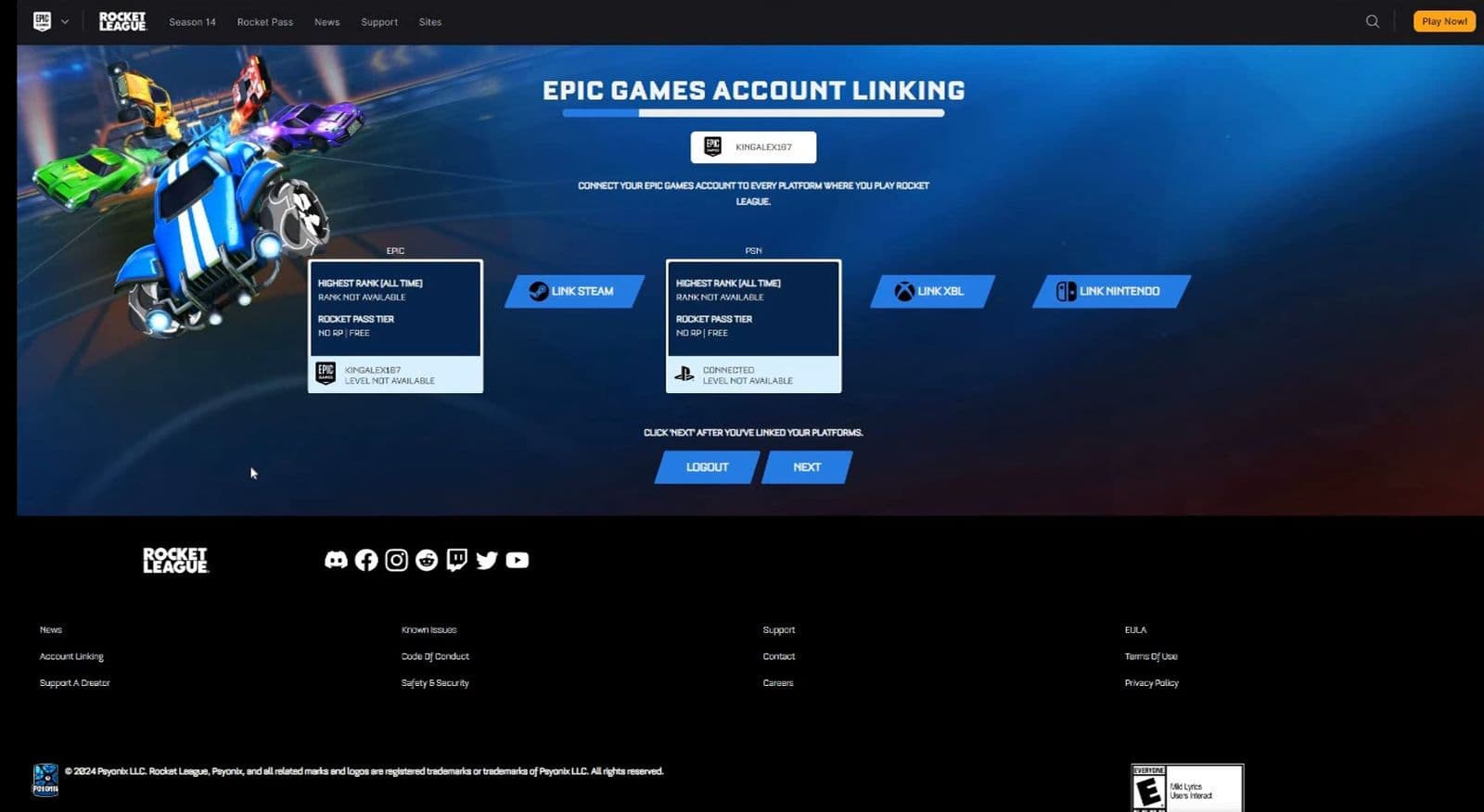
Step 3: Linking Fortnite
Now that your Rocket League account is linked to Epic Games, you need to ensure that Fortnite is also connected to the same Epic Games account:
- Open Fortnite: Launch Fortnite on your preferred platform (PC, console, or mobile).
- Access account settings:
- On PC or Console: Click on the settings menu (usually represented by a gear icon), then navigate to the "Account and Privacy" tab.
- On Mobile: Tap the three horizontal lines at the top right corner of the screen, then go to "Settings" and "Account and Privacy."
- Connect your Epic Games account: In the Account settings, you’ll see an option to connect or link your Epic Games account. If you haven’t already linked Fortnite to your Epic Games account, you’ll be prompted to do so. Sign in with the same Epic Games account you linked to Rocket League.
Step 4: Verify
After linking both Rocket League and Fortnite to your Epic Games account:
- Cross-check in Epic Games Launcher: Open the Epic Games Launcher on your PC and check that both Rocket League and Fortnite are listed under your account. This ensures that both games are properly linked.
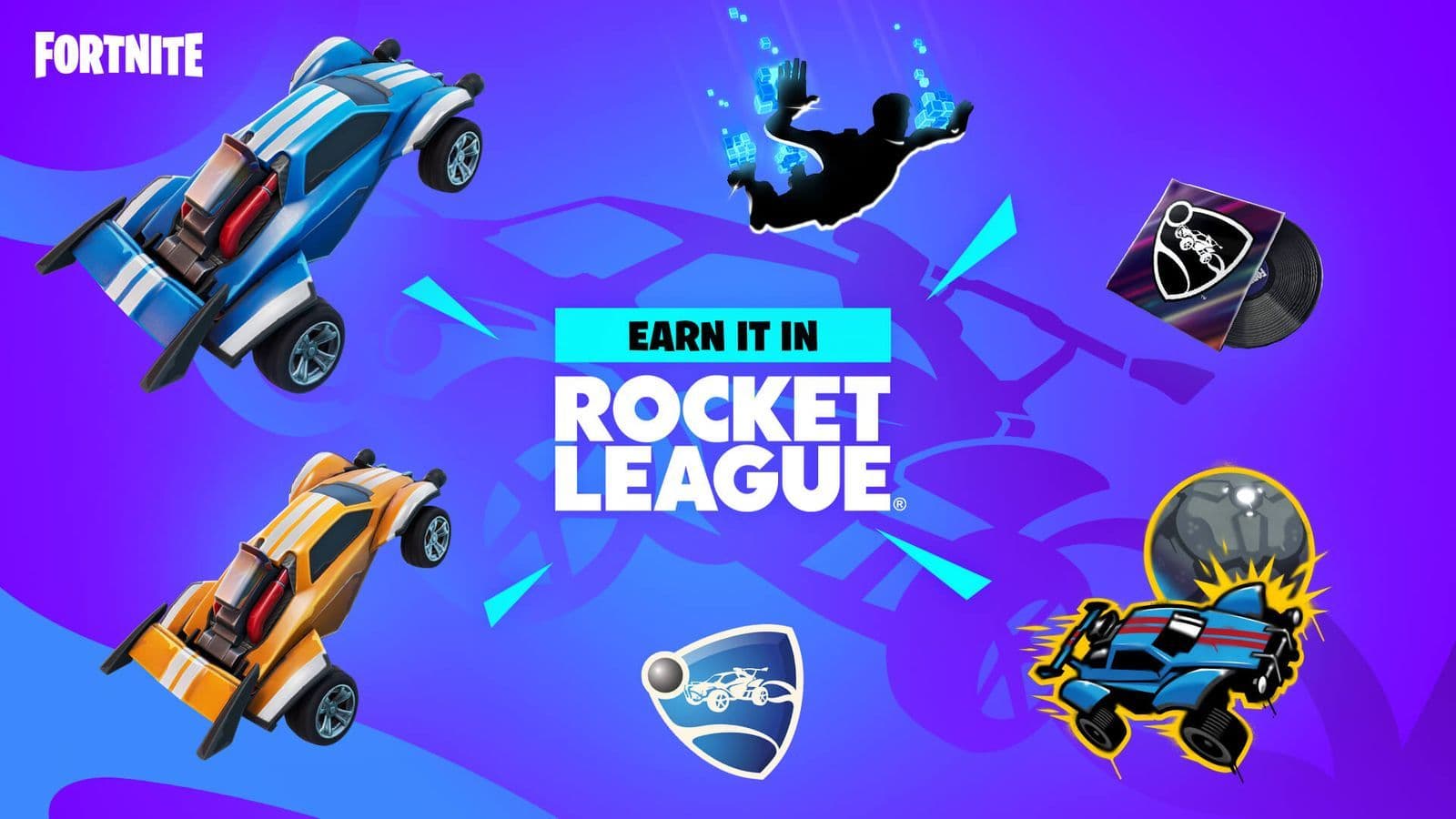
- Access shared content: If there are any cross-game rewards or items (such as the Fortnite Battle Bus in Rocket League), they should now be available in your inventory within the games.
Step 5: Enjoy the benefits
Now that your Rocket League and Fortnite accounts are linked, you can enjoy various cross-game features:
- Shared challenges: Participate in challenges that span both games, earning exclusive rewards.
- Cross-game items: Some items and rewards in Rocket League can be used or unlocked through Fortnite, and vice versa.
- Unified account management: Manage your gaming experience through your Epic Games account, with all linked games easily accessible.
By following these steps, you’ll easily link your Rocket League account to Fortnite via Epic Games, allowing for a unified experience across both games.
Things you should know
First, your Shared Inventory will combine items from all linked Rocket League platforms. You can use these items across different platforms, but new items earned will stay with your primary account’s platform. So, pick your primary account carefully.
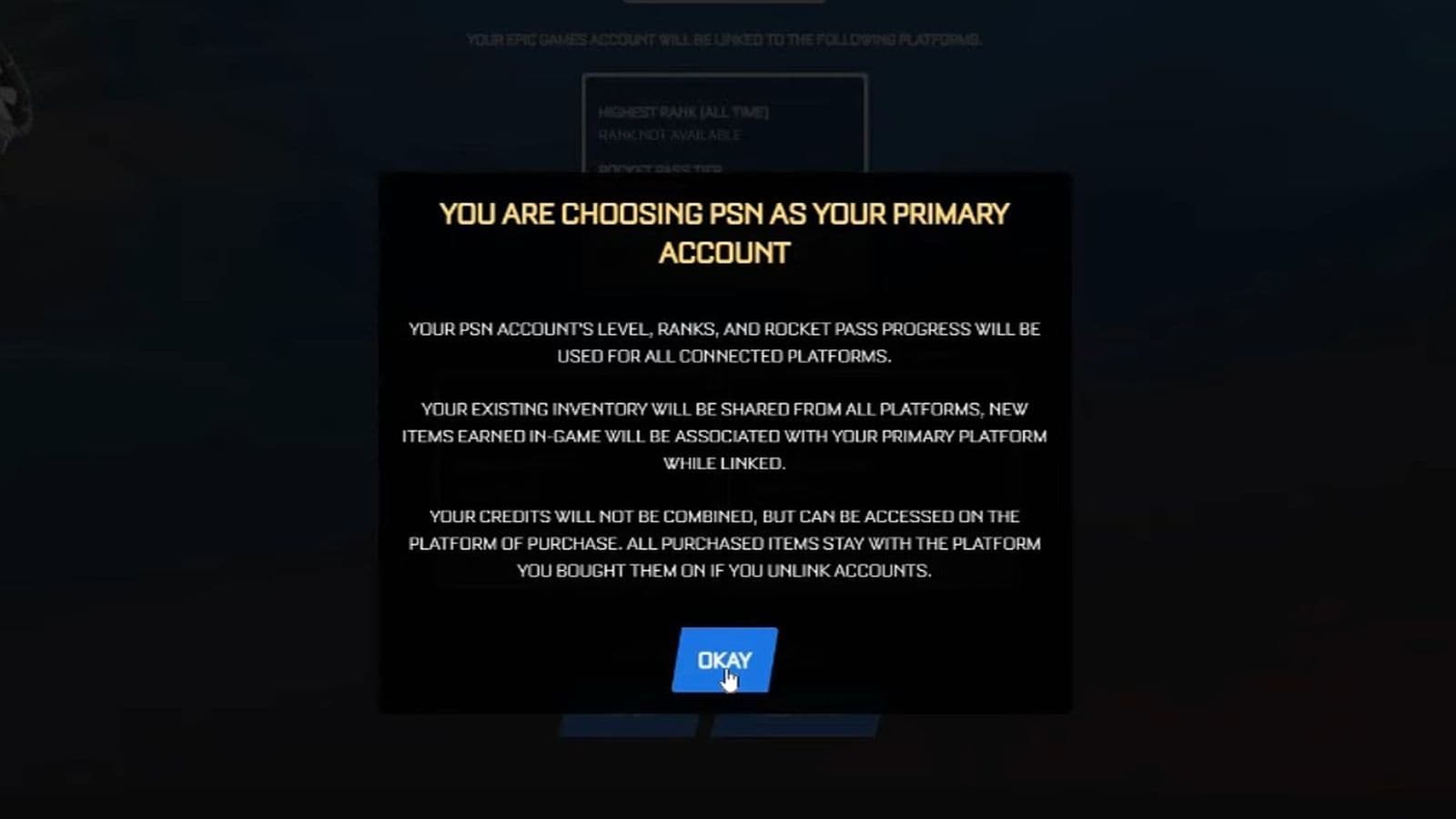
Credits and Esports Tokens won’t combine across platforms. You can only access these on the platform where you bought them, so remember this if you play on multiple devices.
Also, Platform-Specific Items remain tied to the original platform where they were earned. These items won't be available on other platforms, so they’ll only show up when you play on the device where they were originally acquired.
Finally, you can only change your Primary Account once every 24 hours. Your primary account’s level, ranks, and Rocket Pass progress will be used across all linked platforms, so choose wisely.
These points will help you manage your linked accounts and enjoy a smoother gaming experience.
FAQS
How do I transfer Rocket League items to Fortnite?
To move items between Rocket League and Fortnite, both games must be connected to the same Epic Games account. Here’s how to do it:
- Go to the Epic Games account website.
- Sign in to your account.
- Link your Rocket League and Fortnite accounts.
- Open Fortnite. If your accounts are linked, the items that work in both games will show up in your Fortnite Locker.
What Rocket League items can I use in Fortnite?
Only specific items work in both games. These include:
- Cars like the Octane, Cyclone, Jäger 619, Diestro, and Lamborghini Huracán STO.
- Wheels and Decals that go with these cars.
More Fortnite x Rocket League items may be added in the future.
Can items be shared both ways?
Yes. Items that work across games will appear in both Rocket League and Fortnite. For example, if you buy the Jäger 619 in Fortnite, it will also show up in Rocket League if your accounts are linked, and vice versa.
Why don’t all my Rocket League items show up in Fortnite?
Some items can’t be used in both games. This includes:
- Licensed content (like branded or event items)
- Platform-exclusive rewards
- Some older DLC items
Also, if your accounts aren’t linked properly, items won’t transfer. Make sure you're signed in with the same Epic Games account on both games.
How can I see which items transferred?
To see what items were moved:
- Open Fortnite and go to your Locker.
- Any Rocket League items that are allowed will show up there.
- In Rocket League, check your Garage for Fortnite items that work in that game.
You don’t need to do anything else — items show up automatically once everything is linked.
Is there a deadline to transfer items?
Some items are only available for a limited time. For example, Rocket Pass or event rewards may stop transferring after a certain date. Always check in-game news or the item’s description to see if there’s a deadline.
Now that you’re familiar with linking Rocket League to Fortnite, there’s still plenty more to explore about Rocket League itself. Dive deeper into the game with insights on:
Guide Categories
All Related Guides
 How to change MPH to KPH in Rocket LeagueLearn how to change MPH to KPH in Rocket League through the Metric setting, switch back to MPH, and learn what...
 How to rank up in Rocket League and what is a good rank?Trying to climb in Rocket League? Learn how ranking works, which skills matter most, and how to make steady pr...
 How to get the JUNKO title in Rocket LeagueTrying to get the Junko title in Rocket League? Here is how the title works, who can earn it, and where BALRIG...
 How to get Rocket League on mobileFind out how to play Rocket League on mobile, where to download Rocket League Sideswipe, and whether it suppor...
 Did Rocket League get stuck on “Press any button to start”? Here is how to fix it on PCRocket League stuck on press any button to start? Try these PC fixes for cache, files, login issues, controlle...
 Rocket League codes (July 2026): All active redeem codes & free rewardsLooking for Rocket League codes? Redeem all active Rocket League redeem codes to unlock free Player Titles, th...
 How to get Jynxzi Rocket League skin & moreLearn how to get the Jynxzi Rocket League decal, title, and exclusive rewards through the Season 23 community ...
 How to fix latency variation in Rocket LeagueLearn how to fix Rocket League latency variation with Ethernet, CSTS input buffer, correct server region, and ...
- 1
- 2
- 3
- 4
- 5
- 6
- 7
- 8
- 9