What is TAS in Rocket League?
One frame at a time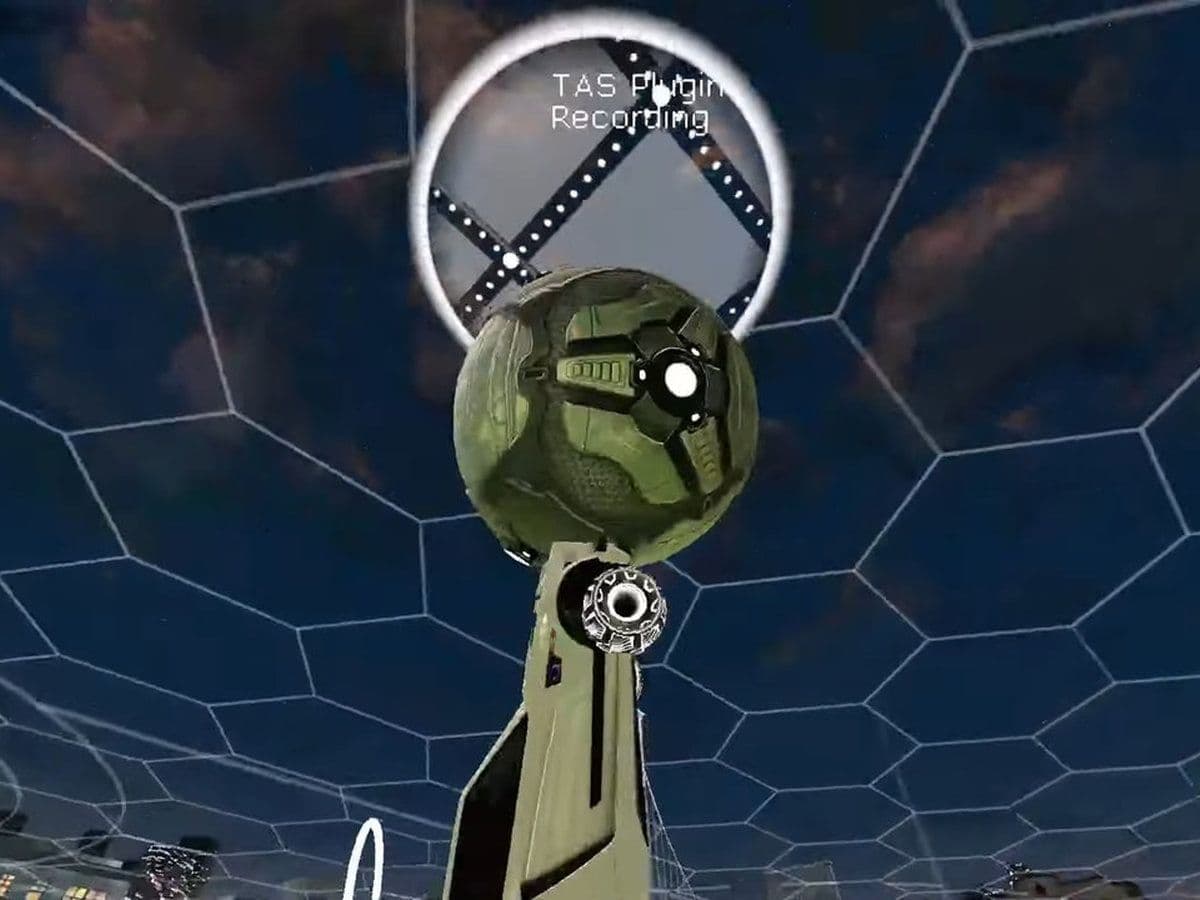
If you have spent time watching high-level Rocket League clips or browsing community discussions, you may have come across the term TAS. Many players are curious about “what is TAS in Rocket League”, how it works, and whether it is cheating or simply a creative tool.
This Rocket League guide explains exactly what TAS is, how it works, and how players can create and submit their own TAS projects.
What is TAS in Rocket League?
TAS stands for Tool-Assisted Speedrun. It is Rocket League gameplay created with tools that remove human limitations and allow perfect execution. Instead of playing the game in real time like a normal player, an RL TAS creator uses tools to control:
- Frame-by-frame input control: Every movement can be timed exactly. This allows impossible-looking mechanics, such as perfectly chained aerial touches or extreme freestyle shots.
- Save states: Creators can save the game at any moment and reload that exact situation. If something goes wrong, they go back and try again without restarting the entire sequence.
- Input playback: Once the inputs are finalized, the tool plays them back as a smooth, continuous clip. The final result looks like one perfect shot, even though it was built in many steps.
The result is gameplay that is technically possible within Rocket League’s physics, but far beyond what a human can execute live.
Each action can be adjusted down to a single frame. This makes TAS gameplay far more precise than anything a human can do live.
Is TAS cheating in Rocket League?
TAS is not cheating when used offline or for content creation. It becomes cheating only if someone tries to use similar tools in online or competitive modes.
How to create a TAS in Rocket League
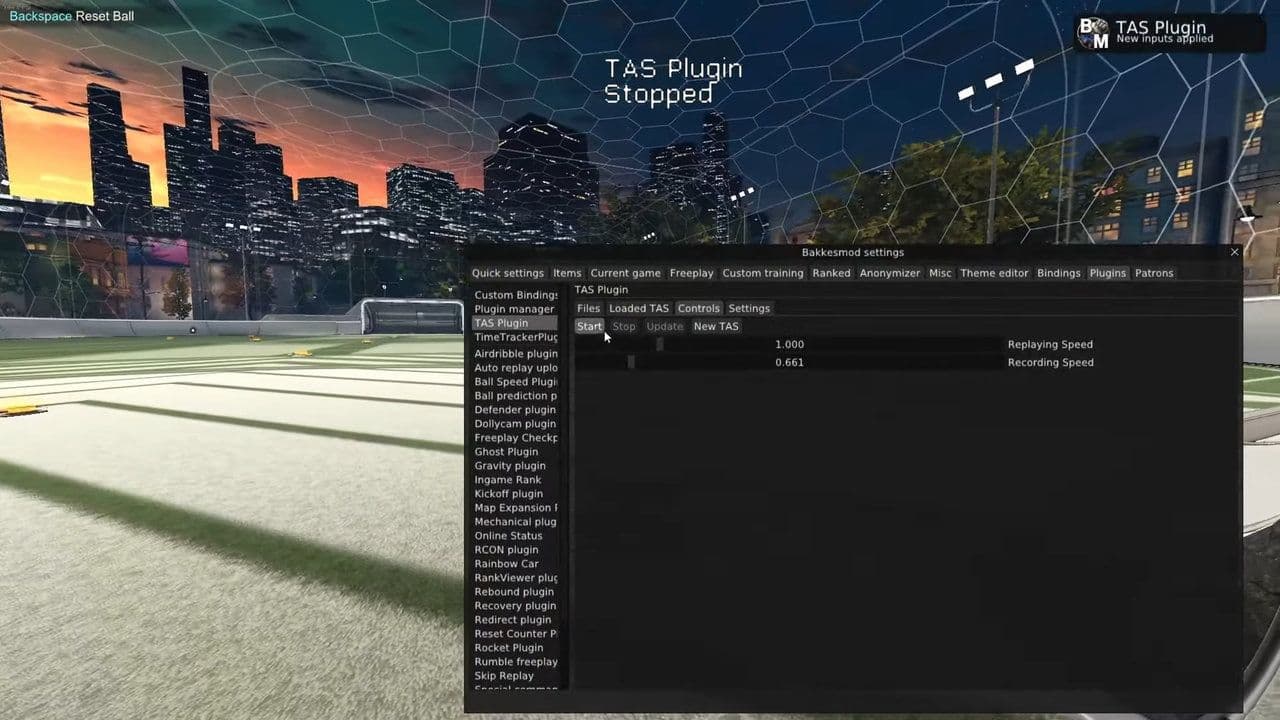
Here is how to use the TAS plugin to create your own project:
- Load a map: Open Freeplay or a custom map where you want to create your TAS.
- Create a new TAS: Open the TAS plugin → go to Controls → click New TAS and name it. This saves your current car and ball position as the starting point.
- Set speeds: Choose your replay and record speeds in the Controls tab.
- Configure inputs: In the Settings tab, select which inputs will switch from replay to recording.
- Start recording: Click Start in the Controls tab to replay the TAS and begin recording a new segment.
- Stop and update: Click Stop, then Update if the segment looks good.
- Repeat and save: Repeat until finished, then click Save TAS in the Loaded TAS tab. Saved TAS files appear under the Files tab.
Keep in mind that a TAS expects specific hitbox types and sensitivity settings. If they do not match, the TAS will not replay.
TAS keybinds
You can also control TAS using console binds instead of the GUI:
Where perfect precision meets creative limits
To fully answer “what is TAS in Rocket League?”, it is best described as a tool-assisted method of pushing the game to its absolute limits. TAS is not competitive gameplay, and it is not meant to replace skill. Instead, it exists to explore Rocket League’s physics, inspire creativity, and show what is possible when precision is perfect.
That’s all for today! Looking for more Rocket League guides? Check out these:
- Rocket League Lightning McQueen: Price, hitbox & how to get it
- A guide to Rocket League Nissan Fairlady Z: Price, hitbox & availability
- How to get the Cybertruck in Rocket League? Is it still possible?
- How to get Fennec in Rocket League for free on PS5, PS4 and more
- 10 best Rocket League workshop maps and how to get one
Guide Categories
All Related Guides
 How to rank up in Rocket League and what is a good rank?Trying to climb in Rocket League? Learn how ranking works, which skills matter most, and how to make steady pr...
 How to get the JUNKO title in Rocket LeagueTrying to get the Junko title in Rocket League? Here is how the title works, who can earn it, and where BALRIG...
 How to get Rocket League on mobileFind out how to play Rocket League on mobile, where to download Rocket League Sideswipe, and whether it suppor...
 Did Rocket League get stuck on “Press any button to start”? Here is how to fix it on PCRocket League stuck on press any button to start? Try these PC fixes for cache, files, login issues, controlle...
 Rocket League codes (July 2026): All active redeem codes & free rewardsLooking for Rocket League codes? Redeem all active Rocket League redeem codes to unlock free Player Titles, th...
 How to get Jynxzi Rocket League skin & moreLearn how to get the Jynxzi Rocket League decal, title, and exclusive rewards through the Season 23 community ...
 How to fix latency variation in Rocket LeagueLearn how to fix Rocket League latency variation with Ethernet, CSTS input buffer, correct server region, and ...
 Rocket League TikTok Drops guide: How to get free rewardsRocket League TikTok Drops guide: earn free cosmetics, reward codes, RLCS drops, and learn how to redeem TikTo...
- 1
- 2
- 3
- 4
- 5
- 6
- 7
- 8
- 9