How to name the bomb in CS2
Naming weapons in CS2 is one thing, but what about naming the bomb?ON THIS PAGE:

How to name the bomb in CS2? It is a feature that adds a personal touch to your gameplay and allows you to stand out in a match, much like renaming your weapons if you are ready to pay a slight gimmick.
What do you need to know before renaming the bomb?
Before diving into this CS2 guide, here are a few things you need to know:
- It’s Safe: Renaming the bomb won’t get you banned. It’s purely a cosmetic change.
- Requires a Nametag: Just like renaming weapons, you’ll need a nametag. If you don’t have one, you’ll have to purchase it through the CS2 marketplace.
- Visibility: Once renamed, the name of your bomb will appear in your inventory, and it will be visible in-game when you plant it.
Now, let’s get into the step-by-step process!
How to name the bomb in CS2
The first thing you need to do is make sure you can see the bomb (C4) in your inventory. Here’s how:
- Open CS2 and go to your inventory screen.
- Disable the "Hide Default Items" option if it’s enabled. This ensures all default equipment, including the bomb, is visible.
- If you still can’t find the bomb, use the filter options to narrow down your inventory to show specific items like knives or explosives. This should make it easier to locate the C4.
To rename the bomb, you will need a nametag. Here’s how you can get one:
- Visit the CS2 Marketplace: Nametags are sold in the CS2 market for a small fee, or you may have one in your inventory if you’ve purchased them previously.ü
- Purchase a Nametag: If you don’t already have a nametag, buy one. It’s essential for renaming any item in CS2, including the bomb.
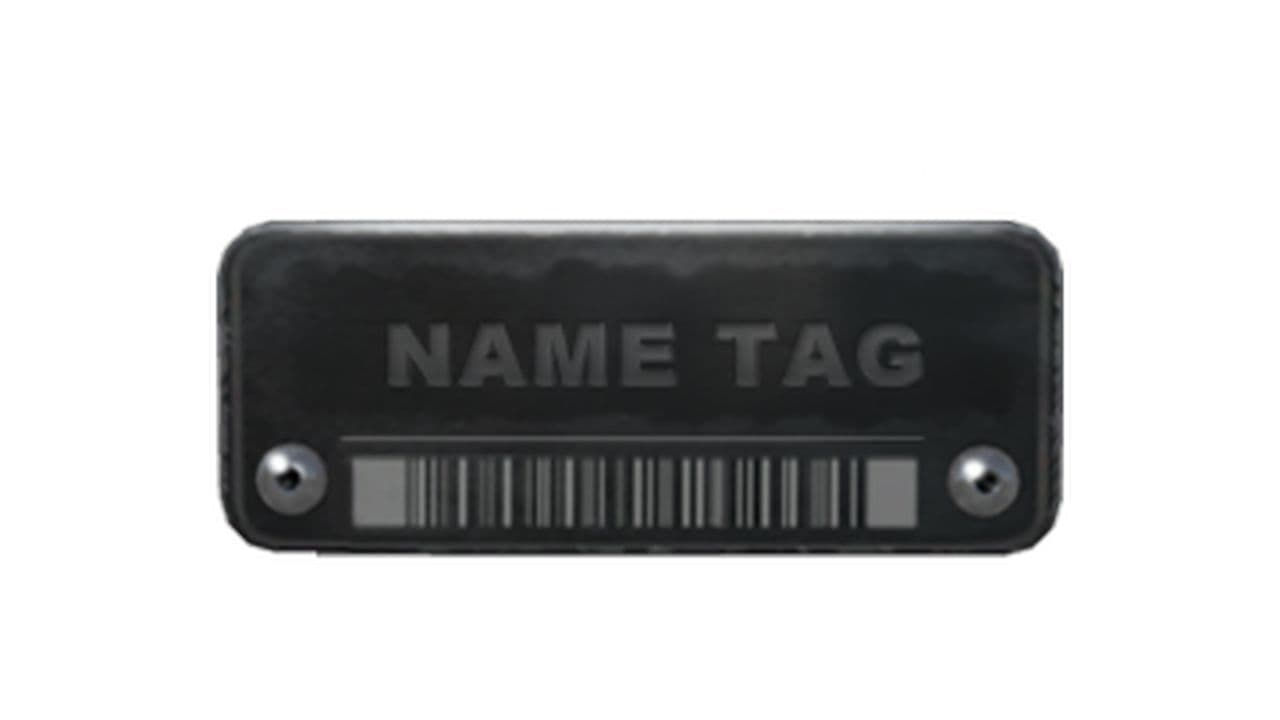
Once you have your nametag ready, you're all set for the next step. Now that the bomb is visible in your inventory and you have a nametag, you’re ready to rename it.
- Locate the Bomb in Your Inventory: Go to your inventory and find the bomb (it may appear as "C4 Explosive" or simply "C4").
- Right-click on the Bomb: When you right-click the bomb, a menu will appear.
- Select "Rename": From the menu, select the option to rename the bomb.
- Enter Your Chosen Name: A text box will pop up, allowing you to type in the new name for your bomb. You can be creative here—whether you want something humorous, intimidating, or personal, the choice is yours!
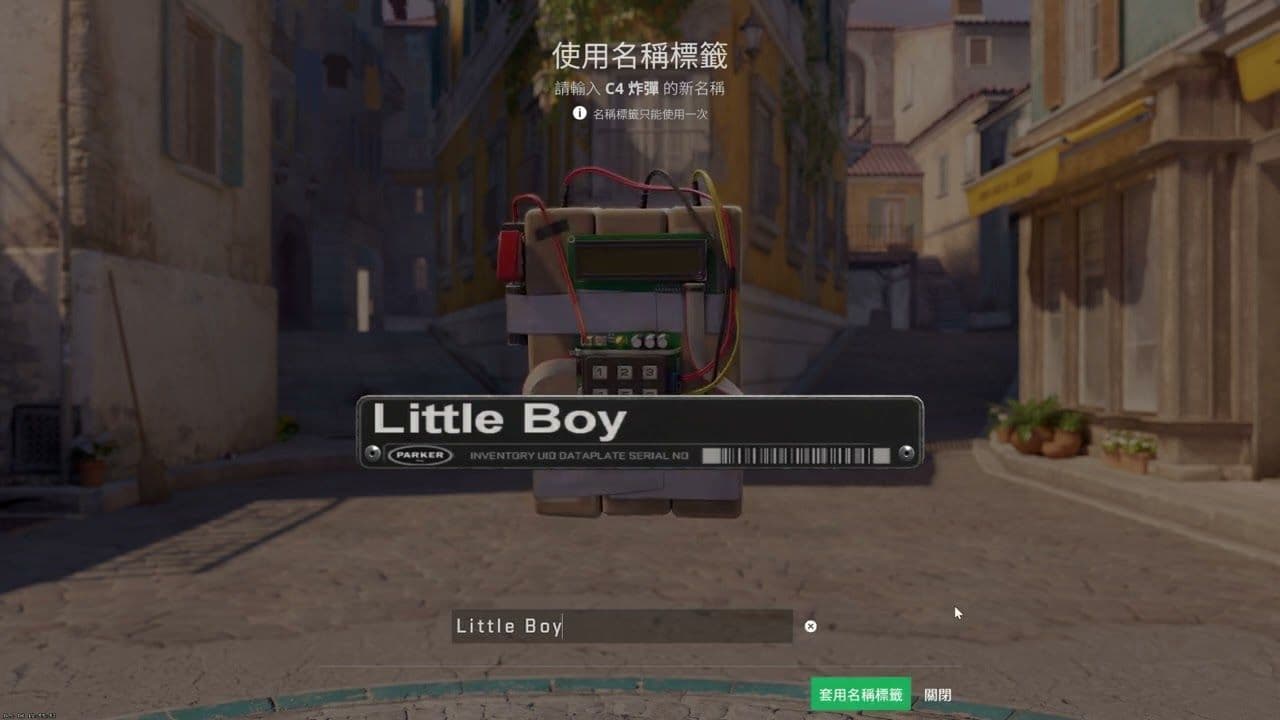
Once you've renamed the bomb, you'll need to make sure it’s equipped for use in your matches.
- Go Back to Your Inventory: After renaming the bomb, locate it in your inventory once again.
- Right-Click and Equip: Right-click the renamed bomb and choose the option to “Equip” or "T Replace C4 Explosive." This ensures that your newly named C4 is what you’ll use during matches.
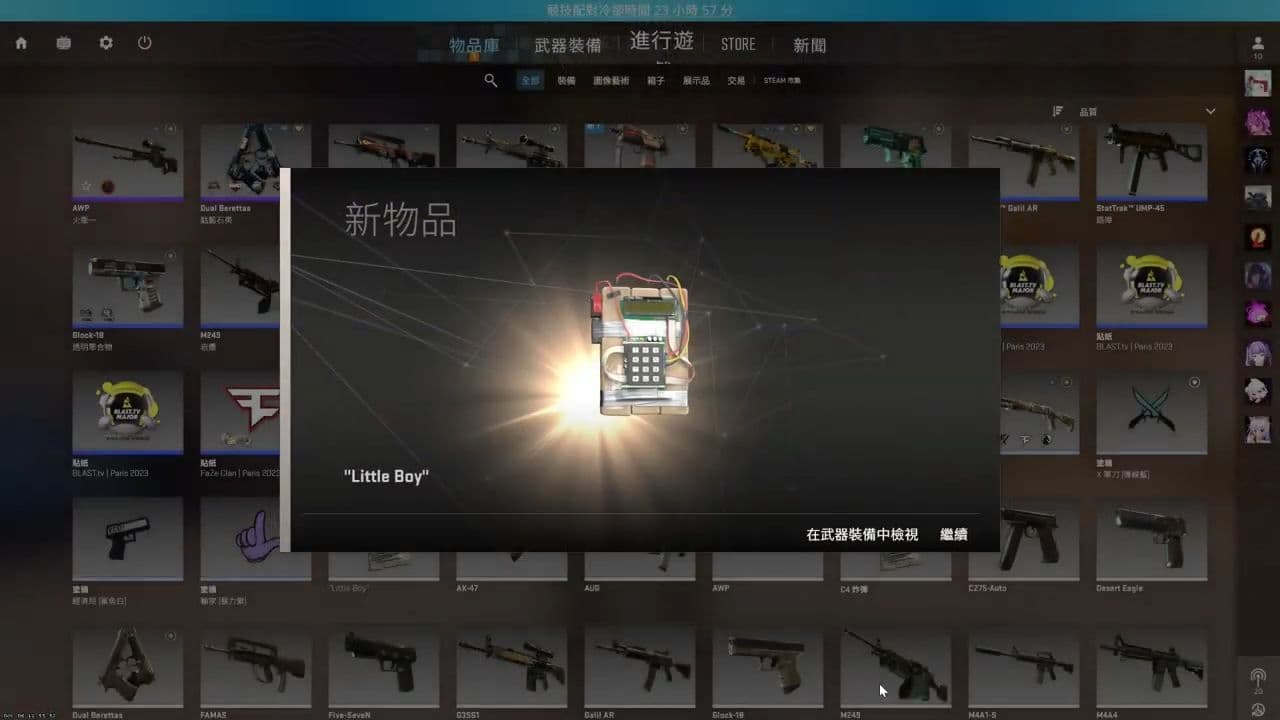
That’s it! You’ve now successfully renamed your bomb in CS2. Next time you play, your personalized C4 will be visible when you plant it, and you can enjoy seeing your custom name whenever the bomb is active.
What is the bomb called in CS2?
In CS2 the bomb is called the C4 Explosive, or simply C4. It is the main objective for the terrorist side in matches.
What is the CS2 bomb code?
The bomb in CS2 always shows the code 7355608 during planting and defusing. This number does not affect the game and players never need to enter it. It only appears as part of the display when the bomb is active. Many fans have created theories about the meaning of the number. Some believe it is a reference to hidden messages or leetspeak phrases, while others think it is only a small detail with no deeper purpose. Valve has never explained the true reason for the code, so it remains a mystery for the community.
It’s time to jump back into the game and enjoy your new, customized experience! If you run into any problems or have any questions, reach out to Steam Support.
Featured image credit: /alyax via sketchfab.com
All Related Guides
 Valve introduced Animgraph 2 for CS2 and here are all of the changesAnimgraph 2 is now live in CS2. Here is what changed, how it affects weapon animations, and what players shoul...
 How to change FOV in CS2: Best viewmodel commandsChange your CS2 FOV the right way with simple console commands, viewmodel settings, and clear tips for better ...
 New CS2 music kits: Guide to NIGHTMODE II CollectionNew CS2 music kits guide: NIGHTMODE II collection, all tracks, MVP anthems, artists, and best kits for every p...
 nocries CS2 settings: The Faceit prodigyFind the latest nocries CS2 settings with his DPI, sensitivity, stretched resolution, viewmodel, and crosshair...
 How to copy a crosshair in CS2Copy a crosshair in CS2 in seconds with this simple guide covering share codes, settings, and easy fixes for i...
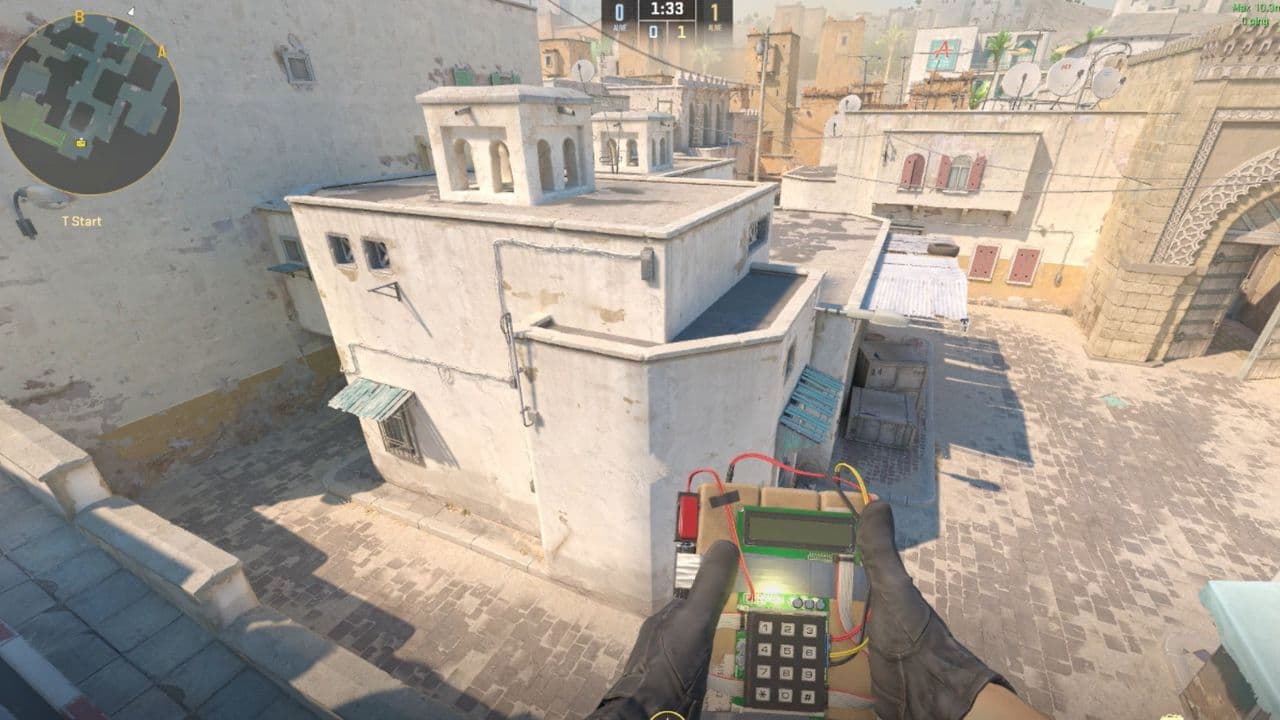 How to bind noclip in CS2Want to know how to bind noclip in CS2? This guide explains the command, setup steps, and common fixes in a cl...
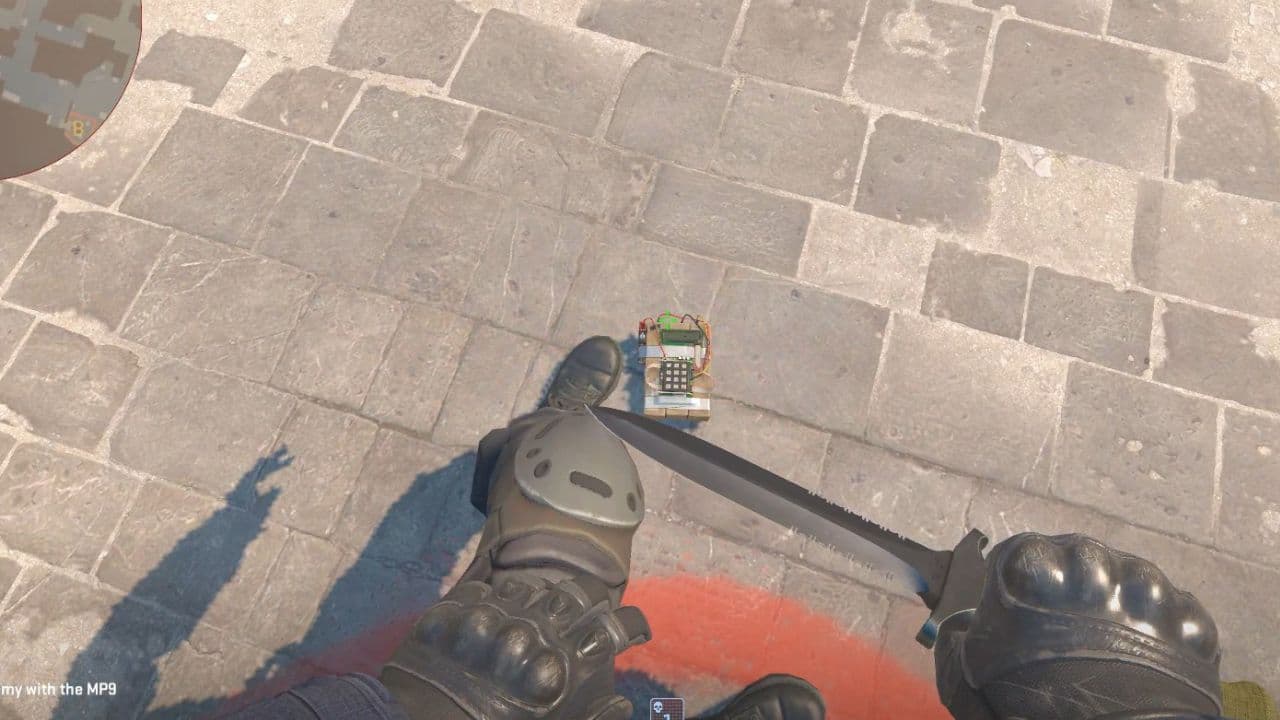 How to defuse the bomb in CS2 and what to do if you can’t defuse itWondering how to defuse bomb in CS2? This guide explains the defuse key, bomb timer, kit timing, and why defus...
 Why is my FPS low and how to boost FPS in CS2: Guide for older and problematic systemsLearn how to boost FPS in CS2 with simple settings, PC tips, and fixes to make Counter-Strike 2 run smoother a...
- 1
- 2
- 3