How to change FOV in CS2: Best viewmodel commands
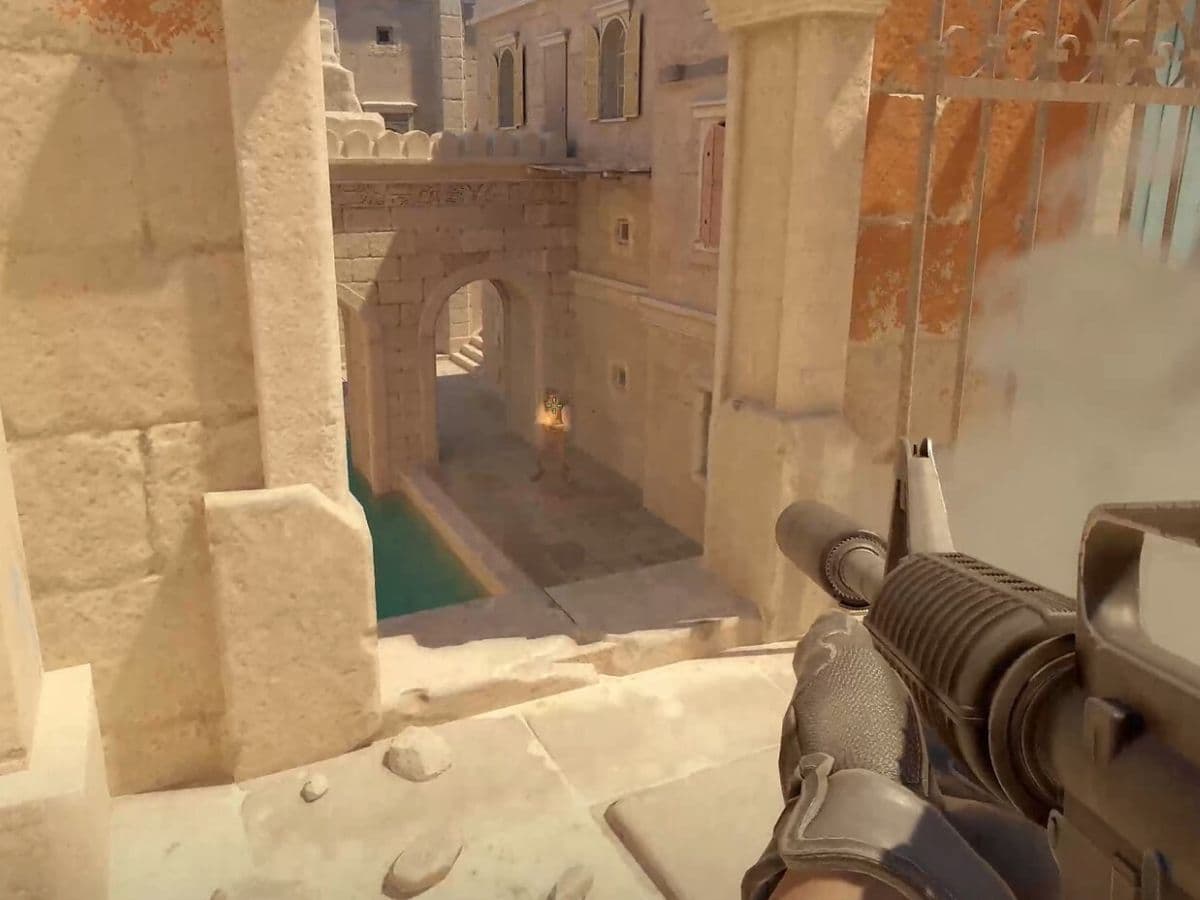
If you want to have a cleaner screen in CS2, you must change your FOV setting and try different setups to see if it improves the way you see the game. CS2 does not give you a normal in-game slider for full camera FOV, so the main option for regular matchmaking is the viewmodel FOV command.
That means you can change how your hands and weapon appear on screen, but you cannot freely widen your real camera view in Premier or Competitive. This guide explains the difference, shows the best CS2 FOV commands, and gives you a simple setup you can test right away.
What is FOV in CS2 and why is it important?
FOV means field of view. In most FPS games, it describes how much of the game world you can see on your screen. A higher FOV usually shows more of the surroundings, while a lower FOV gives a tighter view.
CS2 works differently in normal matches. The setting most players use is viewmodel FOV, which changes the position and size of your hands and weapon. It does not change your real vision of the map.
This matters because the weapon model can block part of your screen. A better viewmodel can make your screen feel cleaner, especially during sprays, corner checks, and close fights.
Viewmodel FOV does not change recoil, bullet spread, hit registration, or damage. It only changes how your weapon appears from your point of view.
How to change FOV and use the best FOV commands in CS2 (Viewmodel)
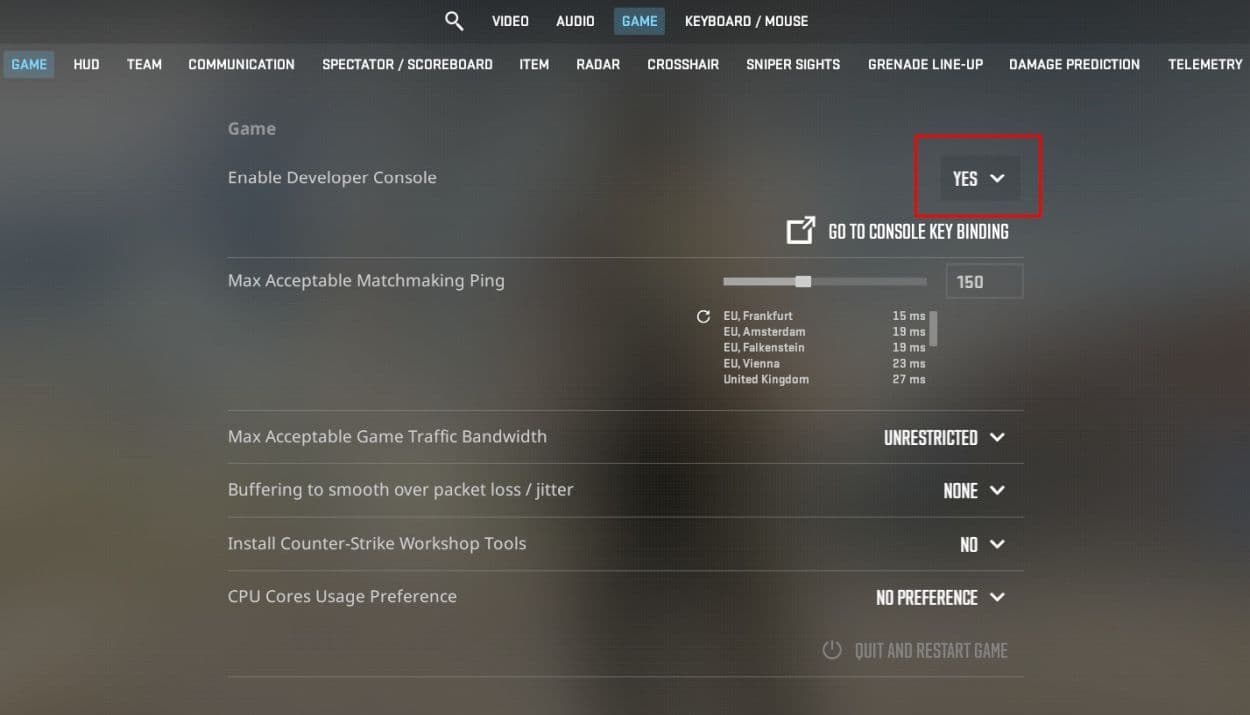
To change FOV in CS2, you need to use the developer console. The most important command is viewmodel_fov.
Follow these steps:
- Open Counter-Strike 2.
- Go to Settings.
- Open the Game tab.
- Find Enable Developer Console.
- Set it to Yes.
- Press the console key, usually ~ or `.
- Type your command and press Enter.
Use this command first:
- viewmodel_fov 68
This sets the viewmodel FOV to the highest normal value. In CS2, viewmodel_fov usually works between 54 and 68. A lower number brings the weapon closer to your screen. A higher number makes the weapon look smaller and farther away.
For most players, 68 is the best starting point because it clears more screen space. It does not give you extra map vision, but it can reduce visual clutter.
You can also adjust the weapon position with offset commands:
- viewmodel_fov 68
- viewmodel_offset_x 2.5
- viewmodel_offset_y 0
- viewmodel_offset_z -1.5
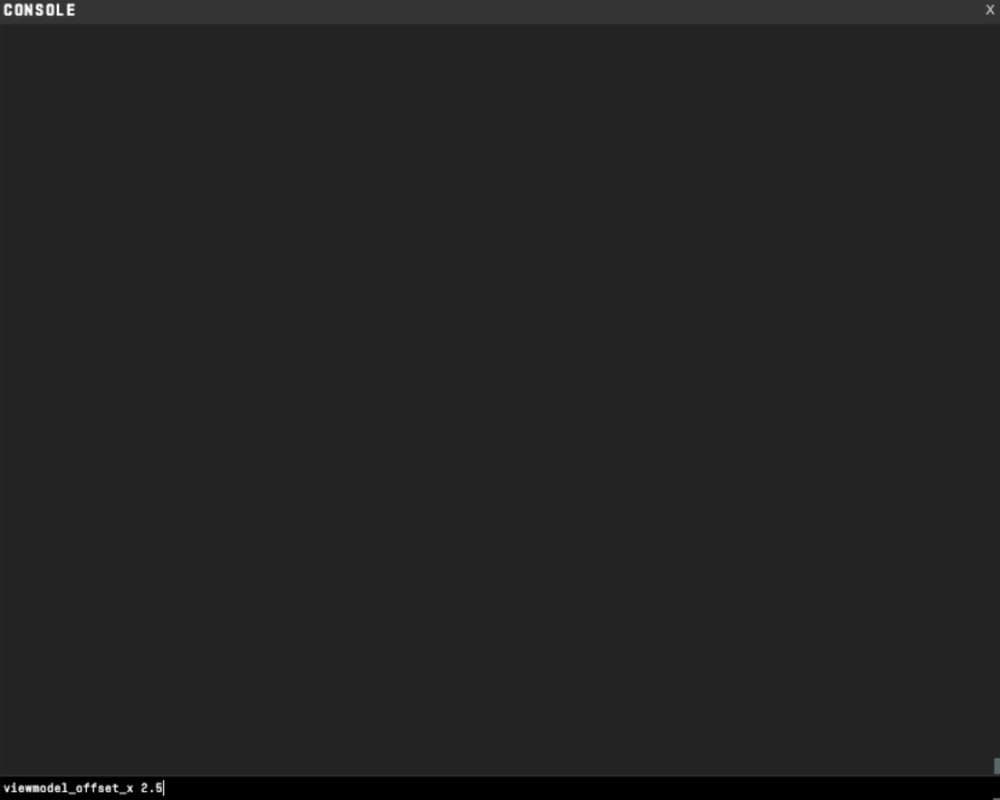
Here is what each command does:
- viewmodel_fov 68 changes the weapon FOV.
- viewmodel_offset_x 2.5 moves the weapon more to the side.
- viewmodel_offset_y 0 keeps the weapon depth neutral.
- viewmodel_offset_z -1.5 lowers the weapon slightly.
A more aggressive clean-view setup looks like this:
- viewmodel_fov 68
- viewmodel_offset_x 2.5
- viewmodel_offset_y -2
- viewmodel_offset_z -2
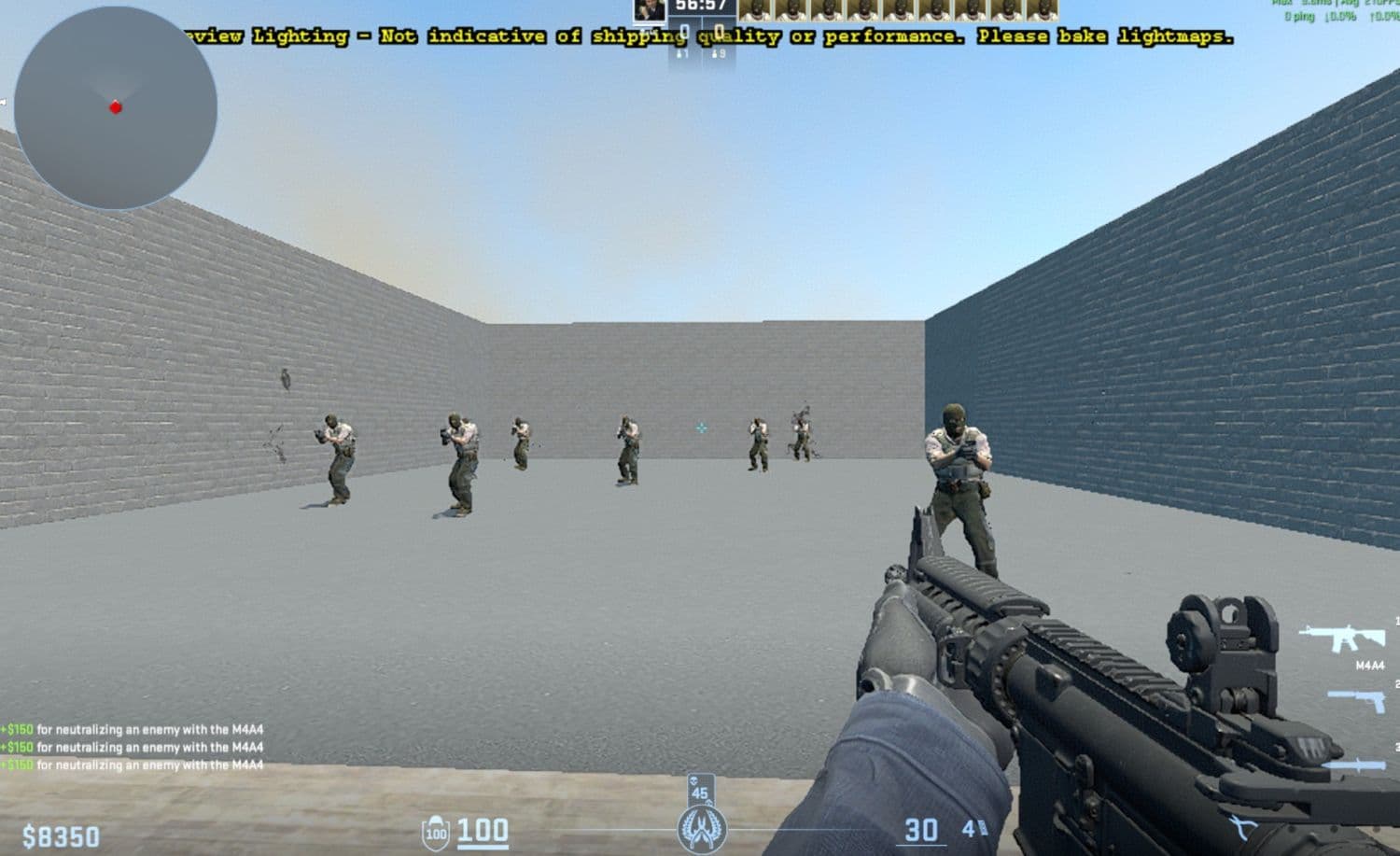
This setup pushes the weapon away from the center and lowers it. Some players like it because it keeps the crosshair area clearer. Others may find it strange at first, so test it in Deathmatch or a practice server before you use it in Premier.
If you want to try different settings, don’t forget to check out our piece on the Faceit prodigy nocries’ CS2 settings!
Can you change real FOV in CS2 matchmaking?
You cannot freely change real camera FOV in normal CS2 matchmaking. The common command viewmodel_fov only changes the weapon and hands. It does not widen your actual view of the map.
There are commands that affect real FOV, such as fov_cs_debug, but they need cheats enabled. That means they only work in private, offline, or cheat-enabled environments. They do not work in official Premier or Competitive matches.
This distinction matters. Many players search for a CS2 FOV command and expect a full camera setting like in other shooters. In CS2, the legal and practical option is viewmodel adjustment.
Best FOV commands in CS2 (Viewmodel)
The best CS2 FOV setting for most players is:
- viewmodel_fov 68
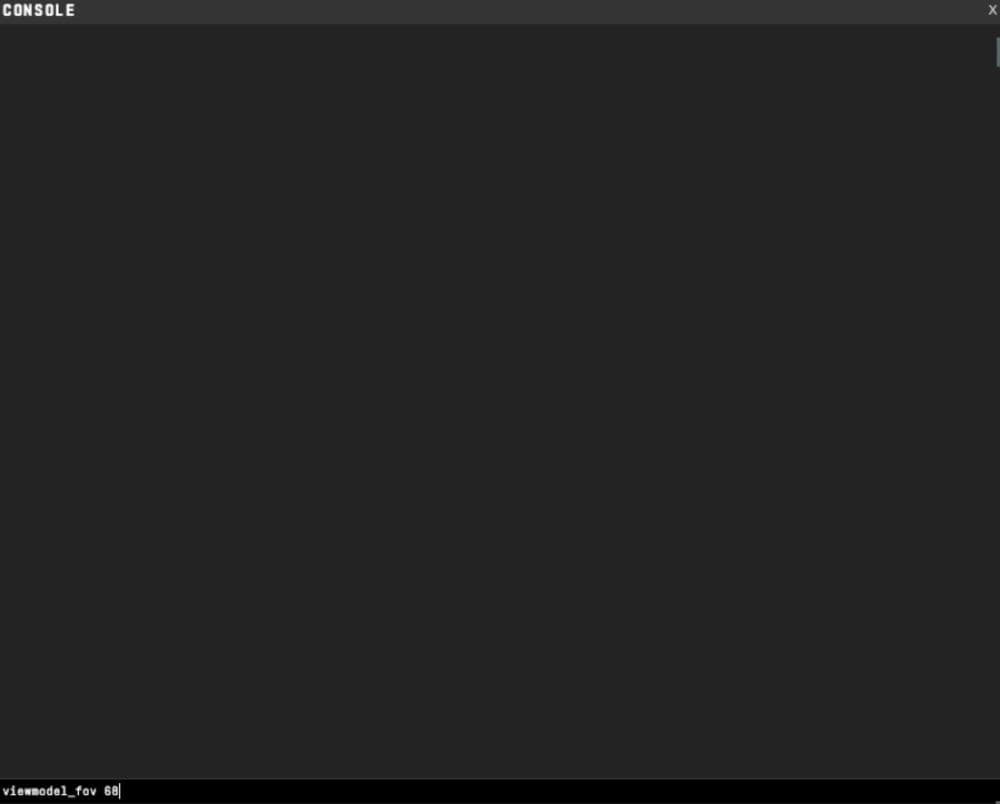
This gives the highest normal viewmodel FOV and makes the weapon appear smaller. It also creates more free space around the center of the screen.
Still, comfort matters. Some players prefer 60 or 64 because the weapon feels closer to the older Counter-Strike style. If 68 feels too far away, lower it step by step.
Try these values:
- viewmodel_fov 60
- viewmodel_fov 64
- viewmodel_fov 68
Play a few rounds with each value. Do not judge the setting from the buy menu or spawn area. Test it while peeking, spraying, and clearing angles.
Does aspect ratio change FOV in CS2?
Aspect ratio can change how the game feels, but it is separate from viewmodel FOV. Players often mix these settings because both affect what they see on screen.
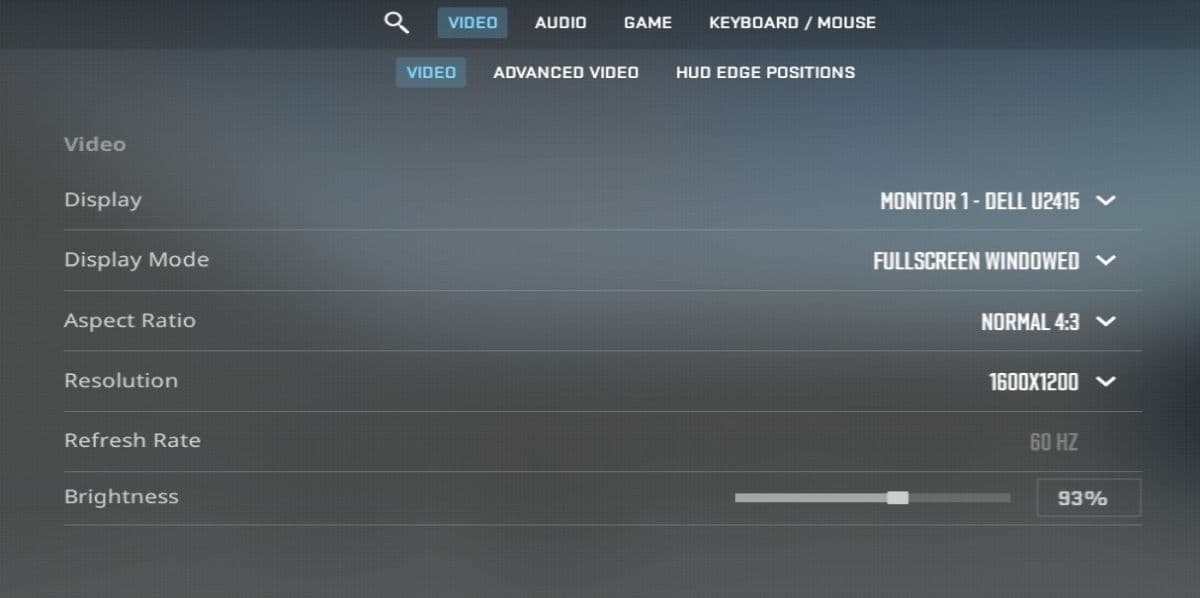
A 16:9 resolution gives a wider screen view. A 4:3 stretched resolution makes player models appear wider, but it reduces side vision. A 16:10 setup sits between the two.
Many CS players use 4:3 stretched because they like the feel and target size. Others prefer 16:9 because it shows more horizontal space. There is no single correct option. Your monitor, aim style, and comfort matter more than copying a pro setting.
How to save your CS2 FOV settings
You can type your commands into the console each time, but saving them makes more sense. Use an autoexec.cfg file if you want CS2 to load your viewmodel settings every time you start the game.
Add your chosen commands to the file:
- viewmodel_fov 68
- viewmodel_offset_x 2.5
- viewmodel_offset_y 0
- viewmodel_offset_z -1.5
Then save the file as autoexec.cfg in your CS2 config folder. You can also add this to your Steam launch options:
- +exec autoexec.cfg
This keeps your setup consistent. It also saves time when you reinstall the game, change PCs, or reset settings.
If you liked this guide, check more below:
- Everything about CS2 workshop map 1v1 commands
- Best CS2 aim training maps that can really improve your skills
- CS2 jumpthrow bind
- All CS2 roles and positions: How to play and improve each
- Explained: Best CS2 surf servers & maps
Featured Image Credit: Valve
All Related Guides
 donk crosshair CS2: Current code and how to copy itWant to try donk’s crosshair in CS2? Check the current donk crosshair CS2 code and see how his setup works....
 How to change the HUD color in CS2Change your HUD color in CS2 with a few quick steps. See the available colors, command values, and which choic...
 How to make CS2 look like CSGOMiss the old CS:GO visuals? This guide explains how to adjust CS2 graphics, brightness, colors, HUD, and weapo...
 How to bind mousewheel to jump CS2Find the best CS2 mousewheel jump bind commands, learn how to set them up, and see how scroll jumping can supp...
 How to fix net jitter in CS2: Best solutions for packet loss, lag & rubberbandingLearn how to fix net jitter in CS2 with the best solutions for packet loss, lag, rubberbanding, and unstable c...
 How to scrape stickers in CS2Want to remove stickers in CS2? Here’s how scraping works, what it changes, and why full removal is permanent....
 ropz CS2 settings: Crosshair, viewmodel, and moreCopy ropz CS2 settings for mouse, crosshair, viewmodel, video, and radar, then adjust them to match your own a...
 How to remove screen shake in CS2How to reduce screen shake in CS2 using console commands, viewmodel settings, graphics tweaks, and autoexec co...
- 1
- 2
- 3
- 4