How to copy a crosshair in CS2
If you want to copy a crosshair in CS2, the easiest method is to import a crosshair share code from the game’s settings menu. That is the fastest and cleanest option for most players because it copies the full setup in seconds. CS2 still supports shareable crosshair profiles, so you do not need to rebuild a good crosshair by hand unless you want to fine-tune it later.
A small change in size, gap, color, or thickness can make aiming feel much more natural. That is why many players copy a pro player’s crosshair, a friend’s setup, or an older profile they used before. Here is how to copy a crosshair of a pro player or any other that you see online!
What is a crosshair in CS2?
A crosshair in CS2 is the aiming marker in the middle of your screen. It helps you line up shots, track movement, and keep your aim centered before you peek, spray, or tap. CS2 lets you adjust the crosshair’s size, thickness, gap, color, outline, and style, so players can make it easier to see and easier to trust in fights.
That freedom is why crosshair copying is so popular. Instead of guessing every setting, you can use a ready-made profile and test it right away. Then you can keep it as it is or make small changes until it fits your screen, resolution, and playstyle.
How to import a crosshair code in CS2
For most players, this is the best way to copy a crosshair code:
- Open Settings from the main menu.
- Go to the Game tab.
- Open the Crosshair section.
- Click Share or Import near the crosshair preview.
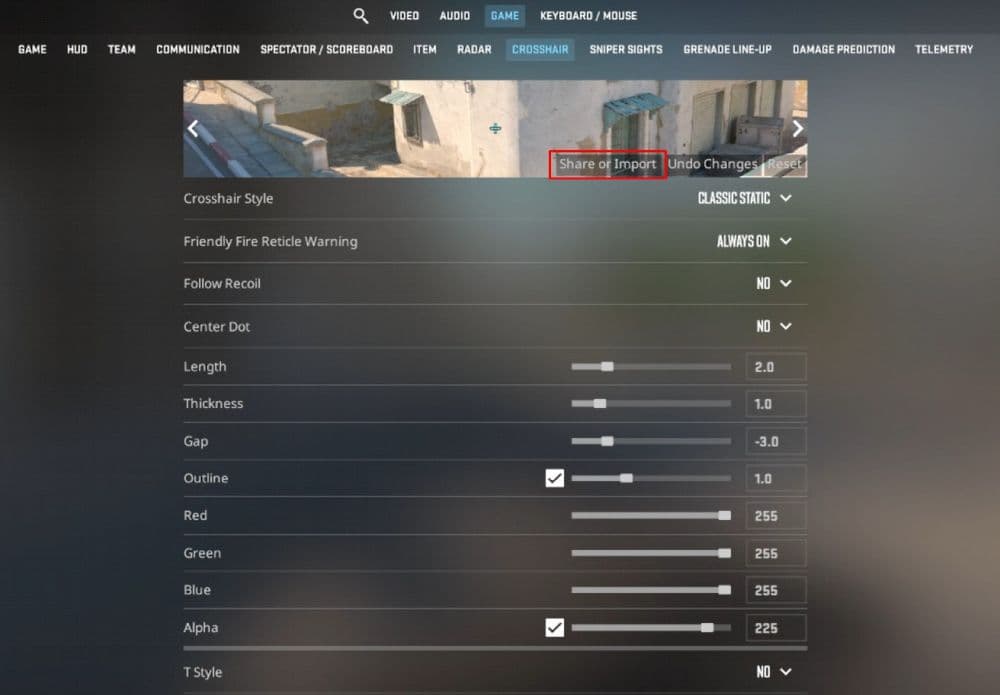
- Paste the code into the field.
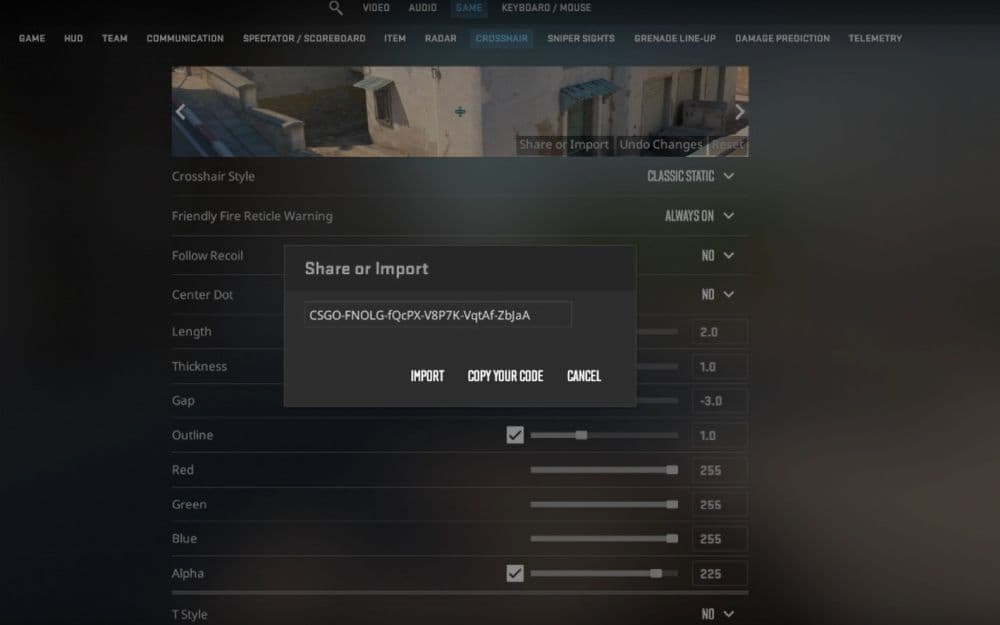
- Click Import.
Most shared codes still use the familiar CSGO- format even in CS2, so do not worry if the code looks like it belongs to the older game. The system still accepts that format in current CS2 guides and tools.
This method works best when you want to copy:
- a friend’s crosshair
- a pro player crosshair code
- your own old crosshair
- a setup you found on a crosshair database
How to copy someone else's crosshair in CS2
The cleanest way to copy someone else’s crosshair is to get their share code and import it. If you are watching a teammate, friend, or streamer and you like what you see, ask for the code first. That gives you the exact profile with less trial and error.
Some players also use the developer console to copy a crosshair during a match or while spectating. That option exists in current community guides, but it is less direct than using a share code because it depends on the match situation and on console access being enabled.
Why can't I copy crosshairs in CS2?
If crosshair copying does not work, one of these issues usually causes it:
- the code is incomplete or copied with extra spaces
- you pasted commands instead of a share code
- you pasted the code in the wrong field
- the developer console is disabled
- you tried a live-copy method without spectating the player properly
To use any console-based method in CS2, you must enable Developer Console (~) in the game settings first. Valve’s support pages still list that as the required step for console access.
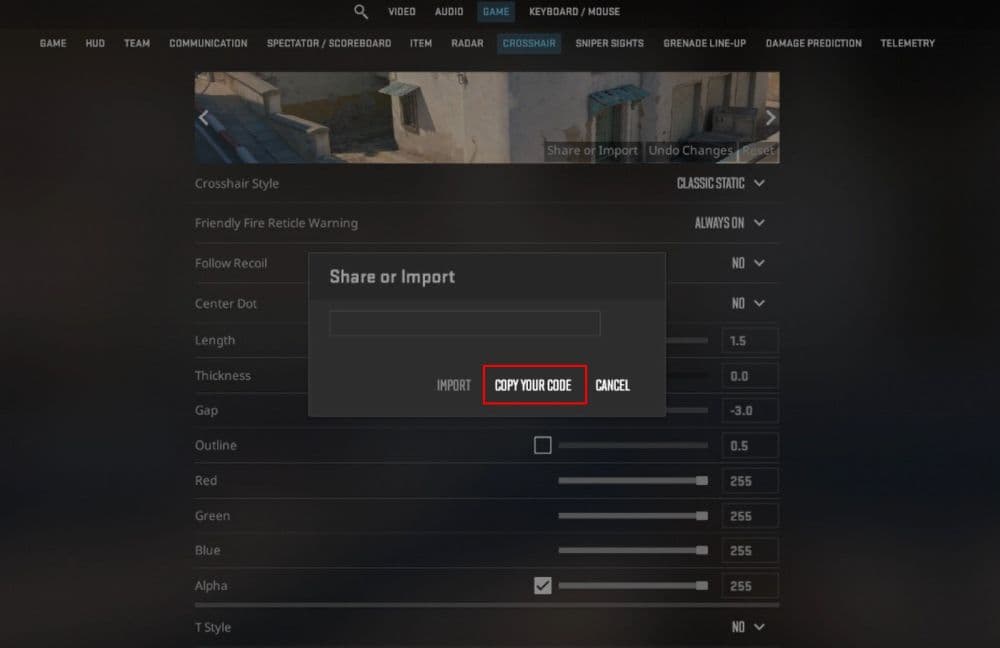
How to make a copied CS2 crosshair easier to use
A copied crosshair is only a starting point. You should still test it in a practice map, deathmatch, or aim routine before you take it into Premier or Faceit. Small edits often make a big difference.
Focus on these settings first:
- Color: Pick a shade that stands out on bright and dark maps.
- Thickness: Too thin can disappear. Too thick can block head level.
- Gap: A very tight gap helps some players. Others need more space.
- Style: Static crosshairs usually feel cleaner for players who want consistency.
The best CS2 crosshair is not always the one a pro uses. It is the one you can read fast, track cleanly, and trust every round. Copy a strong base, test it for a few games, and only change one or two settings at a time. That usually gives better results than switching crosshairs every day.
We have more CS2 guides for you:
- Everything about CS2 workshop map 1v1 commands
- Best CS2 aim training maps that can really improve your skills
- CS2 jumpthrow bind
- All CS2 roles and positions: How to play and improve each
- Explained: Best CS2 surf servers & maps
Featured Image Credit: THESPIKEGG
All Related Guides
 donk crosshair CS2: Current code and how to copy itWant to try donk’s crosshair in CS2? Check the current donk crosshair CS2 code and see how his setup works....
 How to change the HUD color in CS2Change your HUD color in CS2 with a few quick steps. See the available colors, command values, and which choic...
 How to make CS2 look like CSGOMiss the old CS:GO visuals? This guide explains how to adjust CS2 graphics, brightness, colors, HUD, and weapo...
 How to bind mousewheel to jump CS2Find the best CS2 mousewheel jump bind commands, learn how to set them up, and see how scroll jumping can supp...
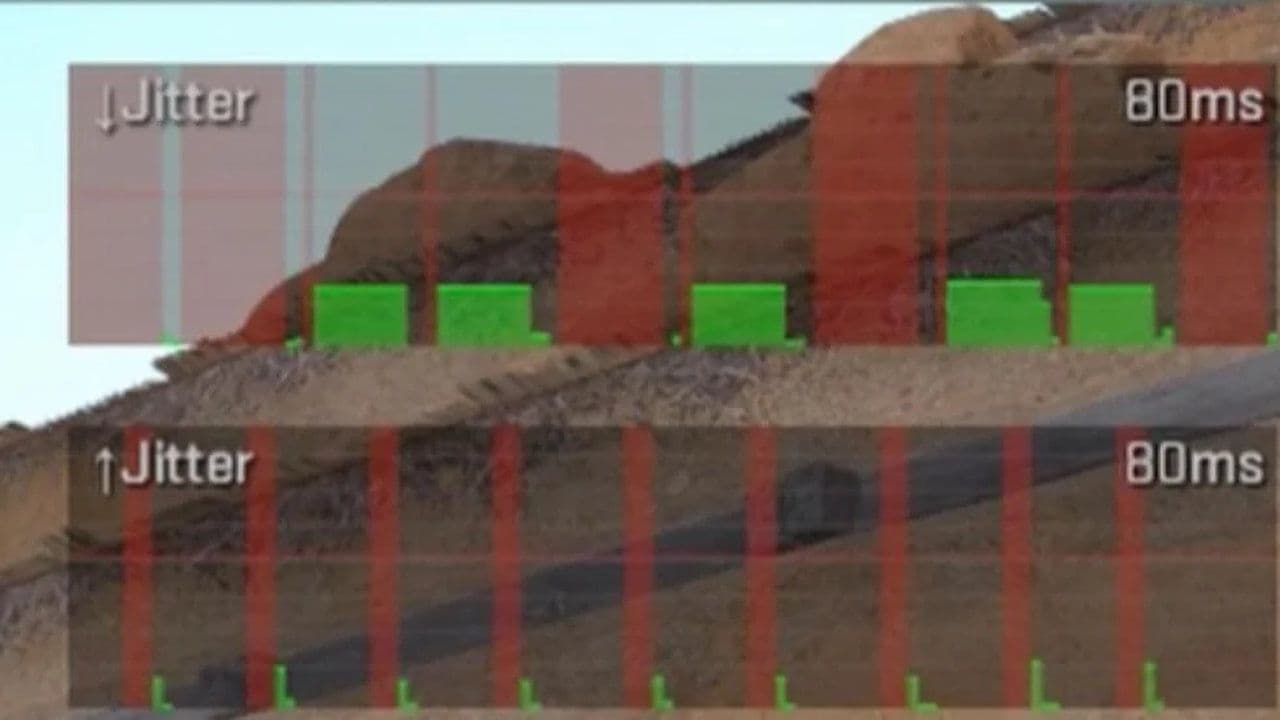 How to fix net jitter in CS2: Best solutions for packet loss, lag & rubberbandingLearn how to fix net jitter in CS2 with the best solutions for packet loss, lag, rubberbanding, and unstable c...
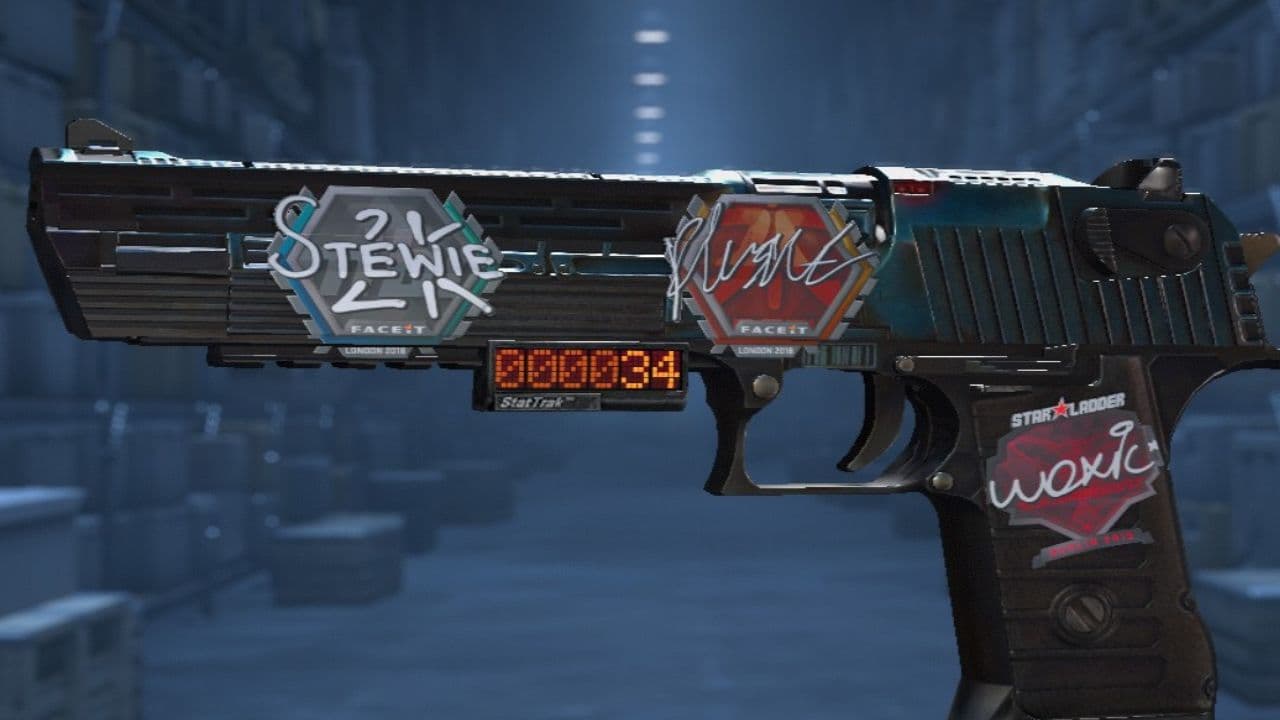 How to scrape stickers in CS2Want to remove stickers in CS2? Here’s how scraping works, what it changes, and why full removal is permanent....
 ropz CS2 settings: Crosshair, viewmodel, and moreCopy ropz CS2 settings for mouse, crosshair, viewmodel, video, and radar, then adjust them to match your own a...
 How to remove screen shake in CS2How to reduce screen shake in CS2 using console commands, viewmodel settings, graphics tweaks, and autoexec co...
- 1
- 2
- 3
- 4