4 ways to update Fortnite on mobile
Update Fortnite on Android, iPhone & iPad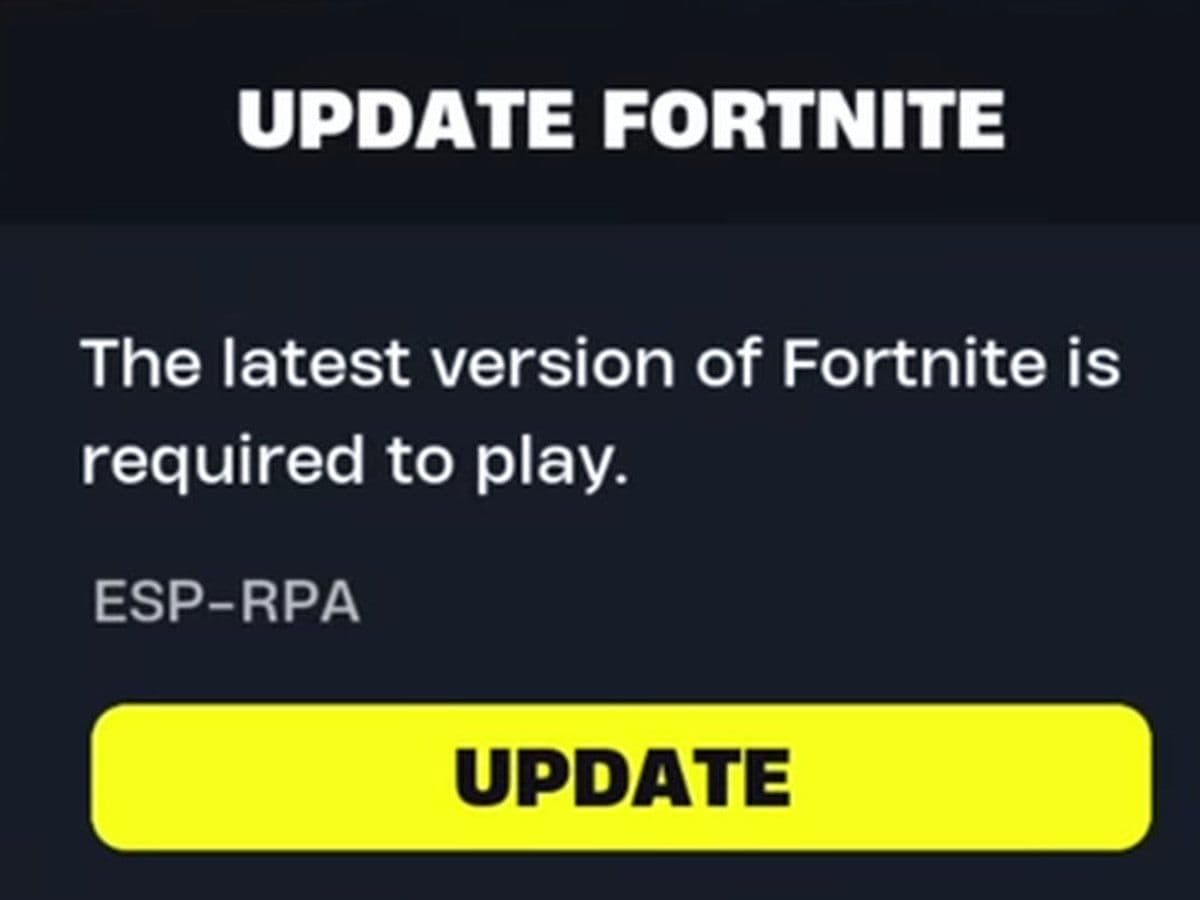
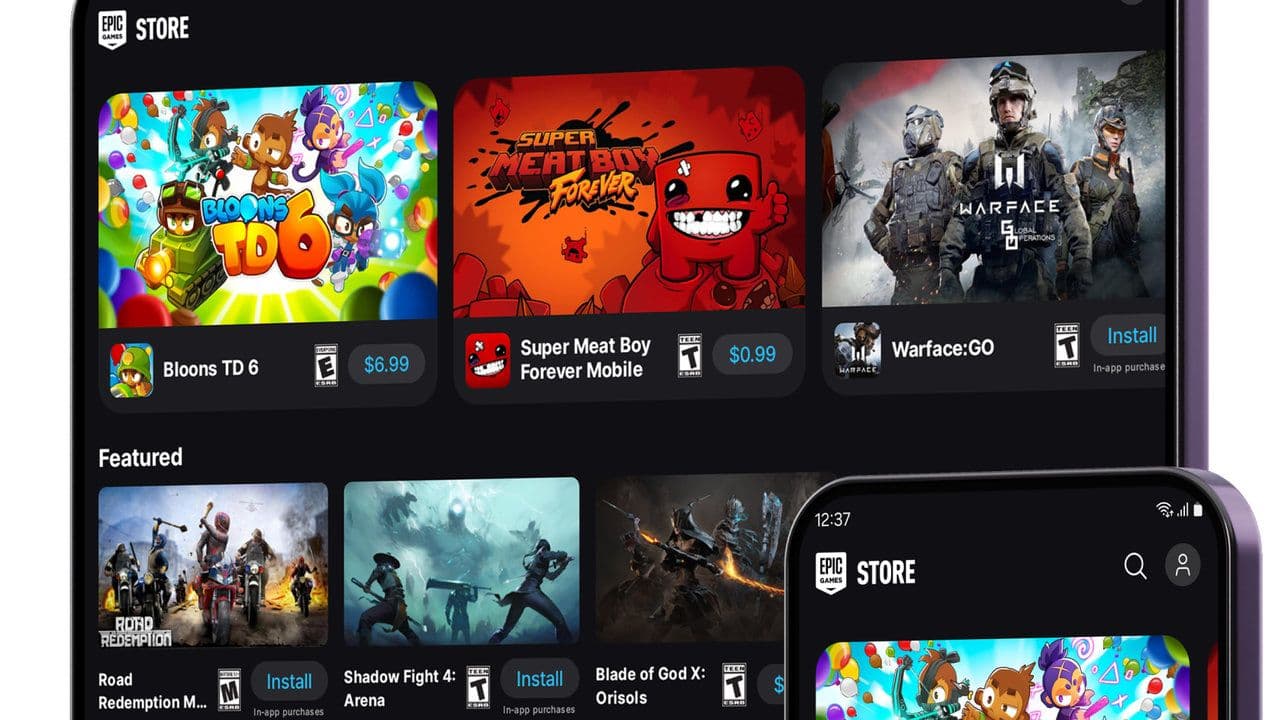
Updating Fortnite on mobile depends on where you installed the game. Android players can currently use the Epic Games Store or Google Play, while iPhone and iPad players can use the App Store and, in supported regions, alternative stores such as Epic Games Store.
Here's how to update Fortnite on each platform.
How to update Fortnite on Android via Epic Games Store
If you installed Fortnite through the Epic Games Store:
- Connect your device to the internet.
- Open the Epic Games Store app.
- Select Fortnite.
- Tap Update & wait for the update to finish.
Fortnite should normally update automatically. If it doesn't, open Epic Games Store and make sure Auto update is enabled under App Settings.
How to update Fortnite on Google Play
If you downloaded Fortnite from Google Play:
- Open Google Play Store.
- Tap your profile icon.
- Select Manage apps & device.
- Open Updates available.
- Find Fortnite.
- Tap Update.
You can also search for Fortnite directly in Google Play and tap Update from its store page.
How to update Fortnite on iPhone and iPad
If you installed Fortnite through Apple's App Store:
- Open the App Store.
- Tap your profile icon.
- Find Fortnite under available updates.
- Tap Update.
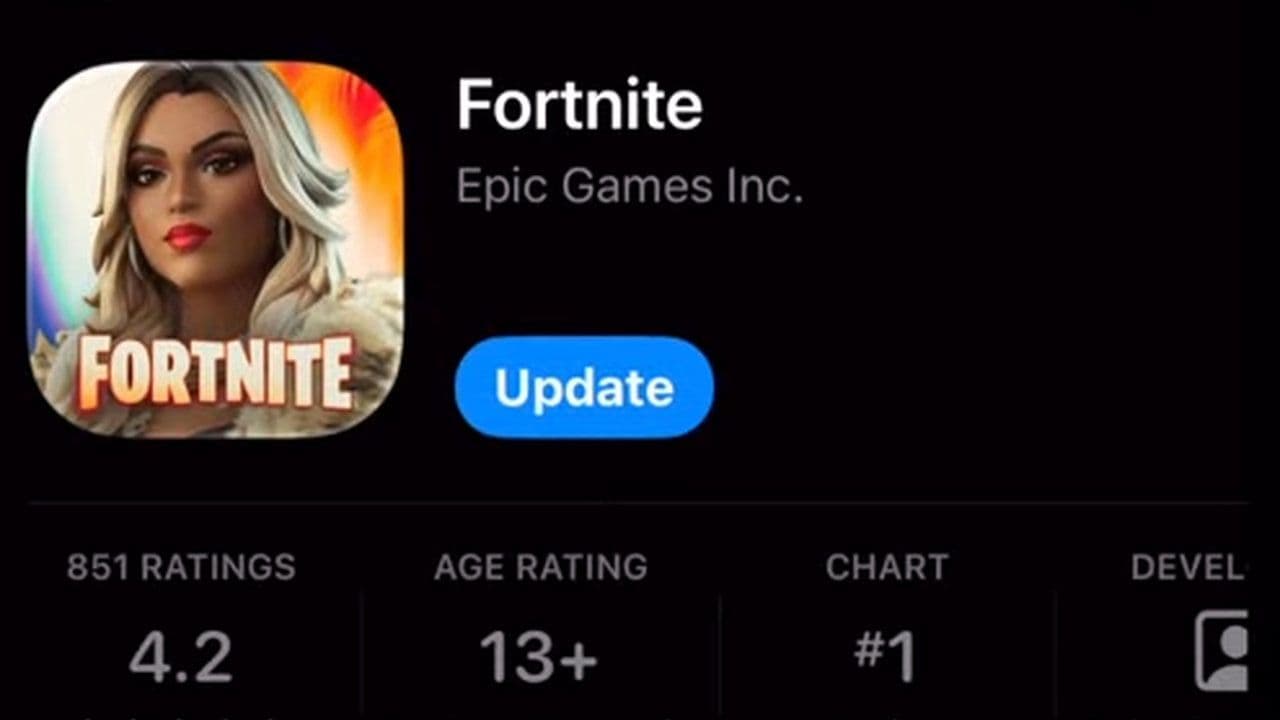
Fortnite is currently available through the App Store worldwide except Australia. Epic Games Store is another installation option in supported iOS/iPadOS regions.
How to update Fortnite through Epic Games Store on iPhone
If you installed Fortnite from the Epic Games Store, keep it updated through that source.
Open the Epic Games Store, find Fortnite, and install the available update. Epic Games Store itself normally updates automatically on supported mobile devices.
Why is Fortnite not updating on mobile?
The first thing to check is where you originally installed Fortnite.
If you see an error saying the app is managed through another source, Epic says you need to update it using that original source. If necessary, you can uninstall Fortnite and reinstall it from an officially supported store.
Also check:
- Your internet connection
- Available storage space
- Whether automatic updates are enabled
- Whether your device still supports Fortnite
- Whether the update has actually been released on your store
If Fortnite doesn't appear in Google Play or can't be installed, your device may not meet Fortnite's requirements.
Do you need to update Fortnite to play?
Yes, when a new required version is released.
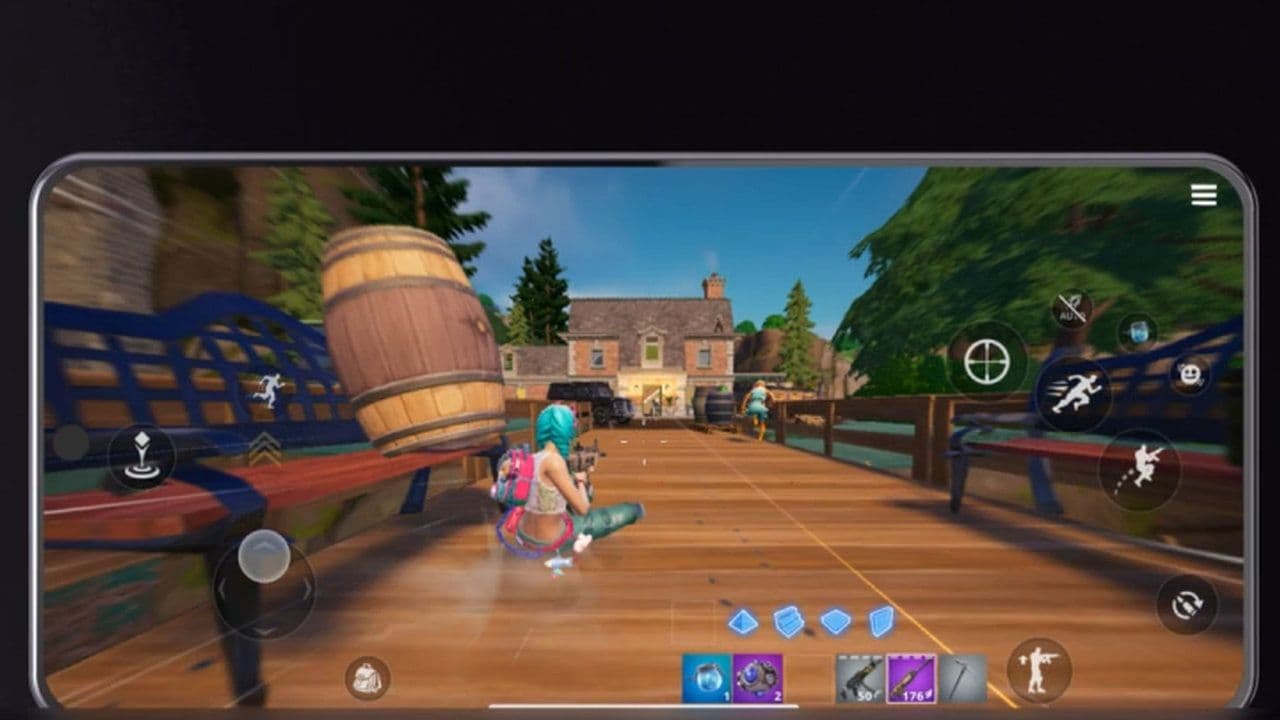
If Fortnite tells you that your version is outdated, update the game through the store you originally used to install it.
If you've already installed the latest version but can't log in during a major Fortnite update, the servers may still be undergoing downtime rather than there being a problem with your installation.
That’s all for today! Looking for more Fortnite guides? Check out these:
- All Fortnite bosses & how to defeat them
- What are Accolades in Fortnite and how to get them
- Best Fortnite map codes with additional bonus maps
- How to start a custom game in Fortnite: Private 1v1, errors and fixes
- How to disable simple edit in Fortnite (PC, PlayStation, Xbox, Nintendo Switch, and mobile)
All Related Guides
 Fortnite x FNAF: Release date, skins & everything we knowFortnite x FNAF arrives October 1 for Fortnitemares 2026 with Freddy, Bonnie, Chica, Foxy, Fazbear's Pizzeria,...
 Fortnitemares 2026: Release date, collabs, skins, map changes and moreFortnitemares 2026 starts October 1 with FNAF, major collabs, new skins and more. Here's what's confirmed, lea...
 How to get better at building in Fortnite fastLearn how to get better at building in Fortnite with practical drills for edits, 90s, boxing, tunneling, piece...
 Fortnite Loot Hacker Sprites: All variants, locations, and how to get themFind all Fortnite Loot Hacker Sprites, Cheat Code locations, Chest chances, Sprite Dust costs, and how to unlo...
 All Garden vs. Brainrot codes in Fortnite: Updated listLooking for Fortnite Garden vs Brainrot codes? Get every working code, learn how to redeem them, and boost you...
 Latest Fortnite Steal the Brainrot codes (September 2026)Find all active Fortnite Steal the Brainrot codes to summon Brainrot Gods and boost rewards fast....
 Island cheats: How to find & use Fortnite Cheat codesLearn how Fortnite Cheat Codes work, where to find them, what each panel color means, and how to unlock and ex...
 Sprite Rate Up meaning in FortniteLearn what Sprite Rate Up means in Fortnite, how these events work, which Sprites get boosted, and why they're...
- 1
- 2
- 3
- 4
- 5
- 6
- 7
- 8
- 9
- 10
- 11
- 12
- 13
- 14
- 15
- 16
- 17
- 18
- 19
- 20
- 21
- 22
- 23
- 24
- 25
- 26