How to fix the “PAK is invalid” error in Fortnite: Step-by-step Guide
This error can be a headache to fix but we're here to put you back into Fortnite again.
Many Fortnite players have recently seen a new problem. When they try to open the game, they get a message that says: "PAK is invalid,” and just like all other Fortnite errors, it prevents the game from launching successfully. Because it started appearing with the latest update, many players don’t have a fix for it. Don’t worry, we did our research on the topic and compiled all the information you seek. Here is everything you need to know about the “PAK is invalid” error in Fortnite ,alongside working fixes!
What is the “PAK is invalid” error in Fortnite?
The "PAK is invalid" error means that Fortnite cannot load one or more important files, which means it is not working. These files are called PAK files. They contain elements such as maps, character models, and game sounds.
This usually happens when the game updates. If the download is interrupted or finishes incorrectly, the PAK files can become corrupted. The game then shows the error message.
Sometimes, the files on your computer do not match those on the game server. When that happens, the game refuses to start. You can resolve this issue by removing the corrupted files and replacing them with new ones.

What is a PAK file?
A PAK file is a compressed file that holds game content. Fortnite uses the Unreal Engine, which relies on these files to store and load things like graphics, music, and other assets.
The game needs these files to run. If even one PAK file is damaged or missing, Fortnite may not open. You may get the "PAK is invalid" message.
These files can break if the game crashes during an update or if your computer shuts down unexpectedly. If that happens, the easiest solution is to repair or redownload the files.
How to fix the issue
User KumikoShy on Reddit came up with a fix for the issue and many people on Reddit found it helpful. We compiled a couple of fixes for you to check out:
Method 1: Delete PAK Files and Verify Game Files
This is the most common and effective fix.
- Close Fortnite and the Epic Games Launcher.
- Go to the folder where the game is installed. Open this path: Fortnite/FortniteGame/Content/Paks.
- Delete all files that end in .pak.
- Open the Epic Games Launcher again.
- Go to your Library and find Fortnite.
- Click the three dots next to the game.
- Select Manage and click Verify.
- Wait until the verification process is complete.
The launcher will download fresh files to replace the broken ones. This often fixes the issue.
Method 2: Do a Clean Install
If verifying does not help, reinstalling the game might work.
- Open the Epic Games Launcher.
- Uninstall Fortnite.
- Restart your computer.
- Open the launcher again.
- Reinstall Fortnite in a new folder.
- Launch the game when the download finishes.
This removes all damaged files and gives you a clean version of the game.

Method 3: Sync Your System Clock
Sometimes, an incorrect system clock can cause errors and Fortnite’s “PAK is invalid” issue might be one of them.
- Open the Settings on your computer.
- Go to Time & Language, then click Date & Time.
- Turn on Set time automatically.
- Also turn on Set time zone automatically.
- Restart your computer.
- Try to launch Fortnite again.
A correct clock helps the launcher check files properly.

Method 4: Make Space on Your Hard Drive
Low disk space can stop updates from working right.
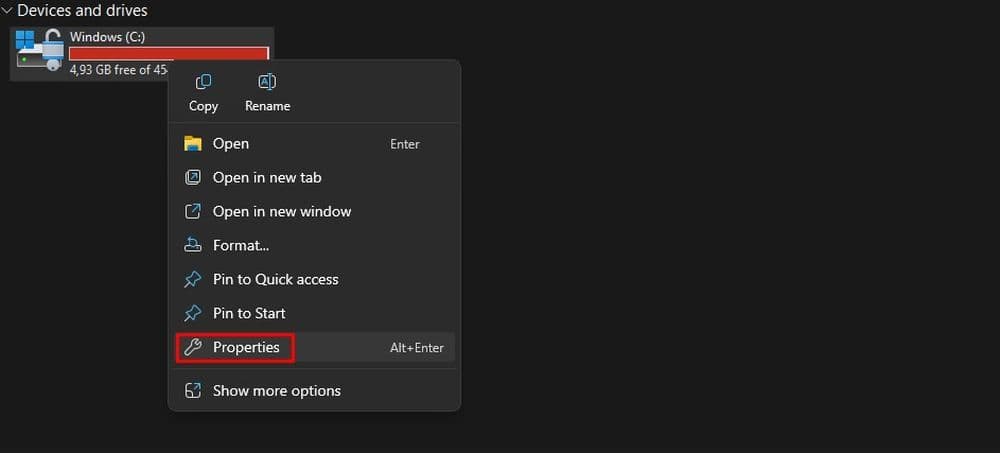
- Open File Explorer.
- Right-click your main drive (usually C:).
- Click Properties.
- Choose Disk Cleanup.
- Select files you want to remove, like temporary files.
- Click OK, then confirm by clicking Delete Files.
You should have at least 10 GB of free space before you open Fortnite.
How do I fix corrupted game files on Fortnite?
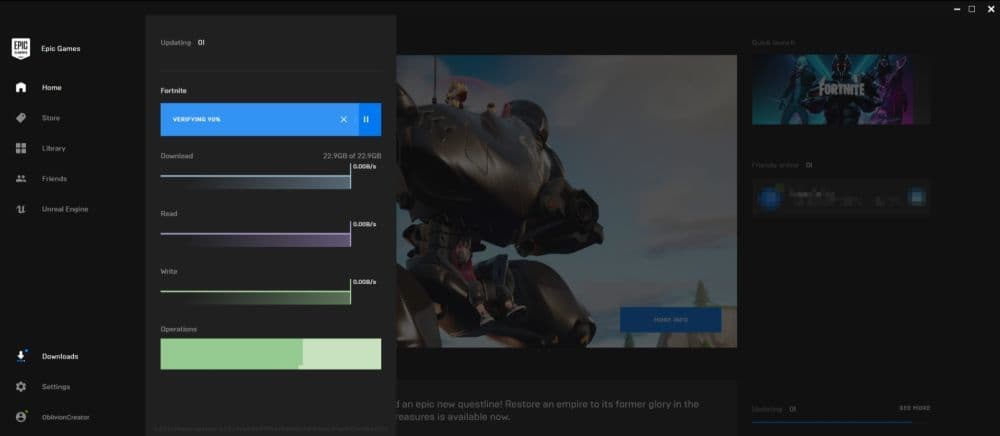
You can repair broken files by verifying your game files. Here is how to do it:
Step-by-Step: Verify Game Files
- Open the Epic Games Launcher.
- Go to your Library.
- Find Fortnite.
- Click the three dots next to it.
- Select Manage.
- Click Verify.
- Wait for the process to finish.
The launcher will compare your files with the ones on the server. It will fix or replace any that are damaged.
Use the Command Prompt to Run System File Checker
Windows includes a tool that checks for system-level file issues. You can use it to make sure your operating system files are not causing problems with Fortnite.
- Type cmd in the Windows search bar.
- Right-click Command Prompt and choose Run as administrator.
- Type sfc /scannow and press Enter.
- Wait for the process to finish. It may take several minutes.
- Restart your computer.
- Launch Fortnite to see if the issue has been resolved.
Disable Antivirus Software Temporarily
Sometimes, antivirus programs block game files or updates. You can try turning them off briefly.
- Open your antivirus software.
- Pause or disable real-time protection.
- Open the Epic Games Launcher.
- Verify Fortnite or reinstall it.
- Turn the antivirus back on once the game is working.
If you have made it to this stage, let us give you a couple more Fortnite guides, especially if you want to learn more about the game. Take a look at these pieces:
- Fortnite X-Wing locations and use in Chapter 6 Season 3 (+Tie Fighters)
- Emma Frost in Fortnite: Exploring fan ideas for a new skin
- Navigating Shogun's Arena in Fortnite: How to find and survive on it
- Do you need Xbox Live to play Fortnite?
- How old do you have to be to play Fortnite?
Featured Image Credit: Epic Games/Fortnite
All Related Guides
 “Fortnite Battle Busses are full” error: What is it and how to fix itMany people are facing the “Fortnite Battle Busses are full” error but is there a way to fix it? Find it here!...