How to fix error code 0 in Roblox
Server issues may be a root cause, but there can be other things standing behind error code 0. Here are potential fixes to help you with this problem.
Roblox players love the little games filled with other enthusiasts who play them from all around the world. However, the game is also filled with error codes, including Roblox error code 0. Encountering "Roblox error code 0" can disrupt gameplay. This error indicates a connectivity problem between your device and Roblox's servers. Below we listed everything you need to know about error code 0 in Roblox, starting with the cause and then howing you possible fixes!
What is Roblox error code 0?
Roblox error code 0 appears when there is a failure in communication between your device and Roblox’s servers. This issue can stem from various sources:
- VPN: If you forgot to turn your VPN off, you may encounter this issue. This is actually the most common cause of Roblox error code 0.
- Weak Internet Connection: A poor internet connection can prevent your device from connecting to Roblox.
- Outdated Roblox Application: An older version of the Roblox app may not function properly with current servers.
- Firewall or Security Settings: Sometimes, device or network security settings block the connection to Roblox.
- Roblox Server Problems: Occasionally, the servers themselves may be down or undergoing maintenance.
When this error occurs, it typically displays a message indicating an authentication failure, suggesting the login process was unsuccessful.
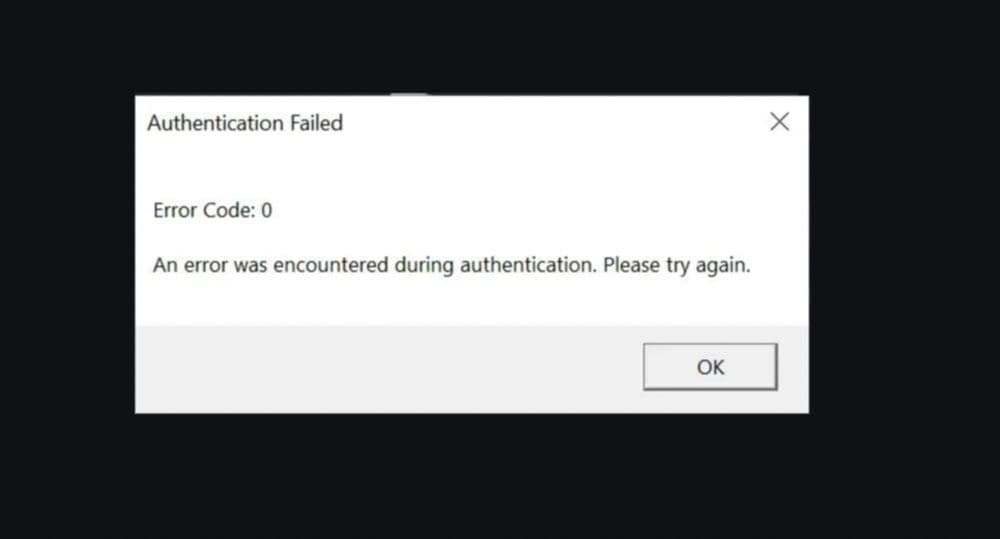
How to fix Roblox error code 0
Now it is time to help you get rid of Roblox Error code 0. Start by disabling your VPN and if it doesn’t work, please continue trying out other fixes listed below:
1. Toggle or disable your VPN
VPNs are excellent for online privacy, but they can interfere with online games like Roblox. Try these steps:
- If you’re using a VPN, disable it and try launching Roblox again.
- If you’re not using a VPN, some users have found that enabling one can actually solve error code 0.
Device-specific steps:
- Windows: Go to Settings > Network & internet > VPN and toggle your VPN.
- Mac: Go to Apple Menu > System Settings > VPN and toggle it.
- Mobile or third-party VPNs: Open the app and look for an option to disable or toggle the VPN.
2. Toggle your Wi-Fi connection
Sometimes, a simple Wi-Fi reset can fix connection problems.
- Wi-Fi users: Turn off your computer's Wi-Fi adapter, wait a few seconds, and turn it back on.
- Ethernet users: Disable your Wi-Fi adapter entirely to avoid potential conflicts.
3. Restart your device
Shut down your device completely—not just putting it in sleep mode—and restart it. This refreshes your system and clears temporary bugs or processes that may interfere with Roblox.
4. Check your Internet connection
A weak or unstable internet connection can trigger error code 0.
- Confirm you're still connected to the internet.
- If possible, switch to a wired (Ethernet) connection for more stability.
- Try another network to rule out local internet issues.
5. Restart your router
Rebooting your router can help reset your connection to Roblox servers.
- Turn off or unplug your router.
- Wait 1 to 3 minutes.
- Turn it back on and allow it to reconnect.
Ask a parent or network admin for help if needed.
6. Update Roblox
Make sure you’re running the latest version of the game.
- PC/Mac: Open the Roblox app—it auto-updates if a new version is available.
- Android/iOS: Visit the Google Play Store or App Store, search for Roblox, and tap Update if available.
7. Clear the Roblox cache
Corrupted cache files can cause performance and connection issues.
- Windows:
- Press Windows + R, type %localappdata%, and press Enter.
- Open the Roblox folder and delete everything inside.
- Mac: Open Finder > Go > Go to Folder…, type ~/Library/Caches/, then find and delete the Roblox folder.
- Android: Go to Settings > Storage > Apps, find Roblox, and tap Clear Cache.
- iOS: The best method is to uninstall and reinstall the Roblox app.
8. Check Roblox Server Status
Before diving into deeper troubleshooting, visit the Roblox Server Status page. If servers are down, the issue is on their end—and all you can do is wait.
9. Reinstall Roblox
If all else fails, a clean reinstall may resolve deeper software issues.
- Windows: Open Apps & Features, uninstall Roblox, then download the latest version from roblox.com.
- Mac: Drag Roblox to the Trash, then empty it. Re-download and install the app.
- Android: Uninstall via Google Play Store, then reinstall it.
- iOS: Press and hold the app icon, tap Remove App, and reinstall it from the App Store.
Don’t worry—your game data is stored on Roblox’s servers, not your device.
10. Contact Roblox Support
Still stuck? Visit the Roblox Support page.
- Under “Type of help category”, choose:
- Technical Support
- Cannot Visit Experience
Fill out the form with details of your issue, and Roblox will follow up.
Following these steps should help you resolve Roblox error code 0 and get back to enjoying the platform. Each solution addresses a potential cause of the error. If you want to learn more about the Roblox universe, here are more guides for you to take a look at:
All Related Guides
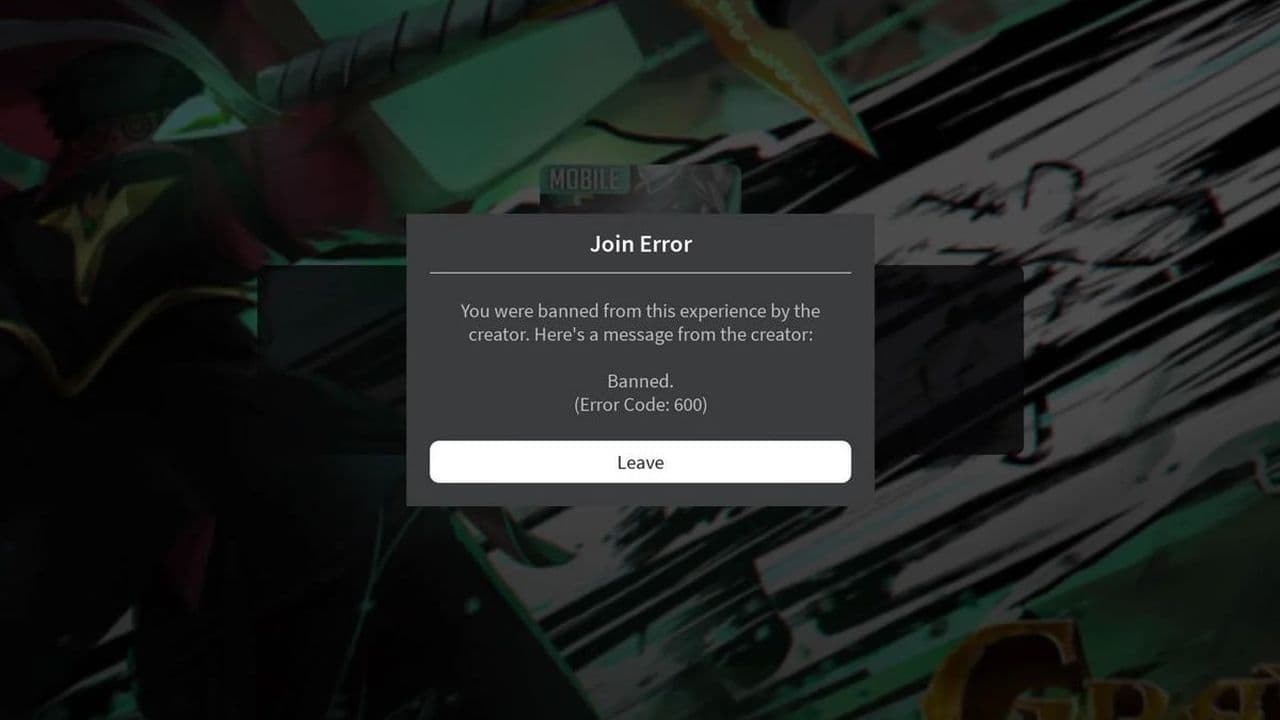 How to fix Roblox error code 600 Learn how to fix Roblox error code 600, understand the new IP-based ban system, and explore potential workarou...
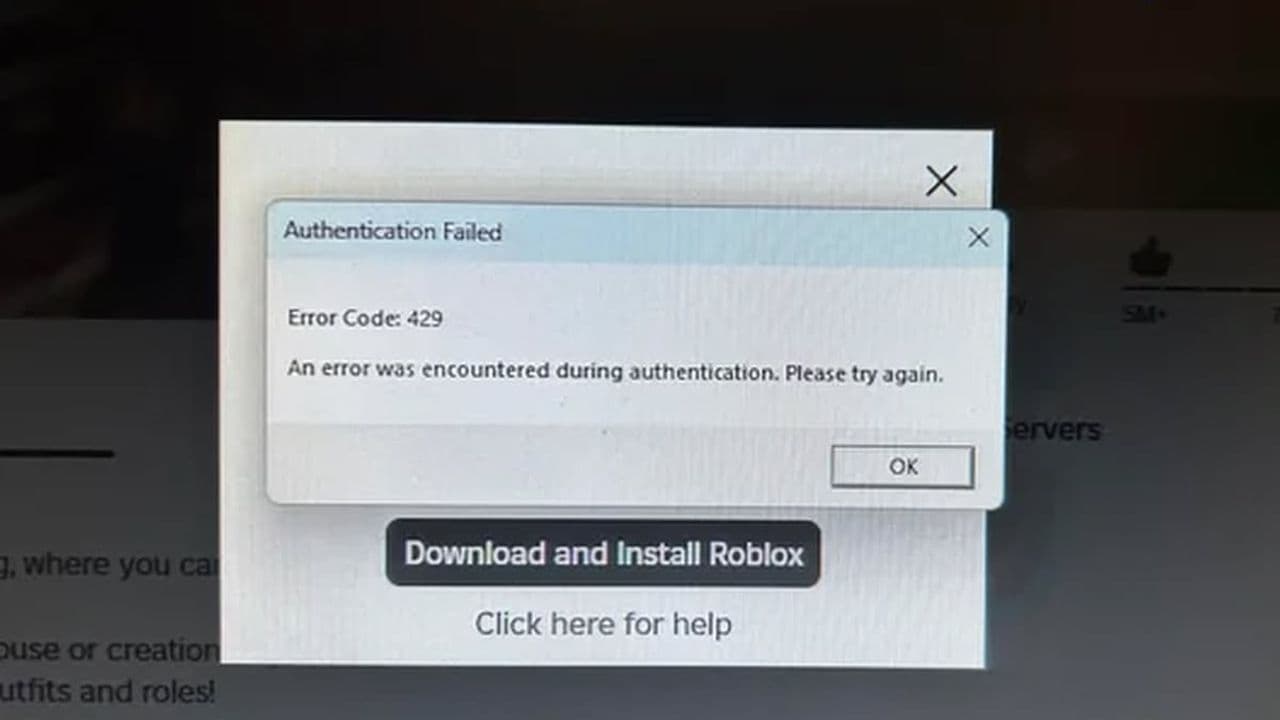 How to fix Roblox error code 429: Authentication issues and too many requestsRoblox error code 429 explained: causes, rate limits, and potential malware risks. Learn how to avoid it and f...
 What does error code e01 mean in Roblox?Roblox error code e01 is one of those uncommon errors but we have a couple of fixes that you must try to fix t...
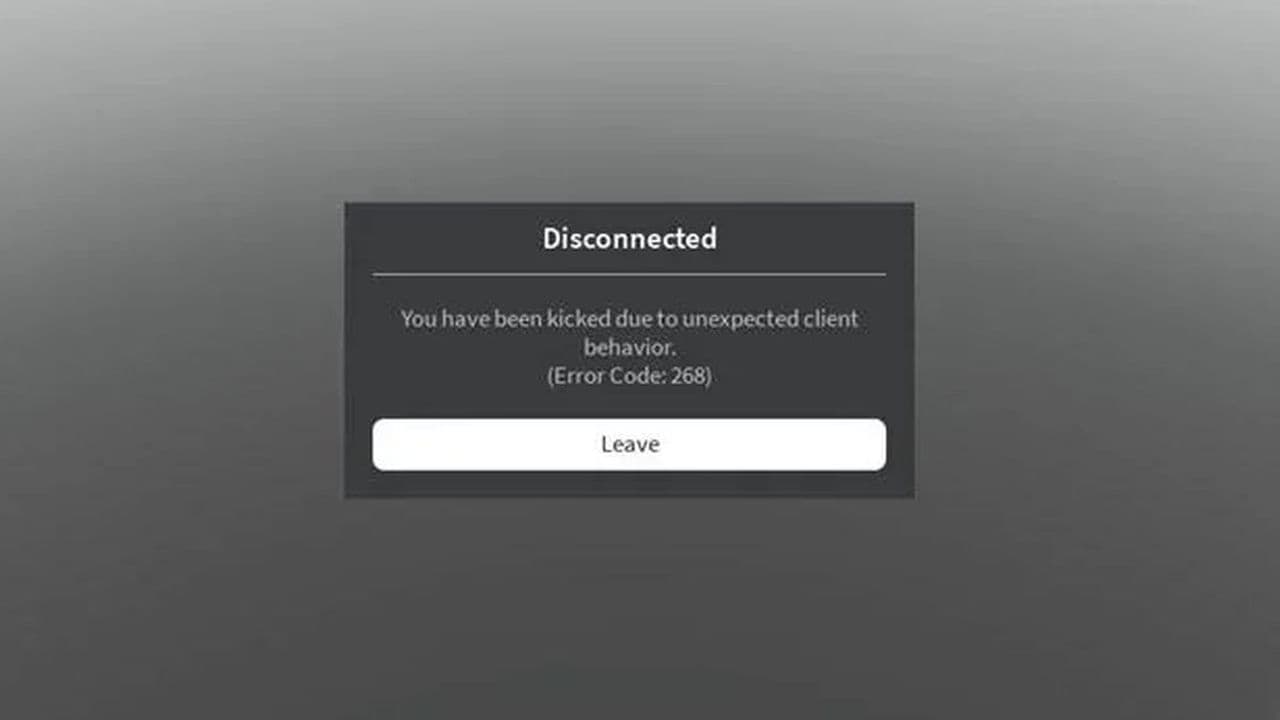 How to fix Roblox error code 268: 8 easy waysLearn 8 simple ways to fix Roblox error code 268 and resolve the "unexpected client behavior" issue. Troublesh...
 How to fix error while updating worn items in RobloxFix the 'error while updating worn items' on Roblox with simple steps. Learn why it happens and how to resolve...
 How to fix Roblox connection error on WindowsThere are many Roblox error codes on Windows and luckily we know a couple of ways to fix them. Check them out ...
 How to fix error code 264 for RobloxRoblox error code 264 is one of the frustrating hiccups that will prevent you from playing the game, unless yo...
 What does code 288 mean in Roblox?All Roblox error codes have different meanings and error code 288 is one of the worst. Here is how to fix it!...
- 1
- 2
- 3
- 4