How to fix "Roblox may not be compatible with VR" error
Using a VR with Roblox? This error may come up. Here are the causes and how to deal with this pesky problem.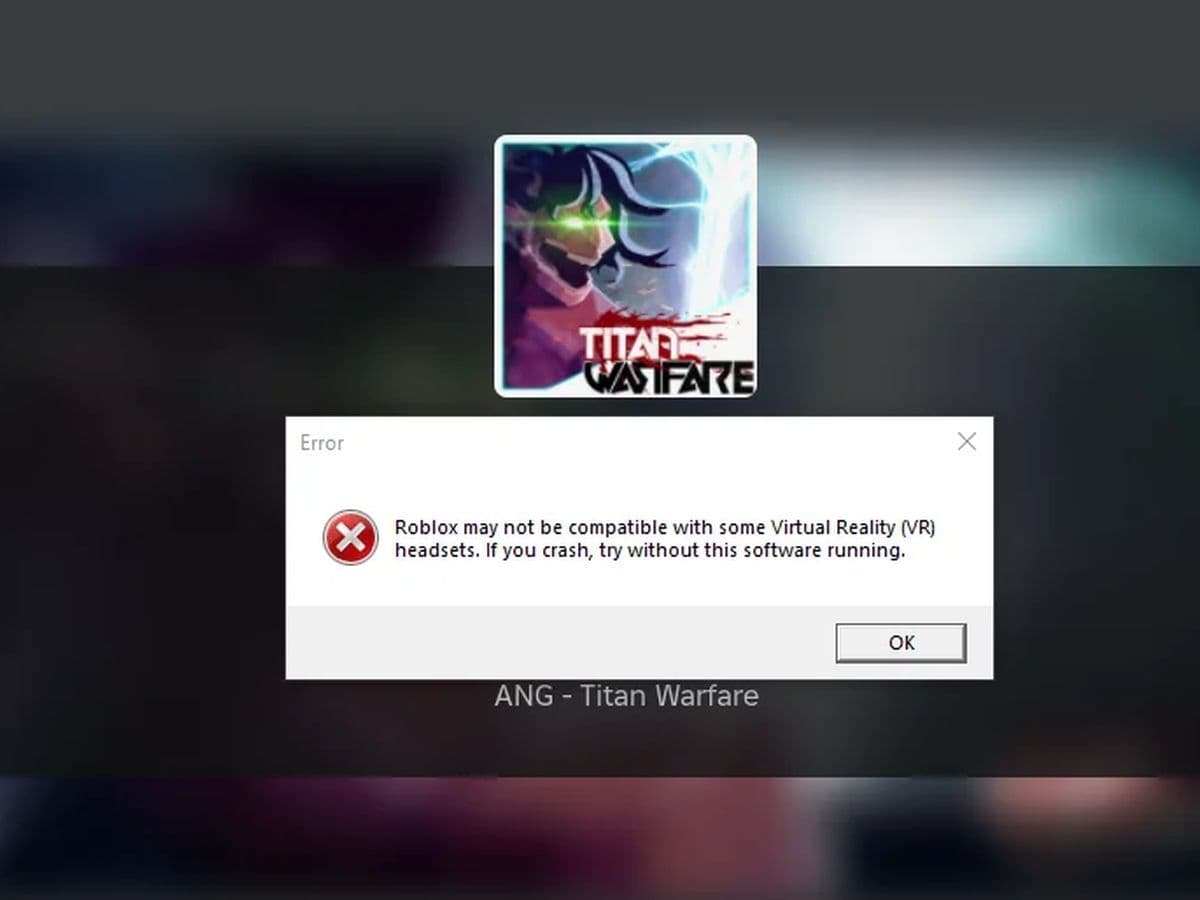
“How to fix ‘Roblox may not be compatible with VR’ error” becomes a popular question among users who have started seeing an error message after a client update, especially those who have used a VR headset with Roblox. This error pops up even when the VR headset isn’t plugged in, and it happens every time they start a Roblox game. The good news is that this error doesn’t affect the actual gameplay, but it can still be annoying.
Here’s what’s going on, why it happens, how you can fix it, and everything you need to know about using VR for Roblox.
What’s causing the "Roblox may not be compatible with VR" error?
The problem comes from Virtual Reality (VR) software, like Oculus or SteamVR, which adds a special DLL file to Roblox’s process. This file gets added automatically even if you’re not using the VR headset. In the past, this caused random crashes without warning. Roblox’s update (Hyperion 4.0) shows a message to warn you that a crash might happen, although it doesn’t always lead to a crash for everyone.
Importantly, this issue is not Roblox trying to crash your game on purpose because it thinks there’s bad software. Instead, the crash happens because Roblox’s system has trouble with the file added by the VR software.
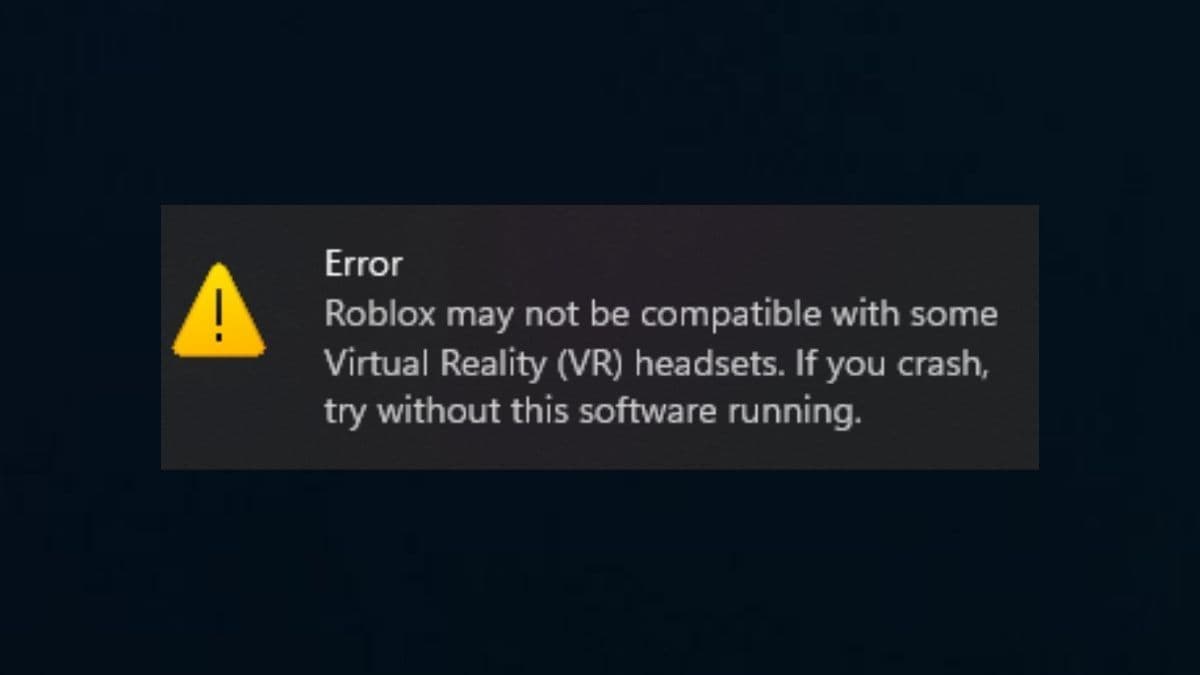
Why does this happen?
Even if your VR headset isn’t plugged in, the VR management software can still be running in the background. This means the VR software automatically adds the DLL to Roblox, which can cause the error.
How to fix "Roblox may not be compatible with VR" error
Let’s take a closer look at the workarounds:
Uninstall or disable VR software
If you don’t plan to use VR with Roblox for now, the easiest fix is to uninstall the Oculus software or stop SteamVR from running. Many users have reported that removing the Oculus app and deleting the Oculus folder from C:\Program Files has solved the problem.
Turn Off VR Mode in Roblox
If you still want to keep your VR setup but stop Roblox from launching in VR, you can turn off VR mode in Roblox’s settings:
- Open Roblox, go into any game, and press ESC or click the hamburger menu (three lines) in the top left corner.
- Click on Settings.
- Toggle VR Mode to Off.
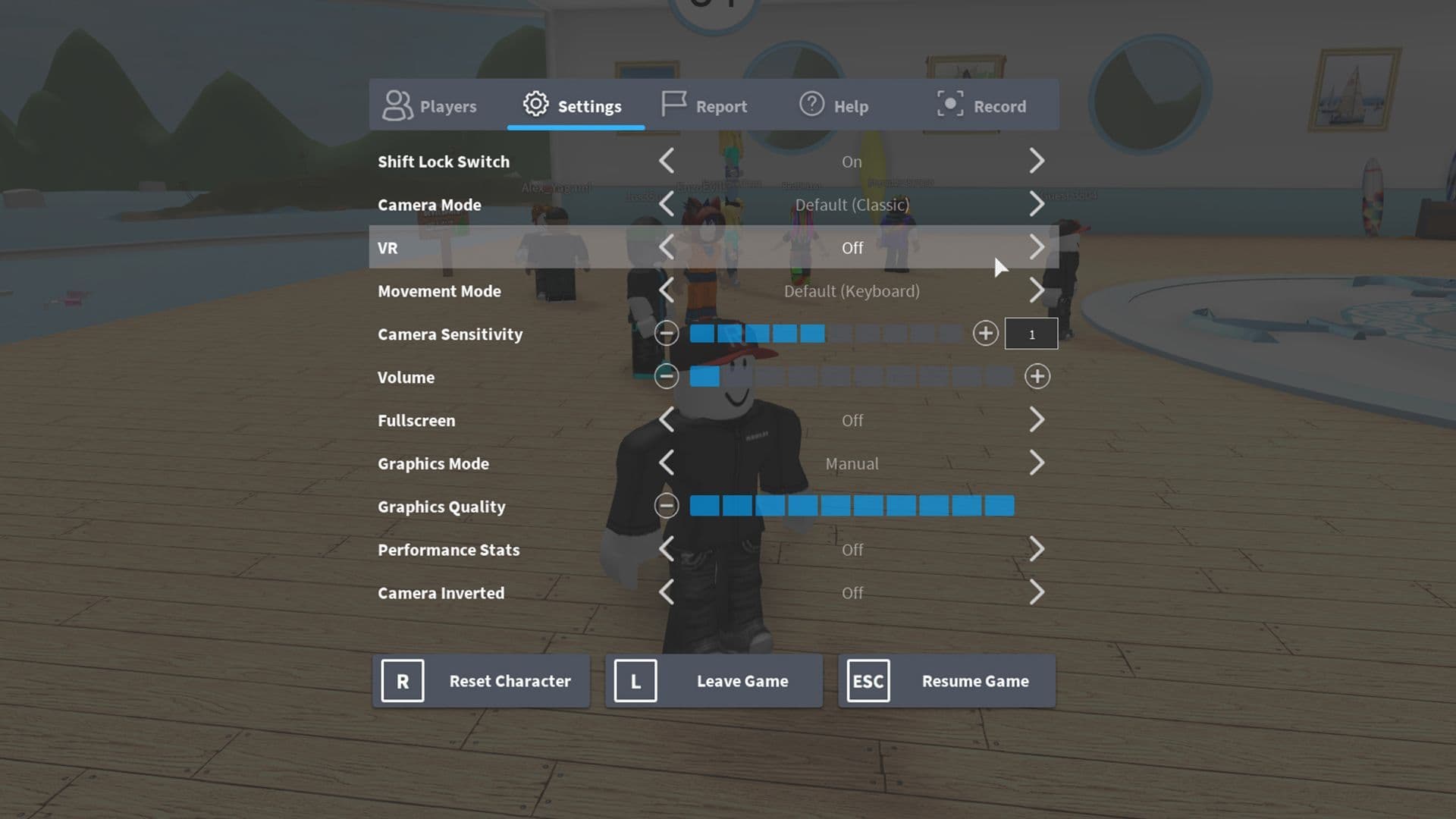
- Restart Roblox to save the changes.
Close VR Software
Even if you’re not using your VR headset, VR software like SteamVR or Oculus services might still be running in the background. Make sure all VR apps are fully closed before starting Roblox. You can check this by opening Task Manager and ending any VR-related tasks.
Update your software
Make sure that your VR software, drivers, and Windows system are up to date. Old versions of VR software can sometimes cause compatibility issues with Roblox. For example, the Meta Quest 2 needs version 55 or higher to work smoothly with Roblox.
Roblox is working with the Oculus team to find a permanent fix. For now, the error message is just a warning to let you know that a crash might happen. If the mentioned troubleshooting methods are not working, please reach out to Roblox Support.
Things to know about using VR for Roblox
If you still want to use VR with Roblox, here’s how to make sure everything is set up correctly:
Supported VR Headsets Roblox officially supports the following devices:
- Oculus Quest 2 with Link
- Meta Quest Pro
- Oculus Rift
- HTC Vive
- Valve Index
Other devices like Pico and Reverb can also work unofficially through SteamVR.
Enabling VR mode
To use VR in Roblox, follow these simple steps. First, make sure your VR headset is properly connected to your PC. Depending on your device, this could be through a cable or a wireless connection. Check that everything is set up and working correctly.
Next, open Roblox and enter any game. Press ESC on your keyboard, or click the three-line menu button in the top left corner of the screen to bring up the in-game menu. From there, go to Settings. You’ll see a switch for VR Mode—toggle it to On.
Once you've turned VR Mode on, restart Roblox. This is important because the game needs to reboot to apply the change. After the restart, put on your VR headset and enjoy playing Roblox in virtual reality!
Roblox is working on a long-term solution for the "Roblox may not be compatible with VR" error, so we can expect improvements in future updates. For now, these steps should help you get rid of the error and get back to enjoying your games!
Having issues with Roblox error codes? Check out these:
FAQs
Why is my Roblox not working in VR?
- Go to Settings > Mixed Reality > Headset Display, then select Controllers to access calibration options. If necessary, recalibrate your controllers.
- Find the Roblox VR settings and reset them by setting it up as if it were a new device.
- Ensure Roblox is updated to the latest version.
How can I make Roblox VR compatible?
Open the Roblox settings menu, scroll down, and enable VR mode. This will ensure that VR functionality is enabled the next time you join a VR game.
How do I play Roblox VR with Virtual Desktop?
For Oculus Quest users, you can use Virtual Desktop to play Roblox VR. The setup requires connecting your headset to your PC via Virtual Desktop and ensuring Roblox VR is properly configured.
Why is my Roblox account not eligible to play on VR?
If your Roblox account is not eligible for VR play, check your account settings or make sure you meet the requirements for VR compatibility, particularly for platforms like Meta Quest 2.
Is Roblox compatible with VR?
Yes, Roblox supports VR on various platforms, including Oculus Touch, HTC Vive, Valve Index, and Meta Quest, with controller compatibility for each system. Ensure your device is supported for the best experience.
All Related Guides
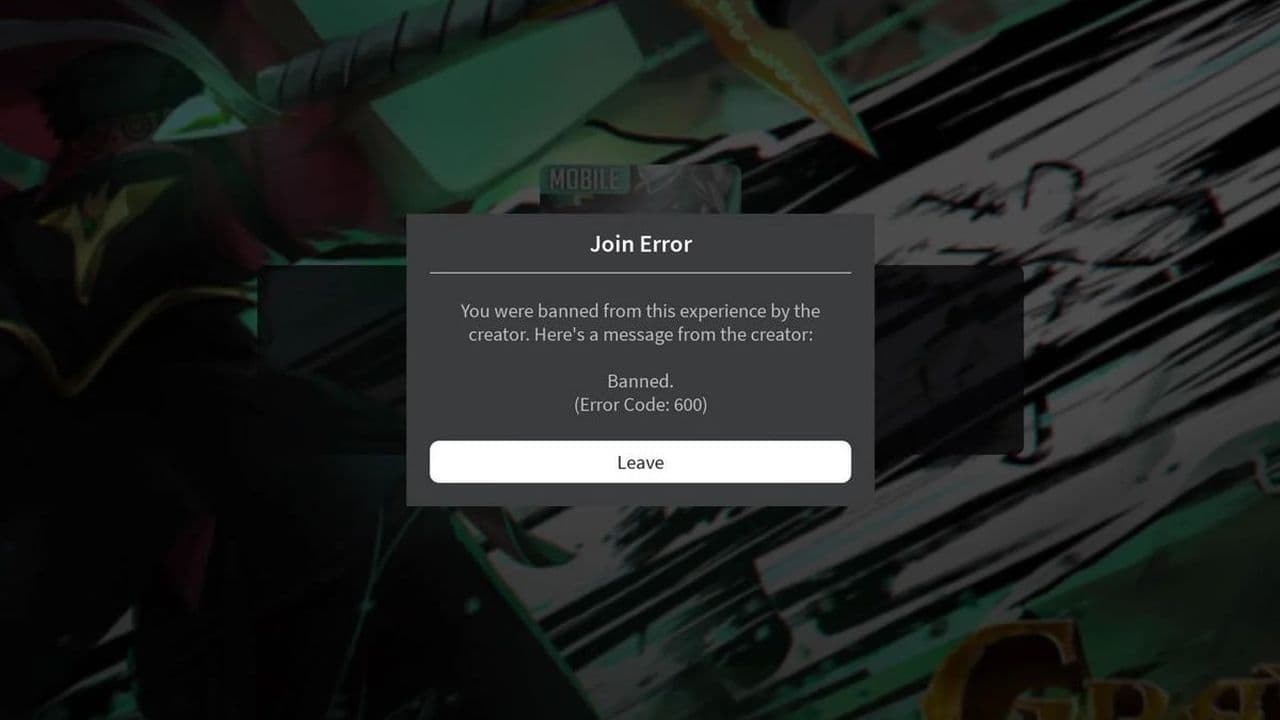 How to fix Roblox error code 600 Learn how to fix Roblox error code 600, understand the new IP-based ban system, and explore potential workarou...
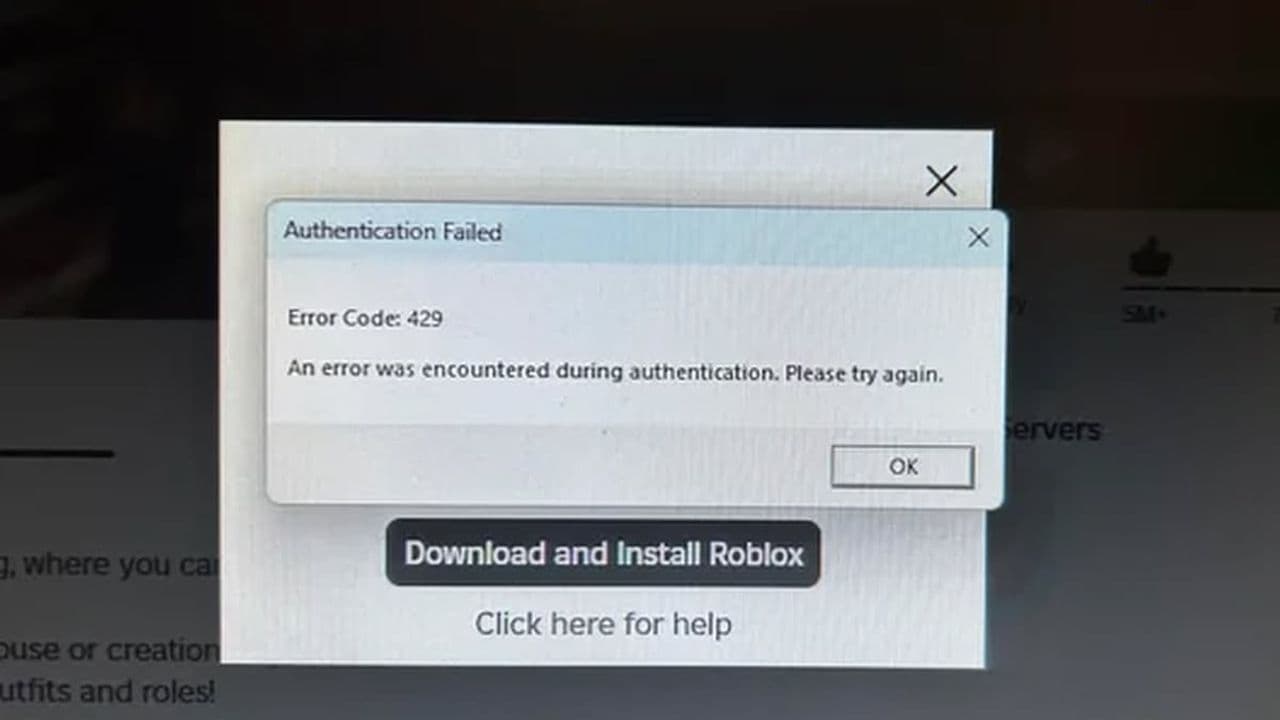 How to fix Roblox error code 429: Authentication issues and too many requestsRoblox error code 429 explained: causes, rate limits, and potential malware risks. Learn how to avoid it and f...
 What does error code e01 mean in Roblox?Roblox error code e01 is one of those uncommon errors but we have a couple of fixes that you must try to fix t...
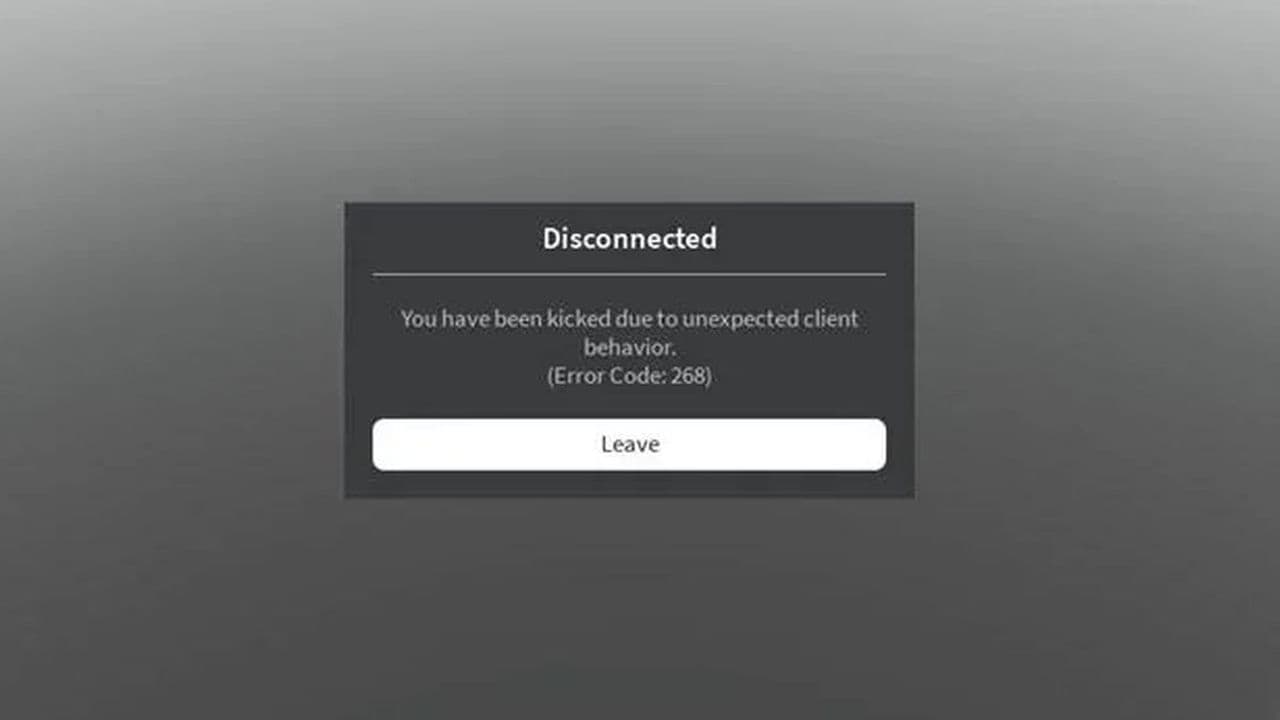 How to fix Roblox error code 268: 8 easy waysLearn 8 simple ways to fix Roblox error code 268 and resolve the "unexpected client behavior" issue. Troublesh...
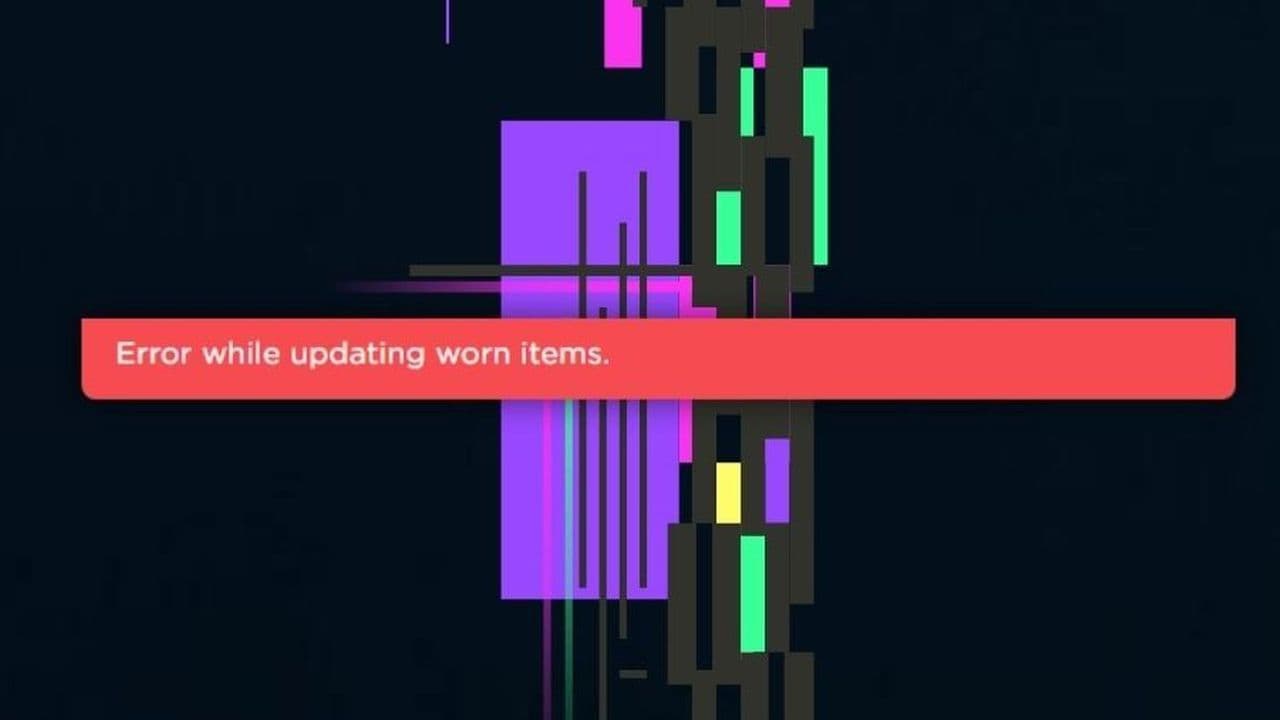 How to fix error while updating worn items in RobloxFix the 'error while updating worn items' on Roblox with simple steps. Learn why it happens and how to resolve...
 How to fix Roblox connection error on WindowsThere are many Roblox error codes on Windows and luckily we know a couple of ways to fix them. Check them out ...
 How to fix error code 264 for RobloxRoblox error code 264 is one of the frustrating hiccups that will prevent you from playing the game, unless yo...
 What does code 288 mean in Roblox?All Roblox error codes have different meanings and error code 288 is one of the worst. Here is how to fix it!...
- 1
- 2
- 3
- 4