How to unblock someone on Roblox
Blocked someone in anger or by accident in Roblox? Here's what you can do.
Occasionally, mistakes happen, and you might block someone unintentionally, or maybe you blocked someone out of sudden anger and now you regret your decision and want to turn it back. Luckily, it is very easy to block and unblock someone on Roblox and there are plenty of different ways to do so. Here are all of them!
How to unblock someone on Roblox
If you blocked someone on Roblox by mistake or want to unblock them, the process is simple. Here is how you can unblock a user step-by-step:
Log in to Your Roblox Account
Open Roblox on your device. Sign in to your account. You can do this on a browser or through the mobile app.
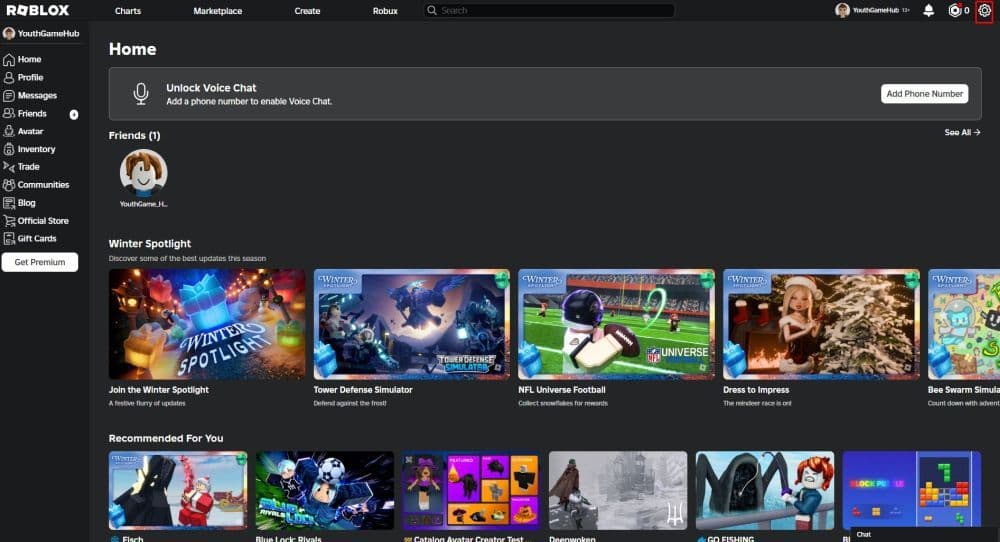
Open Account Settings
- On a browser, click the gear icon in the top-right corner.
- On the mobile app, tap the three dots in the bottom-right corner. Select "Settings."
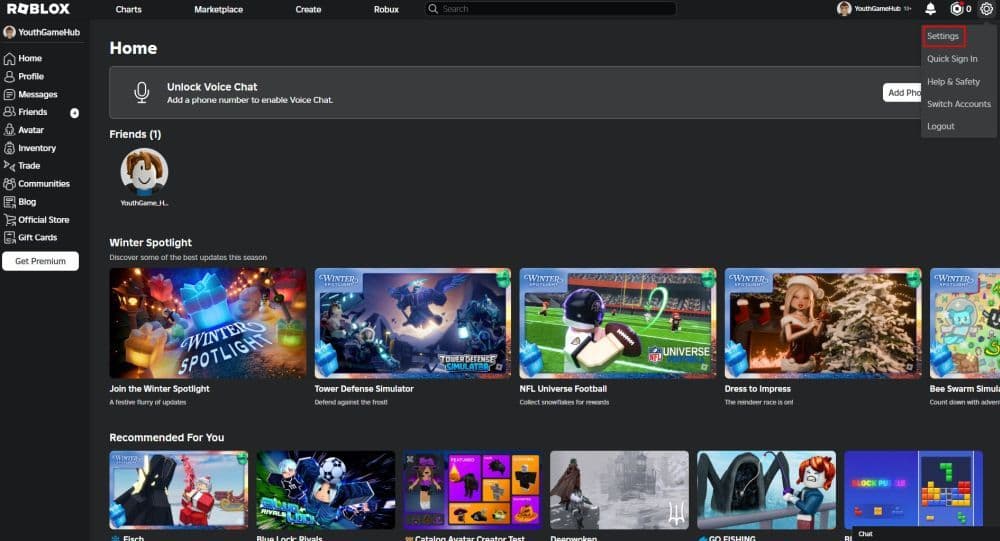
Go to the Privacy Tab
Find "Privacy" in the settings menu. Click or tap it to open.
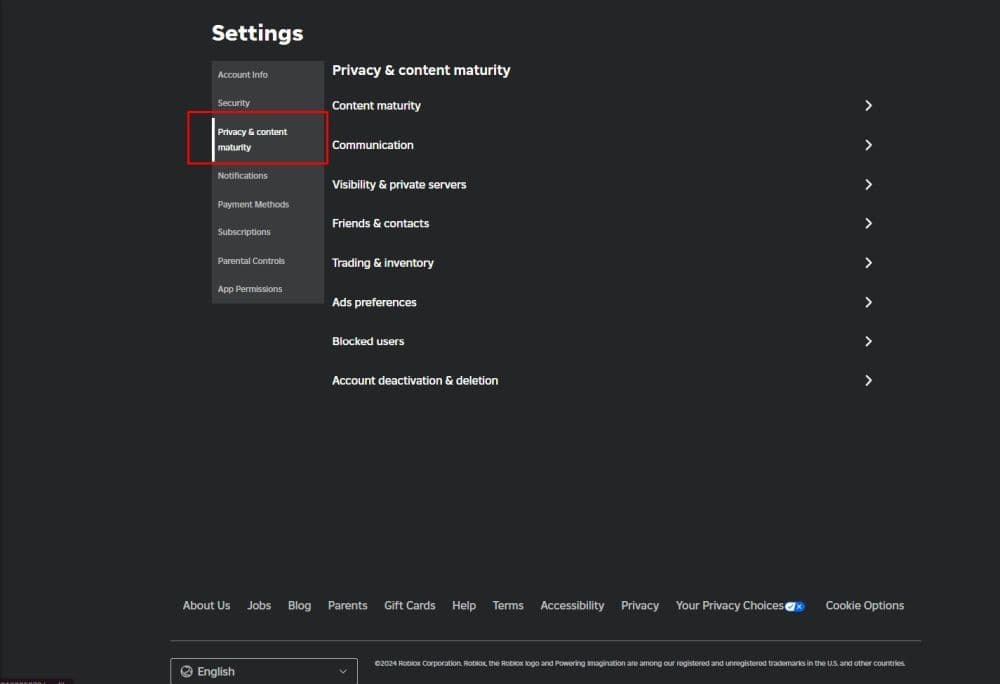
View Blocked Users
Scroll to the bottom of the Privacy page. Click "Show Blocked Users" to see the list of accounts you have blocked.
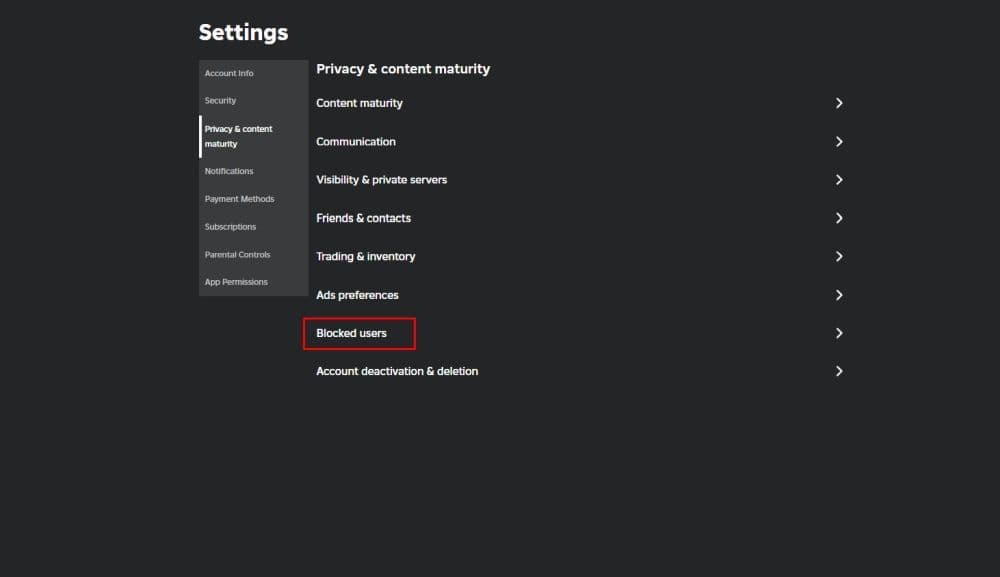
Unblock the User
Look for the user you want to unblock. Click "Unblock" next to their name. If the system asks for confirmation, select "Save."
If you cannot unblock someone, you may need to adjust your Account PIN settings. The steps to fix this are explained in the next section.-
How to block someone on Roblox
Blocking users on Roblox can help you avoid unwanted interactions. Here are the steps to block someone:
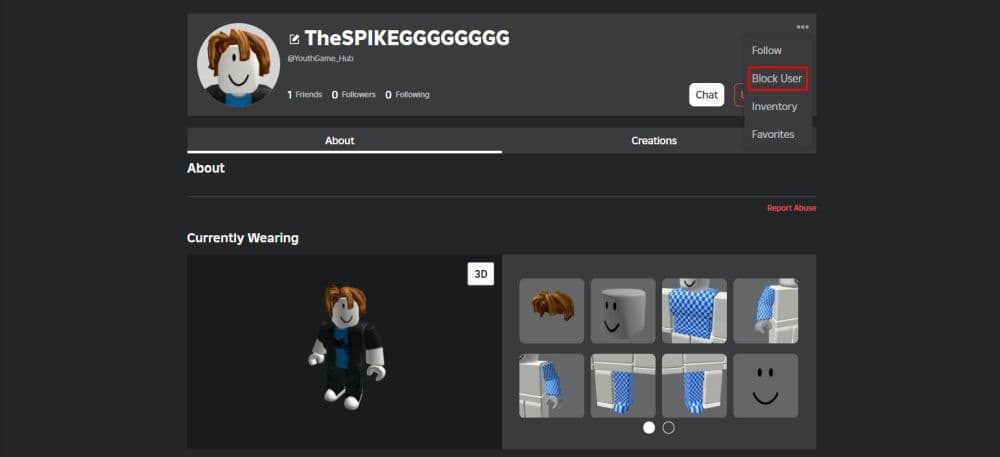
From Their Profile
- Go to the user’s profile.
- Click the three dots in the top-right corner.
- Select "Block User" from the options.
In a Game
- Open the leaderboard during a game.
- Find the user’s name in the list.
- Click their name and choose "Block."
- Confirm when prompted.
Through the Esc Menu
- Press the Esc key while playing.
- Go to the "People" tab.
- Find the user’s name and click "Block."
Once blocked, the user will no longer be able to contact you. A blocked icon will appear next to their name to confirm this action.
Why can’t I unblock someone on Roblox?
If you cannot unblock a user, it may be because the Account PIN feature is turned on. This feature is designed to protect your account. To unblock someone, you will need to temporarily disable the PIN. Follow these steps:
- Log in to Your Roblox Account: Make sure you are logged into the account with the PIN enabled.
- Open Account Settings: Click the gear icon (browser) or tap the three dots menu (mobile app). Go to "Settings."
- Go to Parental Controls: Find "Parental Controls" in the settings menu.
- Turn Off the Account PIN: Toggle the "Parent PIN" setting to off. You will need to enter the current PIN to confirm.
- Unblock the User: After turning off the PIN, follow the steps under "How to Unblock Someone on Roblox."
- Enable the PIN Again: Once the user is unblocked, go back to Parental Controls. Turn the Account PIN back on for added security.
If these steps do not work, you can contact Roblox support for help.
Here are more Roblox guides for you to check out:
- How to get voice chat on Roblox with and without an ID on mobile & PC
- How to fix Roblox error code 429: Authentication issues and too many requests
- How to see favorites on Roblox
- How to fix Roblox error code 600
- Is there a way to get free Robux in Roblox?
Featured image credit: Roblox
FAQs
How do you unblock people in Roblox?
Go to your Settings > Privacy tab, then find the Blocked Users list. Click the “Unblock” button next to the user you want to unblock.
How do I see my blocked list on Roblox?
You can view your blocked list by going to Settings > Privacy and scrolling down to the Blocked Users section.
How to unblock Roblox if it’s blocked?
If Roblox is blocked on your device or network, you’ll need to check firewall settings, parental controls, or network restrictions and adjust them to allow Roblox access
What does “Bloxxed” mean in Roblox?
“Bloxxed” means being defeated or killed in the game, often used when a player gets eliminated or knocked out. It doesn't mean you blocked.
All Related Guides
 How to connect Claude to Roblox StudioConnect Claude to Roblox Studio with the current MCP method and see how Claude can work with your scripts and ...
 How to fight in Gakuran RobloxLearn how to fight in Gakuran Roblox, from basic attacks to blocking, parrying, posture, and fighting styles....
 How to get a free avatar in RobloxFind out how to get a free Roblox avatar without spending Robux, from free character bundles to Marketplace it...
 How to reduce lag in Roblox: Comprehensive guideRoblox feeling slow or choppy? Find out how to reduce lag in Roblox and improve your game with a few simple ch...
 How to check Roblox player countHow many people play Roblox in 2026? Check the latest Roblox player count and learn what the numbers actually ...
 App Themes: How to change a Roblox Background (2026)Here’s how to change your Roblox background and theme, including Roblox Plus themes, Dark Mode, Light Mode, an...
 Roblox Safety Dashboard: How to check account status & ban riskLearn how the Roblox Safety Dashboard works, check your Account Status, review recent violations, and see whet...
 How to get the Blossoming Gift of New Beginnings in Roblox (Mystery box)Learn how to get the Blossoming Gift of New Beginnings in Roblox, including Roblox Plus requirements, eligibil...
- 1
- 2
- 3
- 4
- 5
- 6
- 7
- 8
- 9
- 10
- 11
- 12