How to turn off controller vibration in Fortnite
Steadier aim, less distractionON THIS PAGE:
- How to turn off controller vibration in Fortnite
- How to turn off controller vibration in Fortnite on PlayStation
- How to turn off controller vibration in Fortnite on Xbox
- How to turn off controller vibration in Fortnite on PC
- How to turn off controller vibration in Fortnite on Nintendo Switch
- Is your controller vibration still not turning off?
- Does turning off vibration really improve performance?
If you’re searching for how to turn off controller vibration in Fortnite, you’re likely looking for a smoother, distraction-free gaming experience. Controller vibration—also known as rumble or haptic feedback- can feel fun, but many players disable it to improve aim, reduce hand fatigue, and extend battery life.
In this detailed Fortnite guide, you’ll learn exactly how to turn off controller vibration in Fortnite on every major platform, including PlayStation, Xbox, PC, and Nintendo Switch.
Now let’s go step-by-step.
How to turn off controller vibration in Fortnite (All platforms)
The process is nearly identical across platforms because the setting is located inside Fortnite itself.
- Open Fortnite and wait until you reach the main lobby screen.
- You will now see multiple tabs across the top of the screen. Select the Settings icon (gear symbol) from the menu.
- Scroll through the tabs until you find the Controller tab (marked with a gamepad icon). In some versions, this may appear under Input settings. Select the Controller tab to continue.
- Locate the setting labeled: Vibration Feature
- Toggle the setting to Off.
- Press Apply if required.
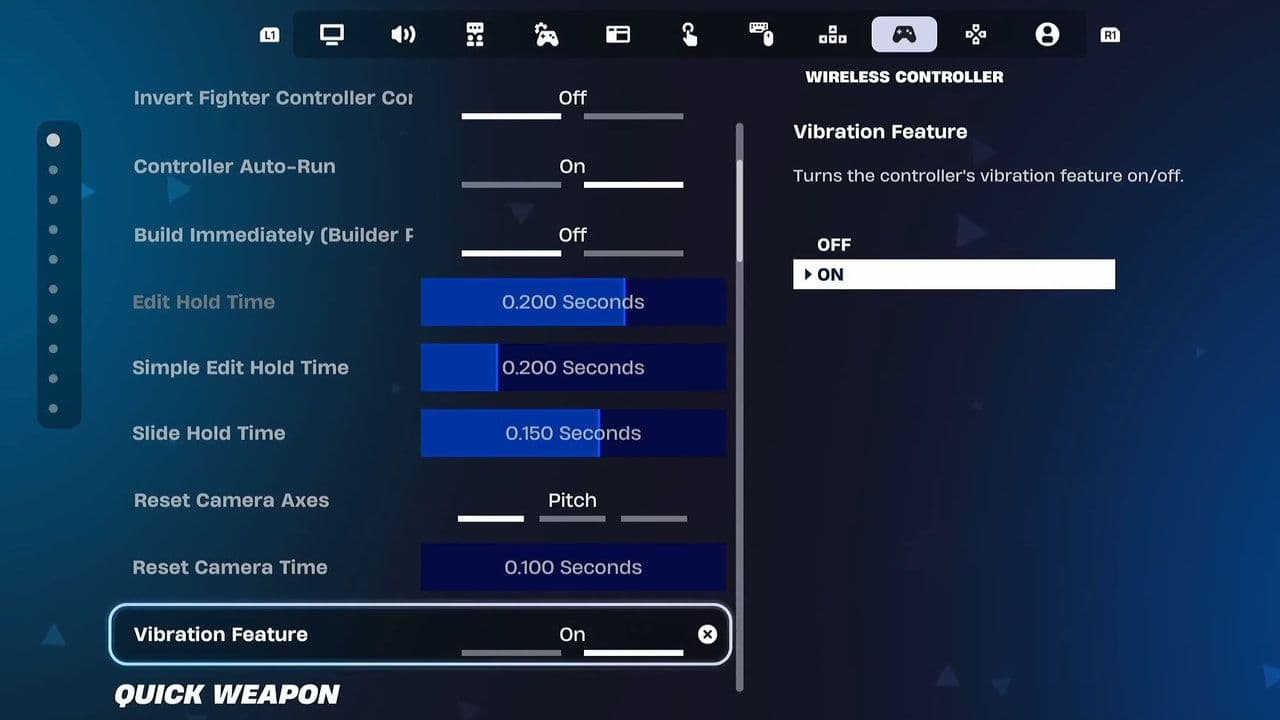
Once applied, controller vibration will be disabled in Fortnite.
That’s the complete in-game method for how to turn off controller vibration in Fortnite.
Although the in-game setting works for most players, here are additional platform-specific details in case vibration continues.
How to turn off controller vibration in Fortnite on PlayStation (PS4 & PS5)
The in-game method should work immediately. However, if controller vibration in Fortnite still occurs:
- Go to Settings from the PlayStation home screen.
- Select Accessories.
- Choose Controllers.
- Turn Vibration Intensity to Off.
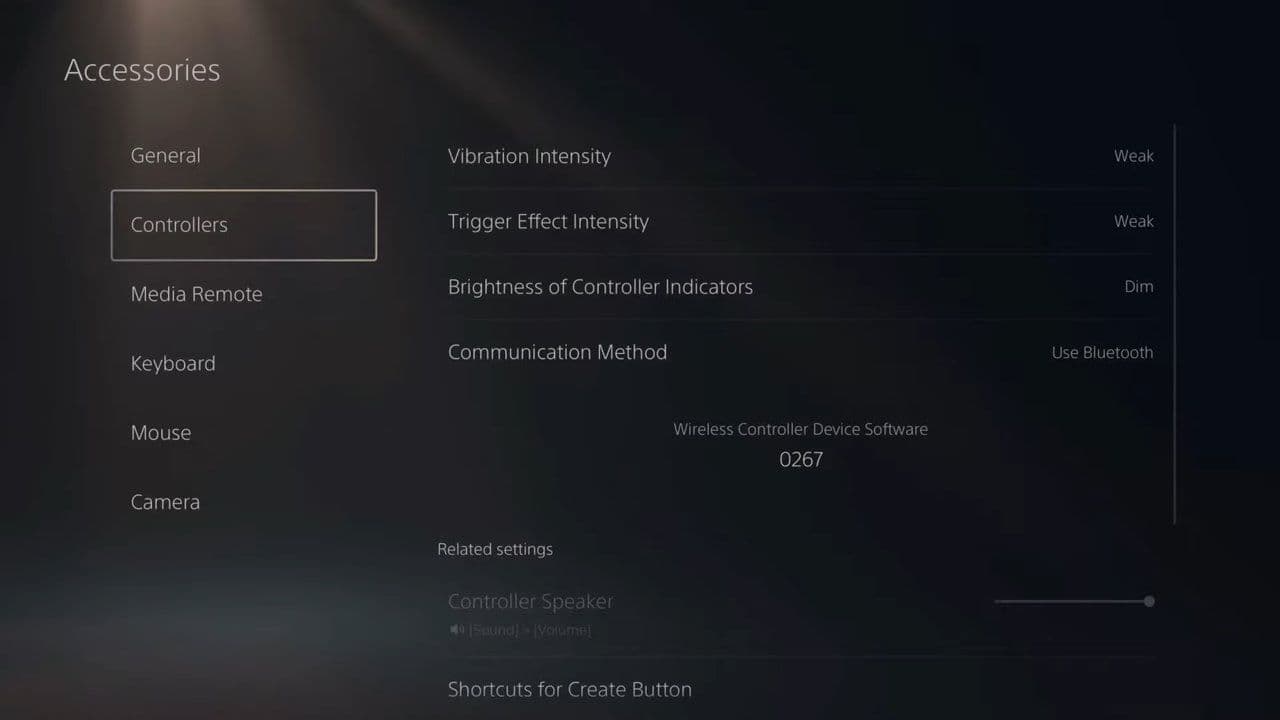
This disables vibration for all games, including Fortnite.
How to turn off controller vibration in Fortnite on Xbox (Xbox One & Xbox Series X|S)
If the Fortnite setting does not fully disable vibration:
- Press the Xbox button.
- Go to Profile & System → Settings.
- Select Accessibility.
- Choose Controller.
- Hit Vibration settings
- Turn Vibration off.
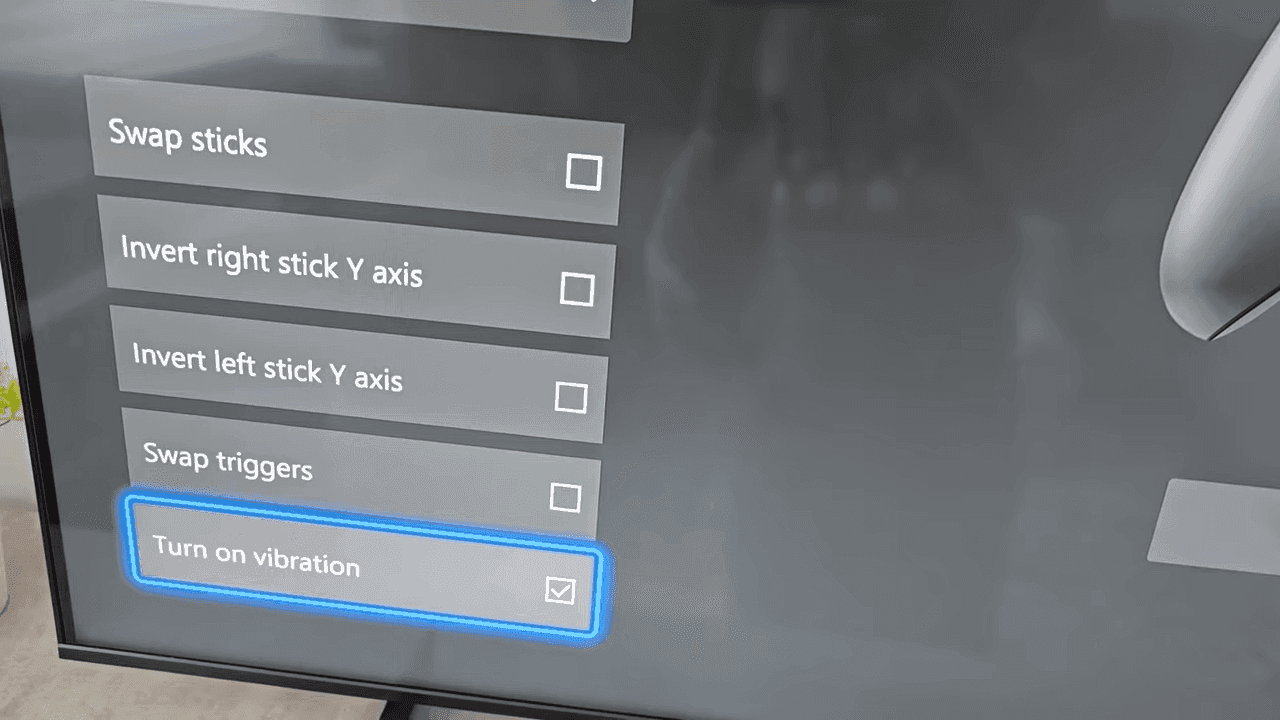
This ensures no vibration occurs in Fortnite or other games.
How to turn off controller vibration in Fortnite on PC
Many PC players use Xbox or PlayStation controllers with third-party apps & the process depends on it. If launching through Steam, here is how to turn off controller vibration in Fortnite on PC.
- Go to Settings
- Find Controller
- Turn off Game Rumble
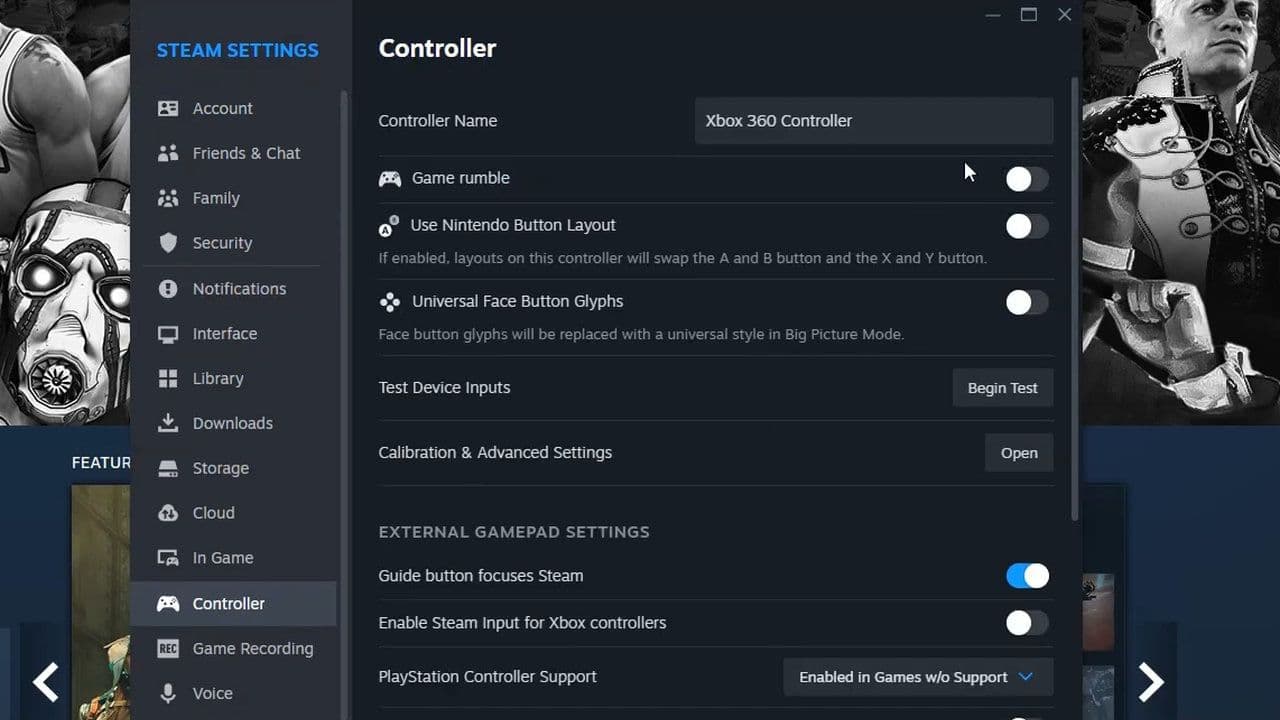
PC controller software can override in-game settings, so double-check these programs.
How to turn off controller vibration in Fortnite on Nintendo Switch
On Nintendo Switch, follow these in-game steps.
- Go to System Settings.
- Select Controllers and Sensors.
- Turn Controller Vibration off.
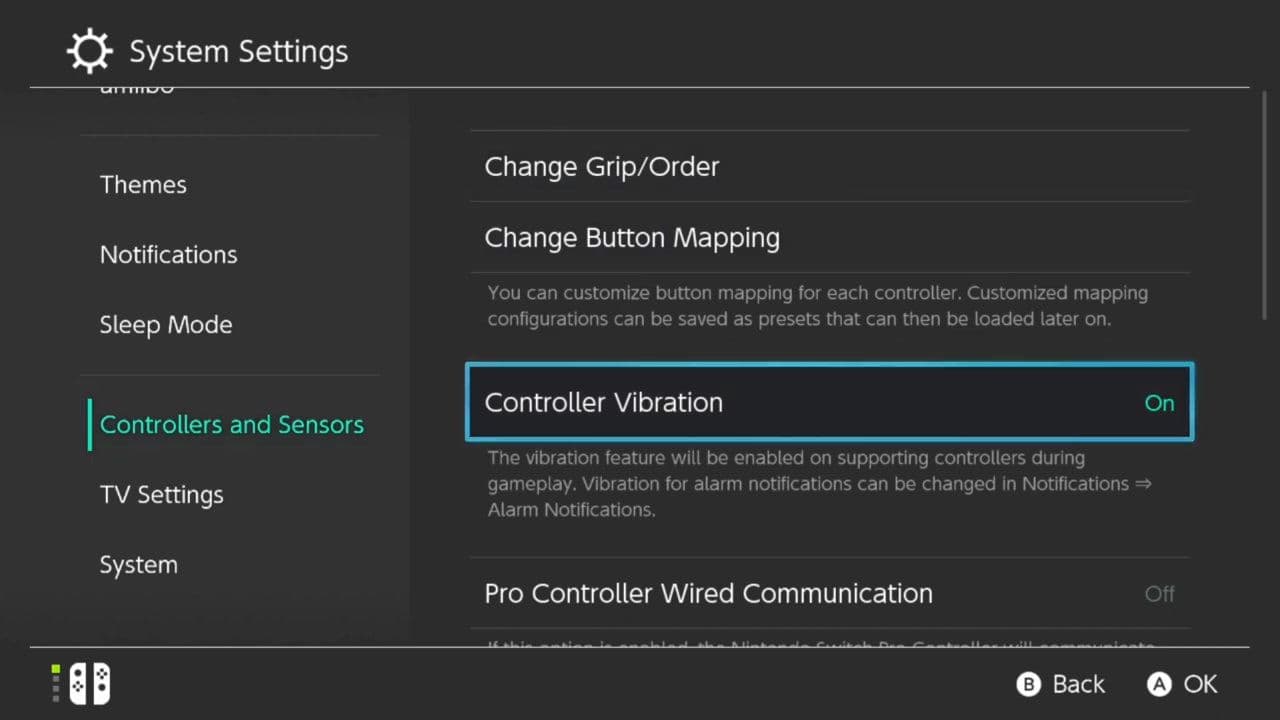
This removes vibration across all Switch games.
Is your controller vibration still not turning off?
If you followed all steps and Fortnite controller vibration continues, try these fixes:
- Restart Fortnite after changing the setting.
- Restart your console or PC.
- Reconnect or resync your controller.
- Check for a Fortnite update.
- Make sure changes were applied before exiting settings.
Occasionally, limited-time modes or special events may temporarily override vibration settings, but this is uncommon.
Does turning off vibration really improve performance?
Turning vibration off won’t boost FPS or reduce lag — it’s purely a feel preference. Many competitive players disable it for steadier aim, cleaner edits, and maximum consistency in close-range fights.
But keeping vibration on? That’s valid too. If you like the extra feedback for shots, damage, and overall immersion, it can actually sharpen your in-game awareness. I personally enjoy it.
Bottom line: there’s no “pro-only” rule here. Play with the setting that makes you feel locked in and confident.
Now you know exactly how to turn off controller vibration in Fortnite on PlayStation, Xbox, PC, and Nintendo Switch. If you ever want vibration back, just return to the same setting and toggle it on again.
That’s all for today! Looking for more Fortnite guides? Check out these:
All Related Guides
 Fortnite Galaxy Sprites guide: Every Galaxy Sprite, locations, buffs & farming tipsEverything you need to know about Fortnite Galaxy Sprites, including all variants, spawn locations, Galaxy Hou...
 Only Fortnite Sprite checklist you need (Chapter 7 Season 3)Looking for a Fortnite Sprite checklist? See every Sprite, Gold, Gummy, and Galaxy variant in Chapter 7 Season...
 What's the rarest Sprite in Fortnite? Fortnite Sprite chances explainedWondering what's the rarest Sprite in Fortnite? Discover Fortnite Sprite drop rates, rarity rankings, chances,...
 How to trade Sprites in Fortnite Chapter 7 Season 3Learn how to trade Sprites in Fortnite Chapter 7 Season 3, including Burnt Peanut Sprite trades, extraction re...
 How rare is the Burnt Peanut Sprite in Fortnite? Drop rate, player count & how to get itLearn the Burnt Peanut Sprite drop rate, rarity, best farming methods, extraction tips, and how to unlock it i...
 How to find Gummy Sprites in Fortnite Chapter 7 Season 3Learn how to find Gummy Sprites in Fortnite Chapter 7 Season 3, their locations, extraction rewards, and best ...
 Fortnite Relic Chest (Rare Chests): Locations, Sprites & moreLearn where to find Fortnite Relic Chests, what loot they contain, Sprite drop chances, and the best farming r...
 How to get every Sprite in Fortnite Chapter 7 Season 3Learn how to get every Sprite in Fortnite Chapter 7 Season 3, including locations, extraction tips, abilities,...
- 1
- 2
- 3
- 4
- 5
- 6
- 7
- 8
- 9
- 10
- 11
- 12
- 13
- 14
- 15
- 16
- 17
- 18
- 19
- 20
- 21
- 22