Hytale Texture Pack and Shaders Guide: Create, Download, and Use Hytale Shaders

You can change how Hytale looks in two main ways. You can swap textures to reshape the game’s art style, and you can tune visual effects that make lighting and depth feel different. If you wonder how, it is quite simple. This guide explains what a Hytale texture pack does, how “Hytale shaders” fit into the picture, and how you can build, download, and use packs!
What is a Hytale texture pack?
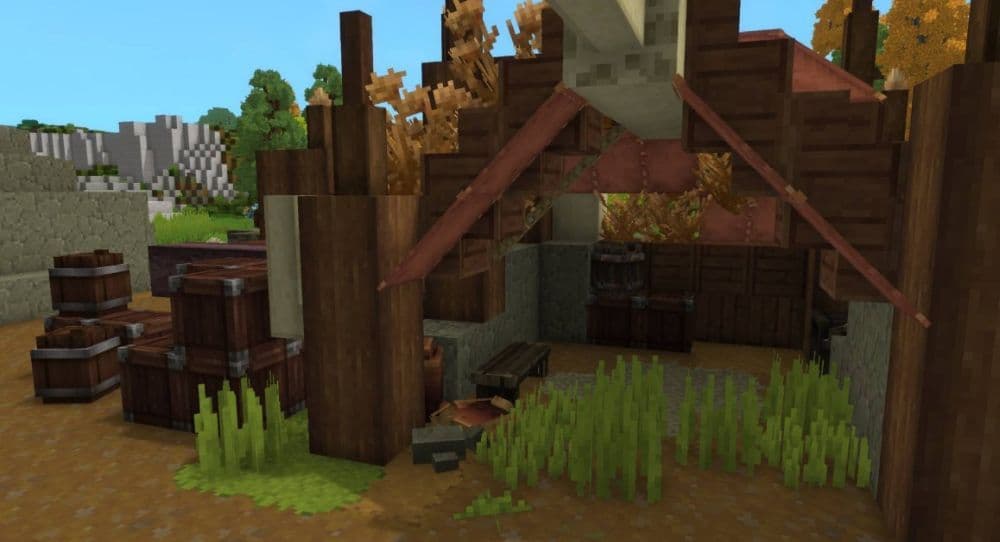
A texture pack changes the look of surfaces and icons. It can reshape blocks, items, UI elements, and world details. In Hytale, creators often ship these changes through packs that bundle assets in a structured way.
Players use the term Hytale shaders for visual effects that change the mood. These effects usually target lighting, depth, and screen-space polish.
Use this quick table to choose the right path:
How to create a texture pack in Hytale
You get better results when you treat your pack like a small project, not a loose folder.
- Plan your target: Pick blocks, items, or UI assets you want to change. Keep the scope small for the first version.
- Set a clear style rule: Define a palette, contrast level, and detail density. This step keeps your pack consistent.
- Build a pack structure: Place textures in the correct asset paths and keep naming consistent.
- Test early: Load the pack in a controlled environment and check every asset you touched.
- Iterate with discipline: Change one set of textures, then retest. This approach helps you spot issues fast.
Common quality checks that save time:
- You keep the same resolution across assets.
- You keep edges and highlights consistent.
- You avoid noisy patterns that hurt clarity.
If you are exploring more about Hytale, make sure to check out our guide on Hytale servers!
How to download and use texture packs on CurseForge
CurseForge often offers the simplest path for discovery and installation, since it centralizes projects and version updates.
Use this workflow:
- Install the CurseForge app and open the Hytale section.
- Browse texture-focused projects and read the project description for scope and compatibility notes.
- Click Install on the project page.
- Launch Hytale from CurseForge so the app loads the right profile.
- Enable the pack in your game setup if Hytale offers a pack selection screen for that profile or save.
Smart selection tips before you install:
- Check update recency and changelog quality.
- Check screenshots for UI clarity and block readability.
- Start with one pack at a time so you can trace problems.
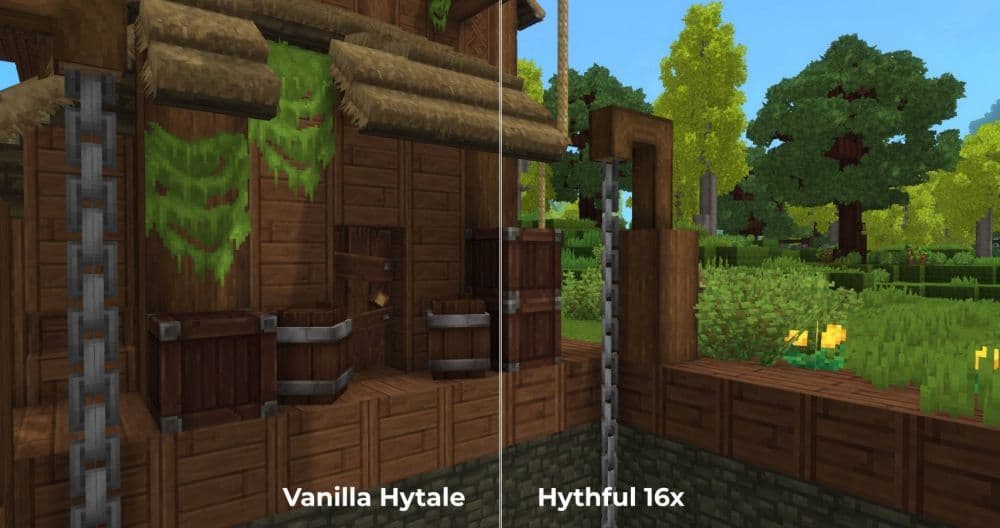
How to make sure your texture pack works in-game
After you load your pack, run a quick visual audit. This step prevents long sessions with broken assets.
Check these items first:
- Target blocks and items: You should see your new textures with clean edges.
- UI icons and menus: Icons should stay readable at normal scale.
- Missing textures: You should not see placeholder visuals.
- Performance: Frame time should stay stable in a normal biome and in a busy scene.
If you spot a problem, focus on paths and naming first. Most early errors start there.
How to pick the right Hytale texture pack and Hytale shaders settings
Pick texture packs based on style clarity, not raw detail. A clean look often reads better during combat and fast movement.
Use these criteria:
- Resolution fit: Low-resolution packs can look sharp and consistent. High-resolution packs can look rich, but they can stress clarity if the style shifts.
- Theme consistency: The pack should follow one art direction across blocks, items, and UI.
- Update discipline: A pack that gets steady updates tends to break less after platform changes.
For Hytale shaders, start with modest settings first. You can push effects later once you confirm stable performance. Focus on lighting feel and readability, then tune depth and bloom in small steps.
It is always good to get more help along the way. Don’t hesitate to ask on forums, and check YouTube videos, such as the one below:
Check out more of our Hytale guides below:
- List of all Hytale mobs, what they drop & how to find them
- How does the Hytale class system actually work? Guide to builds
- Where to play Hytale and how to install the game
- Hytale Early Access Roadmap: What to expect in future updates
- Hytale Update 4: New features, changes, and patch notes
Featured Image Credit: illystray on CurseForge
All Related Guides
 Best Hytale plugins and how to create yoursExplore the best Hytale plugins for servers, from permissions and shops to NPCs, kits, performance tools, and ...
 Meet the Hytale Pokemon mod Pokefind: Release date, gameplay and moreGet the latest details on the Hytale Pokemon mod Pokefind, including gameplay plans, server support, release s...
 Can you create an infinite water source in Hytale?Learn if a Hytale infinite water source is possible, why the 2x2 trick fails, and which mods can help you get ...
 Who is The Hedera in Hytale Endgame & QoL mod and how to defeat itFind out how to reach and defeat The Hedera in Hytale Endgame & QoL mod, including boss phases, best prep, and...
 How to heal in Hytale (Food, potions, totem & more)How to heal in Hytale: food, potions, totem, regen buffs, best methods, and full survival guide explained....
 Hytale Update 4 (Part 5): What’s new?Hytale Update 4 Part 5 adds 500+ new blocks, system upgrades, bug fixes, and major improvements before full re...
 All Hytale signs & how to craft themDiscover all 29 Hytale signs, their crafting recipes, and how to use them. Learn sign mechanics, placement tip...
 When will Hytale fully release? (2026 update)When will Hytale fully release? Learn the expected 2026–2027 timeline, Early Access plans, and what must happe...
- 1
- 2
- 3
- 4
- 5
- 6
- 7
- 8