What is Minecraft WebDisplays mod and how to play it?
An unusual thing to see in Minecraft...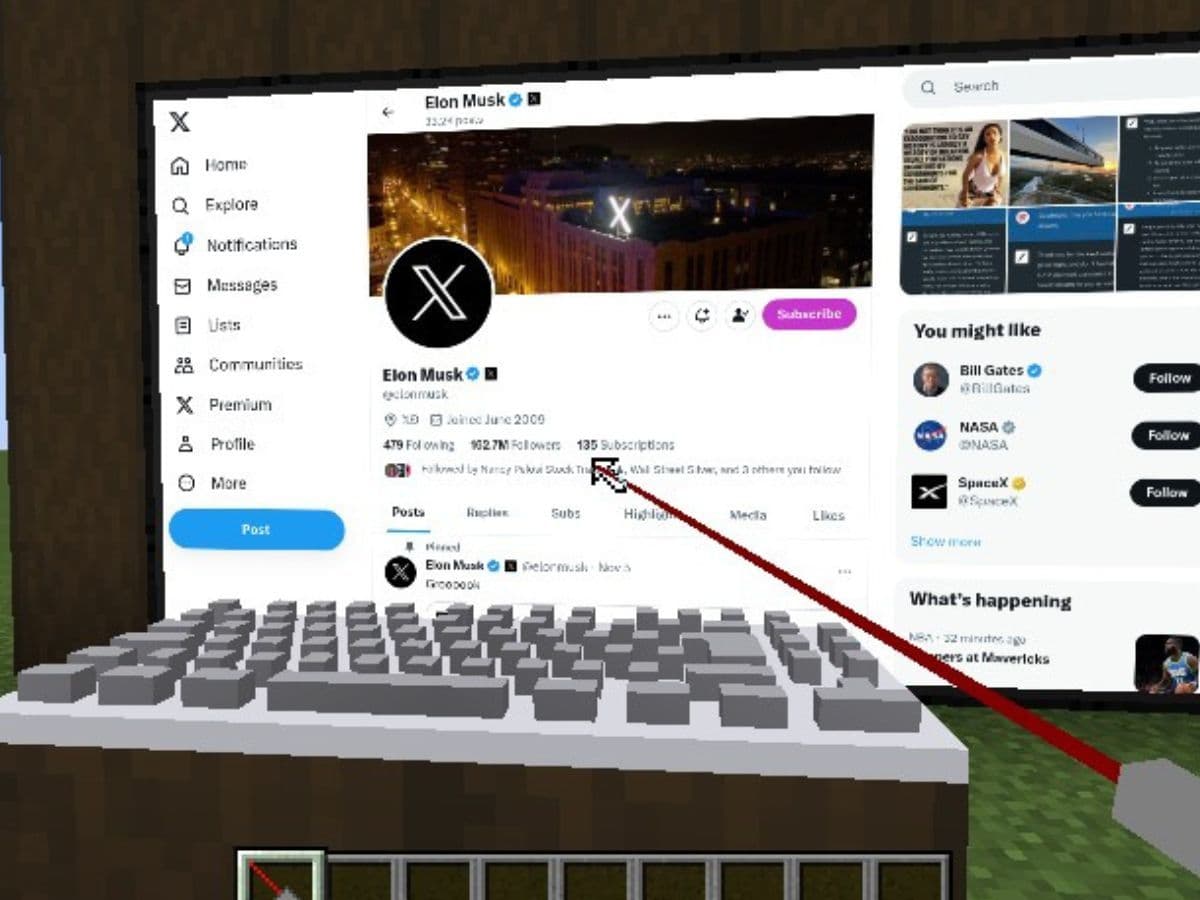
There are many Minecraft mods you can find online. One of the most unique is the WebDisplays mod, which lets you browse real websites inside Minecraft. You can create screens in your world, open YouTube, or display web pages without leaving the game. If you are wondering how, keep reading because this guide explains what the Minecraft WebDisplays mod is, how to set it up, and how to use it in the game!
What is the Minecraft WebDisplays mod?
WebDisplays is a Forge-based Minecraft mod that creates a working web browser inside the game. It uses MCEF (Minecraft Chromium Embedded Framework) to show web content. Players build screens out of special blocks that act like real monitors. These screens can open almost any site, including YouTube and other video platforms.
The mod runs well on Windows and has limited support on Linux and macOS. It supports older Minecraft versions like 1.10.2 and 1.12.2 and also has updated builds for newer versions, such as 1.20.x. Many players and server owners use it for creative projects, teaching tools, and public information boards.
Many other Minecraft modes add more gameplay features to the game, such as Waifucraft, Werewolves mod, and ProjectE mods, but WebDisplays focuses on a single feature.
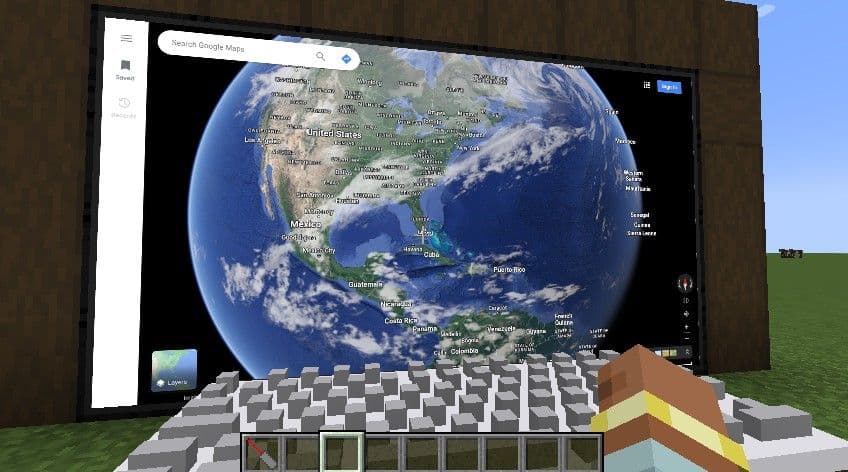
WebDisplays features and benefits
WebDisplays comes with many tools and options that make it powerful and easy to use.
- Build large screens: Create displays from 2×2 up to 16×16 blocks. You can set the resolution up to 1920×1080.
- Access real websites: Open any web page, watch embedded videos, or display your own custom pages.
- Control settings: Use a Screen Configurator to change resolution, rotation, and permissions.
- Use extra devices: Add a keyboard for typing or a remote controller for changing URLs. You can also add a laser sensor to click with a laser pointer.
- Redstone support: Connect screens to redstone with input and output ports so websites can react to in-game signals.
- Manage permissions: Assign ownership and give friends or other players different access levels to change URLs, type, or add upgrades.
- Multiplayer use: Each player sees their own browser session, which keeps performance smooth and allows personal interaction.
These features enable players to set up movie theaters, live dashboards, or interactive learning spaces directly within Minecraft.
How to install and setup
Installing WebDisplays takes a few quick steps.
- Install Minecraft Forge for the version you need.
- Download WebDisplays and MCEF from safe sources like CurseForge or Modrinth. Both files are required.
- Move the downloaded .jar files into the Minecraft mods folder.
- Launch Minecraft with the Forge profile to finish the setup.
You can change many settings inside the .minecraft/config folder. For example, you can set a custom home page, adjust the maximum screen size, or block certain domains. To use the mod on a server, copy the same files to the server’s mods folder.
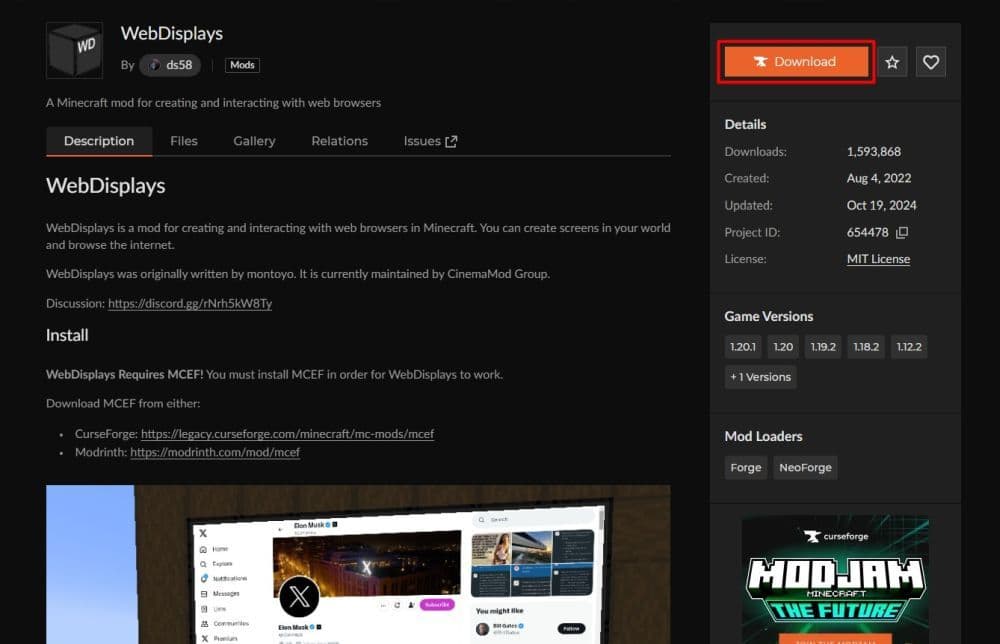
How to play and use
After installing, you can start building your first screen. Place screen blocks in a flat shape with at least 2×2 blocks. Right-click the side where you want the screen to appear. To add a website, sneak and right-click with an empty hand. The mod adds “http://” to links automatically. A YouTube button turns normal links into embedded full-screen videos and can autoplay when enabled.
Players interact with the screen in different ways:
- Click: Right-click the screen or use a laser pointer if a laser sensor upgrade is installed.
- Type: Link a keyboard peripheral with the Linking Tool and right-click to start typing.
- Manage permissions: Open the Screen Configurator to set ownership, friend access, and resolution.
You can also connect redstone to trigger web-based actions, like changing URLs or controlling in-game lights and doors. This gives creative builders more room to design interactive worlds.
Is WebDisplays still available?
Yes. The mod is still active and easy to find on CurseForge, Modrinth, and GitHub. While the original creator is no longer the main developer, community teams continue to update it and fix bugs. They also maintain MCEF, which is key for web rendering.
Some features have limits. Chrome extensions do not work, and Flash content is not supported because of security and technical reasons. Linux and macOS users may see white screens or other display issues. Developers aim to improve this in future updates.
Is Minecraft WebDisplays mod free?
Yes. WebDisplays is free to download and use. The newer builds are open source under an MIT license. You can include it in personal modpacks without asking permission. For large public modpacks, you may need to contact the maintainers. There are no hidden costs or paid upgrades.
Are you looking for more Minecraft guides? Start with the ones below:
- Minecraft Serene Seasons Mod: A deep dive into seasonal dynamics and gameplay
- Here is a closer look at the free Japanese government Minecraft map
- Minecraft Movie's Post-Credits Scene: Implications for the Minecraft Universe
- Minecraft blast furnace recipe: How to make a blast furnace in Minecraft
- How to make a stone cutter in Minecraft: Complete recipe
Featured Image Credit: WebDisplays
All Related Guides
 Top 5 Minecraft 26.1 seeds you must try todayFind the best Minecraft 26.1 seeds for villages, rare biomes, island survival, and creative builds, with seed ...
 How to turn on keep inventory in MinecraftUse the correct Keep Inventory command in Minecraft and learn how it works across Java, Bedrock, servers, and ...
 How to breed tropical fish in MinecraftCan you breed tropical fish in Minecraft? Here is the clear answer, plus how to catch, move, and use tropical ...
 Minecraft Chaos Cubed guide: Everything new in the 2026 updateExplore everything new in Minecraft Chaos Cubed, including Sulfur Caves, Sulfur Cubes, geysers, new blocks, co...
 How to change render distance in MinecraftChange render distance in Minecraft with simple steps for Java and Bedrock, plus tips to balance better visibi...
 How to grow mangrove trees in MinecraftFind out how to grow mangrove trees in Minecraft with simple steps, growth requirements, farming tips, and com...
 How to craft a name tag in MinecraftLearn how to craft a name tag in Minecraft, how to use it with an anvil, and why it matters for pets, mobs, an...
 Here is how to make a water elevator in MinecraftHere’s how to make a water elevator in Minecraft, including the materials you need and why your bubble column ...
- 1
- 2
- 3
- 4
- 5
- 6
- 7
- 8