How to fix expected channel name error in Roblox
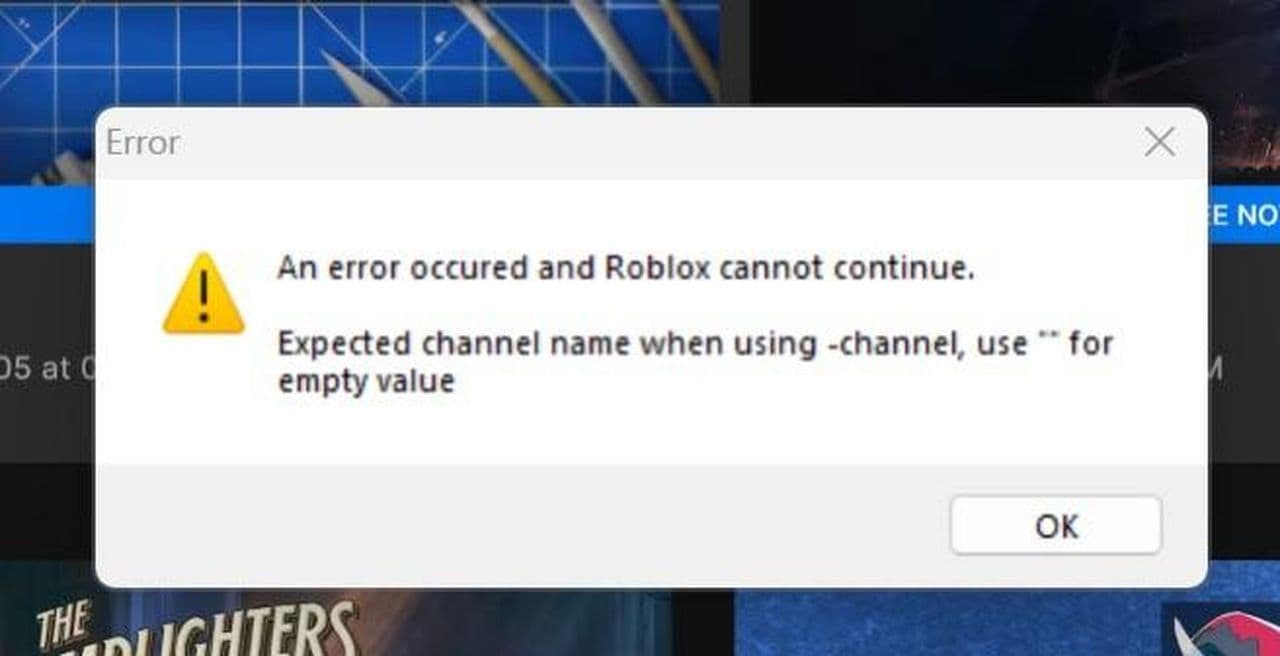
If you see this error, corrupted files may be the reason. Here is how to deal with this annoying error in Roblox.
If you’ve ever encountered the Roblox expected channel name error while trying to enjoy your favorite games, you probably wonder how to fix it. The good news is that there are several effective troubleshooting methods available.
Roblox expected channel name error explained
The Roblox "expected channel name" error happens mostly due to broken or corrupted files. It can also happen if Roblox doesn't have the right permissions or if its cache (temporary files) is causing problems.
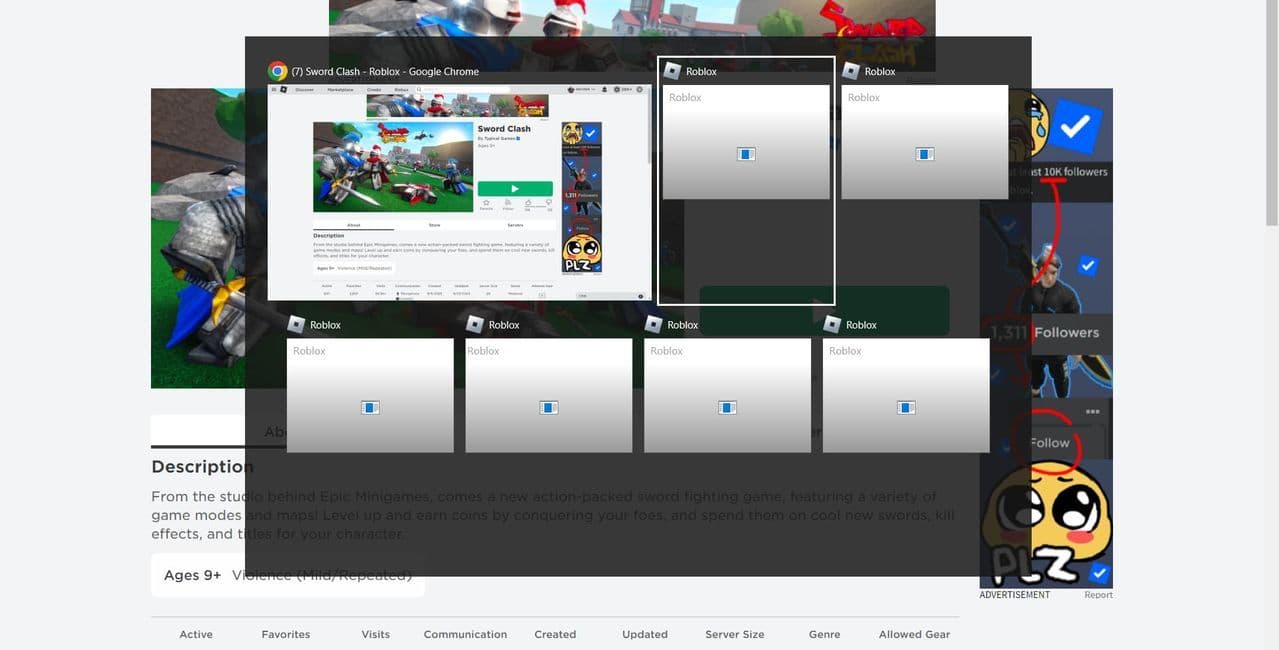
How to fix Roblox expected channel name error
Here's a simple guide on how to fix it:
Run Roblox as Administrator
Running Roblox with administrator permissions gives it more control over important files, which might solve the error. Here's how you do it:
- Step 1: Click the Start menu, type "Roblox," and right-click on the Roblox icon.
- Step 2: Choose Run as administrator.
If this fixes the error, you can make Roblox always run as an admin: - Step 3: Right-click the Roblox icon again, choose Open File Location, and then right-click on the Roblox shortcut.
- Step 4: Click Properties, go to the Compatibility tab, and check Run this program as an administrator.

- Step 5: Click Apply and then OK.
Decline admin permission requests
Some users have found that saying "No" to all the permission requests from Roblox actually solves the problem! When Roblox tries to reinstall, it fixes the corrupted files on its own. This trick is worth trying before moving to other methods.
Reinstall Roblox
Sometimes, Roblox files can get corrupted. Reinstalling the game can fix this. Here's how:
- Step 1: Press Win + I to open Settings, go to Apps, find Roblox, and click Uninstall.
- Step 2: Go to the official Roblox website and install Roblox again.
To fully remove corrupted files:
- Step 3: Press Win + R, type %localappdata%, and press Enter.
- Step 4: Find the Roblox folder and delete it, then reinstall the game.
Use a command to open Roblox
Some users have fixed the error by using a special command to open Roblox. Try this:
- Step 1: Open your web browser and type this command in the search bar:
- roblox-player:1+launchmode:app+channel:zwinplayer64
This will try to launch Roblox. If it works, great! If not, try the next solution.
Clear Roblox Cache
Corrupted cache files can cause errors. Here’s how to clear Roblox’s cache:
- Step 1: Press Win + R, type %temp%, and press Enter.
- Step 2: Delete the Roblox folder in the temp files.
Clear cache in your browser too:
- Step 3: Open your browser’s Settings, go to Privacy Settings > Site Settings, and find Roblox.
- Step 4: Delete the stored data for roblox.com.
Install Roblox from the Microsoft Store
If nothing else works, try downloading Roblox from the Microsoft Store instead of the website:
- Open the Microsoft Store, search for Roblox, and install it from there.
If these steps don’t work, contact Roblox Support for further help. Most of the time, one of these methods will fix the "Expected Channel Name" error so you can get back to gaming.
All Related Guides
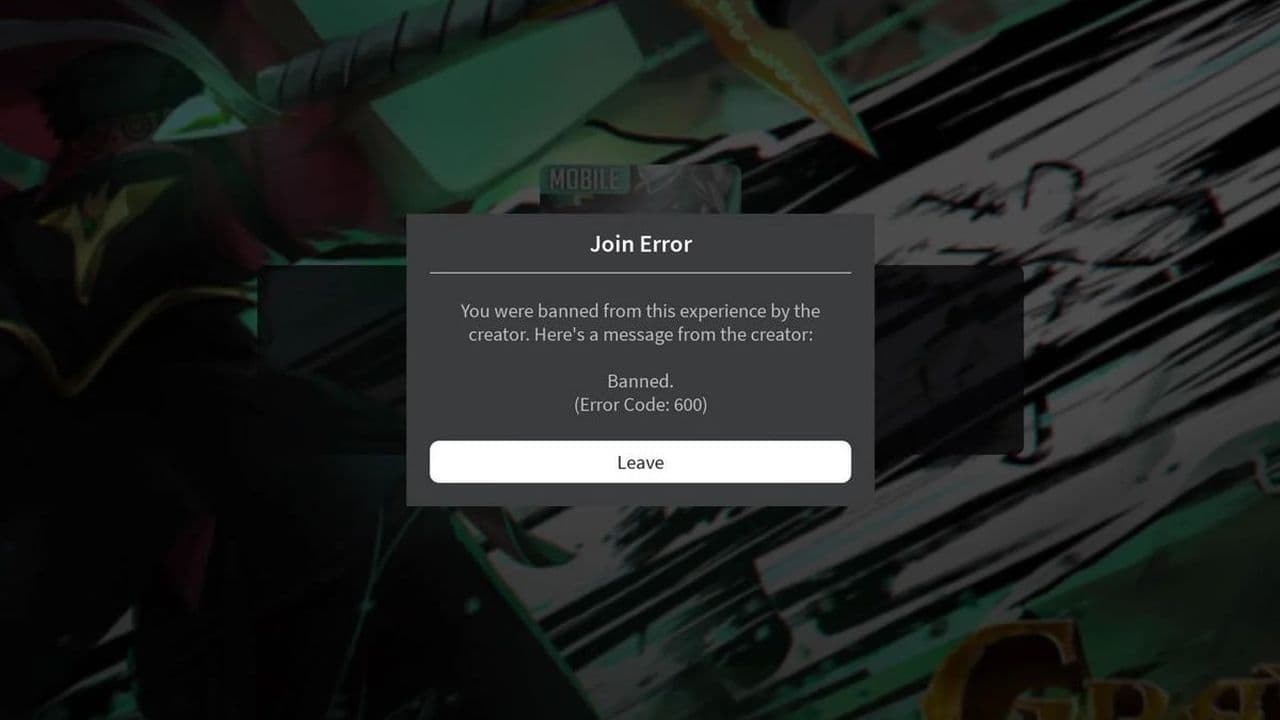 How to fix Roblox error code 600 Learn how to fix Roblox error code 600, understand the new IP-based ban system, and explore potential workarou...
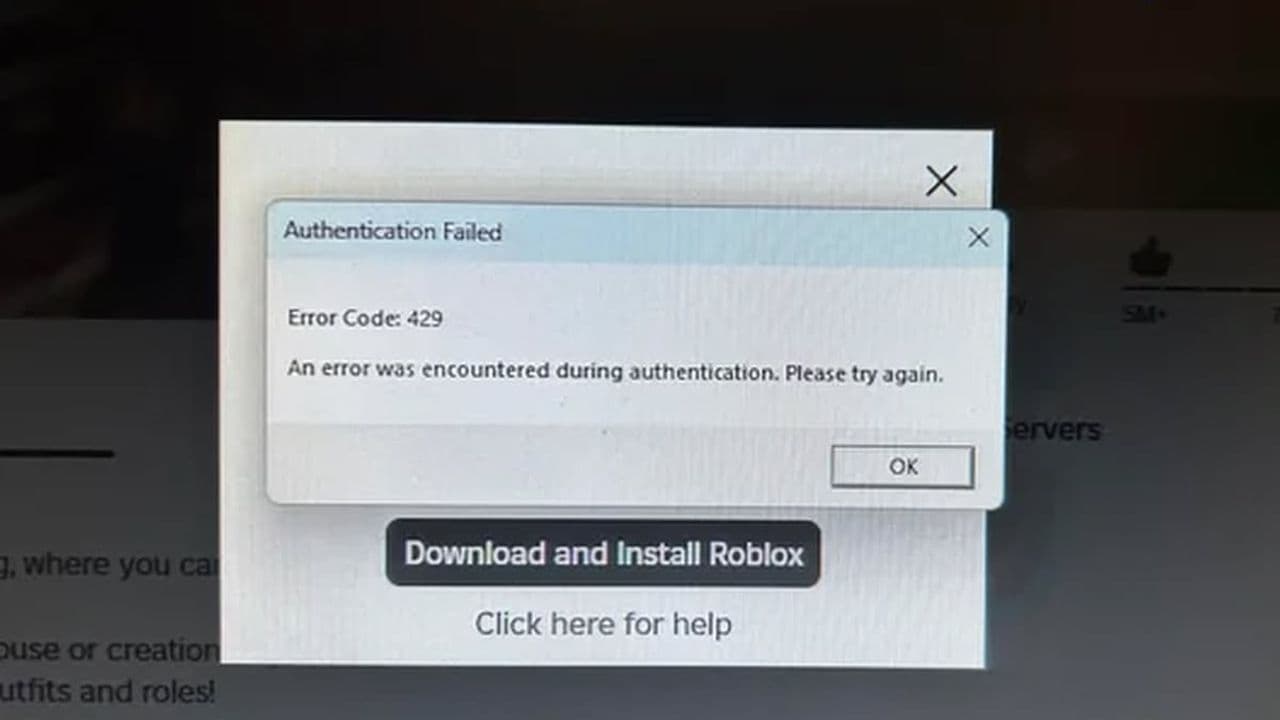 How to fix Roblox error code 429: Authentication issues and too many requestsRoblox error code 429 explained: causes, rate limits, and potential malware risks. Learn how to avoid it and f...
 What does error code e01 mean in Roblox?Roblox error code e01 is one of those uncommon errors but we have a couple of fixes that you must try to fix t...
 How to fix Roblox error code 268: 8 easy waysLearn 8 simple ways to fix Roblox error code 268 and resolve the "unexpected client behavior" issue. Troublesh...
 How to fix error while updating worn items in RobloxFix the 'error while updating worn items' on Roblox with simple steps. Learn why it happens and how to resolve...
 How to fix Roblox connection error on WindowsThere are many Roblox error codes on Windows and luckily we know a couple of ways to fix them. Check them out ...
 How to fix error code 264 for RobloxRoblox error code 264 is one of the frustrating hiccups that will prevent you from playing the game, unless yo...
 What does code 288 mean in Roblox?All Roblox error codes have different meanings and error code 288 is one of the worst. Here is how to fix it!...
- 1
- 2
- 3
- 4