How to fix packet loss in CS2: 15 easy workarounds
Packet loss in Counter-Strike 2 can be troublesome. One of these workarounds should however help you overcome this issue.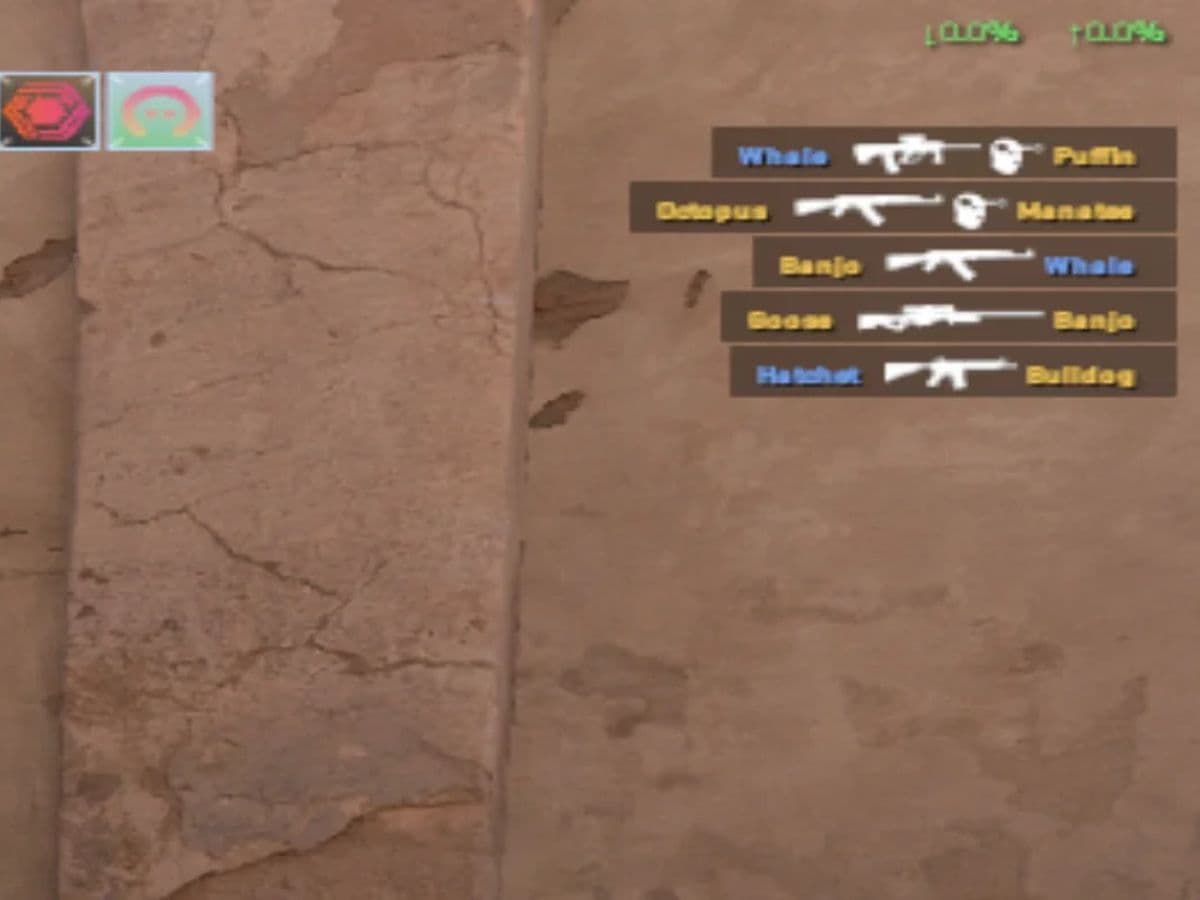
“How to fix packet loss in CS2” has unfortunately become a popular question among Counter-Strike 2 players. Even the most skilled gamers can fall victim to lag spikes, missed shots, and teleporting enemies due to poor network performance. However, before we get into the fixes, let’s understand the issue better first.
What is packet loss in CS2?
Packet loss in Counter-Strike 2 (CS2) happens when data packets traveling between your computer and the game server fail to reach their destination. When you play an online game like CS2, your computer continuously sends and receives packets of data (information) from the game’s servers. These packets contain crucial details, like player movements, shots fired, CS2 stickers, CS2 skins, and in-game interactions.
When packet loss happens, some of these packets are lost along the way, leading to:
- Lag or stuttering: The game freezes or feels unresponsive for short moments.
- Teleporting or rubberbanding: Players may suddenly "jump" from one spot to another because the game is trying to catch up with the missing data.
- Delayed actions: When you move or shoot, it happens with a delay, making it hard to play properly.
- Disconnections: In severe cases, packet loss can cause you to lose connection to the game entirely.
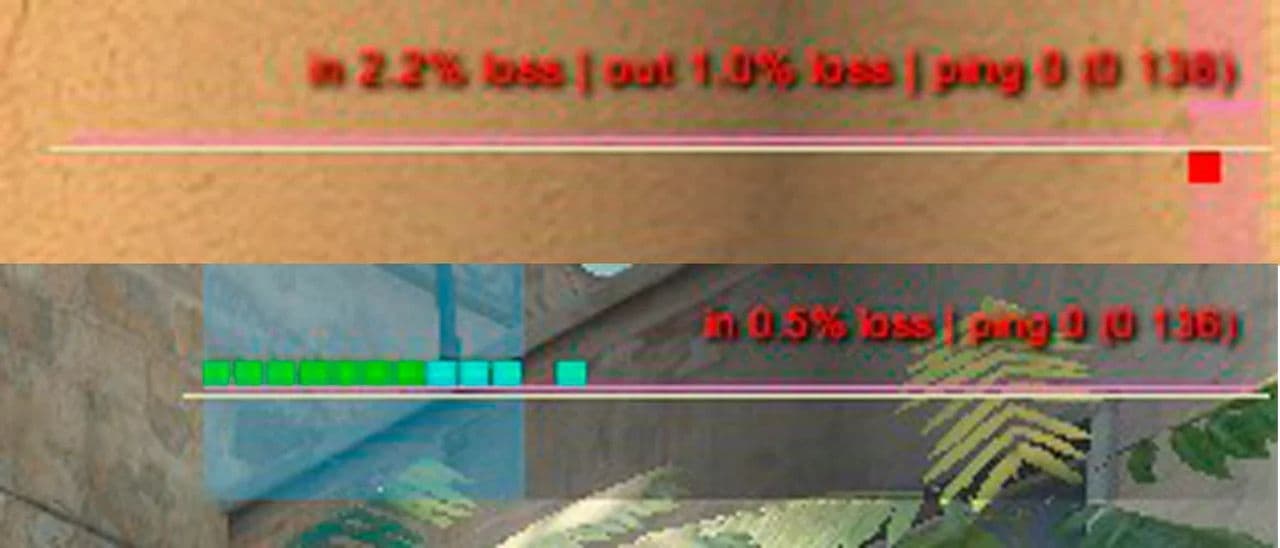
Common packet loss causes in CS2
Here are frequent reasons why CS2 players face packet loss:
- Network congestion: Games on busy networks drop packets when the flow exceeds capacity.
- Wireless interference: Wi-Fi faces signal issues from distance, walls, and appliances.
- Poor hardware: Faulty cables, routers, or network cards often cause dropped packets.
- ISP routing issues: Your internet provider may route your data through unstable paths.
- Server-side problems: Some players report packet loss only on official Valve servers while custom servers run fine.
These factors each affect your connection quality. You can fix many of them by switching to Ethernet, checking hardware, or testing different servers.
Fixing packet loss is important for smooth gameplay in CS2, as even small disruptions can affect your performance and cost you the game, and here is how to deal with it.
How to fix packet loss in CS2
If you're experiencing packet loss in Counter-Strike 2 (CS2), there are several steps you can take to improve your connection and reduce the issue, including but not limited to:
1. Check Your Internet Connection
- Speed Test: Use a speed test website to check your internet speed. Ensure your download and upload speeds are sufficient for gaming.
- Wired Connection: If you're using Wi-Fi, consider switching to a wired Ethernet connection. Wired connections are typically more stable and less prone to interference, leading to better performance.
2. Adjust Game Settings
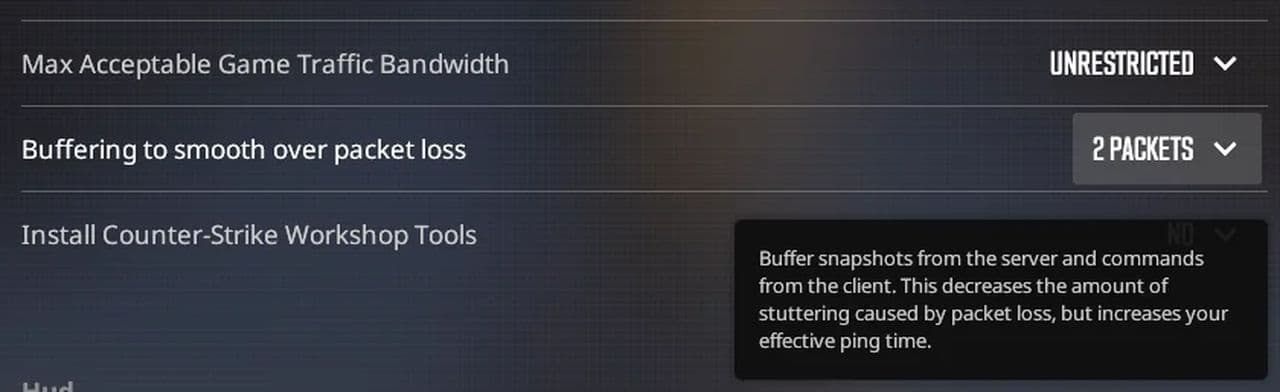
- Enable Buffering: Go to the settings menu in CS2:
- Open the Settings menu and navigate to the Game tab.
- Find the option called "Buffering to smooth over packet loss." Change the setting from None to 1 packet or 2 packets. This helps smooth out packet loss, although it may slightly increase your latency.
3. Reboot Your Router
- Power Cycle: Turn off your router for about 5 to 10 minutes, then turn it back on. This simple step can clear temporary issues and improve your connection quality.
4. Update Network Drivers
- Check for Updates: Make sure your network adapter drivers are up to date. Outdated drivers can lead to connectivity problems. You can usually find updates on the manufacturer’s website or through your device’s settings.
5. Reset Your Internet Settings
- Use Command Prompt:
- Open the Command Prompt (search for cmd).
- Enter the following commands one at a time, pressing Enter after each:
- Ipconfig /release
- ipconfig /flushdns
- ipconfig /renew
- netsh int ip reset
- netsh winsock reset
These commands reset your network settings and can fix various connectivity issues.
6. Close Background Applications
- Task Manager: Press Ctrl + Shift + Esc to open the Task Manager.
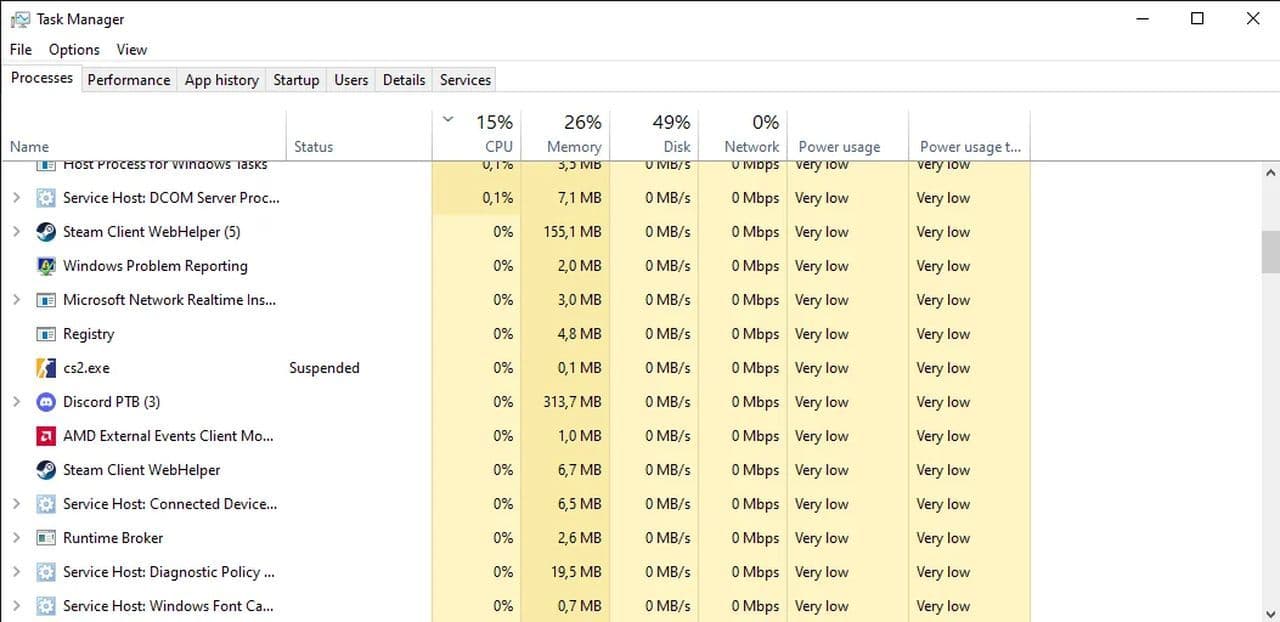
- Check for applications using a lot of bandwidth, such as downloads or streaming services, and close them. This action frees up more internet resources for CS2.
7. Try Different Game Servers
- Server Selection: If you’re experiencing packet loss on specific servers, try switching to a different server location. Connecting to servers that are geographically closer to you usually provides a more stable connection.
8. Use a VPN (if necessary)
Sometimes, using a VPN can help reduce packet loss by providing a more stable route for your data. Choose a reliable VPN service that specializes in gaming for the best results.
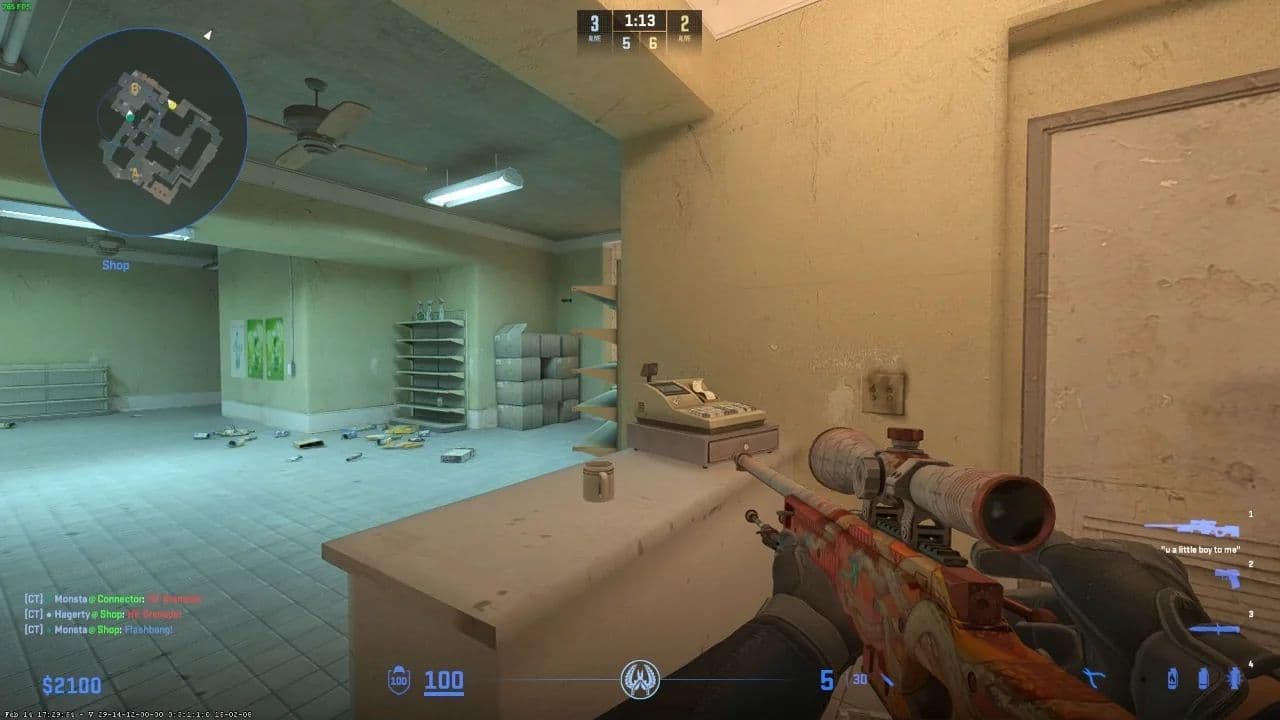
9. Monitor Network Performance
- Use Monitoring Tools: Consider using network monitoring tools to keep an eye on your connection.
10. Enable the In-Game Network Graph
- Display Network Issues:
- Open the Settings menu and go to the Game tab.
- Look for the option "Display network connection issues" and set it to Automatic.
- A new ping and packet loss graph will appear in the top right corner of your screen while playing, giving you real-time feedback on your connection quality.
11. Adjust Quality of Service (QoS) Settings
- Router Settings: If your router has QoS settings, enable them to prioritize gaming traffic. This feature can help ensure that your game data gets through even when your network is busy.
12. Upgrade Your Router
- If your router is old or not designed for gaming, consider upgrading to a newer model. Modern gaming routers come with features specifically designed to reduce ping and packet loss.
13. Change DNS Settings
- Use a Public DNS: Sometimes, your ISP's DNS servers can be slow or unreliable. Switching to a faster public DNS can improve your connection speed. Here’s how to do it:
- Open Control Panel and go to Network and Internet > Network and Sharing Center.
- Click on Change adapter settings on the left.
- Right-click your active network connection (Ethernet or Wi-Fi) and select Properties.
- Select Internet Protocol Version 4 (TCP/IPv4) and click Properties.
- Choose Use the following DNS server addresses and enter:
- Preferred DNS: 8.8.8.8
- Alternate DNS: 8.8.4.4
- Click OK to save changes. This uses Google’s DNS, which is generally faster and more reliable.
14. Limit Devices on Your Network
- Reduce Network Load: If multiple devices are using the same internet connection, they can consume bandwidth and contribute to packet loss. To improve performance:
- Disconnect devices that are not in use (smartphones, tablets, smart TVs).
- Consider scheduling downloads or streaming activities for times when you’re not gaming to ensure maximum bandwidth availability.
15. Check for Firmware Updates
- Router Firmware: Just like your computer needs updates, your router does too. Keeping your router's firmware up to date can enhance performance and stability:
- Access your router’s settings by entering its IP address in a web browser (usually something like 192.168.1.1 or 192.168.0.1).
- Log in with the admin credentials (usually found on a sticker on the router).
- Look for a section labeled Firmware Update or Router Update.
- Follow the instructions to check for updates and install them if available.
By implementing these additional fixes alongside the previously mentioned solutions, you can further improve your connection quality in CS2 and reduce packet loss. If you still experiencing CS2 errors, please reach out to Steam support.
Is 20% packet loss high?
Yes, 20% packet loss is very high and hurts gameplay. The table below compares packet loss levels:
Losing a fifth of your packets makes CS2 feel broken. Fixing that is essential before you return to competitive play.
All Related Guides
 donk crosshair CS2: Current code and how to copy itWant to try donk’s crosshair in CS2? Check the current donk crosshair CS2 code and see how his setup works....
 How to change the HUD color in CS2Change your HUD color in CS2 with a few quick steps. See the available colors, command values, and which choic...
 How to make CS2 look like CSGOMiss the old CS:GO visuals? This guide explains how to adjust CS2 graphics, brightness, colors, HUD, and weapo...
 How to bind mousewheel to jump CS2Find the best CS2 mousewheel jump bind commands, learn how to set them up, and see how scroll jumping can supp...
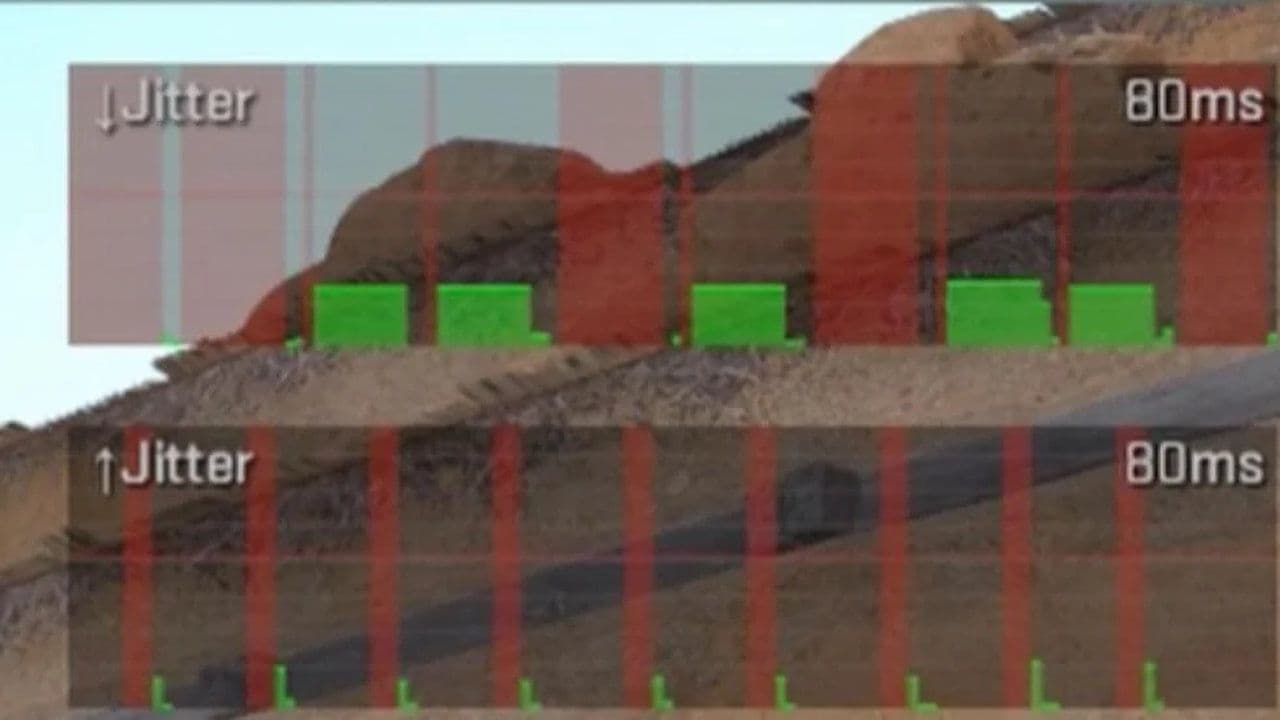 How to fix net jitter in CS2: Best solutions for packet loss, lag & rubberbandingLearn how to fix net jitter in CS2 with the best solutions for packet loss, lag, rubberbanding, and unstable c...
 How to scrape stickers in CS2Want to remove stickers in CS2? Here’s how scraping works, what it changes, and why full removal is permanent....
 ropz CS2 settings: Crosshair, viewmodel, and moreCopy ropz CS2 settings for mouse, crosshair, viewmodel, video, and radar, then adjust them to match your own a...
 How to remove screen shake in CS2How to reduce screen shake in CS2 using console commands, viewmodel settings, graphics tweaks, and autoexec co...
- 1
- 2
- 3
- 4