How to fix net jitter in CS2: Best solutions for packet loss, lag & rubberbanding
Reduce packet loss and jitter fast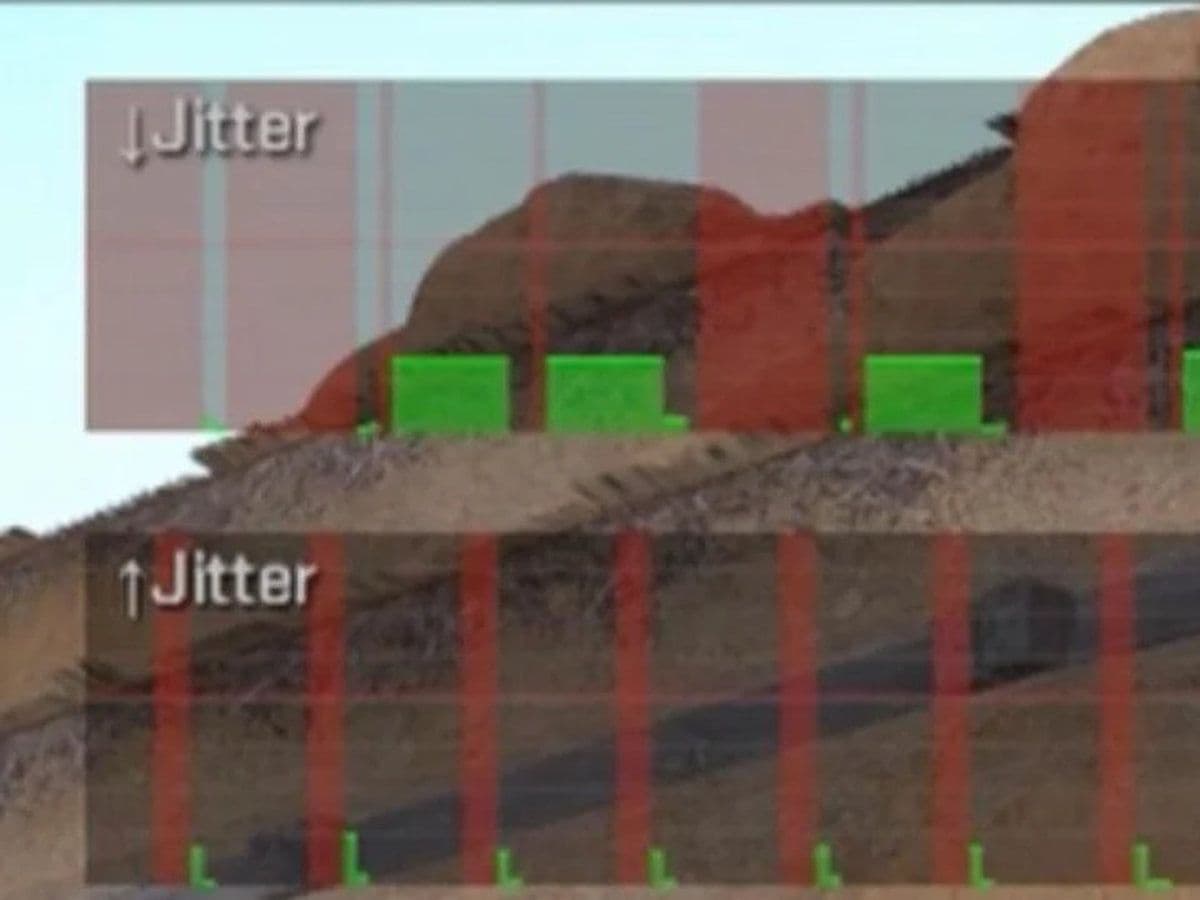
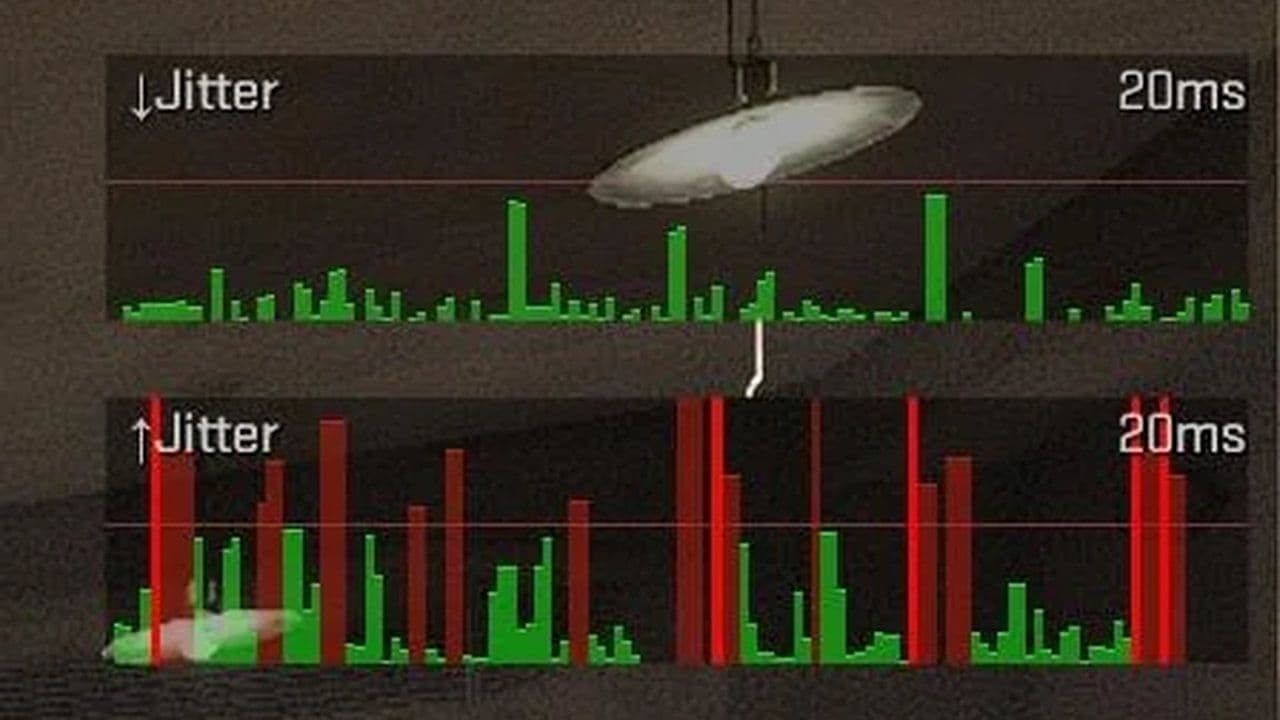
Seeing Net Jitter in Counter-Strike 2's Telemetry HUD? Even if your ping looks low, high jitter can cause rubberbanding, delayed hit registration, teleporting players, and inconsistent movement. The good news is that, in many cases, you can reduce or even eliminate it with the right settings.
This guide is based on Valve’s official recommendations, real player troubleshooting experience, and proven networking best practices to help you fix net jitter in CS2 effectively.
What is net jitter in CS2?
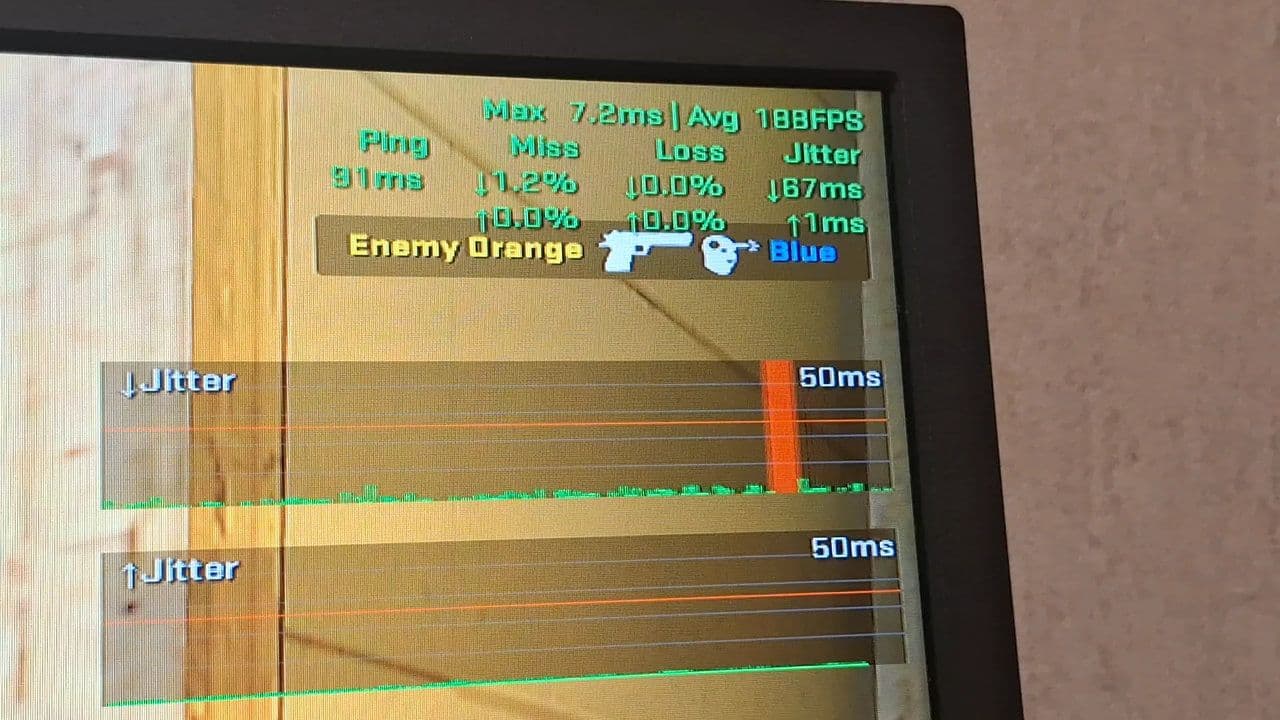
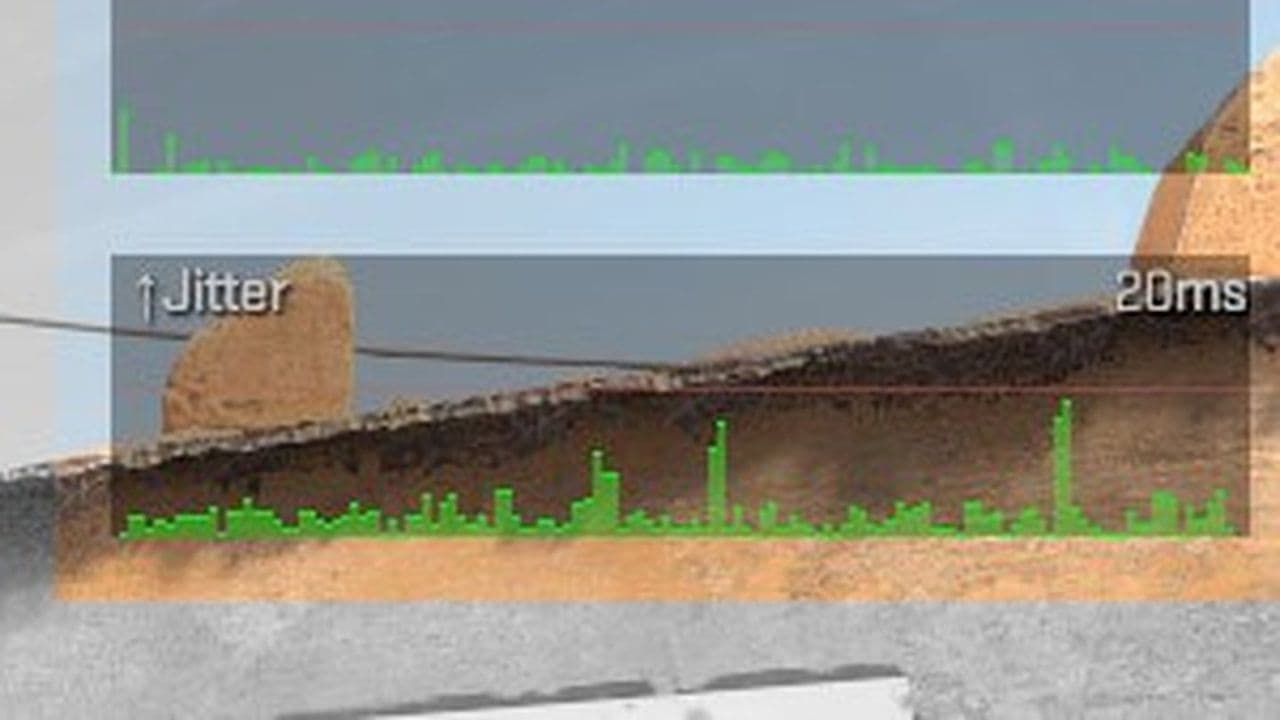
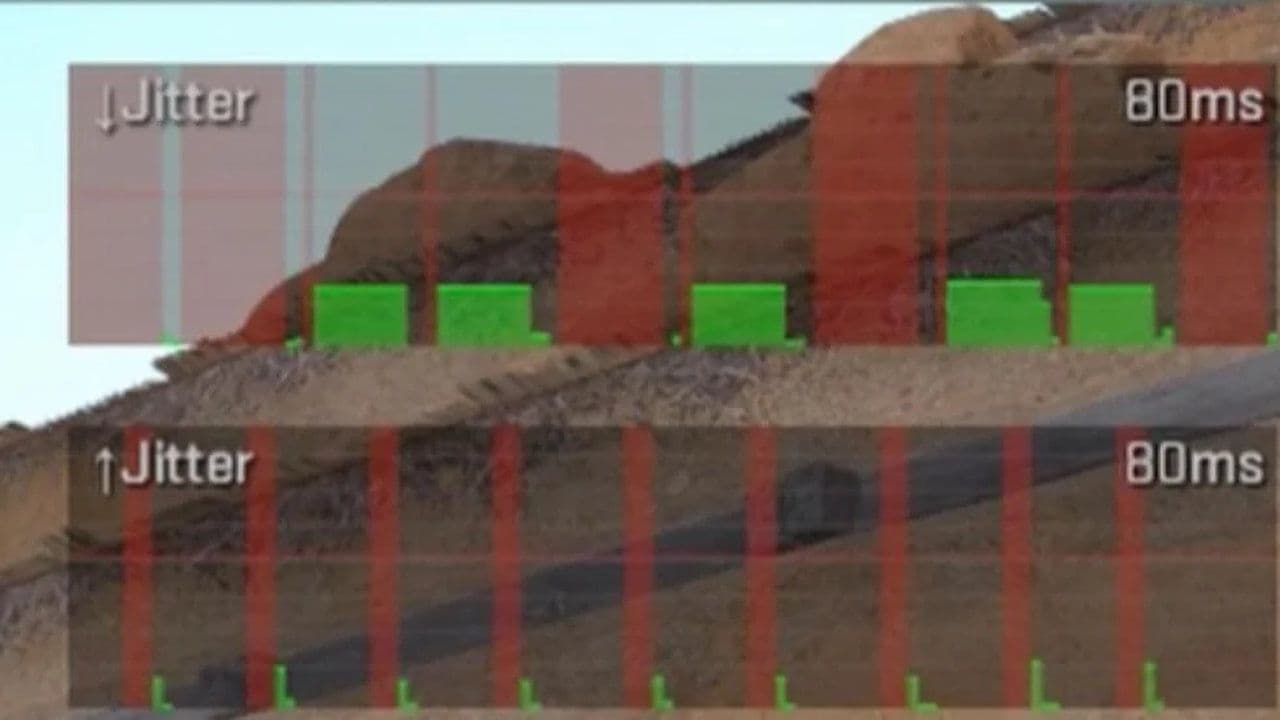
Net jitter measures how inconsistent your network latency is. Instead of every packet arriving at regular intervals, some arrive early while others arrive late. In a fast-paced game like Counter-Strike 2, those delays can be just as harmful as packet loss because the server may not receive the information it needs on time.
Common symptoms include:
- Rubberbanding
- Delayed hit registration
- Teleporting enemies
- Stuttering movement
- Shots not registering correctly
- High "Network Problems" values in the Telemetry HUD
How to fix net jitter in CS2
Below are the most effective, tested fixes to reduce or eliminate net jitter in CS2.
- Enable the Telemetry HUD to see whether your network performance improves after each change.
- Increase the packet loss/jitter buffer to reduce the impact of unstable packet delivery.
- Use a wired Ethernet connection for a more stable connection than Wi-Fi.
- Close background applications that might be using your internet connection.
- Set bandwidth to unrestricted so CS2 can use your full available bandwidth.
- Lower your matchmaking ping limit to connect to servers closer to your location.
- Restart your router and modem to clear temporary network issues.
- Update your network drivers to ensure your adapter is running properly.
- Verify your CS2 game files in case corrupted files are contributing to the problem.
- Test different servers to rule out server-specific issues.
- Consider using a gaming VPN if your ISP is routing traffic inefficiently.
Follow them in order for the best results.
Enable the Telemetry HUD
Before applying fixes, you need to monitor your network performance.
Go to:
Settings → Game → Telemetry
Enable:
- Ping
- Network Problems
- Network Jitter graph (optional)
This allows you to verify whether each fix is actually improving your connection.
Increase the packet loss/jitter buffer
Valve recommends adjusting this setting first.
Go to:
Settings → Game → Buffering to smooth over packet loss/jitter
Set it to:
- One packet (recommended starting point)
- Two packets (for severe jitter)
This adds a small amount of input delay but significantly improves stability by compensating for inconsistent packet delivery.
Use a wired Ethernet connection
Wi-Fi is one of the biggest causes of jitter due to interference and signal instability.
Switching to Ethernet provides:
- More consistent latency
- Reduced packet loss
- Stable routing
- Better hit registration
If you're serious about competitive play, Ethernet is essential.
Close background applications
Background apps can disrupt packet timing even if your bandwidth seems sufficient.
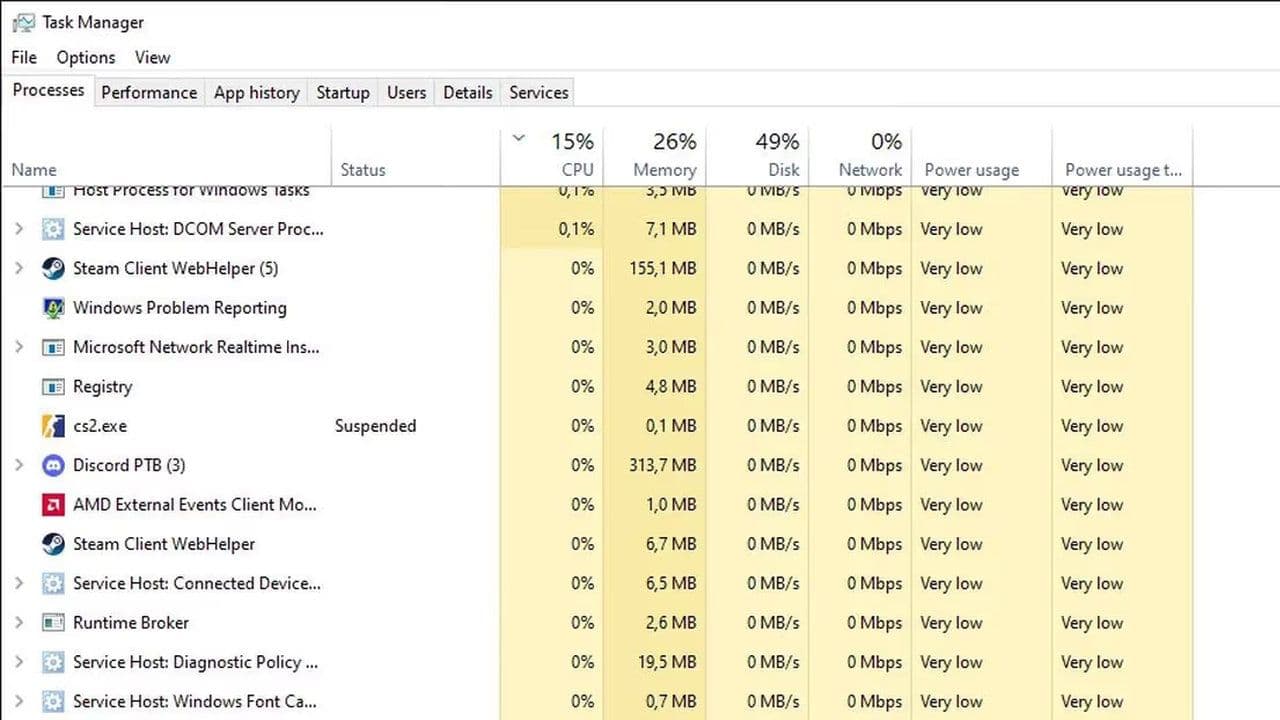
Close:
- Steam downloads
- Windows Update
- Cloud sync apps (OneDrive, Google Drive)
- Streaming services (YouTube, Netflix)
- Discord screen sharing
- Torrent clients
This ensures CS2 gets priority access to your network.
Set bandwidth to unrestricted
Make sure CS2 is not limiting your connection.
Go to:
Settings → Game → Max acceptable game traffic bandwidth
Set it to:
Extremely Unrestricted
This allows the game to fully utilize your available bandwidth.
Lower your matchmaking ping limit
Connecting to distant servers increases jitter.
Go to:
Settings → Game → Max Acceptable Matchmaking Ping
Set it to:
- 25 ms
- 35 ms
This helps ensure you're matched with nearby servers for more stable gameplay.
Restart your router and modem
Network devices can develop routing issues over time.
Restarting your router:
- Clears temporary network congestion
- Refreshes routing paths
- Fixes ISP-side inconsistencies
Do this regularly, especially if you notice sudden jitter spikes.
Update network drivers
Outdated drivers can cause unstable packet handling.
Update your network adapter from official sources such as:
- Intel
- Realtek
- Killer
- ASUS
- MSI
Also disable power-saving settings that may throttle your connection.
Verify CS2 game files
Corrupted files can sometimes affect networking behavior.
In Steam:
- Right-click Counter-Strike 2
- Select Properties
- Go to Installed Files
- Click Verify integrity of game files
Test different servers
If jitter only occurs in certain matches, the issue may be server-related.
Try:
- Playing at different times
- Joining different regions (if possible)
- Testing community servers
This helps determine whether the issue is local or server-side.
Consider using a gaming VPN (advanced)
In some cases, your ISP may route traffic inefficiently.
A gaming VPN can:
- Improve routing paths
- Reduce jitter spikes
- Stabilize packet delivery
However, results vary depending on your location and provider, so treat this as an optional solution.
Best settings to reduce net jitter
Most net jitter issues in CS2 are caused by unstable packet timing rather than high ping. By following the steps above—especially using Ethernet, adjusting buffering, and limiting background traffic—you can significantly improve your connection stability.
If problems persist after applying all fixes, the issue may be related to your ISP or Valve’s servers. In that case, monitoring trends over time and testing different servers will help you identify the root cause.
With the right setup, you can eliminate jitter and enjoy smoother gameplay, more consistent hit registration, and a competitive edge in CS2.
That’s all! Looking for more CS2 guides? Scroll down:
All Related Guides
 donk crosshair CS2: Current code and how to copy itWant to try donk’s crosshair in CS2? Check the current donk crosshair CS2 code and see how his setup works....
 How to change the HUD color in CS2Change your HUD color in CS2 with a few quick steps. See the available colors, command values, and which choic...
 How to make CS2 look like CSGOMiss the old CS:GO visuals? This guide explains how to adjust CS2 graphics, brightness, colors, HUD, and weapo...
 How to bind mousewheel to jump CS2Find the best CS2 mousewheel jump bind commands, learn how to set them up, and see how scroll jumping can supp...
 How to scrape stickers in CS2Want to remove stickers in CS2? Here’s how scraping works, what it changes, and why full removal is permanent....
 ropz CS2 settings: Crosshair, viewmodel, and moreCopy ropz CS2 settings for mouse, crosshair, viewmodel, video, and radar, then adjust them to match your own a...
 How to remove screen shake in CS2How to reduce screen shake in CS2 using console commands, viewmodel settings, graphics tweaks, and autoexec co...
 How to trade up souvenir skins CS2 with the new updateCan you trade up souvenir skins CS2? Here’s the answer, plus the key rules, risks, and best collections to che...
- 1
- 2
- 3
- 4