How to change the HUD color in CS2

You look at your HUD throughout every CS2 match. Your health is there, your ammo is there, and you will probably glance at it more often than you realize. So if the default look feels a little dull or you simply want a color that stands out better on your screen, CS2 lets you change it in a few clicks. How? Follow this guide and find how to change the HUD color in the game!
What is HUD in CS2?
HUD stands for Heads-Up Display. In simple terms, it is the information CS2 keeps on your screen while you play. You use it to check things like your health, armor, ammo, money, radar, and round information.
You probably do not think about the HUD much when everything looks right. But once a color starts blending into the background, or you switch to a different monitor and something feels harder to read, it becomes much more noticeable.
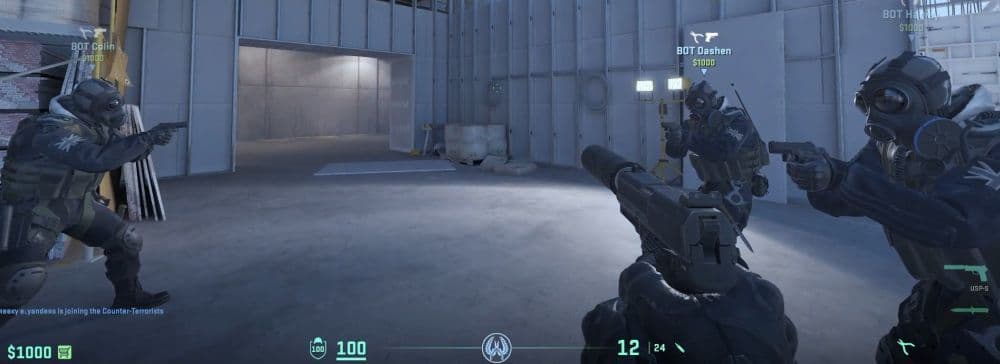
CS2 gives you a few settings that change how the HUD looks. HUD Scale changes how large some interface elements appear, while HUD Color changes the color used for parts of the display. You will see the difference around areas such as health, armor, and ammunition.
Keep in mind that the setting does not recolor the whole CS2 interface. Menus and several other UI elements keep their own colors.
How to change the HUD color
You have two easy ways to change your HUD color in CS2. Most players will probably use the settings menu, but the console command is useful if you already change other CS2 settings that way.
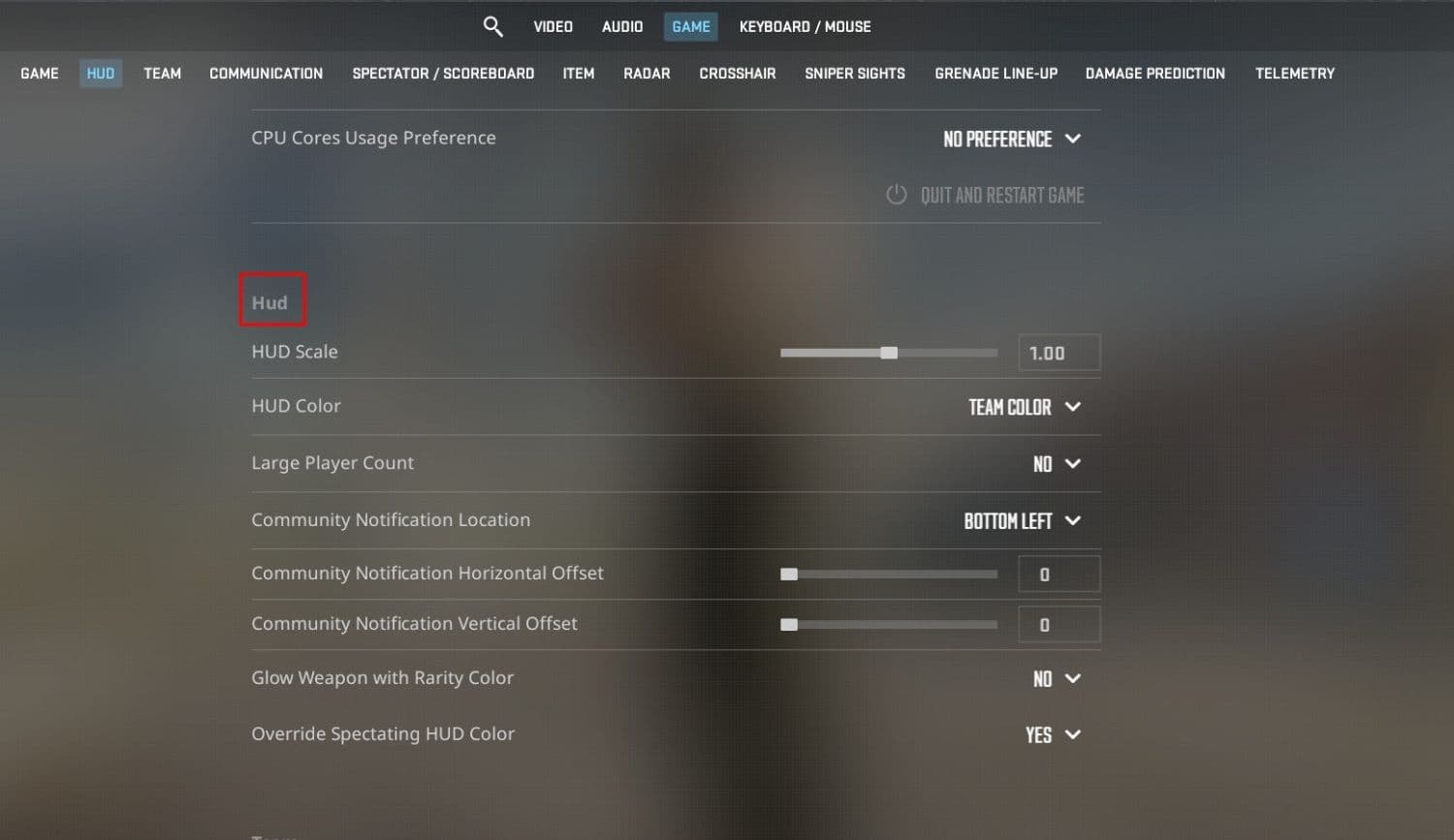
Change the HUD color through settings
If you just want to pick a new color and get back into a match, use the normal menu:
- Open Settings from the main CS2 menu.
- Go to the Game tab.
- Find the HUD section.
- Look for HUD Color.
- Select the color you want.
The change applies straight away. CS2 also remembers the setting, so you will not need to pick the same color again the next time you open the game.
This is also the easiest method if you want to test several colors quickly. Pick one, jump into a practice match, and see how it looks against different parts of a map.
Change the HUD color with a console command
If you prefer commands, CS2 uses:
- cl_hud_color [number]
The number tells the game which HUD color to use.
For example:
- cl_hud_color 6
That changes your HUD color to red.
If pressing your console key does nothing, you probably need to turn the developer console on first. Open Settings > Game, find Enable Developer Console (~), and set it to Yes. You can then open the console and enter the command.
You do not need sv_cheats for cl_hud_color, so you can use it normally without changing any server settings.
If you use commands often, our CS2 console commands guide covers more settings you can change this way.

All CS2 HUD colors and cl_hud_color values
If you use the console method, you need the number that matches the color you want. CS2 currently uses values from 0 to 12.
There are two options here that work a little differently from the fixed colors. Team Color follows your current team, while Player Color uses the color connected to CS2's player-color system.
If you know you want the HUD to stay the same color all the time, pick one of the fixed presets instead.
You may also find older guides that show different cl_hud_color values. Some of those lists come from older versions of Counter-Strike, so make sure you use the current CS2 numbers.
What is the best HUD color?
There is no one HUD color that works best for every CS2 player. A color can look perfectly clear on one monitor and feel much harder to spot on another.
If you do not know where to start, Bright White is an easy option to try. It stays clear across many map areas and keeps the HUD looking fairly neutral. Light Blue and Aqua can also work well if you want something softer. Pink is another popular choice because it looks very different from many of the browns, greys, and darker tones you see across CS2 maps.
Still, there is no need to overthink it. Your resolution, monitor brightness, and color settings can all change how the HUD looks.
What HUD colors do pros use?
You might expect pro players to settle on one clear favorite, but that is not really the case. Even players at the very top of CS2 use different HUD colors.
As of August 2026, some well-known examples include:
So there is no secret "pro HUD color" that gives you a competitive edge. donk uses Pink, m0NESY goes with Blue, while ZywOo and ropz use Team Color. NiKo uses Bright White.
That is a good reminder that HUD color mostly comes down to comfort. You can copy a pro setting as a starting point, but there is no reason to keep it if another color looks better on your screen.
If you want to see the rest of his setup, our ropz CS2 settings guide covers his other in-game choices as well.
Can you use custom HUD colors in CS2?
CS2 does not let you type custom RGB values into cl_hud_color. The command only works with the preset colors listed above.
So, for example, you cannot enter an exact RGB code and make your HUD a very specific shade of blue or green.
You may have seen rainbow HUD configs online, though. Those usually work by switching between existing cl_hud_color values with binds or config commands. The game still uses the normal presets. The config simply changes between them while you play.
How to reset the HUD color in CS2
Maybe you changed the color, played a few rounds, and decided the original look was better. You can switch back just as easily.
Open Settings > Game > HUD > HUD Color and choose Team Color.
You can also enter this in the console:
- cl_hud_color 0
That puts the HUD back on the Team Color option.
Changing the HUD color in CS2 is a small setting, but you stare at the result for every round you play. Try a few options and see what feels easiest to read.=
Find more CS2 guides below:
- Everything about CS2 workshop map 1v1 commands
- Why is my FPS low and how to boost FPS in CS2: Guide for older and problematic systems
- CS2 jumpthrow bind
- All CS2 roles and positions: How to play and improve each
- Explained: Best CS2 surf servers & maps
Featured Image Credit: Valve
All Related Guides
 How to do a 1v1 in CS2: Private matches, maps, and commandsLearn how to 1v1 in CS2 with friends using private Practice matches, Workshop maps, console commands, custom r...
 donk crosshair CS2: Current code and how to copy itWant to try donk’s crosshair in CS2? Check the current donk crosshair CS2 code and see how his setup works....
 How to make CS2 look like CSGOMiss the old CS:GO visuals? This guide explains how to adjust CS2 graphics, brightness, colors, HUD, and weapo...
 How to bind mousewheel to jump CS2Find the best CS2 mousewheel jump bind commands, learn how to set them up, and see how scroll jumping can supp...
 How to fix net jitter in CS2: Best solutions for packet loss, lag & rubberbandingLearn how to fix net jitter in CS2 with the best solutions for packet loss, lag, rubberbanding, and unstable c...
 How to scrape stickers in CS2Want to remove stickers in CS2? Here’s how scraping works, what it changes, and why full removal is permanent....
 ropz CS2 settings: Crosshair, viewmodel, and moreCopy ropz CS2 settings for mouse, crosshair, viewmodel, video, and radar, then adjust them to match your own a...
 How to remove screen shake in CS2How to reduce screen shake in CS2 using console commands, viewmodel settings, graphics tweaks, and autoexec co...
- 1
- 2
- 3
- 4