How to make CS2 look like CSGO
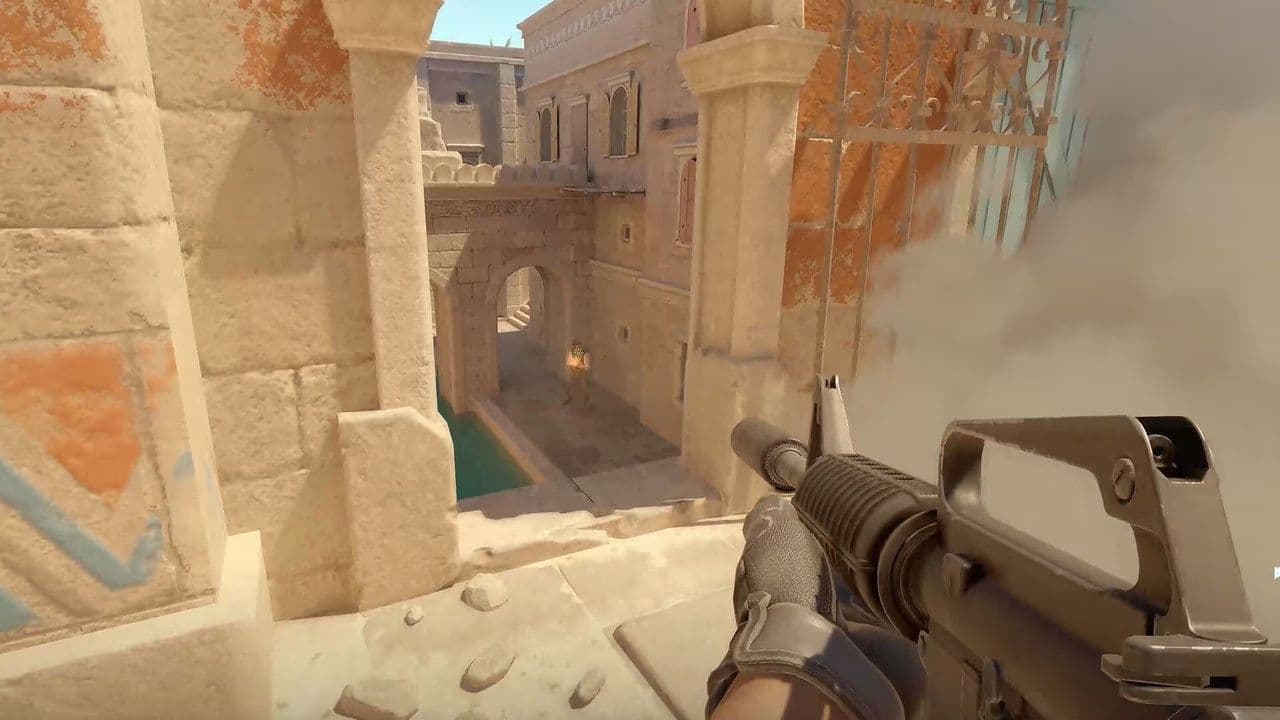
CS2 has fresher and brighter visuals compared to CS:GO, but some players might still want to go back to the old visuals they spent their years in. If you want to know how to make CS2 look like CSGO, a few settings can bring the two games much closer.
Valve recently rolled out the Animgraph 2 release to patch and improve visuals, which, in a way, made the game look even more different than it used to in the old days.
Can you get CS:GO graphics on CS2?
You cannot get the exact CS graphics inside CS2. Valve built CS2 on the Source 2 engine, while CS ran on the older Source engine. CS2 uses different lighting, materials, smoke effects, water, fire, and map assets.
You can still copy much of the old visual style. A stretched 4:3 resolution makes the image feel more familiar, while darker gamma reduces CS2’s bright lighting. Lower shader, particle, and texture settings also create a flatter image that looks closer to CS.
How to make CS2 look like CSGO
Start with the display settings, then adjust the smaller details. Test each change in a practice match because every monitor handles brightness and color differently.
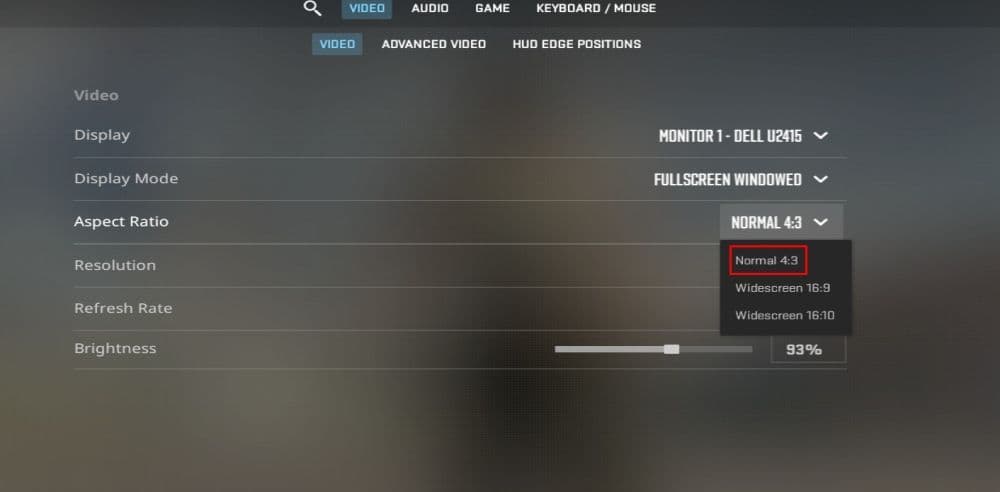
1. Use a 4:3 stretched resolution
Many CS players used 4:3 stretched, and the format remains common in CS2. It makes player models look wider and gives the game a compressed appearance.
Try these resolutions:
- 1280x960: The clearest 4:3 option for most modern monitors.
- 1024x768: A softer image that looks closer to older CS setups.
- 1280x1024: A 5:4 option with an even wider stretched appearance.
Open Settings > Video, select Fullscreen, choose the resolution, and set GPU scaling to stretched in your graphics control panel.
A 4:3 setup reduces your horizontal field of view compared with 16:9. It does not give a proven competitive advantage, so choose it for comfort and appearance.
2. Make CS2 darker with gamma
CS2 often looks brighter than CS. The fullscreen gamma command gives you more control over brightness.
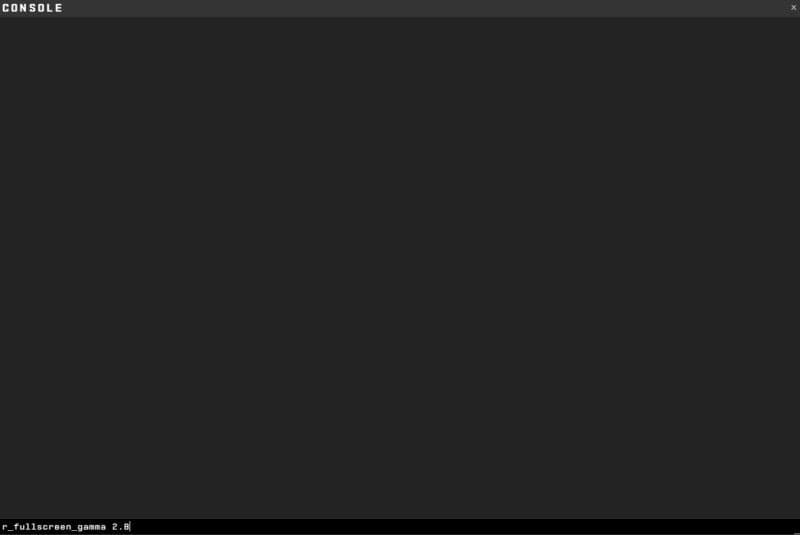
Open Settings > Game and set Enable Developer Console to Yes. Press the console key, usually ~, and enter:
r_fullscreen_gamma 2.8
The default value is 2.2. A higher number makes the game darker, while a lower number makes it brighter. Values from 2.6 to 3.0 often create a more CS image, but your monitor may need a different value.
The command works in fullscreen modes. If nothing changes, confirm that CS2 runs in fullscreen before testing again.
3. Lower the settings that make CS2 look polished
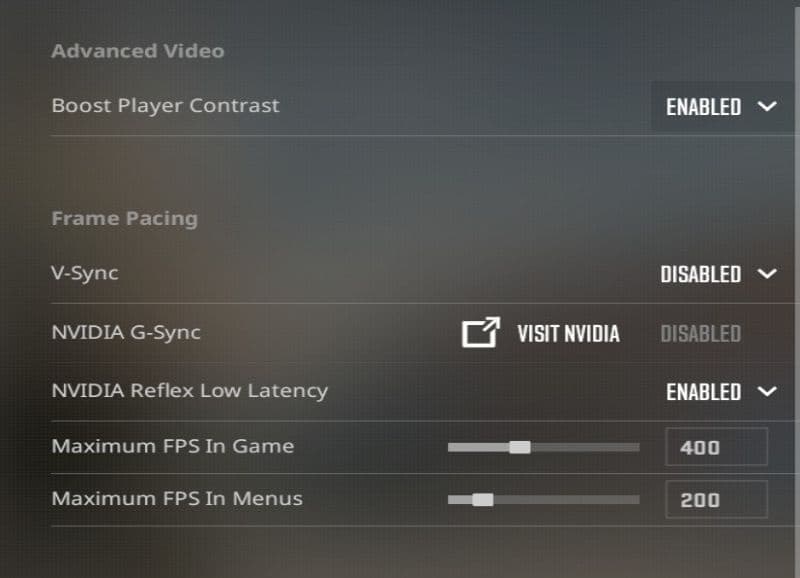
You do not need to place every option on Low. Some settings affect visibility, while others mainly change surface quality.
These choices reduce shine and extra shading without making the image hard to read. Medium or High shadows remain useful because player shadows can reveal movement around corners.
Lower settings may also boost FPS in CS2. Keep FidelityFX disabled unless you need more performance, because upscaling can make the image look softer.
4. Adjust NVIDIA Digital Vibrance or AMD Saturation
Many CS players raised their GPU color setting. The same method works in CS2.
For NVIDIA cards, open NVIDIA Control Panel > Adjust desktop color settings, then change Digital Vibrance. For AMD cards, open AMD Software > Gaming > Display, enable Custom Color, and adjust Saturation.
Start near 60 to 70 percent if your default sits at 50 percent. Stronger color can make models easier to separate from the map, but too much saturation makes skins and fire look unnatural.
How to copy the CS viewmodel, HUD, and crosshair in CS2
The weapon position also changes how the game feels. CS2 still lets you edit the viewmodel, crosshair, radar, and HUD scale.
Set the crosshair style to Classic Static, reduce the HUD scale, and choose the HUD color you used in CS. You can also copy a crosshair in CS2 with a share code.
For a familiar weapon position, test these console commands:
- viewmodel_fov 68
- viewmodel_offset_x 2.5
- viewmodel_offset_y 0
- viewmodel_offset_z -1.5
These values move the weapon farther from the center. They do not change your real camera field of view.
Read how to change FOV in CS2 before making larger changes.
You can also use legal viewmodel and graphics settings to remove screen shake in CS2 or reduce how strong it feels.
What parts of CS2 cannot look like CS?
CS2 always keeps its Source 2 lighting, responsive smoke, updated fire, and newer weapon materials. Revised maps also use different geometry.
You cannot restore old CS map files through matchmaking settings. Many old commands no longer work, while others only function on private servers with cheats enabled.
Avoid replacement game files and unknown graphics packs. They can stop working after an update or cause problems with online play. Built-in settings and GPU controls are safer.
The best way to make CS2 look like CSGO is to combine 4:3 stretched resolution, darker fullscreen gamma, simpler video settings, and an old-style viewmodel. CS2 cannot match Global Offensive exactly, but these changes bring back much of that familiar visual.
All Related Guides
 donk crosshair CS2: Current code and how to copy itWant to try donk’s crosshair in CS2? Check the current donk crosshair CS2 code and see how his setup works....
 How to change the HUD color in CS2Change your HUD color in CS2 with a few quick steps. See the available colors, command values, and which choic...
 How to bind mousewheel to jump CS2Find the best CS2 mousewheel jump bind commands, learn how to set them up, and see how scroll jumping can supp...
 How to fix net jitter in CS2: Best solutions for packet loss, lag & rubberbandingLearn how to fix net jitter in CS2 with the best solutions for packet loss, lag, rubberbanding, and unstable c...
 How to scrape stickers in CS2Want to remove stickers in CS2? Here’s how scraping works, what it changes, and why full removal is permanent....
 ropz CS2 settings: Crosshair, viewmodel, and moreCopy ropz CS2 settings for mouse, crosshair, viewmodel, video, and radar, then adjust them to match your own a...
 How to remove screen shake in CS2How to reduce screen shake in CS2 using console commands, viewmodel settings, graphics tweaks, and autoexec co...
 How to trade up souvenir skins CS2 with the new updateCan you trade up souvenir skins CS2? Here’s the answer, plus the key rules, risks, and best collections to che...
- 1
- 2
- 3
- 4