How to bind mousewheel to jump CS2
There are some binds that you can use in CS2 to perform some actions more easily and faster during rounds. One of those is the mousewheel bind to jump. The main command is bind "mwheeldown" "+jump", which moves jump to the downward scroll direction. You can also bind mouse wheel up, keep spacebar active, or use every input together. Here are all the details!
What is a jump bind and how is it useful?
A jump bind assigns the +jump action to a keyboard key or mouse input. CS2 uses spacebar by default, but the console lets you copy that action to the mouse wheel.
Each scroll notch sends an input. When you spin the wheel, CS2 receives jump inputs in quick succession. This gives you more chances to press jump at the right moment after landing. That timing matters during bunny hops, air strafes, and jumps that need a clean takeoff.
A mousewheel bind does not create automatic bunny hops. You still need to control your direction, move your mouse with the strafe, and time each landing. Server settings also limit your speed.
How to bind mousewheel to jump CS2
You need the developer console to enter the bind. Follow these steps:
- Open Settings from the CS2 main menu.
- Select the Game tab.
- Set Enable Developer Console (~) to Yes.
- Press the ~ or backtick key to open the console.
- Paste your preferred command and press Enter.
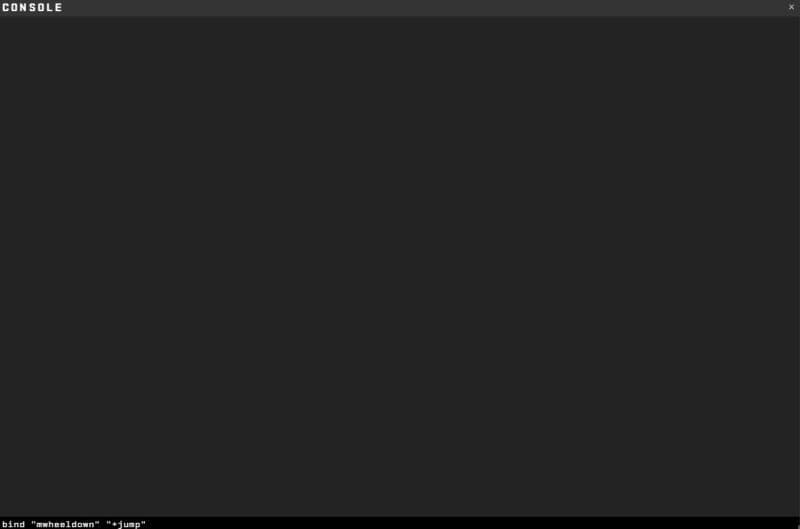
Use this command for mouse wheel down:
bind "mwheeldown" "+jump"
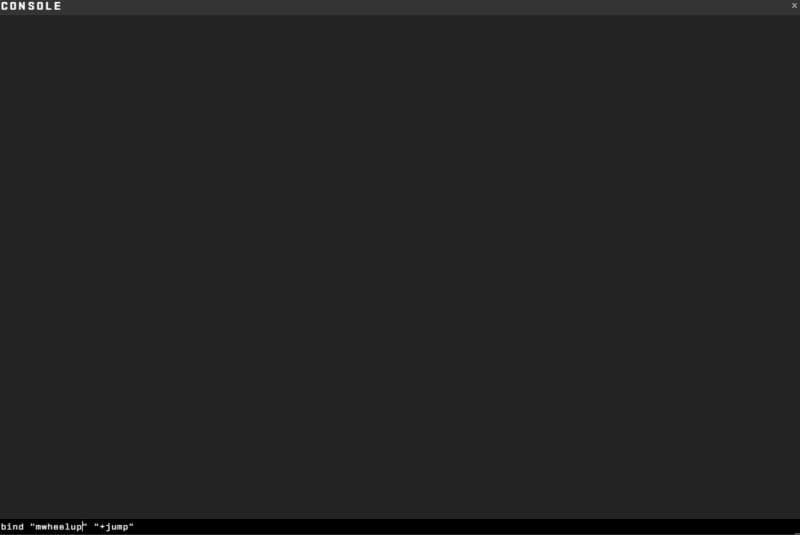
Use this command for mouse wheel up:
bind "mwheelup" "+jump"
Test the bind in a practice match. Walk forward, scroll the assigned direction, and check whether your character jumps. You do not need sv_cheats 1, so the bind works in standard matchmaking.
Best CS2 scroll wheel jump bind commands
The right command depends on how you use your wheel.
Mouse wheel down plus spacebar suits most players. It keeps a familiar key for normal jumps and leaves mouse wheel up free for another bind.
How to keep spacebar jump active
Binding jump to the mouse wheel does not force you to remove spacebar. CS2 can assign the same action to several inputs.
Enter this command if spacebar no longer jumps:
bind "space" "+jump"
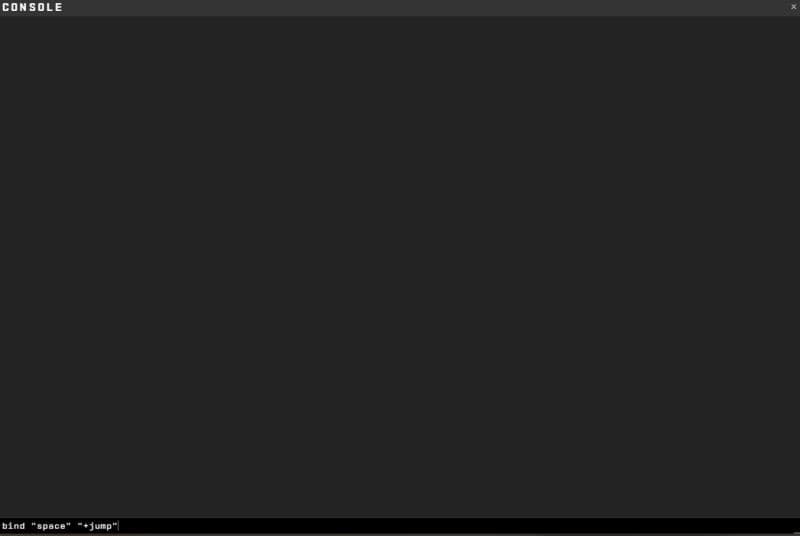
You can then use spacebar for single jumps and the wheel for repeated landing inputs. You can switch between both controls at any time.
How to remove or reset the CS2 jump bind
Use unbind when you want to remove jump from one wheel direction:
unbind "mwheeldown"
unbind "mwheelup"
To restore normal weapon scrolling, enter:
bind "mwheelup" "invprev"
bind "mwheeldown" "invnext"
bind "space" "+jump"
invprev selects the previous inventory item, while invnext selects the next one. The final command keeps jump on spacebar.
Why is the CS2 scroll jump bind not working?
First, confirm that the developer console opens. Some keyboard layouts use a different key, so check the Keyboard/Mouse settings if ~ does not work.
Enter the command again and check the spelling. CS2 expects mwheelup, mwheeldown, and +jump exactly as written. Formatted quotation marks can also cause problems, so use plain quotation marks or type the command by hand.
Type bind mwheeldown or bind mwheelup in the console to inspect the current action. A config file may replace your bind when the game starts. Mouse software may also change what the wheel sends to CS2.
How to save the mousewheel jump bind in CS2
CS2 normally keeps regular key binds after you close the game. If the command resets after each launch, place it inside an autoexec.cfg file.
Use this folder:
Steam\steamapps\common\Counter-Strike Global Offensive\game\csgo\cfg
Create autoexec.cfg, add your jump command, and save it with the .cfg extension. Add +exec autoexec.cfg to the CS2 launch options if the file does not run.
An autoexec can also store settings from guides such as how to change FOV in CS2. Players who build practice configs may also want to learn how to bind noclip in CS2.
Check out these guides as well:
- Everything about CS2 workshop map 1v1 commands
- Why is my FPS low and how to boost FPS in CS2: Guide for older and problematic systems
- CS2 jumpthrow bind
- All CS2 roles and positions: How to play and improve each
- Explained: Best CS2 surf servers & maps
Featured Image Credit: THESPIKEGG
All Related Guides
 donk crosshair CS2: Current code and how to copy itWant to try donk’s crosshair in CS2? Check the current donk crosshair CS2 code and see how his setup works....
 How to change the HUD color in CS2Change your HUD color in CS2 with a few quick steps. See the available colors, command values, and which choic...
 How to make CS2 look like CSGOMiss the old CS:GO visuals? This guide explains how to adjust CS2 graphics, brightness, colors, HUD, and weapo...
 How to fix net jitter in CS2: Best solutions for packet loss, lag & rubberbandingLearn how to fix net jitter in CS2 with the best solutions for packet loss, lag, rubberbanding, and unstable c...
 How to scrape stickers in CS2Want to remove stickers in CS2? Here’s how scraping works, what it changes, and why full removal is permanent....
 ropz CS2 settings: Crosshair, viewmodel, and moreCopy ropz CS2 settings for mouse, crosshair, viewmodel, video, and radar, then adjust them to match your own a...
 How to remove screen shake in CS2How to reduce screen shake in CS2 using console commands, viewmodel settings, graphics tweaks, and autoexec co...
 How to trade up souvenir skins CS2 with the new updateCan you trade up souvenir skins CS2? Here’s the answer, plus the key rules, risks, and best collections to che...
- 1
- 2
- 3
- 4