How to remove screen shake in CS2
Small settings, big difference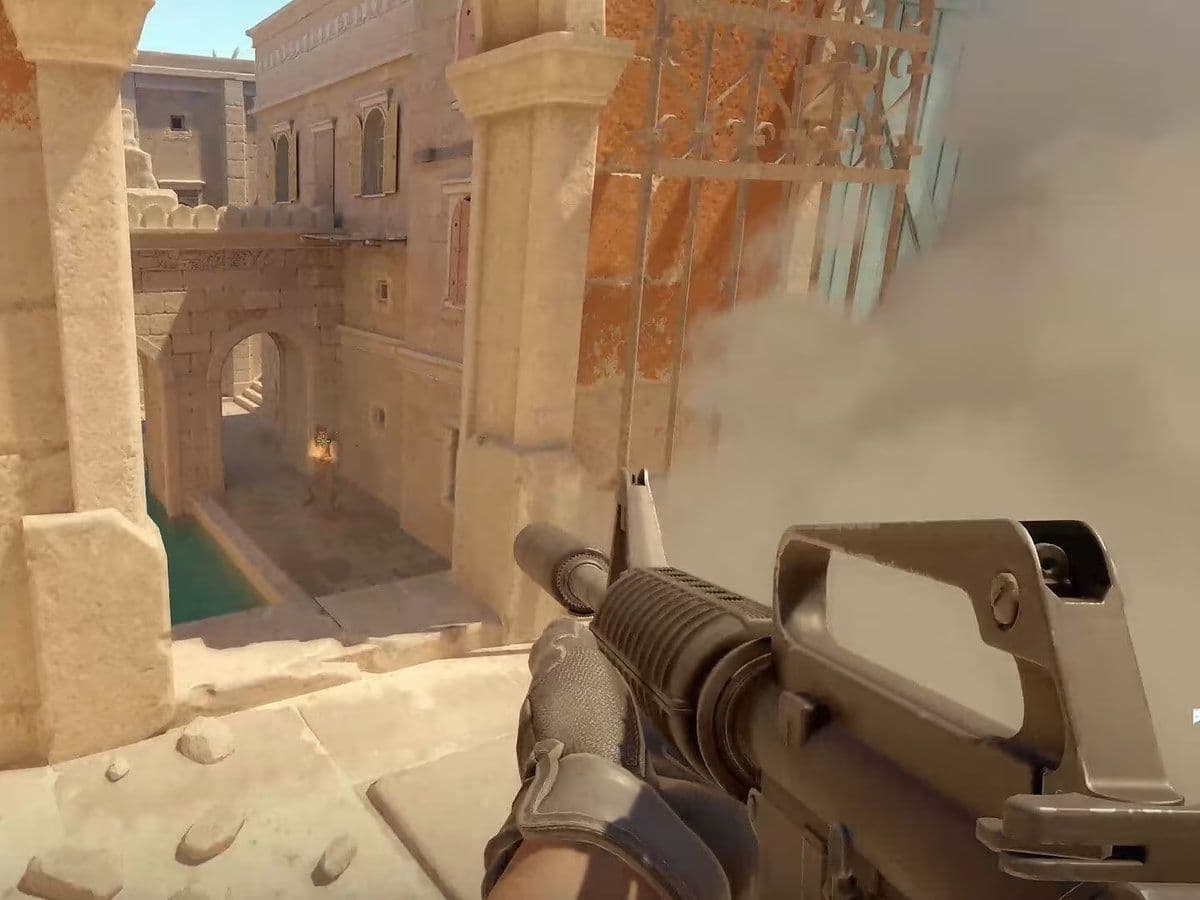
If you are wondering how to remove screen shake in CS2, you are not alone. Many Counter-Strike 2 players dislike the heavy camera movement, weapon sway, and recoil animations introduced in the Source 2 engine.
The good news is that you can significantly reduce screen shake in CS2 using console commands, graphics settings, and viewmodel tweaks. While Valve does not allow complete removal in official matchmaking, you can still make the game feel much smoother and cleaner.
This guide explains exactly how to reduce screen shake in CS2 step by step.
What is screen shake in CS2?
Screen shake in CS2 usually refers to:
- Camera movement while shooting
- Weapon recoil animations
- Viewmodel sway while moving
- Landing and running animations
- Visual recoil during sprays
- Motion blur and post-processing effects
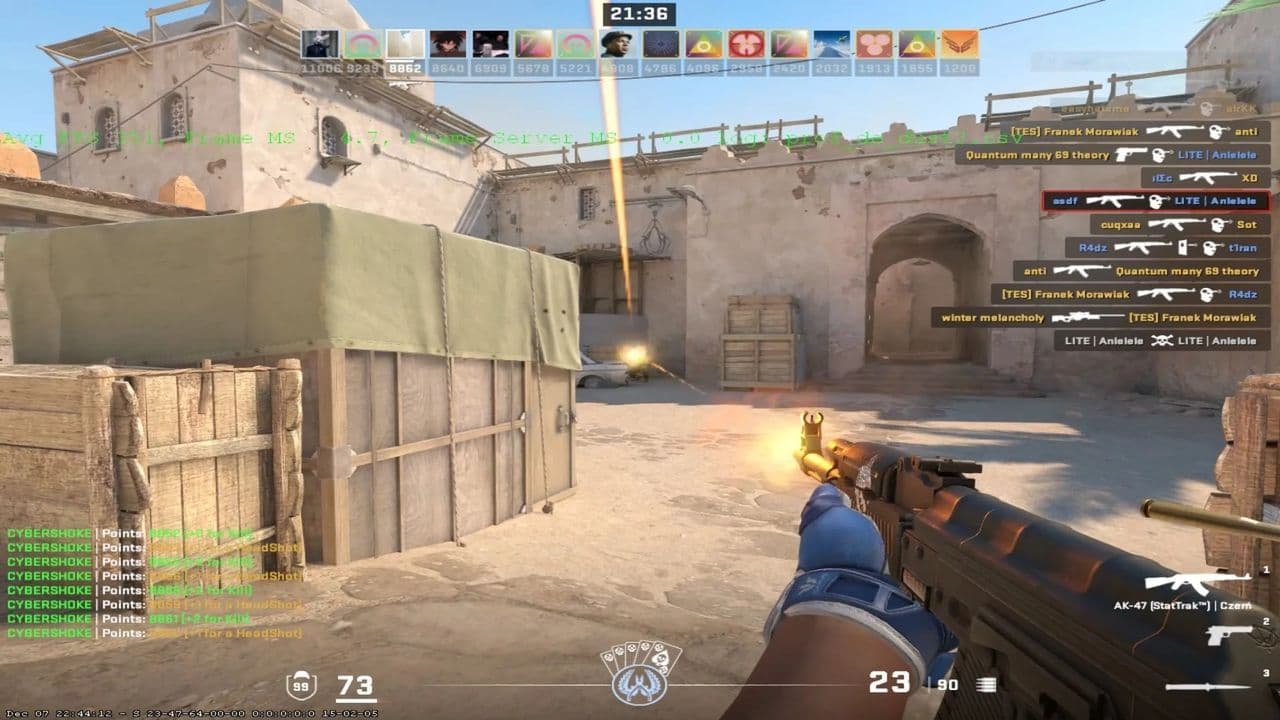
Some of these effects are cosmetic, while others are built into the game engine and cannot be fully disabled in competitive matches.
How to remove screen shake in CS2
While Valve does not allow players to completely disable these effects in official matchmaking, you can still reduce them significantly using console commands and optimized settings.
Use viewmodel_recoil 0
The most effective command for reducing screen shake is:
viewmodel_recoil 0
This lowers the visual recoil animation when shooting. Your weapon accuracy and recoil pattern stay the same, but the reduced animation makes sprays easier to control and less distracting during fights.
Many competitive players use this setting because it creates a cleaner aiming experience.
Reduce Weapon Bob and Movement Sway
Movement animations also contribute to screen shake in CS2. You can reduce weapon sway and hand movement with these commands:
- cl_bobamt_lat 0
- cl_bobamt_vert 0
- cl_bob_lower_amt 0
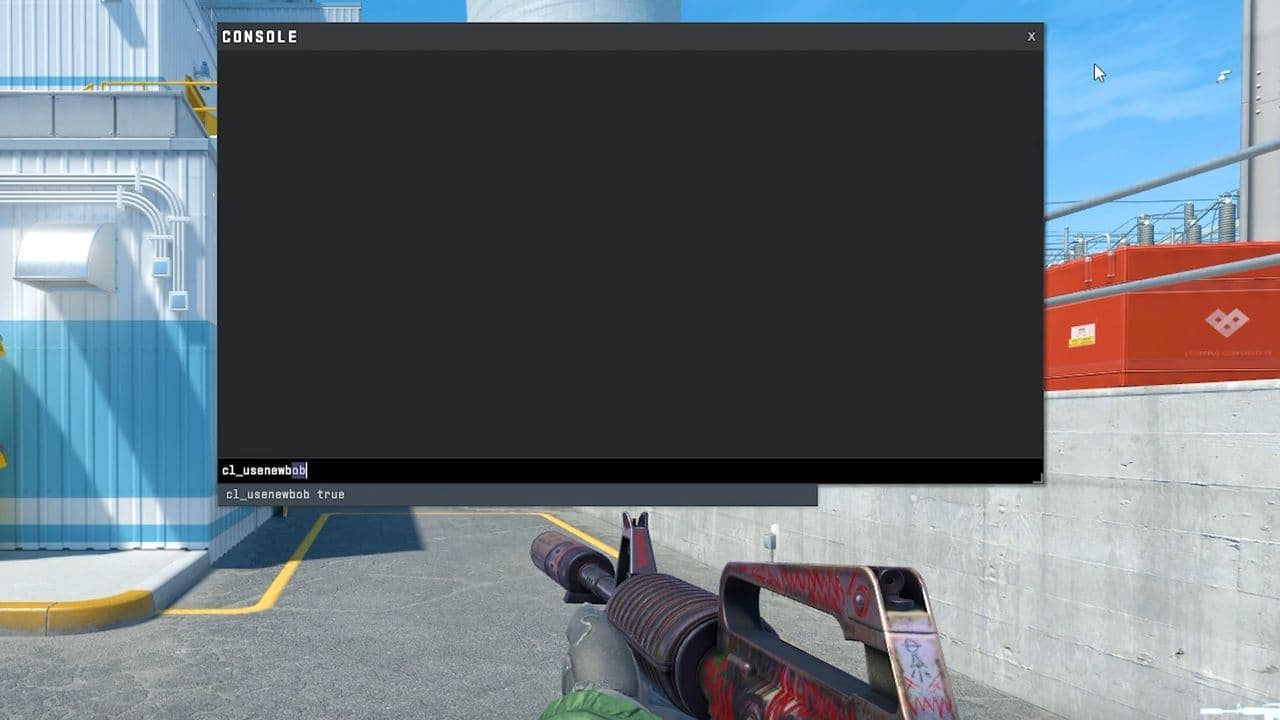
These commands reduce:
- Walking sway
- Running movement
- Weapon bouncing
- Hand animations
Some commands may not work after certain CS2 updates because Valve removed several old CS:GO bob commands.
Reduce Camera Punch Offline
If you practice offline or on private servers, you can reduce camera shake even more with cheat commands.
Use:
sv_cheats 1
Then enter:
view_punch_decay 999
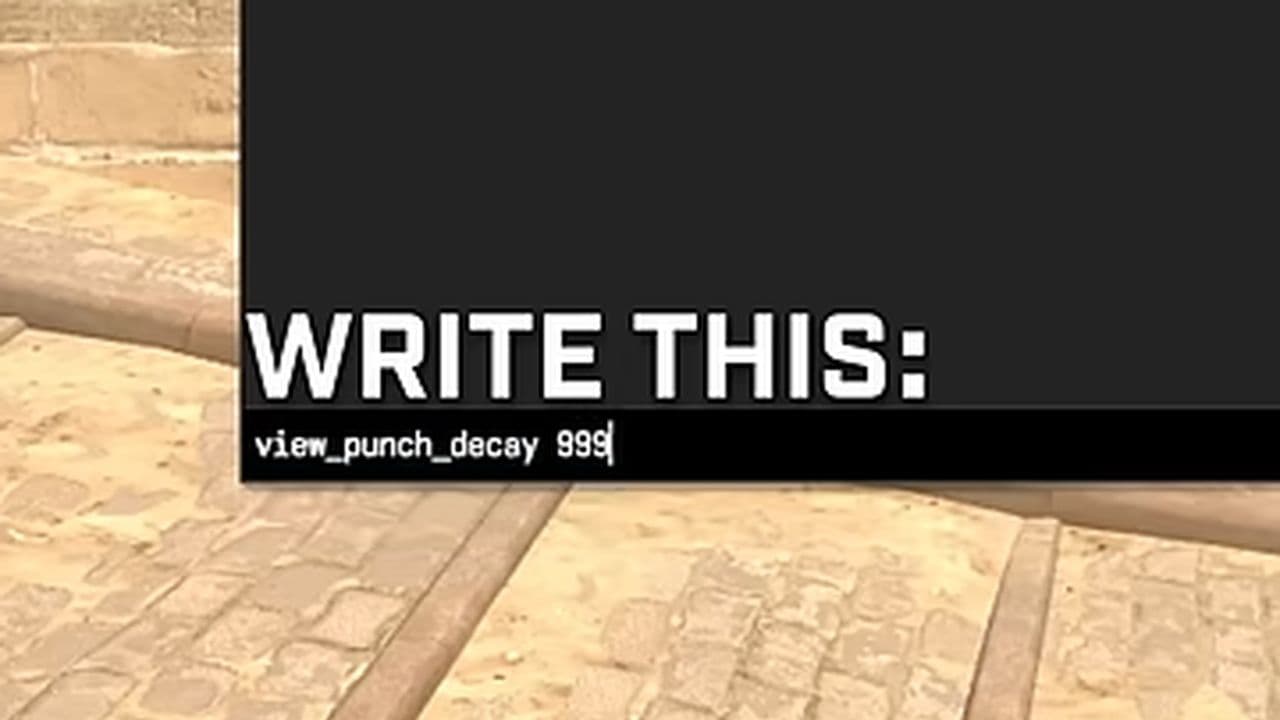
This heavily lowers recoil camera punch while shooting. However, it only works in offline servers or custom matches because cheat commands are blocked in official matchmaking.
Optimize graphics settings
Graphics settings can also affect how strong screen shake feels during gameplay.
For the smoothest experience:
- Disable Motion Blur
- Lower Post Processing
- Maintain high FPS
- Use a high refresh rate monitor
Motion Blur especially makes recoil and movement feel more aggressive, so turning it off is highly recommended for competitive play.
Use better viewmodel settings
Your weapon position changes how noticeable recoil animations feel.
Many players use:
- viewmodel_fov 68
- viewmodel_offset_x 2.5
- viewmodel_offset_y 2
- viewmodel_offset_z -2
These settings move the weapon farther from the center of the screen, reducing distractions during gunfights.
Save the Commands in Autoexec
To avoid entering commands every time you launch CS2, save them in an autoexec.cfg file.
Place the file inside:
...\Steam\steamapps\common\Counter-Strike Global Offensive\game\csgo\cfg
Then add this launch option in Steam:
+exec autoexec.cfg
This automatically loads your screen shake settings every time you start CS2.
That’s all for today! Looking for more CS2 guides? Scroll down:
All Related Guides
 How to do a 1v1 in CS2: Private matches, maps, and commandsLearn how to 1v1 in CS2 with friends using private Practice matches, Workshop maps, console commands, custom r...
 donk crosshair CS2: Current code and how to copy itWant to try donk’s crosshair in CS2? Check the current donk crosshair CS2 code and see how his setup works....
 How to change the HUD color in CS2Change your HUD color in CS2 with a few quick steps. See the available colors, command values, and which choic...
 How to make CS2 look like CSGOMiss the old CS:GO visuals? This guide explains how to adjust CS2 graphics, brightness, colors, HUD, and weapo...
 How to bind mousewheel to jump CS2Find the best CS2 mousewheel jump bind commands, learn how to set them up, and see how scroll jumping can supp...
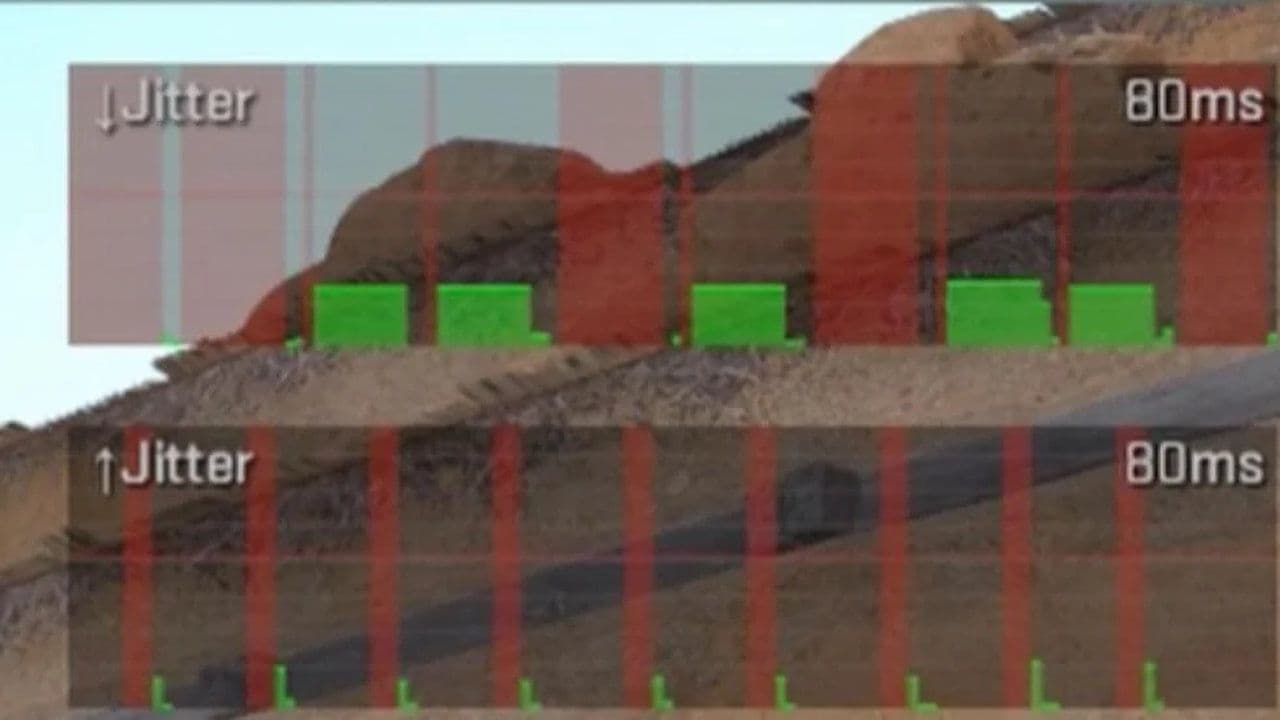 How to fix net jitter in CS2: Best solutions for packet loss, lag & rubberbandingLearn how to fix net jitter in CS2 with the best solutions for packet loss, lag, rubberbanding, and unstable c...
 How to scrape stickers in CS2Want to remove stickers in CS2? Here’s how scraping works, what it changes, and why full removal is permanent....
 ropz CS2 settings: Crosshair, viewmodel, and moreCopy ropz CS2 settings for mouse, crosshair, viewmodel, video, and radar, then adjust them to match your own a...
- 1
- 2
- 3
- 4