Is Hytale multiplayer not working? Here is how to fix it
Solve Hytale connection problems fastON THIS PAGE:
Many players face Hytale multiplayer problems when trying to join friends, connect to servers, or host their own worlds. These issues can be caused by network settings, firewall restrictions, incorrect configurations, or game-side problems. This guide explains the reasons and fixes so you can get multiplayer working again.
Is Hytale multiplayer not working? 10 ways to fix
If Hytale multiplayer is not working, try these in order:
- Restart router
- Update Hytale
- Allow Hytale in Firewall
- Enable UPnP
- Forward port 5520 UDP
- Check Hytale mods folder location
- Sync system time
- Disable VPN
- Restart game
- Reinstall game if needed
Here is a more detailed look.
1. Check your Internet connection first
One of the most common causes of Hytale multiplayer not working is an unstable internet connection.
Even if your internet seems fine, packet loss or high ping can prevent proper server communication.
- Restart your router and modem
- Use a wired Ethernet connection instead of Wi-Fi
- Close downloads, streaming apps, or anything using bandwidth
- Run a speed test and make sure your ping is stable
A simple router restart fixes many connection problems because it refreshes your network routing.
2. Make sure Hytale is updated
Running an outdated version can prevent you from joining servers or friends.
If your version does not match the server version, the connection will fail.
- Open the Hytale Launcher
- Check for updates
- Install the latest version
- Restart the game
Both players must use the same version.
3. Firewall blocking Hytale
Windows Defender Firewall and antivirus programs often block multiplayer games.
If Hytale is blocked, it cannot connect to servers.
Fix in Windows Defender Firewall
- Open Control Panel
- Click Windows Defender Firewall
- Select Allow an app through firewall
- Click Change Settings
- Find and enable:
- Hytale
- Java (if used)
- Check both:
- Private
- Public
- Click Save
Also check antivirus software like Avast, Norton, or Bitdefender.
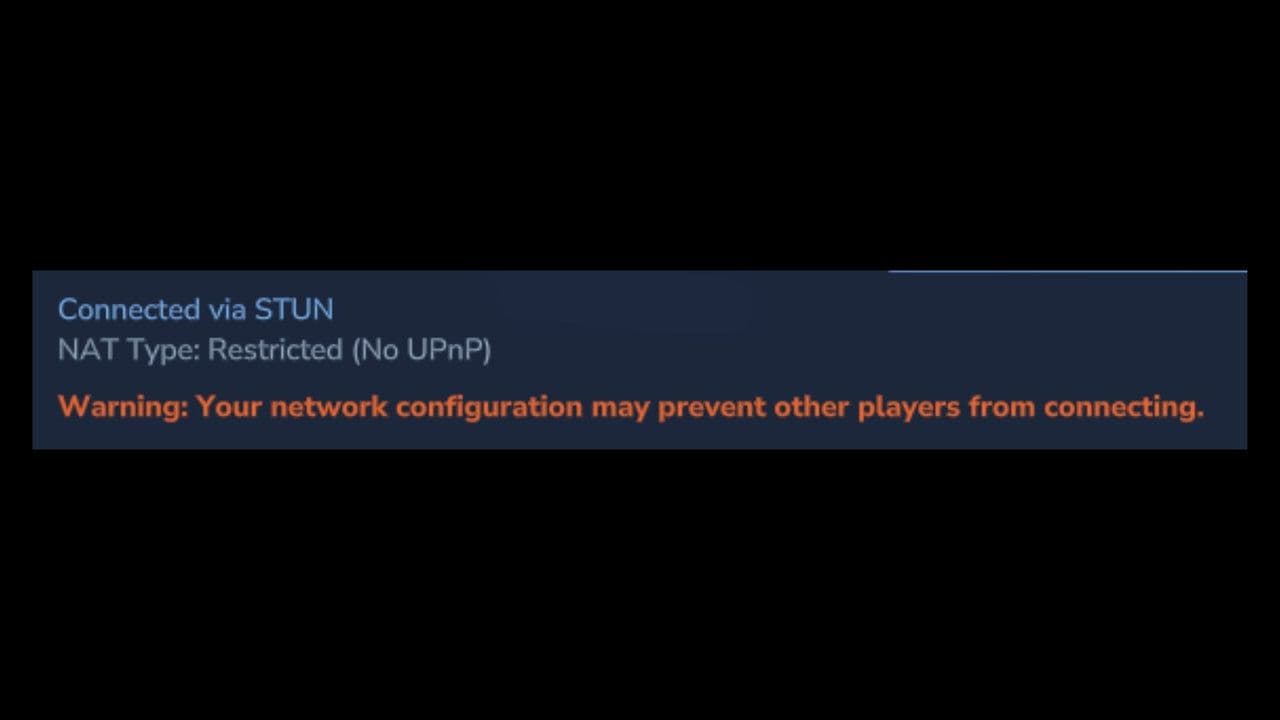
4. NAT Type and port forwarding problems
If you are hosting a world and friends cannot join, your ports may be closed.
Hytale needs specific ports open to allow incoming connections.
Enable UPnP (Recommended)
UPnP automatically opens ports.
Steps:
- Log into your router
- Find UPnP settings
- Enable UPnP
- Restart router
This is the easiest fix.
Manual port forwarding
If UPnP does not work, manually forward the Hytale port.
Default port used:
Port: 5520 (UDP)
Steps:
- Log into router admin panel
- Find Port Forwarding
- Add new rule
- Enter:
- Port: 5520
- Protocol: UDP
- Device IP: your computer local IP
- Save
Restart router after.
5. CGNAT and Double NAT Issues
Some ISPs use Carrier-Grade NAT (CGNAT).
This prevents direct connections.
Signs include:
- Port forwarding does not work
- Friends cannot join your server
You can:
- Use VPN
- Host on dedicated server
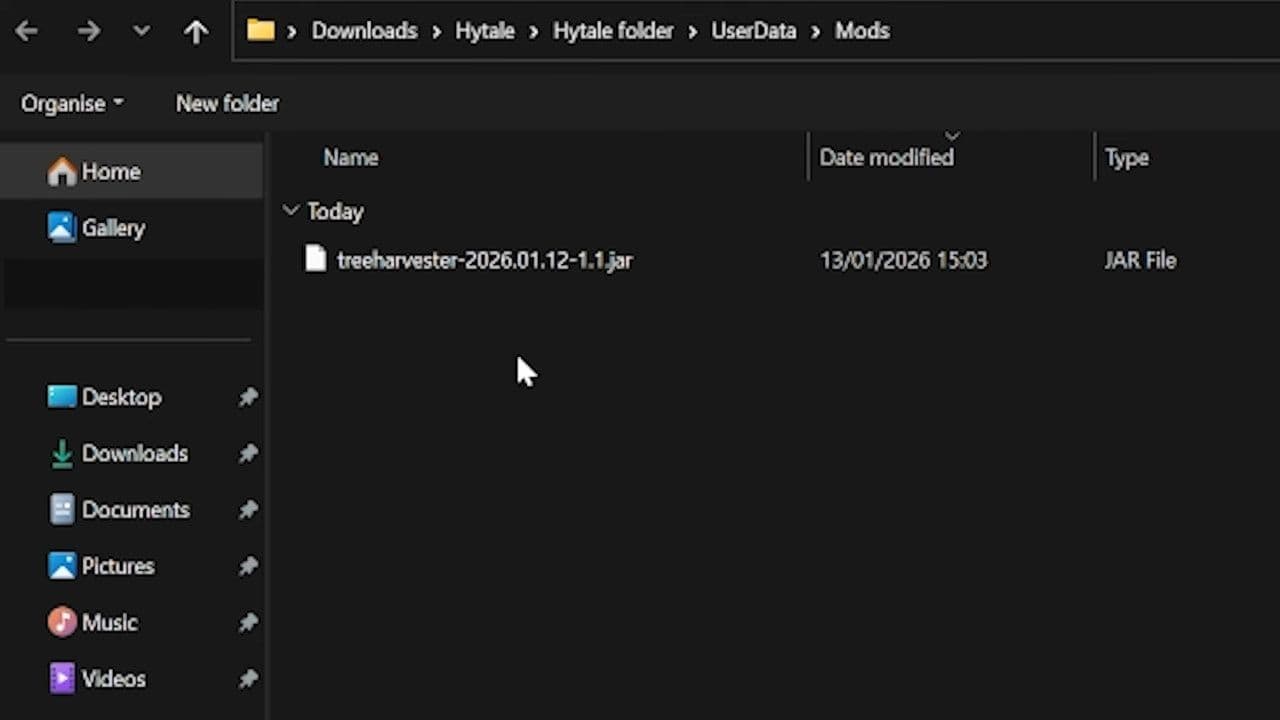
6. Check Hytale mods location
In Hytale, multiplayer mods run on the server, not your local client. If the server does not have the mod, players may fail to join, get connection errors, or the server may crash during startup. You must place mods inside the server’s mods directory, not the UserData folder.
- C:\HytaleServer\mods\
6. Incorrect system time and date
Authentication servers require correct system time.
Wrong time causes connection errors. On Windows:
- Go to Settings
- Click Time and Language
- Enable:
- Set time automatically
- Click Sync now
Restart game after.
7. Network adapter compatibility issues
Some network adapters cause problems with modern multiplayer protocols. Open:
- Device Manager → Network Adapter → Properties
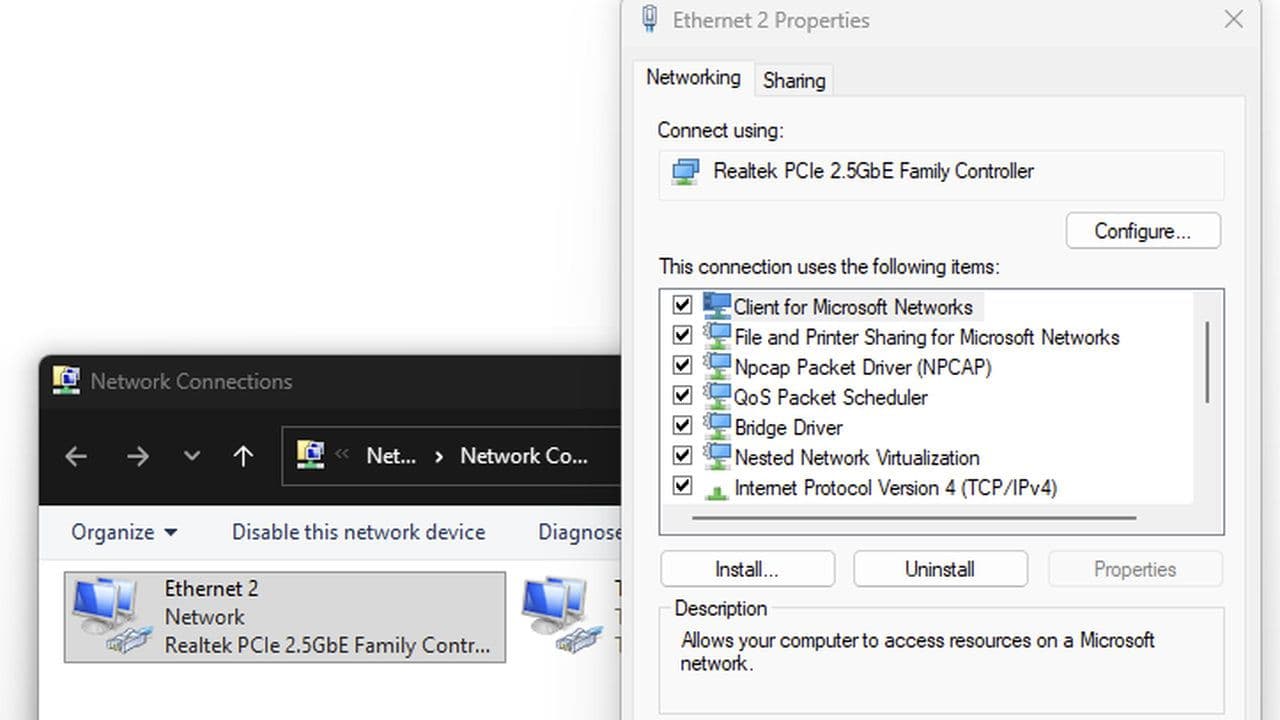
Disable:
- Energy Efficient Ethernet
- Flow Control
- Priority & VLAN
- Receive Segment Coalescing
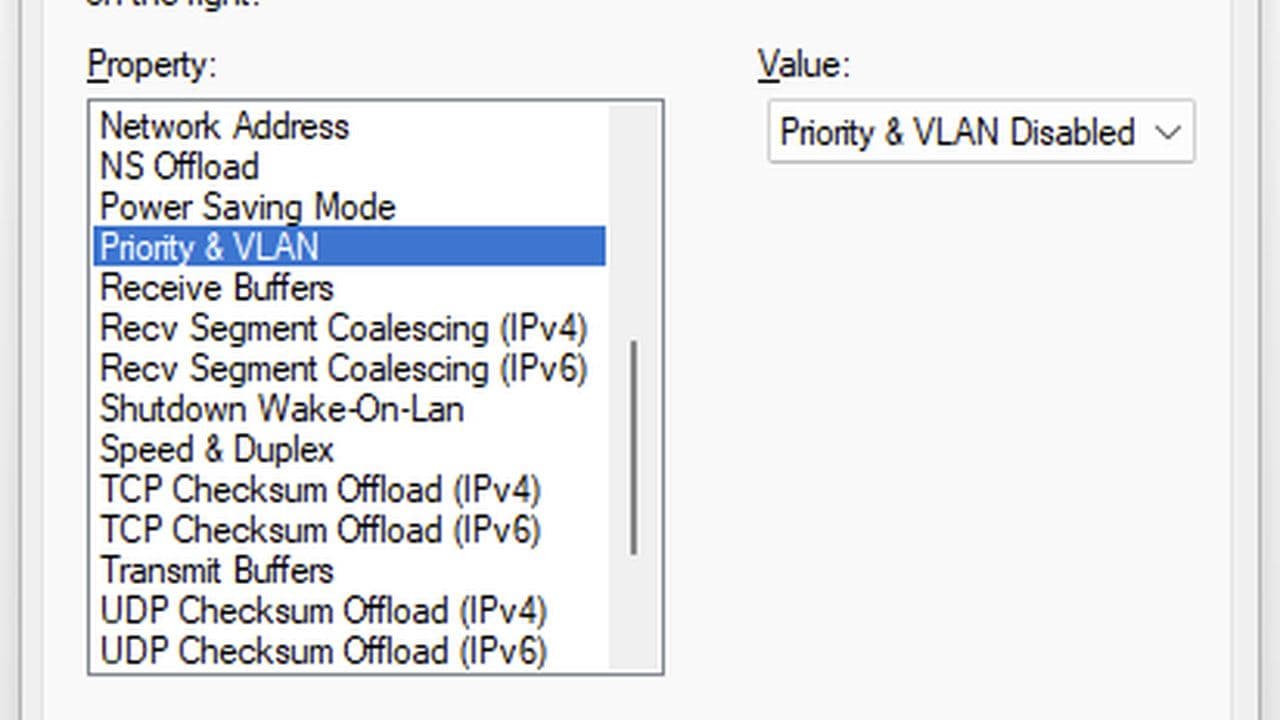
Restart PC after.
8. Server is down or full
Sometimes the issue is not your fault. The Hytale server may be offline.
- Try joining another server
- Wait and retry
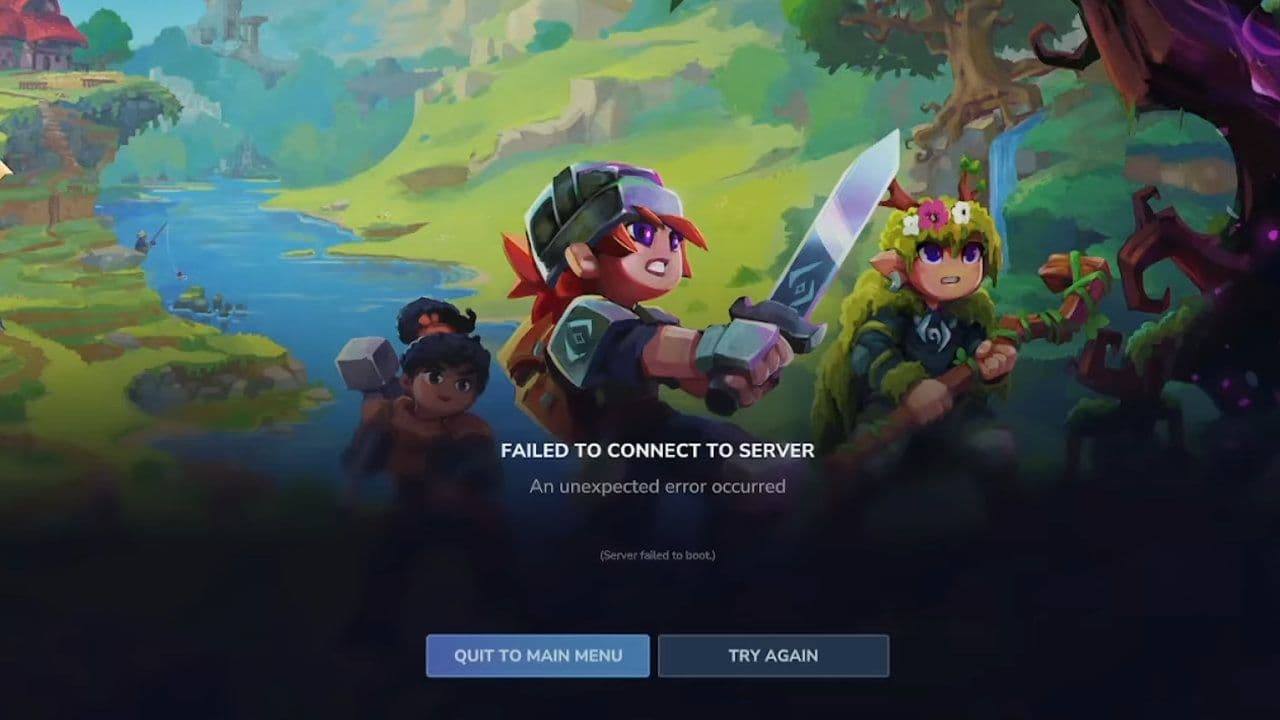
Check out our guide to fix the Hytale failed to connect to server error.
9. Friend invite or share code not working
Hytale uses friend invites and share codes. If invite fails:
- Generate new share code
- Restart game
- Both players update game
- Host world again
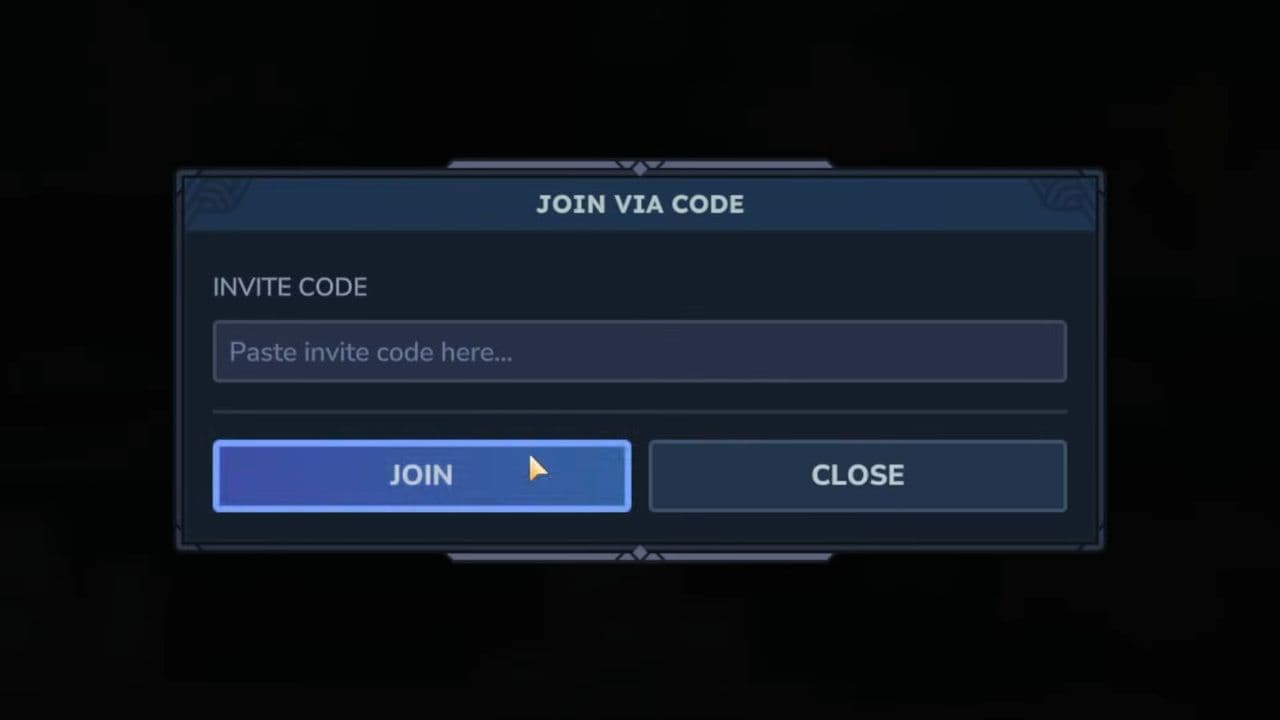
Invite system bugs sometimes fix after restart.
10. Corrupted game files
Broken game files can cause multiplayer failure. You can reinstall Hytale:
- Uninstall Hytale
- Restart PC
- Install again
This fixes corrupted files.
11. VPN problems
VPN can block multiplayer connections.
- Disable VPN
- Restart game
- Try again
Only use VPN if fixing CGNAT.
12. Router firewall restrictions
Some routers block gaming traffic.
- Login to router:
- Disable:
- SPI Firewall
- Strict NAT filtering
- Enable:
- UPnP
- Save settings.
Best solution: Use a dedicated server
If Hytale multiplayer is not working when hosting locally, dedicated servers are the most reliable option.
Dedicated servers fix many Hytale multiplayer problems because they don’t require port forwarding and are not affected by NAT restrictions like home networks. They use a public IP, which allows stable connections. They also stay online 24/7, so friends can join anytime without needing the host’s computer running.
By following these fixes, you can solve almost every multiplayer connection problem and play with friends without errors.
If the problem continues, contact Hytale support.
That’s all for today! Looking for more? Check out these:
All Related Guides
 Best Hytale plugins and how to create yoursExplore the best Hytale plugins for servers, from permissions and shops to NPCs, kits, performance tools, and ...
 Meet the Hytale Pokemon mod Pokefind: Release date, gameplay and moreGet the latest details on the Hytale Pokemon mod Pokefind, including gameplay plans, server support, release s...
 Can you create an infinite water source in Hytale?Learn if a Hytale infinite water source is possible, why the 2x2 trick fails, and which mods can help you get ...
 Who is The Hedera in Hytale Endgame & QoL mod and how to defeat itFind out how to reach and defeat The Hedera in Hytale Endgame & QoL mod, including boss phases, best prep, and...
 How to heal in Hytale (Food, potions, totem & more)How to heal in Hytale: food, potions, totem, regen buffs, best methods, and full survival guide explained....
 Hytale Update 4 (Part 5): What’s new?Hytale Update 4 Part 5 adds 500+ new blocks, system upgrades, bug fixes, and major improvements before full re...
 All Hytale signs & how to craft themDiscover all 29 Hytale signs, their crafting recipes, and how to use them. Learn sign mechanics, placement tip...
 When will Hytale fully release? (2026 update)When will Hytale fully release? Learn the expected 2026–2027 timeline, Early Access plans, and what must happe...
- 1
- 2
- 3
- 4
- 5
- 6
- 7
- 8