How to fix the Warzone DirectX error 0x887a0005
Errors and bugs are never fun, they all affect our experience but the good news is that they always happen for a reason and once root cause is found, you can also find a fix. That is also the case for the Warzone DirectX error 0x887a0005. Warzone may freeze, close to the desktop, or show a DirectX message during launch, shader loading, or a match. The code points to a graphics failure, but it does not always mean your GPU has physical damage. In this guide, we go over all the possible causes and give you ways to fix the error!
What is the DirectX error 0x887a0005 in Warzone?
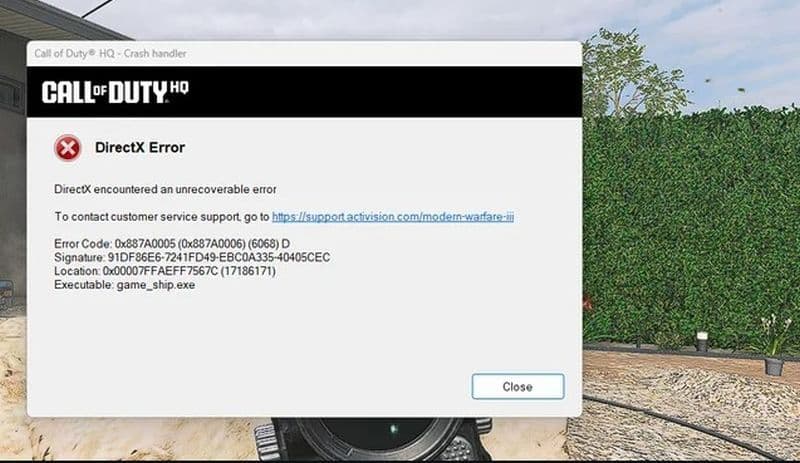
Error 0x887A0005 matches the DirectX code DXGI_ERROR_DEVICE_REMOVED. In simple terms, Windows or the graphics driver stopped Warzone from using the GPU that rendered the game.
The wording sounds more serious than it often is. Your graphics card probably did not leave the system. A driver reset, damaged game data, or unstable hardware settings can create the same result. Warzone then closes because it can no longer draw frames correctly.
Some players also see 0x887A0006 or a message that says the GPU stopped responding.
What causes Warzone error code 0x887A0005?
Players encounter the error when something interrupts communication between Warzone, DirectX, and the GPU driver. Common causes include:
- An old, damaged, or unsuitable graphics driver
- Missing or corrupted Warzone files
- GPU monitoring, recording, or tuning software
- An unstable hardware overclock
- Graphics settings that push video memory too hard
- A recent game, Windows, or driver update
- Heat, power, or hardware stability problems
The timing gives you a clue. A crash after a driver update points toward the driver. Crashes in several demanding games may point toward the wider system.
- Also Read: Why is Warzone 2 so laggy?
How to fix Warzone DirectX error 0x887a0005
Work through these fixes from top to bottom. Restart Warzone after each step so you can identify what solved the problem.
1. Restart your PC and update Windows
Close Warzone and restart the computer. A restart can clear a temporary driver failure and complete pending updates.
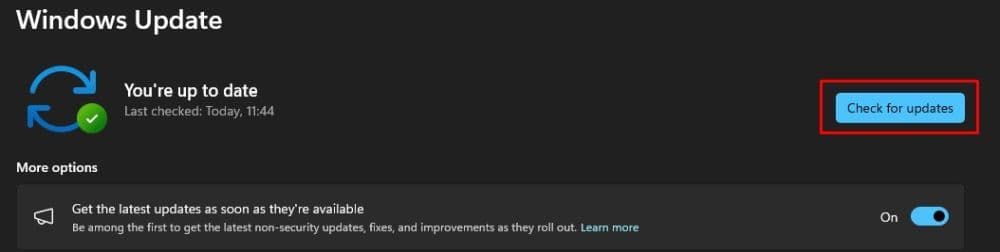
Open Settings > Windows Update and install available updates. Warzone supports Windows 10 and Windows 11, and the game requires DirectX 12 compatibility. Do not force the current game into DirectX 11 through an old launch command.
2. Update the graphics driver
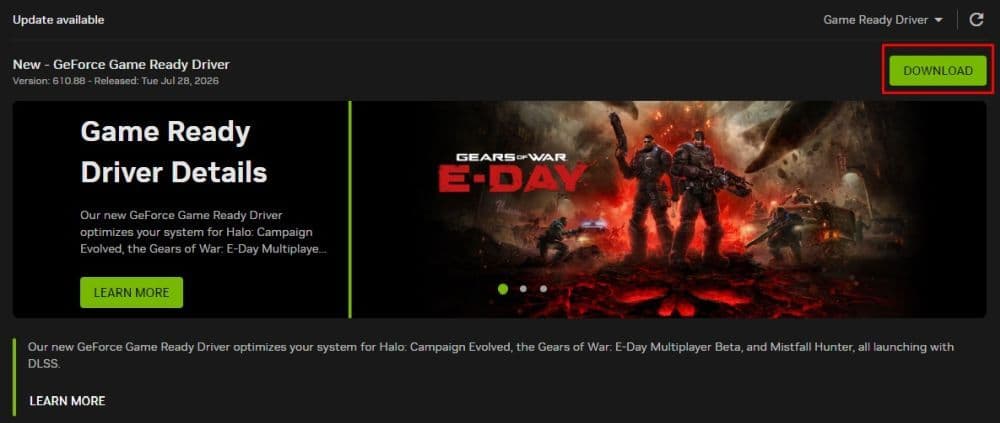
Download the correct driver from NVIDIA, AMD, or Intel. Use the official driver page or the manufacturer’s app, then restart the PC.
To identify your GPU, press Windows + R, enter dxdiag, and open the Display tab. Check the GPU name and driver information. Compare your version with the current Warzone support guidance.
3. Reinstall or roll back the GPU driver
Reinstall the driver if a normal update does not fix the error. Choose a clean installation option when the installer provides one.
Roll back the driver when the crash began directly after an update. Open Device Manager > Display adapters, right-click your GPU, choose Properties, and open the Driver tab. Select Roll Back Driver when Windows makes the option available.
4. Repair the Warzone game files
Damaged files can break shaders or graphics data.
Battle.net:
- Open Call of Duty and select the gear icon.
- Choose Scan and Repair.
- Let the scan finish.
Steam:
- Right-click Call of Duty in your library.
- Select Properties > Installed Files.
- Choose Verify integrity of game files.
- Restart the launcher after it replaces any damaged files.
5. Let shader preloading finish
Warzone prepares shaders after some updates and driver changes. Stay on the main menu until shader preloading reaches completion. Moving into another menu or match too early can stop the process and cause performance problems.
Restart shader loading from the graphics settings after a driver reinstall or a large update.
6. Close apps that can conflict with Warzone
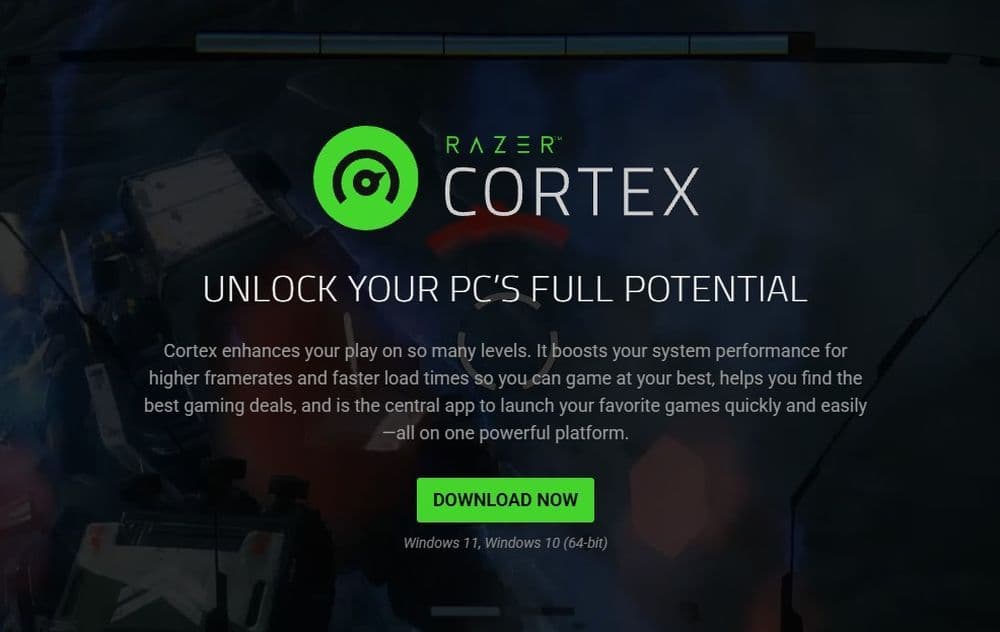
Close nonessential overlays and hardware tools before you launch the game. Check MSI Afterburner, NZXT CAM, Razer Cortex, RivaTuner, recording software, and RGB control apps.
Close them, test Warzone, and reopen them one at a time. A Windows clean boot can reveal a conflicting service.
7. Return overclocked hardware to stock settings
Reset manual GPU, VRAM, CPU, and RAM changes. Warzone can expose an unstable overclock even when other games run well.
Some factory-overclocked cards may also struggle under a heavy load. Treat a small temporary underclock as an advanced test. Check GPU temperature and power connections first.
8. Lower graphics and VRAM use
Reduce texture quality, limit the frame rate, and lower settings that consume large amounts of video memory. Our best Warzone settings guide gives you a practical starting point.
Warzone requires at least 3 GB of video memory, while the recommended PC target lists 8 GB. Meeting the minimum does not guarantee stable play at high settings. Read “Can my PC run Warzone?” to compare your hardware with the current requirements.
What to do if Warzone still crashes
Test another demanding game and watch for black screens, visual artifacts, driver resets, or sudden restarts. When several games fail, check temperatures, remove overclocks, inspect power cables, and test the GPU with stock settings.
When only Warzone fails, check current known issues, reinstall the game, or report the crash through Activision support. Players who face Warzone not launching or Warzone lag may need separate launcher, network, or performance checks.
The Warzone DirectX error 0x887A0005 typically originates from a driver issue, corrupted files, software conflicts, or unstable graphics loading. Start with updates and file repair, then test background apps and hardware settings.
Find more of our Warzone guides below:
- Is Warzone 2 Split Screen?
- How To Show FPS In Warzone
- How To Get A Nuke In Warzone 2?
- How To Turn On Proximity Chat In Warzone 2
- How To Slide Cancel In Warzone
Featured Image Credit: Call of Duty
Guide Categories
All Related Guides
 What are Loot Caches in Warzone? Caches vs. Crates explainedWhat are Loot Caches in Warzone? Learn what counts, the difference between caches and crates, and the fastest ...
 What is an infil weapon in Warzone?What is an Infil Weapon in Warzone? Learn what counts and how to get Infil Weapon eliminations....
 Warzone Lockdown Casual guide (New mode)Learn how Warzone Lockdown Casual works, including objectives, respawns, loadouts, rewards, and the best strat...
 How to get Juggernaut in Warzone fastLearn how to get the Juggernaut in Warzone fast, where Juggernaut Drops spawn, and the best tips to survive us...
 How to get a nuke in WarzoneSee how to get a nuke in Warzone, from earning a Champion’s Quest Contract to defending the missile and claimi...
 All ground loot item groups in Warzone: Complete listThis ground loot Warzone guide explains weapons, armor, equipment, rarity colors, and how to choose better loo...
 How to play Rebirth Island in WarzoneFind out how to access Rebirth Island in Warzone, choose strong landing spots, build a loadout, and survive lo...
 Fortune's Keep Warzone guide: Best landing spots, key areas & moreMaster Fortune’s Keep in Warzone with the best landing spots, POIs, rotations, and strategies to secure more k...
- 1
- 2
- 3
- 4
- 5