Why is my Fortnite lagging?
Have troubles with lag in Fortnite? We're here to help with a fullproof list of fixes.
Is your Fortnite lagging? We know that lag can seriously impact your gaming experience, making it difficult to enjoy the game fully. However, understanding why this happens and how to address it can make a significant difference. That’s why we gathered everything you need to know about the Fortnite lag issue.
Why is my Fortnite lagging?
If you're asking yourself, "Why am I lagging in Fortnite?" you're not alone. But before diving into the fixes, let's first understand the situation better:
- Old drivers: If your graphics card and internet drivers are outdated, they might be causing the lag. Make sure to update them.
- Slow Internet: Fortnite needs a fast and steady internet connection. If yours is slow, it could cause lag. You can check it with Fast or
- Weak computer: Fortnite has certain requirements for your computer. If your computer doesn't meet them, it might lag. Check if your computer needs an upgrade.
- Old game version: If you're playing on an older version of Fortnite, it could cause lag. Make sure to update the game regularly.
- Internet problems: Sometimes, your internet provider might slow down your connection, causing lag. Contact them to see if there's a problem.
But sometimes, Epic Games might be guilty.
Fortnite lagging after updates
After Epic Games updates Fortnite, some players might experience lag. These updates can bring new features and fixes but may unintentionally disrupt smooth gameplay for some.

Despite this, Epic Games usually responds quickly to any issues players report and releases patches to improve stability. However, if you want to take action, there are some things you can do.
How to fix the lag in Fortnite
Here is what you need to do to fix Fortnite lag issues:
- Update drivers: Make sure your graphics (Nvidia & AMD) and network drivers are current. Don’t you know what graphics card manufacturer you are using, click here and learn.
Check Internet: Ensure you have a stable and fast internet connection. - Hardware check: See if your computer meets Fortnite's requirements. Here are the recommended system requirements:
- Video Card: Nvidia GTX 960, AMD R9 280, or equivalent DX11 GPU
- Video Memory: 2 GB VRAM
- Processor: Core i5-7300U 3.5 GHz, AMD Ryzen 3 3300U, or equivalent
- Memory: 16 GB RAM or higher
- Hard Drive: NVMe Solid State Drive
- OS: Windows 10/11 64-bit
- Switch to Performance - Lower Graphical Fidelity mode: Switching to Performance - Lower Graphical Fidelity mode can help improve your FPS (frames per second) and overall performance in Fortnite, especially on lower-end hardware or devices.
- Open Fortnite on your computer.
- Click on the menu icon located in the top left corner of the screen. From the menu options, select "Settings" or "Options."
- In the settings menu, look for the "Display" or "Graphics" section.
- Within the display or graphics settings, you should see an option for "Rendering Mode."
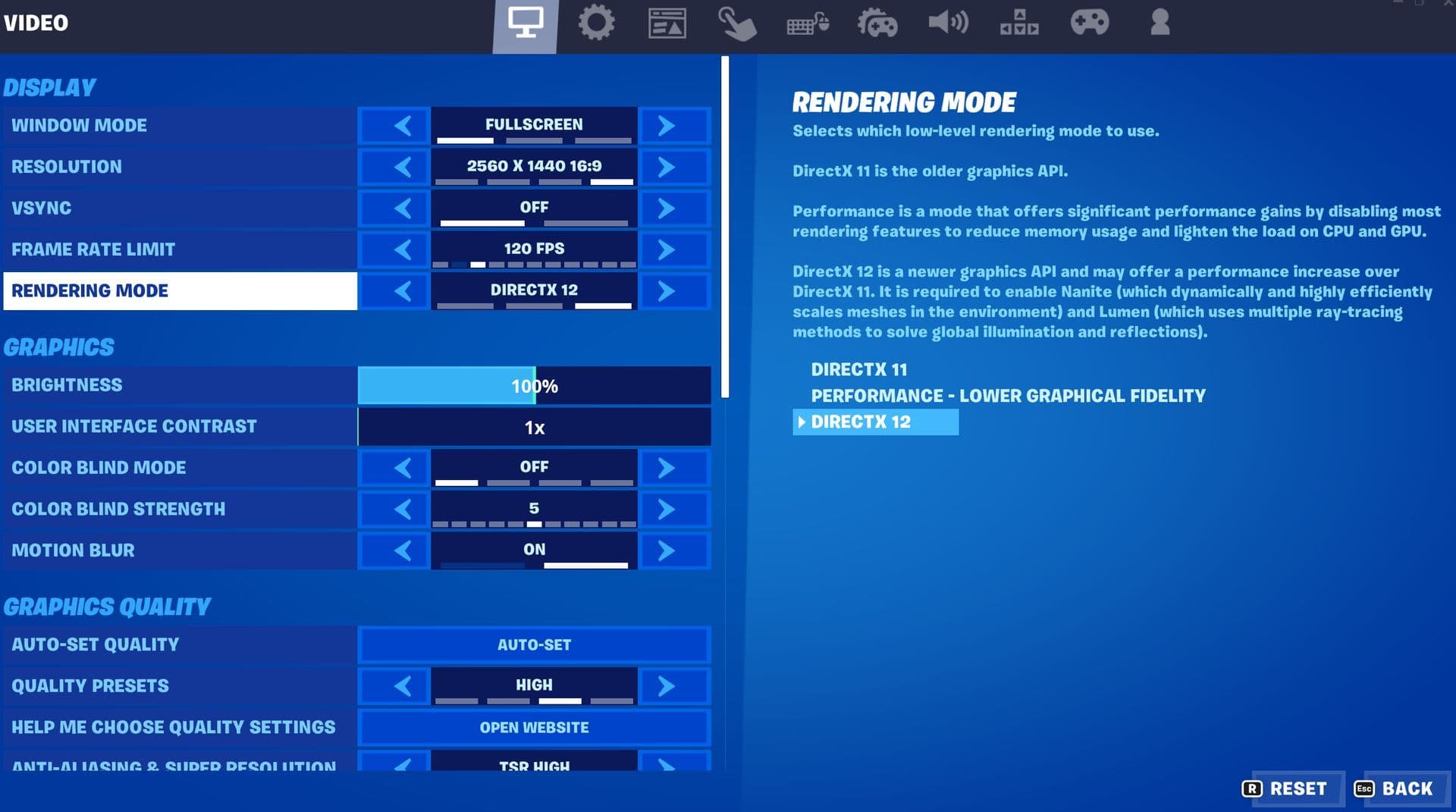
- Change the Rendering Mode to "Performance - Lower Graphical Fidelity" or any option that prioritizes performance over graphical quality.
- After selecting the desired mode, click on "Apply" to confirm the changes.
- Restart Fortnite to apply the new graphical settings.
- Keep the game updated: Always update Fortnite to the latest version.
- Adjust settings: Try lowering graphics settings for smoother gameplay.
- Verify your game files: Verifying your game files ensures that all game files are intact and not corrupted, which can help resolve any issues or errors you may encounter while playing Fortnite. To verify your game files in Fortnite, follow these steps:
- Open the Epic Games Launcher on your computer.
- Navigate to your Fortnite game library.
- Find Fortnite in your library and click on the three dots next to it.
- From the drop-down menu, select "Verify."
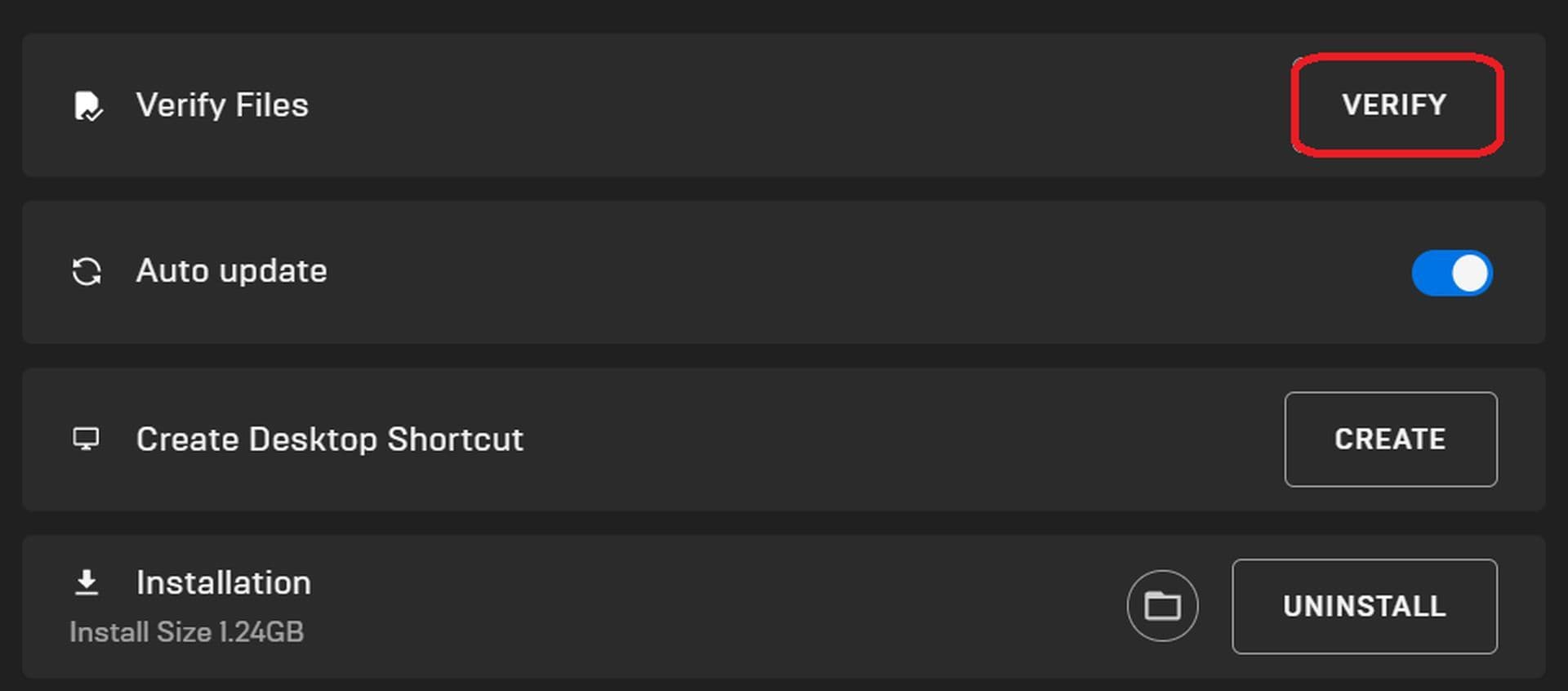
- The launcher will then begin verifying the installation of game files. This process may take a few minutes depending on the size of the game.
- Once the verification is complete, you can launch Fortnite and start playing.
- Close background apps: Shut down unnecessary programs running in the background.
- Restart: If lag persists, restart Fortnite and your device.
- Eliminate overheating: Ensure your computer doesn't overheat by keeping it well-ventilated and dust-free.
- Use VPN: Consider using a VPN to improve connection stability.
- Optimize router: Adjust router settings for better gaming performance.
- Get help: Contact Fortnite support.
- Check server status: Verify if there are any server issues or maintenance affecting gameplay.
If you are facing an error code, you can check our step-by-step guide for Fortnite error code fixes.
Why are Fortnite servers so laggy?
Fortnite servers sometimes get too crowded, especially during busy times like evenings and weekends. This can overload them, causing lag for everyone playing. Sometimes, the servers have technical problems like hardware glitches or software bugs, leading to lag. Like this one:
You can click here to check Fortnite servers.
Additionally, if you're far from the servers, it takes longer for your actions to reach them and for the game to respond, causing lag. Problems with your internet provider, like slow connections or network issues, can also lag the game. These factors can all contribute to lag on Fortnite servers, making gameplay less smooth and enjoyable.
Why is Fortnite so laggy on PC?
Is lag issues only for PC players? Fortnite can be laggy on PC due to various reasons, but it's not solely a PC-related issue. Lag can occur on any platform where Fortnite is played, including consoles and mobile devices.

How to fix Fortnite lag on PC
To minimize lag in Fortnite on your PC, update graphics drivers, check out the best Fortnite settings on PC, close background programs, ensure a stable internet connection, avoid heavy downloads, check server status, switch to high-performance mode, and regularly clean up temporary files. These steps collectively optimize performance, reducing lag for smoother gameplay.
How to stop Fortnite from lagging at all
If you find yourself asking the question, "Why am I only lagging on Fortnite?" it's time to discuss how to reduce lag in Fortnite in general. Besides the quick fixes, here are more radical steps:
- Upgrade your computer: If your current PC struggles with Fortnite, consider getting a better one or improving its parts, like the CPU or graphics card.
- Improve your Internet: Get a faster Internet plan or a gaming router to make your connection more stable and reduce lag.
- Switch your Internet provider: If your internet is consistently bad, try switching to a different provider for better service.
- Use wired Internet: Switch from Wi-Fi to an Ethernet connection for a more reliable internet connection.
- Tweak game files (for Advanced Users): If you know what you're doing, you can modify Fortnite settings for better performance.
- Get professional help: If nothing works, consider asking a technician or gaming expert for advice.
These steps might sound drastic, but they can significantly reduce lag and improve your Fortnite experience.
Is there a problem with Fortnite right now?
Visit the Epic Games Status page to quickly check if a global outage or maintenance is happening. It shows real-time updates on login, matchmaking, game services, and more. For extra insight, you can also use a third-party tracker like Downdetector, which monitors Epic Games services, provides alerts, and shares historical downtime reports.
How to get 0 ping in Fortnite?
Ping in Fortnite shows how fast your device talks to the game servers, measured in milliseconds. A true “0 ping” isn’t possible since data always takes a little time to travel, but you can get it very low for smoother gameplay.
The easiest way to reduce ping is by using a wired Ethernet connection instead of Wi-Fi. Wired internet avoids interference and is far more stable. Choosing the closest server region in Fortnite’s settings is also important, since the shorter the distance to the server, the lower your ping will be.
You should also close apps and downloads running in the background, as they can slow your connection and cause higher ping. Restarting your modem or router from time to time can also improve stability and reduce spikes.
While you can’t fully reach 0 ping, these steps can get you close, making builds, edits, and shots register much faster.
All Related Guides
 Fortnite Loot Hacker Sprites: All variants, locations, and how to get themFind all Fortnite Loot Hacker Sprites, Cheat Code locations, Chest chances, Sprite Dust costs, and how to unlo...
 All Garden vs. Brainrot codes in Fortnite: Updated listLooking for Fortnite Garden vs Brainrot codes? Get every working code, learn how to redeem them, and boost you...
 Latest Fortnite Steal the Brainrot codes (September 2026)Find all active Fortnite Steal the Brainrot codes to summon Brainrot Gods and boost rewards fast....
 Island cheats: How to find & use Fortnite Cheat codesLearn how Fortnite Cheat Codes work, where to find them, what each panel color means, and how to unlock and ex...
 Sprite Rate Up meaning in FortniteLearn what Sprite Rate Up means in Fortnite, how these events work, which Sprites get boosted, and why they're...
 How to use a Gizmo in Fortnite (Sprite extraction tools)Learn how to use a Gizmo in Fortnite, activate the Gizmo Wheel, unlock Sprite tools, and complete the "Use a G...
 How to resummon Fortnite SpritesLearn how to resummon Fortnite Sprites in Chapter 7 Season 4, including Sprite Dust costs, levels, collection ...
 Fortnite Mastery Monday guide: Schedule, bonuses & moreLearn how Fortnite Mastery Monday works, including its weekly schedule, 2x Sprite leveling, double Sprite Dust...
- 1
- 2
- 3
- 4
- 5
- 6
- 7
- 8
- 9
- 10
- 11
- 12
- 13
- 14
- 15
- 16
- 17
- 18
- 19
- 20
- 21
- 22
- 23
- 24
- 25