Fortnite Xbox Cloud Gaming: How to play, requirements, and best settings
Play Fortnite anywhere with cloud power.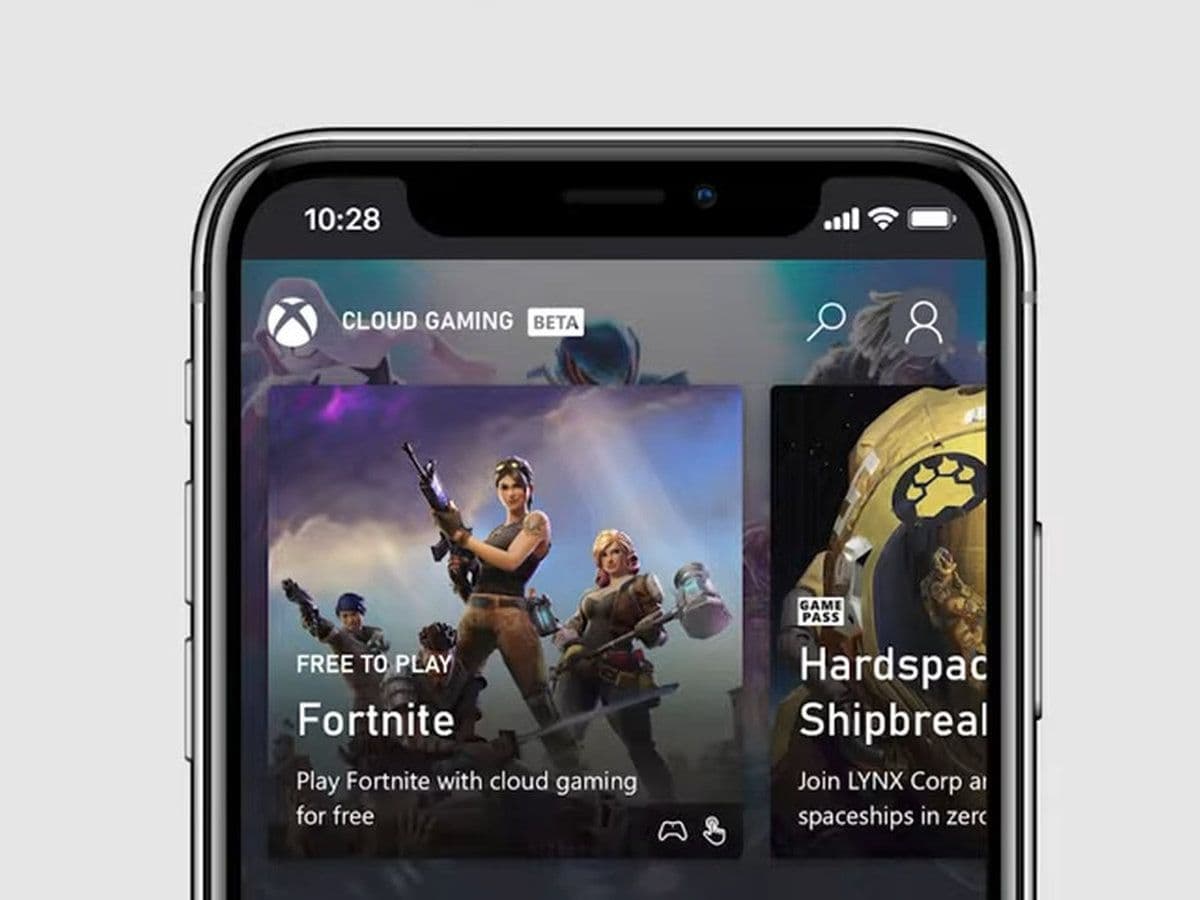
Fortnite Xbox Cloud Gaming is one of the easiest ways to play Fortnite without owning a console or gaming PC. By streaming the game through the cloud, you can jump into matches on almost any device, including phones, tablets, and low-end laptops.
This Fortnite guide explains how it works, what you need, how to set it up, and how to get the best performance. If you want a simple and reliable way to play Fortnite on the go, Xbox Cloud Gaming gives you exactly that.
What is Fortnite Xbox Cloud Gaming?
Fortnite Xbox Cloud Gaming is the cloud-streamed version of Fortnite available through Microsoft’s Xbox Cloud Gaming service. Instead of running the game on your device, Microsoft’s servers run it for you. Your device only displays the video stream and sends your inputs back to the cloud. This setup lets you play Fortnite on hardware that normally cannot run the game.

You can access Fortnite directly from your browser at xbox.com/play, and unlike most titles on the service, you do not need an Xbox Game Pass subscription. All you need is a free Microsoft account and a device with a stable internet connection. This makes Fortnite Xbox Cloud Gaming one of the most accessible ways to play the game.
Fortnite Xbox Cloud Gaming supported devices
One of the biggest advantages of Fortnite Xbox Cloud Gaming is its wide compatibility:
- iPhone and iPad (via Safari)
- Android phones and tablets
- Windows PCs and low-end laptops
- Chromebooks
- Some smart TVs that support browser access
Because you play through a browser, you don’t need to install the full game. This is helpful on devices with limited storage space or weak processors and graphics cards.
Controls
When playing Fortnite Xbox Cloud Gaming, you have two control options:
Fortnite Xbox Cloud Gaming requirements
To get the best experience with Fortnite Xbox Cloud Gaming, make sure you meet the following requirements:
- Strong and stable internet (at least 10–20 Mbps; higher is better)
- Low latency connection, ideally under 60 ms
- 5GHz WiFi instead of 2.4GHz for better speed and stability
- Modern browser like Safari, Chrome, or Edge
- Microsoft account (free)
- Epic Games account linked to your Microsoft login (for progress sync)
If your internet is unstable, you may see lag, blurry visuals, or delayed inputs. Because Fortnite is a fast shooter, connection quality makes a noticeable difference.
How to play Fortnite through Xbox Cloud Gaming
Here is the simplest step-by-step setup for Fortnite Xbox Cloud Gaming:
- Open your browser and go to xbox.com/play.
- Sign in with your Microsoft account.
- Select Fortnite from the home screen.
- Connect a controller if you prefer (Bluetooth or USB).
- Tap or click Play and wait for the stream to load.
- Log in to your Epic Games account if asked.
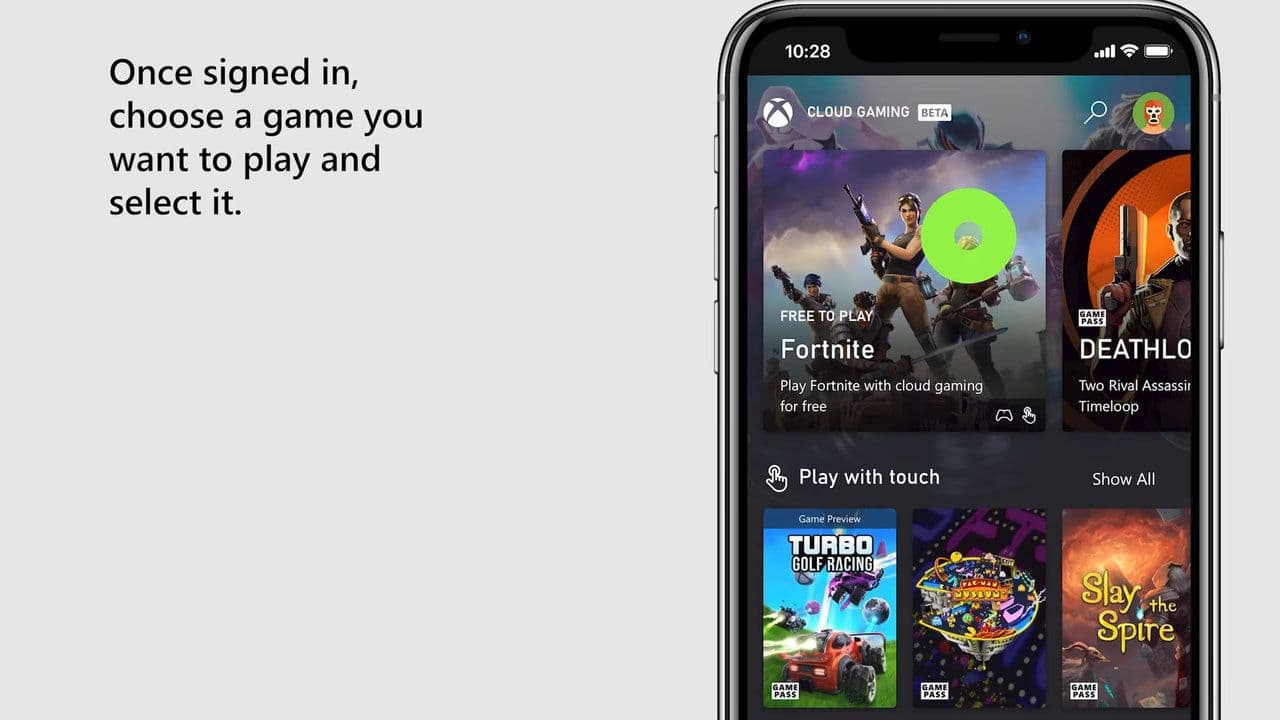
Once the stream starts, you can play normally. All your Fortnite skins, progress, and purchases carry over because your Epic account syncs across platforms.
Is Xbox Cloud Gaming not working?
If Xbox Cloud Gaming isn’t working, the first things to check are:
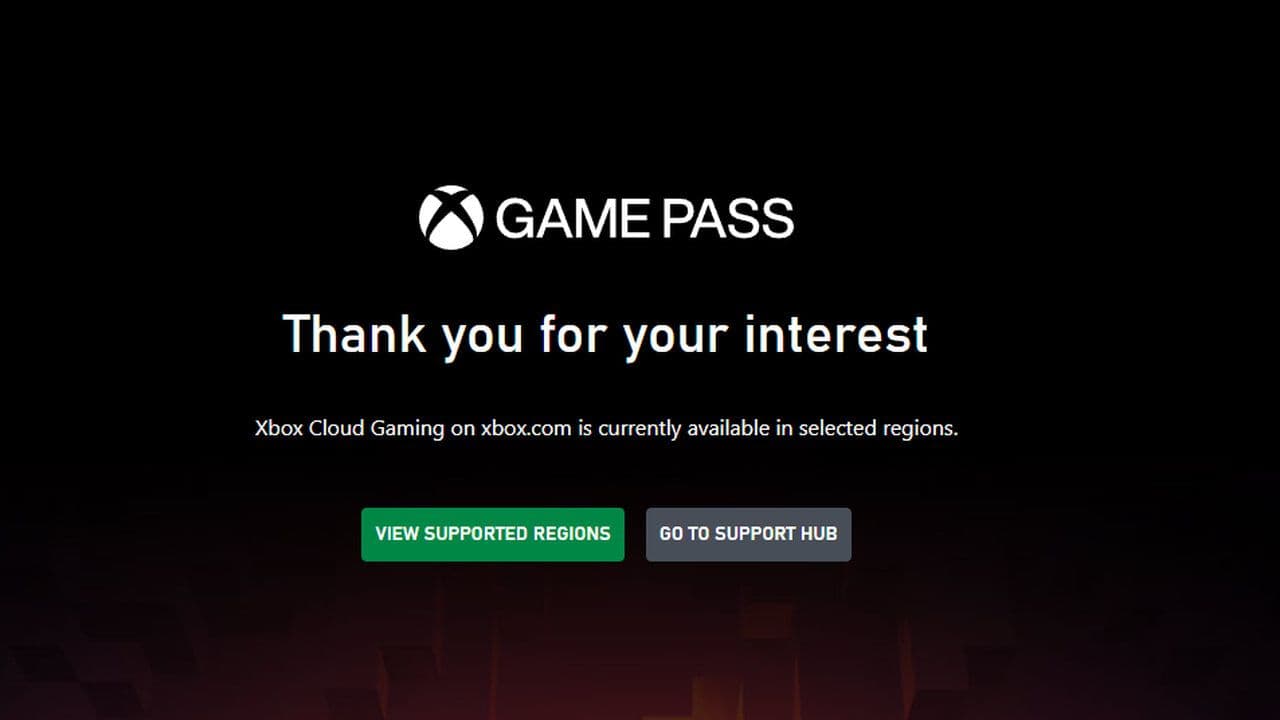
- Unsupported region or region/account mismatch
- Weak or unstable internet (high latency or low speed)
- Browser or device not supported
- Server outages or temporary Xbox service issues
- Incorrect Microsoft account settings
Quick fixes
- Confirm your region is supported and matches your Microsoft account settings. Supported regions include countries such as:
- United States, United Kingdom, Canada, Germany, France, Italy, Spain, Netherlands, Japan, South Korea, Australia, New Zealand, Brazil, Argentina, Mexico, Sweden, Norway, Finland, Denmark, Switzerland, Belgium, Austria, Portugal, Poland, Czech Republic, Slovakia, Hungary. You can check your availability here.
- Restart browser, clear cache, or try another browser
- Use 5 GHz WiFi or a wired connection
- Check Xbox server status
- Update device software and reconnect controller if needed

Fortnite through Xbox Cloud Gaming offers one of the easiest ways to play the game across almost any device, but its performance depends heavily on your region, internet quality, and device compatibility. If the service isn’t working, checking supported regions, fixing network issues, and verifying account settings usually solves most problems quickly. Once everything is set up correctly, Xbox Cloud Gaming delivers a smooth, flexible way to enjoy Fortnite without needing a console or gaming PC, making it a convenient option for both casual and competitive players.
That’s all for today! Looking for more Fortnite guides? Check out these:
All Related Guides
 Fortnite Droid Tycoon Chips guide: Best ways to farm chips fastFortnite Droid Tycoon Chips guide: best farming methods, upgrades, Rebirth tips, and how to use Chips wisely....
 5 best Fortnite Star Wars games you can play right now Best Fortnite Star Wars games: Galactic Siege, Escape Vader, Droid Tycoon, creator islands, and how to play th...
 How to ride on a player's shoulders in FortniteHow to ride on a player's shoulders in Fortnite: steps, controls, quest completion tips, and how Shoulder Ride...
 All Garden vs. Brainrot codes in Fortnite: Updated listLooking for Fortnite Garden vs Brainrot codes? Get every working code, learn how to redeem them, and boost you...
 Latest Fortnite Steal the Brainrot codes (May 2026)Find all active Fortnite Steal the Brainrot codes to summon Brainrot Gods and boost rewards fast....
 Fortnite Karaoke mode explained: How to play?Discover Fortnite Karaoke mode in Fortnite Festival, including Pro Vocals, Mic Vocals setup, supported songs, ...
 How to get a refund for D4VD Fortnite cosmeticsThis guide explains the D4VD Fortnite cosmetics refund, including refund steps, eligible items, Locker Bundle ...
 Veno’s Fortnite settings: Who is he and what is his setupFind Veno Fortnite settings for mouse, keyboard, video, gear, DPI, sensitivity, and competitive setup....
- 1
- 2
- 3
- 4
- 5
- 6
- 7
- 8
- 9
- 10
- 11
- 12
- 13
- 14
- 15
- 16
- 17
- 18
- 19
- 20