How to add Hytale to CurseForge and use different mods

CurseForge is one of the most popular platforms for those who like to mod their games, whether it is Minecraft or Hytale. It gives players one place to discover mods, install them, and keep them updated. That saves time and reduces mistakes, since you do not need to manage every file by hand. This guide explains what CurseForge is, how it helps with Hytale, how to add Hytale to the app, and more!
What is CurseForge and how could Hytale players use it?
CurseForge is a mod hosting platform and a desktop app that manages mod installs. The website helps you browse Hytale mods by category and popularity, while the app helps you install and update them with a few clicks.
For Hytale, the practical benefit stays simple:
- You keep mods organized in one place.
- You reduce manual copying and folder mistakes.
- You control mod selection per world, so you test safely.

How to add Hytale to CurseForge and install mods
CurseForge often detects games automatically. If it does not detect Hytale, you can still add it through a scan or a manual setup.
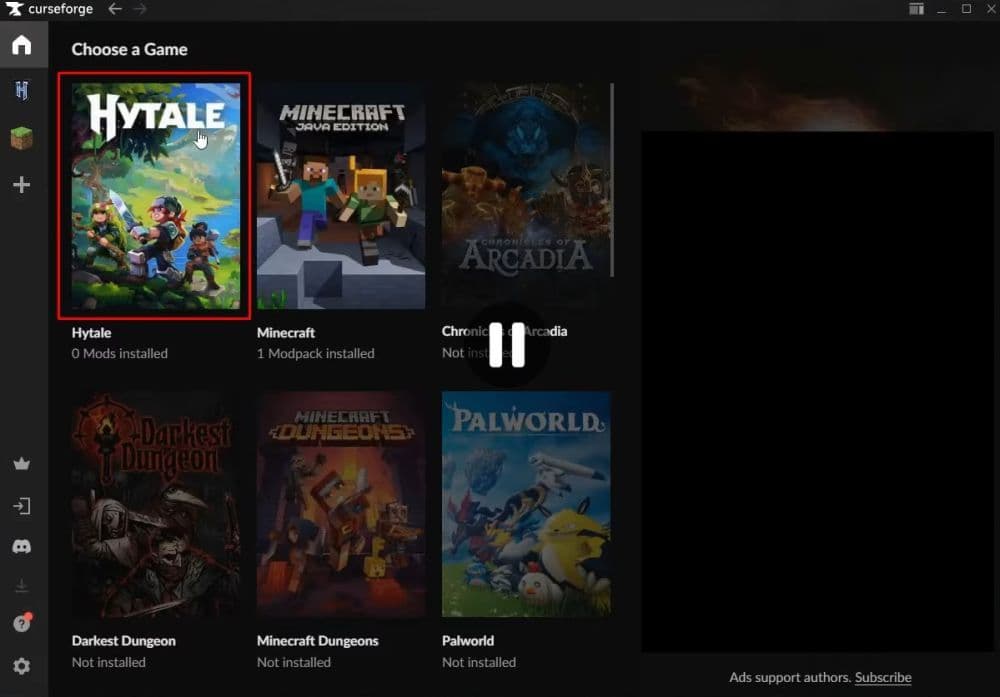
Here‘s how to add Hytale to CurseForge:
- Open the CurseForge App.
- Go to Settings.
- Click the + button.
- Choose Scan computer for games.
- Check if Hytale appears in your game list.
- If Hytale still does not show up, return to the + button.
- Choose Manually add a game.
- Select the main Hytale installation folder.
You must pick the main game folder, not a random subfolder. If you choose the wrong folder, the app may not attach Hytale correctly.
If you are having issues with mods, don’t forget to check our troubleshooting on Hytale mods!
How to install Hytale mods in CurseForge
After you add Hytale, you can install mods in a few clean ways.
Option 1: Install inside the app
- Open Hytale inside CurseForge.
- Browse mods in the Hytale section.
- Click Install on the mod you want.
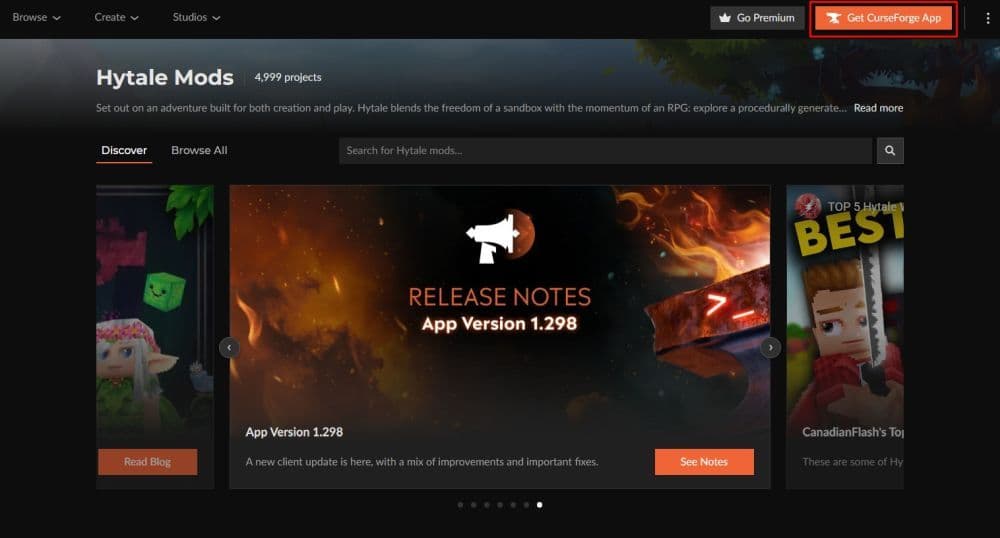
Option 2: Install from a mod page that opens the app
- Open a mod page in your browser.
- Use the install option that launches the CurseForge App.
- Confirm the install inside the app.
Option 3: Use manual installs when needed
Some mods use a download-only flow. In that case:
- Download the mod file.
- Open the Hytale mod folder from your system.
- Place the mod file in the correct folder.
- Restart Hytale if the mod does not appear right away.
How to manage mods per world in Hytale
Hytale can treat mods as part of a world setup. That gives you better control. You can run one mod set on a creative world and a different set on a survival world.
Use this simple routine:
- Open your world list.
- Right-click the world you want to change.
- Enable or disable mods for that world.
- Save the world settings.
This approach also helps when you troubleshoot. You can isolate a problem by testing mods on one world instead of changing everything at once.
Looking for more Hytale guides? Start here:
- List of all Hytale mobs, what they drop & how to find them
- How does the Hytale class system actually work? Guide to builds
- Where to play Hytale and how to install the game
- Hytale Early Access Roadmap: What to expect in future updates
- Hytale Update 4: New features, changes, and patch notes
Featured Image Credit: Screenshot by THESPIKEGG via Hytale
All Related Guides
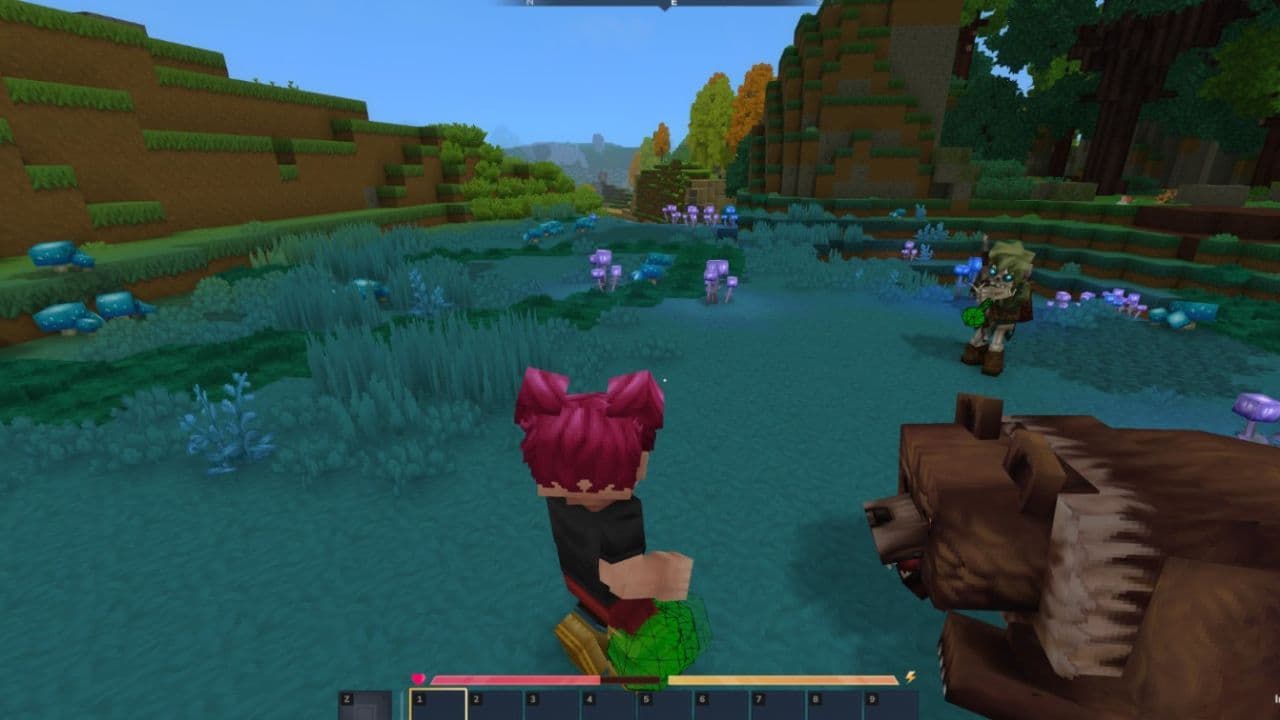 Best Hytale plugins and how to create yoursExplore the best Hytale plugins for servers, from permissions and shops to NPCs, kits, performance tools, and ...
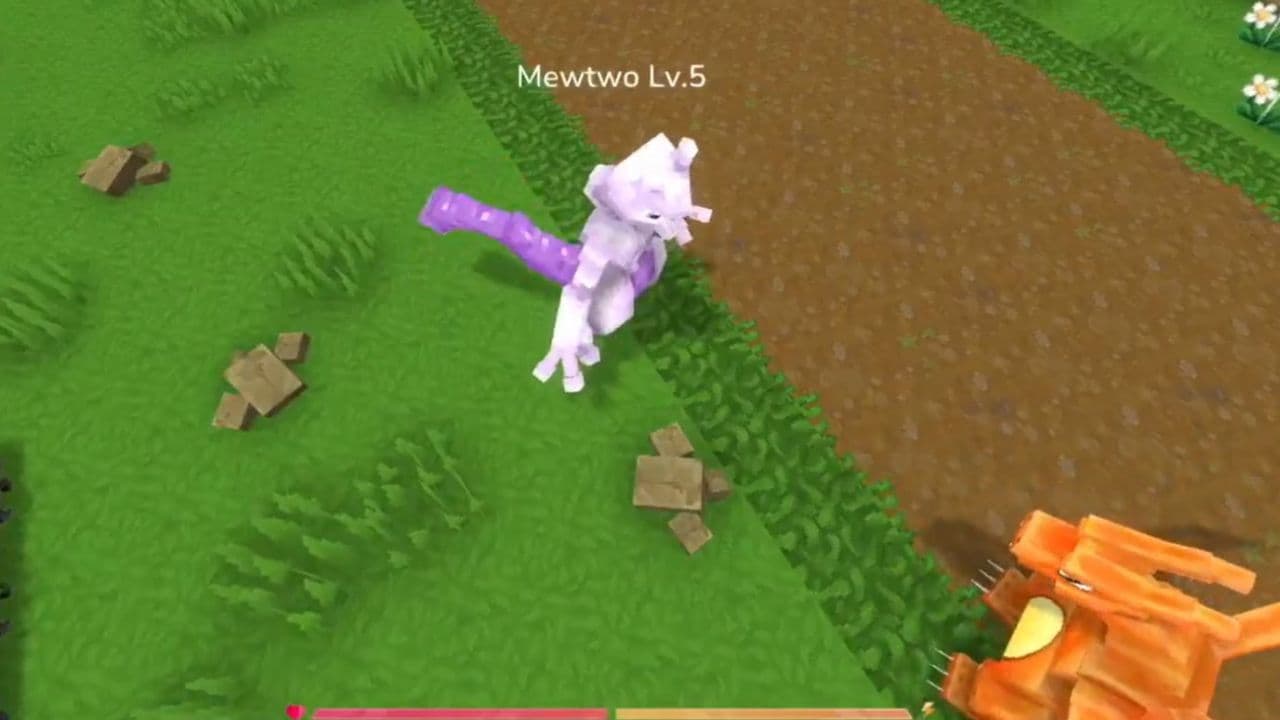 Meet the Hytale Pokemon mod Pokefind: Release date, gameplay and moreGet the latest details on the Hytale Pokemon mod Pokefind, including gameplay plans, server support, release s...
 Can you create an infinite water source in Hytale?Learn if a Hytale infinite water source is possible, why the 2x2 trick fails, and which mods can help you get ...
 Who is The Hedera in Hytale Endgame & QoL mod and how to defeat itFind out how to reach and defeat The Hedera in Hytale Endgame & QoL mod, including boss phases, best prep, and...
 How to heal in Hytale (Food, potions, totem & more)How to heal in Hytale: food, potions, totem, regen buffs, best methods, and full survival guide explained....
 Hytale Update 4 (Part 5): What’s new?Hytale Update 4 Part 5 adds 500+ new blocks, system upgrades, bug fixes, and major improvements before full re...
 All Hytale signs & how to craft themDiscover all 29 Hytale signs, their crafting recipes, and how to use them. Learn sign mechanics, placement tip...
 When will Hytale fully release? (2026 update)When will Hytale fully release? Learn the expected 2026–2027 timeline, Early Access plans, and what must happe...
- 1
- 2
- 3
- 4
- 5
- 6
- 7
- 8