How to fix high ping in League of Legends: The best tips and tricks

High ping in League of Legends can ruin even your best games. Your abilities feel slow, your champion does not respond in time, and every fight turns into a guess. The good news is that most ping problems have clear reasons and practical fixes. This guide explains what ping is, how to check it, what counts as “high ping,” why it happens, and which steps actually help you lower it!
What does ping mean in League of Legends?
Ping is the time your connection needs to send data from your PC to the League of Legends server and back. The game shows this in milliseconds (ms). A lower number means your champion reacts quickly to your clicks and key presses. A higher number means delay between your input and what you see on screen.
Ping is different from FPS. Ping measures your network delay. FPS measures how many frames your PC renders per second. You can have high FPS and still feel lag if your ping is bad. You can still experience stutter even with good ping if your FPS drops.
If you want a deeper beginner overview of LoL itself, you can also check our League of Legends beginner guides hub.
How to check your ping in League of Legends
League of Legends lets you see your ping directly in-game.
To show your ping in-game:
- Start a custom game or normal game.
- When you enter the map, press Ctrl + F on your keyboard.
- Look at the top right of the screen. You will see two numbers:
- One is FPS.
- One is ping (ms).
- If nothing appears, press Esc to open the settings menu.
- Go to Hotkeys.
- Open the Display section and find "Toggle FPS Display.”
- Assign a key (for example, F5)
- Save your settings and press that key in the next match.

You can also run a simple ping test outside the game:
- Open your browser.
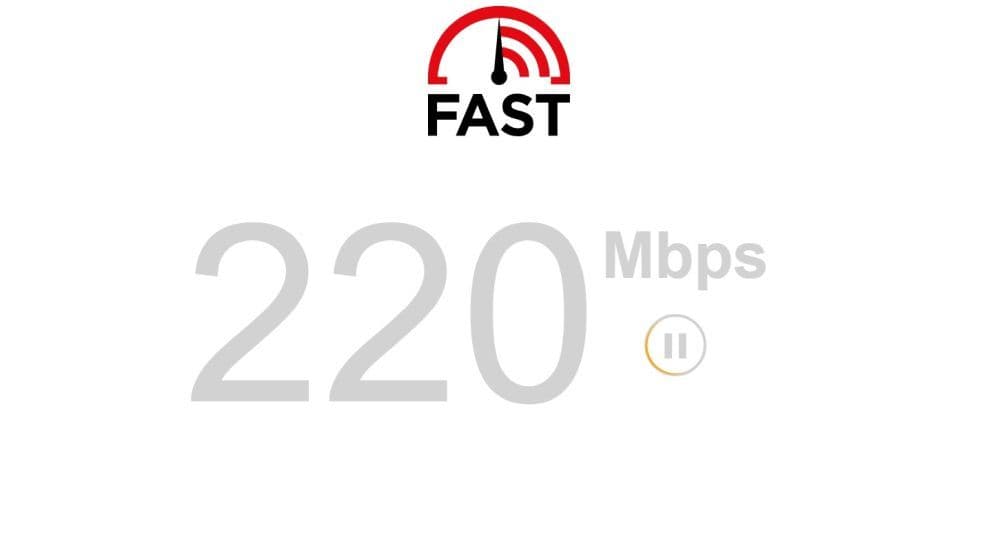
- Search for an “internet ping test” or use any trusted test page like Fast.com.
- Start the test and focus on the ping result (ms) rather than download speed.
- If the ping is already high here, the issue is likely your network or ISP.
If you only need a simple step guide, we cover this in detail in our how to show ping in League of Legends article.
Why is your ping high in League of Legends?
High ping usually comes from one or more of these factors:
Home network and Wi-Fi
Weak Wi-Fi signal, old routers, and many devices on the same network cause delay. Video streams, downloads, and cloud backups take bandwidth and push your ping up.
Server region and distance
If you play on a region far from your location, your traffic travels longer routes. This increases ping even when your local connection looks fine. Account transfers also matter, which we cover in our how to change server in League of Legends guide.
ISP routing and congestion
Your internet provider chooses routes between your home and Riot’s servers. Bad routes or busy times of day cause packet loss and unstable ping. Sometimes this only affects game traffic, not normal web browsing.
Software conflicts on your PC
Firewalls, antivirus tools, VPNs, and background apps can scan or reroute your traffic. This adds extra steps before your data reaches the server.
The key is to test and remove these possible causes one by one.
How to fix high ping in League of Legends
Here are some fixes you can try to fix high ping in League of Legends:
Use a wired connection if possible
Plug an Ethernet cable from your PC to the router. This avoids Wi-Fi interference and is the single most effective home fix in many cases.
Restart your router and modem
A fresh restart can clear temporary issues between your home network and your ISP.
- Close League of Legends and any downloads.
- Find your router and, if you have one, your separate modem.
- Turn both devices off or unplug them from the power outlet.
- Wait at least 20–30 seconds so they fully power down.
- Plug the modem back in and wait until all main lights turn stable.
- Plug the router back in and wait until the Wi-Fi or LAN lights show a proper connection.
- Restart your PC.
- Launch League of Legends and test your ping in a custom game before you join ranked
Limit other traffic on your network while you play
Pause large downloads and cloud sync. Ask others in the house to avoid 4K streaming or heavy uploads during your ranked games. Many players see their ping drop when the network is not busy.
Close background apps on your PC
Unnecessary programs can use both bandwidth and CPU, which can make lag feel worse.
- Save your work in browsers and other apps.
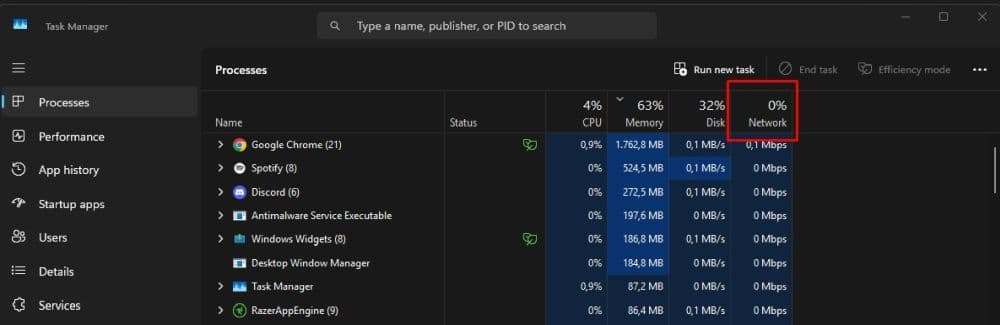
- Press Ctrl + Shift + Esc to open Task Manager on Windows.
- In the Processes tab, look at the Network and CPU columns.
- Identify apps that use a lot of resources, such as browsers, launchers, recorders, or chat apps.
- Right-click each app you do not need while playing and select End task.
- Keep League of Legends, Riot Client, and essential system processes open.
- Start or resume your game and check if your ping graph looks more stable.
Before you grind ranked, you can also check your account health and region through our League of Legends account management guide.
If your ping is still too high, move to deeper technical checks.
Update your operating system and network drivers
Outdated systems or drivers can cause unstable connections, even if your line looks fine.
- On Windows, click the Start button and open Settings.
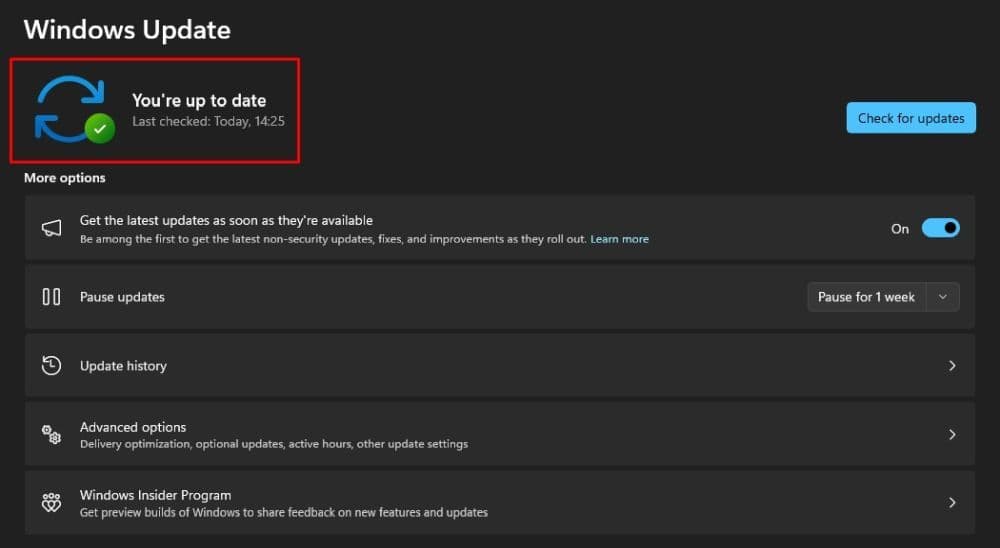
- Go to Update & Security, then select Windows Update.
- Click Check for updates and install anything important or recommended.
- Restart your PC if Windows asks you to do that.
- Right-click the Start button and choose Device Manager.
- Expand the Network adapters section.
- Right-click your main network adapter and select Update driver.
- Choose Search automatically for drivers and follow the instructions.
- Restart your PC again.
- Open League of Legends and test your ping in a custom game.
Check your firewall and antivirus settings
Security tools can block or slow game traffic if they do not trust it.
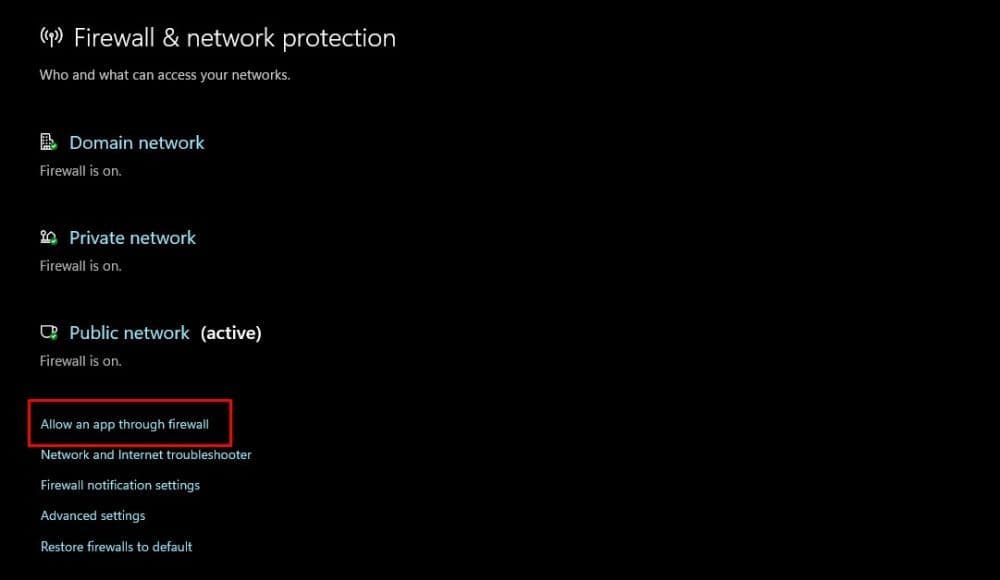
- Open your firewall or antivirus app from the taskbar or Start menu.
- Go to the Allowed apps / Exceptions / Firewall rules section.
- Find or add entries for League of Legends, Riot Client, and similar Riot services, and set them to Allow on private and public networks.
- As a short test, temporarily disable your firewall or antivirus.
- Launch League of Legends, test your ping in a custom game, then turn protection back on and keep the LoL exceptions enabled if your ping improved.
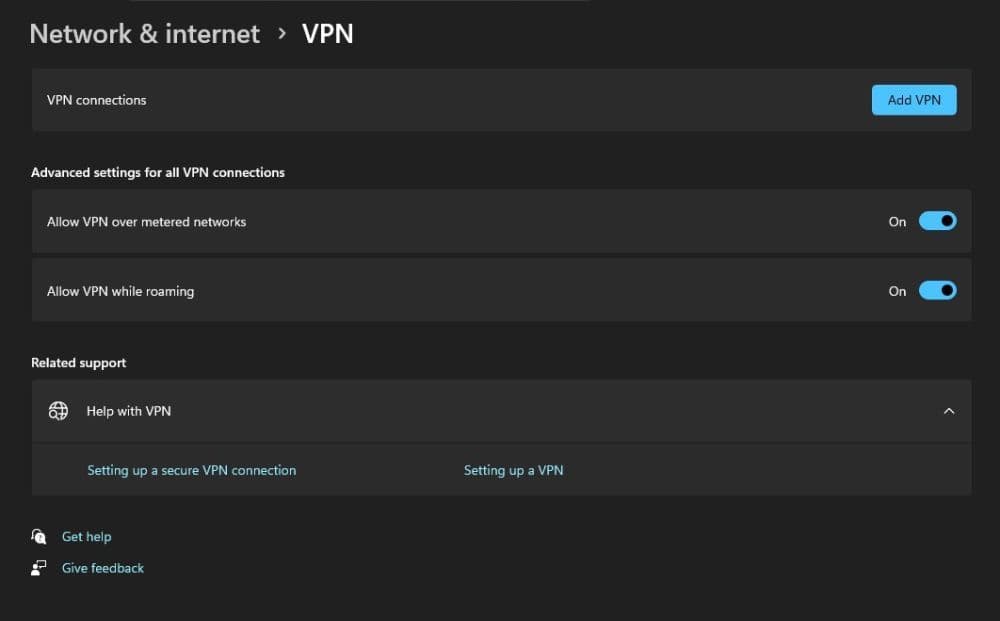
Avoid using VPNs or proxies while you play
VPNs and proxies add extra hops to your connection and often increase ping.
- Check your system tray and taskbar for any VPN apps and open them.
- Click Disconnect / Turn off inside each VPN app so no tunnel remains active.
- On Windows, open Settings > Network & Internet > VPN and disconnect or remove any active VPN profiles.
- In your browser and system network settings, make sure no manual proxy is enabled.
- Restart League of Legends and test your ping again on your usual region.
Contact your ISP with clear evidence
Sometimes the problem sits on your provider’s side and only they can fix it.
- Run several ping tests at different times of day and write down ping and any packet loss.
- Test at least one other online game or service and note if latency is also high there.
- Go to your ISP’s support page and start a phone call or live chat.
- Explain that you have stable speed but high ping in online games, and share your notes and screenshots.
- Ask if they see routing or congestion issues on their side, request a ticket number, and test your connection again after they say changes were made.
What is a good ping for League of Legends?
You can use these ranges as a simple rule:
- 0–50 ms: Excellent and ideal for ranked.
- 50–80 ms: Playable with a small delay.
- 80–150 ms: Noticeable delay; skillshots and tight outplays get harder.
- 150+ ms: Heavy lag for most players.
A stable 80 ms is often better than a ping that jumps between 30 and 200 ms. Always watch both the number and its stability.
Here are more League of Legends guides for beginners to check:
- The Best Beginner Champions In League Of Legends
- Is League Of Legends Free To Play?
- What Are Eternals In League Of Legends?
- How To Get Mythic Essence In League Of Legends
- Can I Play League Of Legends On Mac? Let’s Find Out How To Download LoL For Mac
Featured Image Credit: Riot Games
All Related Guides
 How to jungle in League of Legends: A beginner’s guideLearn how to jungle in League of Legends with beginner-friendly champions, clear routes, ganking tips, Smite m...
 How to remove tokens in League of LegendsLearn how to remove tokens in League of Legends, clear Challenge Tokens from your profile, and fix them if the...
 2026 Riot Games parental controls update (LoL, VALORANT & TFT)Learn how Riot Games parental controls (2026) work for League of Legends, VALORANT, and TFT, including setup, ...
 How to disable Parental Controls in League of Legends (2026 update)Learn how to disable Riot's League of Legends parental controls, who can remove Parent Permissions, and what t...
 How to change the install path in League of LegendsFind the League of Legends install location and move the game safely to a new drive with this clear step-by-st...
 League of Legends player lookup: How to check an accountCheck a LoL account with a League of Legends player lookup tool and learn what Riot ID, match history, rank, a...
 How to link your Twitch account to League of LegendsWant League of Legends Twitch drops? Learn how to connect your Riot Account, watch eligible streams, and claim...
 What is low priority queue in League of Legends and how to fix itGot a 10-minute low priority queue in League of Legends? Learn how many games it lasts and what resets the pen...
- 1
- 2
- 3
- 4
- 5
- 6