Why am I getting low FPS on high-PC in LoL and how to fix it

League of Legends should run well on a strong gaming PC. That is why low FPS on expensive hardware feels especially frustrating. In many cases, the issue is not raw power. The real problem is often a setting, a driver conflict, a CPU bottleneck, or background software that interferes with smooth frame delivery. Here is why you are getting low FPS on a high-end PC in LoL and how to fix it!
Why am I getting low FPS on a high-end PC?
Low FPS in LoL on a high-end PC usually comes from a mismatch between hardware and system settings. The game may run on the wrong GPU, Windows may apply a poor graphics profile, or a driver issue may hold the system back. In other cases, the game becomes CPU-limited, especially during fights, when many actions happen at once.
Background activity
Recording tools, overlays, launchers, RGB apps, browser tabs, and chat software can all eat CPU time or memory in the background. Even if the drop looks small on paper, it can hurt frame pacing and make the game feel less smooth.
Thermals and power
A high-end PC that runs too hot, uses a weak power profile, or throttles under load may perform below expectations. The same goes for frame caps, V-Sync, borderless mode, or poor in-game settings. On laptops and hybrid systems, LoL may even use integrated graphics instead of the dedicated GPU, which can cause a huge performance drop.
Ping is another issue. Don’t forget to check our guide on how to show ping in LoL!
How to fix low FPS on high-end PC in LoL
If League runs badly on powerful hardware, start with the simple checks first. Then move to driver, Windows, and hardware-related fixes. Test the game after each change so you can see what actually helps.
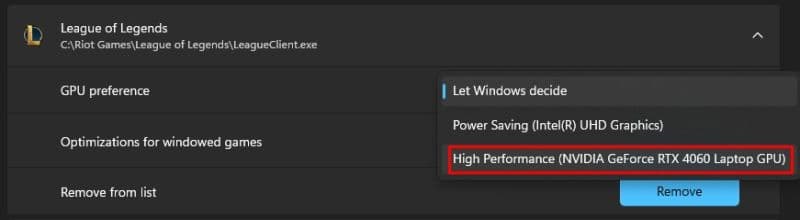
Make sure LoL uses the dedicated GPU
A surprising number of FPS problems come from the game using integrated graphics instead of the main GPU.
- Open Windows Settings
- Go to System > Display > Graphics
- Find League of Legends.exe
- Set the graphics preference to High performance
- Restart the game and test again
If you use a laptop or a PC with more than one GPU, this step matters even more.
Update graphics drivers and Windows
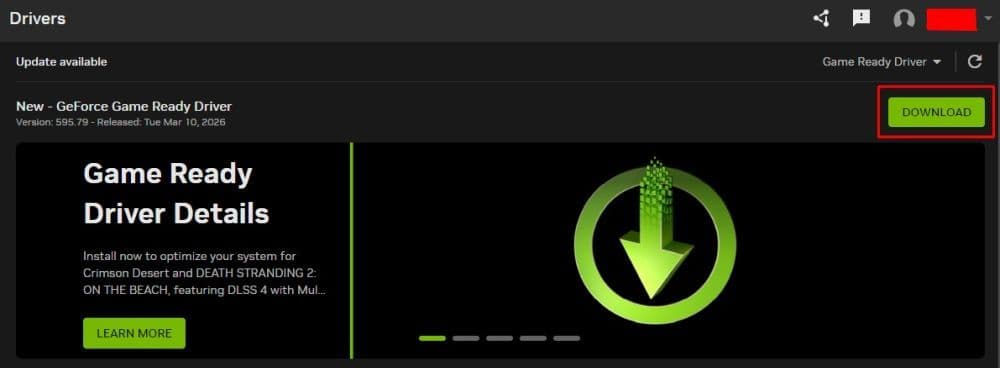
Old or unstable drivers can hurt FPS, frametimes, and overall smoothness.
- Download the latest GPU driver from your card maker
- Install it clean if that option is available
- Update Windows fully
- Restart the PC before launching the game
- Test LoL in a real match, not only in the client
If the issue started right after a driver update, try a clean reinstall or a stable older version.
Close background apps and overlays
League does not need much hardware power, but background tools can still interrupt it.
- Close Discord overlay, GeForce overlay, Xbox Game Bar, and browser tabs
- Shut down recording tools and RGB software
- Open Task Manager and check CPU and memory usage
- End apps that use resources for no reason
- Try a clean boot if normal cleanup does not help
This fix often helps stutter and sudden drops more than average FPS.
Check NVIDIA or AMD control panel settings
Driver-level settings can limit performance without making it obvious.
- Remove global FPS caps if they are active
- Check power mode and use the highest performance option
- Disable battery-saving or quiet modes
- Reset custom driver overrides if you changed them before
- Apply changes and test again
If you use third-party tuning tools, return them to default first
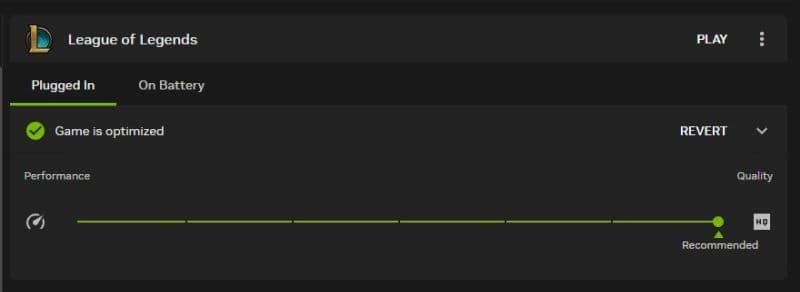
Adjust LoL video settings
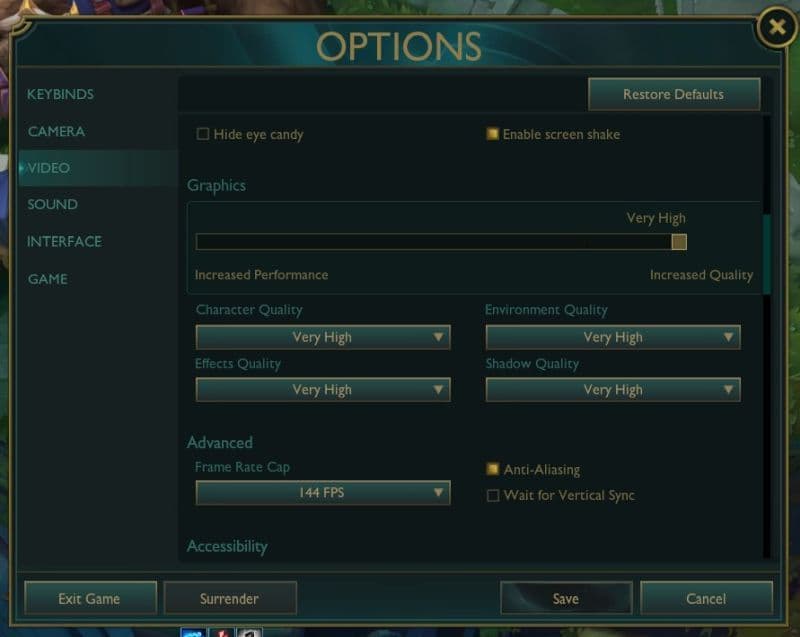
You do not need to make the game look bad, but some settings matter more than others.
- Lower shadows first
- Lower effects if fights cause drops
- Test fullscreen instead of borderless
- Turn V-Sync off if input delay or frame drops appear
- Set a frame cap that matches your monitor and stays stable
Stable FPS feels better than a high number that jumps all the time.
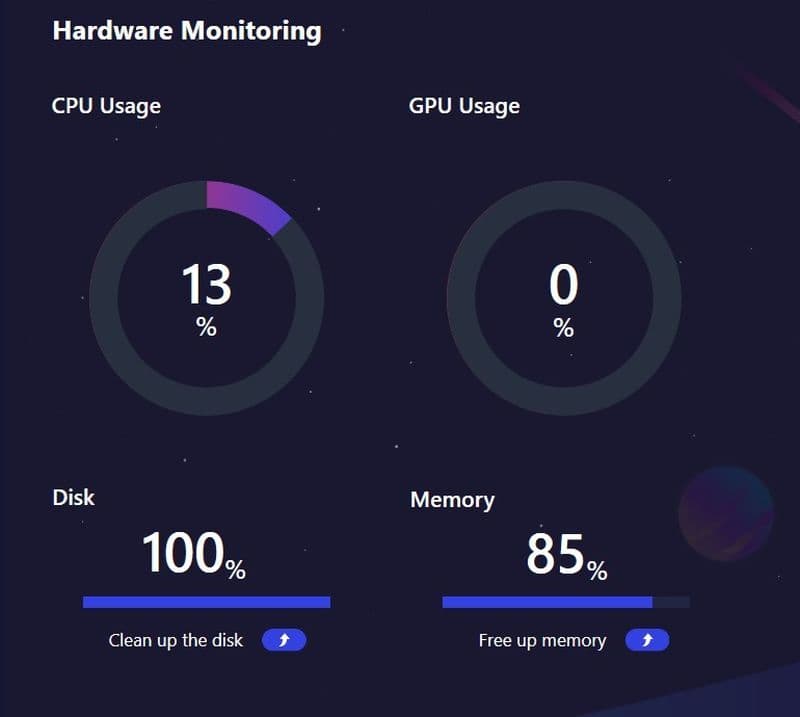
Watch CPU temperature, clocks, and GPU usage
A high-end system can still underperform if the CPU throttles or the GPU stays underused.
- Use a monitoring tool while playing
- Check CPU temperature and clock speed
- Watch GPU usage during fights
- If GPU usage stays low while FPS also stays low, the issue may be on the CPU side
- Check whether the power plan is set to performance
This step helps you find the real bottleneck instead of guessing.
Repair the game if needed
Sometimes the problem sits inside the game files or client.
- Use the Riot repair option if available
- Restart the client after the repair
- Reinstall the game only if other fixes fail
- Test again after a clean launch
This will not solve every issue, but it is worth trying once basic fixes do not help.
Does 32GB RAM give more FPS?
Not usually in a big way for League of Legends alone. If your system already has enough memory, moving from 16GB to 32GB will often not create a major jump in average FPS. LoL is not the kind of game that needs huge RAM capacity just to run well.
However, 32GB can still help overall smoothness. It gives the system more room for background apps, browsers, launchers, voice chat, and multitasking. That can reduce memory pressure and help prevent stutter in real use.
Is League of Legends more CPU-bound than GPU-bound?
In many cases, yes. League often leans more on CPU performance than players expect, especially at 1080p or lower settings on strong GPUs. That is why some high-end PCs still run into frame drops even though the graphics card has plenty of headroom.
This is also why solving low FPS in LoL often means checking CPU behavior, Windows settings, drivers, and background apps instead of chasing a GPU upgrade. If the rest of the system is tuned well, League should run smoothly on modern hardware.
For more League of Legends guides, check out below:
- How to fix high ping in League of Legends: The best tips and tricks
- What is the League of Legends metal graphics and how to activate them in-game
- What Are Eternals In League Of Legends?
- How To Get Mythic Essence In League Of Legends
- Can I Play League Of Legends On Mac? Let’s Find Out How To Download LoL For Mac
Featured Image Credit: Riot Games
All Related Guides
 League of Legends player lookup: How to check an accountCheck a LoL account with a League of Legends player lookup tool and learn what Riot ID, match history, rank, a...
 How to link your Twitch account to League of LegendsWant League of Legends Twitch drops? Learn how to connect your Riot Account, watch eligible streams, and claim...
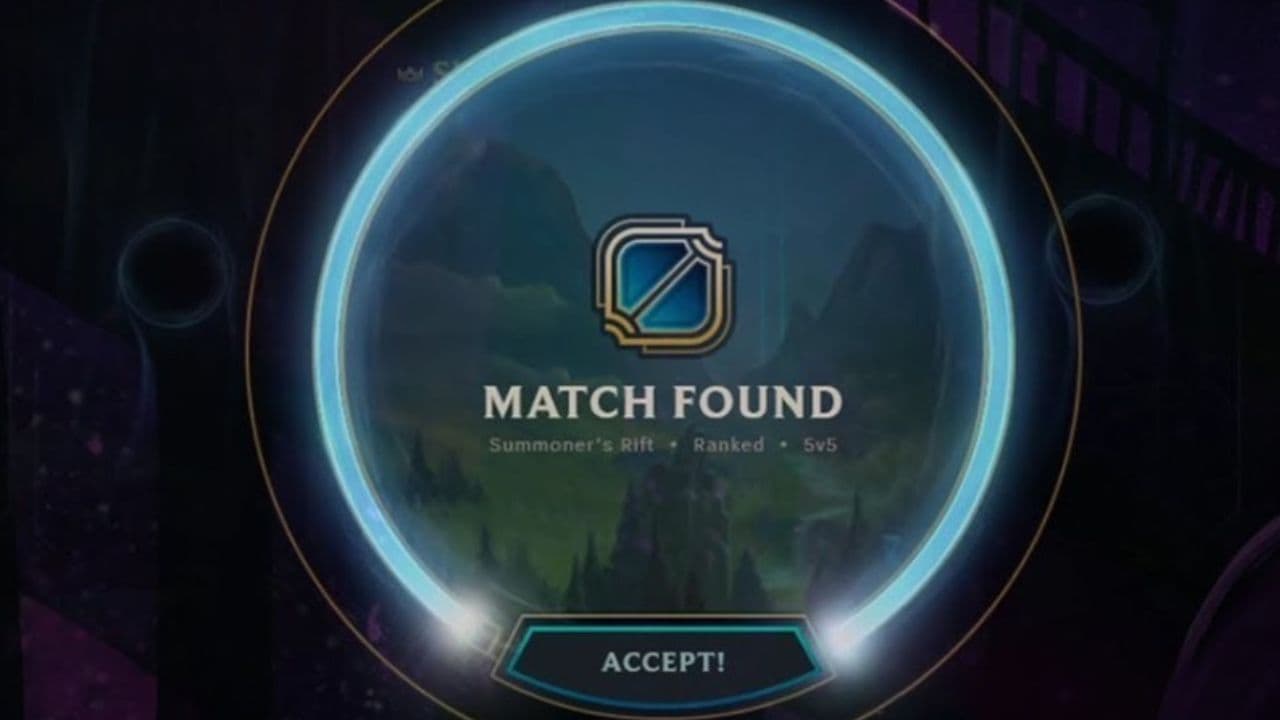 What is low priority queue in League of Legends and how to fix itGot a 10-minute low priority queue in League of Legends? Learn how many games it lasts and what resets the pen...
 Guide to League of Legends Partner ProgramLeague of Legends Partner Program guide: benefits, requirements, application dates, Creator Hub access, and ho...
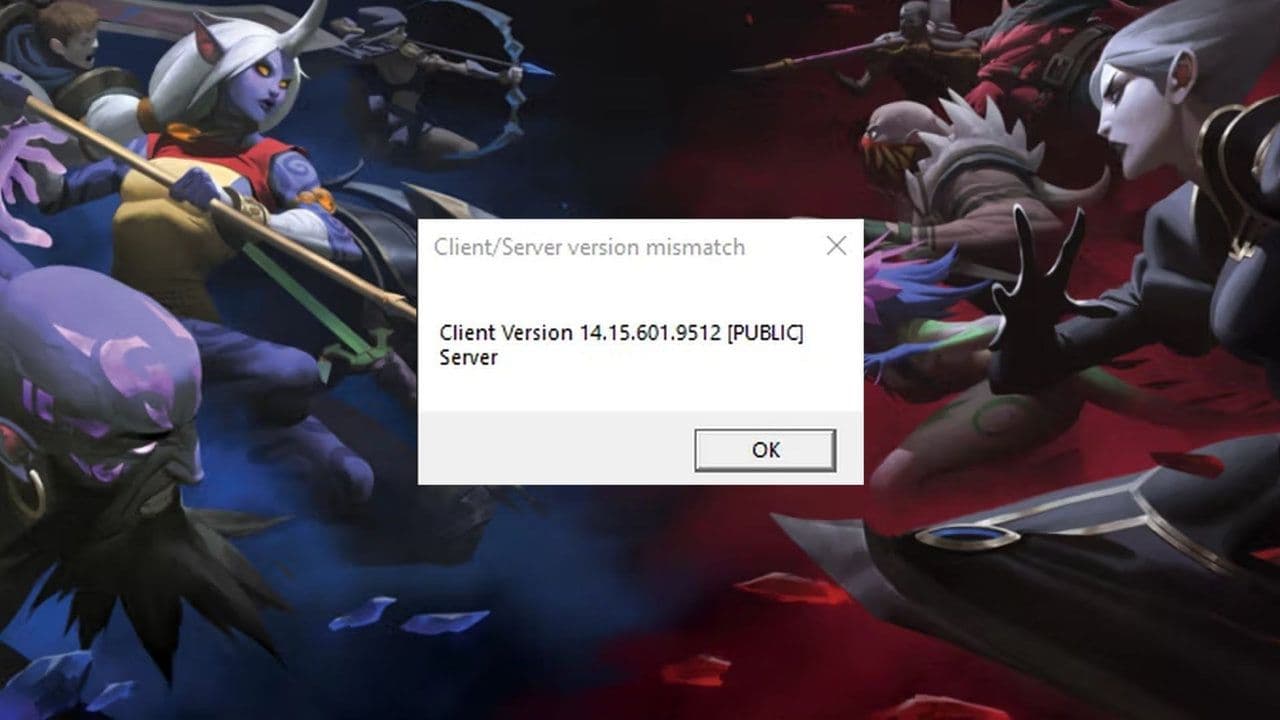 Client Server version mismatch League of Legends error fix guideHow to fix Client Server version mismatch League of Legends error: causes, quick LoL fixes, repair tool, reins...
 How to turn on last hit assist in League of LegendsLast Hit Assist in LoL makes farming easier for new players. Learn how to enable it and which modes support it...
 What is omnivamp in League of Legends and how does it work?Learn how omnivamp works in League of Legends, how it differs from lifesteal, and which items currently give t...
 How to get more Silver Shields in LoL Demacia RisingLearn how to farm Silver Shields in LoL Demacia Rising with a simple plan: daily goals, weekly rewards, and ef...
- 1
- 2
- 3
- 4
- 5