Minecraft Realms Guide: What is it, how to own a server, tiers, and more
We break down Minecraft Realms so that you understand all about it.
Most players would agree that playing Minecraft with friends is more fun than playing alone. But setting up a server can be hard for many players. Minecraft Realms solves this problem by offering a fast and simple way to play together in a private world. In this guide, you’ll learn what Realms are, how to create one, how to invite friends, and more!
What are Minecraft Realms?
Minecraft Realms is a paid service that lets you host your own server. It works on both the Java Edition and the Bedrock Edition of the game.
On Java Edition, you can use Realms on Windows, macOS, and Linux. On Bedrock Edition, Realms works on consoles, phones, tablets, and Windows 10. Realms lets you play with friends, and it keeps your world online even when you are not playing.
You can invite others to your Realm, and they can join for free. Realms also includes templates, Minecraft maps, and minigames. Java Edition offers more creative tools like community maps and world switching. You can also use trading systems with villager jobs to improve your Realm’s economy. Bedrock Edition includes Marketplace content with Realms Plus.
To use Realms, you need to:
- Own the full version of Minecraft
- Have an internet connection
- Be at least 13 years old
How to create a Bedrock Edition Realm in Minecraft
You can set up a Bedrock Realm from the game menu. You need a Microsoft account and a supported device.
Here is how to create a Bedrock Edition Realm in Minecraft:
- Open Minecraft and tap Play
- Tap Create New and choose Create New World
- Pick your settings
- Tap Create on Realms
- Select your Realm size (2 or 10 players)
- Tap Subscribe Now
- Name your Realm
- Agree to the Terms and Conditions
- Complete the payment
You can also use an existing world instead of creating a new one.
How to create a Java Edition Realm in Minecraft
You can create a Realm for Java Edition from Minecraft.net. You need to sign in with your Microsoft account.
Here is how to create a Java Edition Realm in Minecraft:
- Go to Minecraft.net
- Sign in with your Microsoft account
- Click Realms, then select Buy Now
- Agree to the terms
- Choose a subscription plan
- Complete your purchase
- Open Minecraft and click Minecraft Realms
- Configure your Realm settings
You can choose maps, set player limits, and manage the world from the game menu.

Are Realms free in Minecraft?
Realms are not free, but there is a 30-day free trial for new users. After the trial ends, you need to pay monthly.
Here is a comparison of available plans:
You can cancel anytime and restart later without losing your world.
How to buy a Realm in Minecraft
You can buy a Realm from inside the game or through the Minecraft website. Make sure you are signed in with the correct account.
How to buy a Realm in Minecraft
- Open Minecraft
- Tap Play, then tap Create New World
- Choose your world settings
- Tap Create on Realms
- Select a plan (2-player or 10-player)
- Tap Subscribe Now or Start Trial
- Agree to the terms and complete the payment
For Java Edition, you can also go to Minecraft.net and follow the purchase steps there.
Once a Realm owner invites you, you can join without buying anything. You just need the game and an internet connection.
Steps to join a Realm:
- Open Minecraft
- Tap the Play button
- On Bedrock, go to the Friends tab
- On Java, go to the Minecraft Realms tab
- Find the Realm you were invited to
- Tap to join
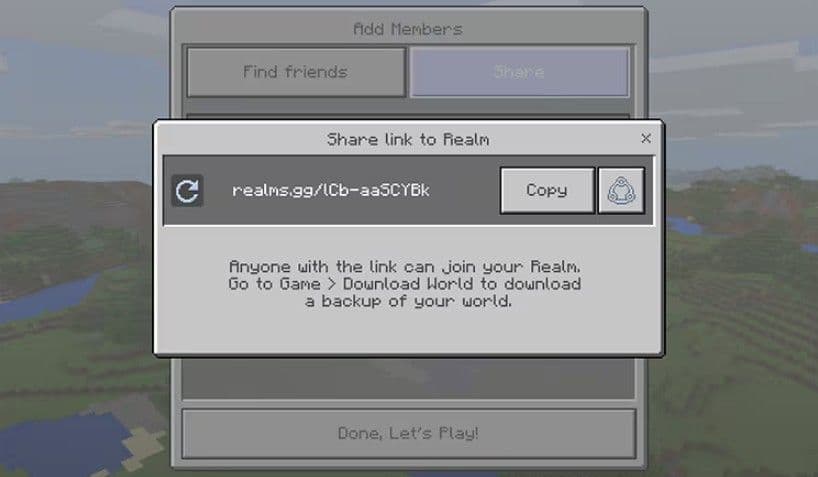
How to join a Realm
Once a Realm owner invites you, you can join without buying anything. You just need the game and an internet connection.
Here is how you can join your friend’s Realm:
- Open Minecraft
- Tap the Play button
- On Bedrock, go to the Friends tab
- On Java, go to the Minecraft Realms tab
- Find the Realm you were invited to
- Tap to join
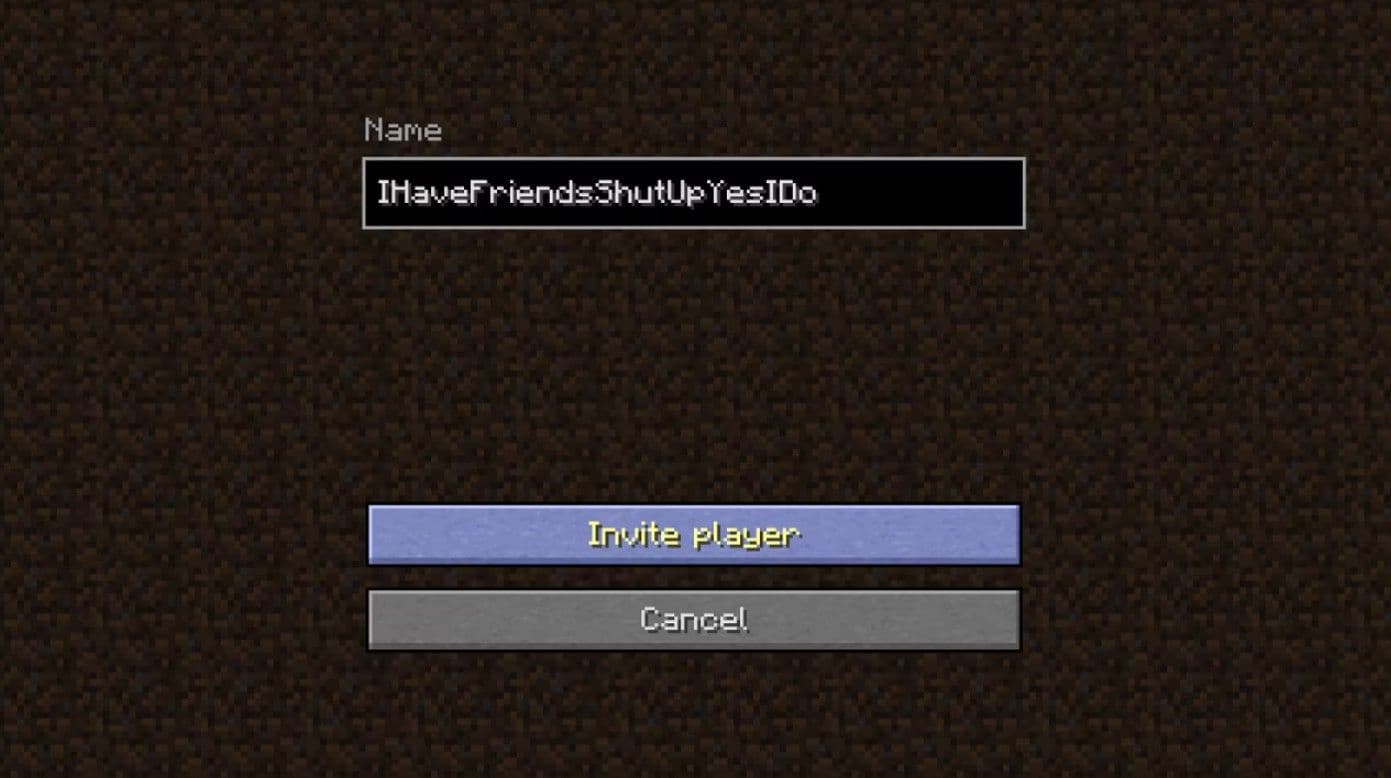
How to invite friends to your Realm
Only the Realm owner can send invites. The process is different for Java and Bedrock Editions.
Java Edition:
- Open Minecraft and go to Minecraft Realms
- Choose your Realm and click Configure
- Click Players, then Invite Player
- Type your friend’s Java profile name
- Click Invite
Bedrock Edition:
- Open Minecraft and tap Play
- Go to the Realms tab
- Select your Realm and tap Settings
- Tap Manage Realm, then Members
- Tap Invite, then type your friend’s Gamertag or use the invite link

Do all players need Realms subscription?
No, only the owner of the Realm needs a subscription. Friends can join and play for free if they are invited.
However, all players must:
- Own the full Minecraft game
- Use a Microsoft account
- Have a working internet connection
- Meet online requirements (like Xbox Live Gold or PlayStation Plus)
You also need to use the same edition as the Realm. Java Edition players cannot join Bedrock Realms, and vice versa.

How to cancel Realms subscription on PC
You can cancel your Realms subscription from your Microsoft account. Your Realm stays active until the end of the billing period.
Here is how to cancel:
- Go to account.microsoft.com
- Sign in with the account you used to buy Realms
- Click Subscriptions
- Find your Realms plan and click Manage
- Click Cancel Subscription
- Confirm the cancellation
You can reactivate your Realm later if you want to continue using it.
What to do if the Minecraft Realm is not working
Sometimes your Minecraft Realm may not load, or your friends may not be able to join. These problems are common, and there are simple ways to fix them. Below are the most common issues and what you can do.
You can’t join the Realm
If you or others can’t join the Realm, first make sure the Realm is open and the subscription is active. Ask the owner to check both. Restart Minecraft and try again. If the problem continues, the Realm may need a reset.
Steps to fix it:
- Close the Realm, then open it again.
- On Bedrock: Go to Play > Realms tab > Settings > Manage Realm > Subscription > Close Realm. Then select Open Realm.
- On Java: Go to Minecraft Realms > Configure > Settings > Close Realm. Then open it again.
Multiplayer is not working
If Minecraft shows a multiplayer error, your account or settings may block access. Console players also need an online subscription.
Follow these steps:
- Update Minecraft to the latest version.
- Make sure your account allows multiplayer in privacy settings.
- Check that you have an Xbox Game Pass Core, Nintendo Switch Online, or PlayStation Plus subscription.
Coordinates don’t show in Realm stories
Coordinates in Realm Stories only appear if the correct settings are on.
Here is the official recommendation for this issue:
- Open Play > Edit Realm > Edit World > World Options.
- Turn on Show Coordinates.
- Make sure the Realm Event Coordinates option is also turned on.
Featured Image Credit: Mojang/Minecraft
All Related Guides
 How to breed frogs in MinecraftBreed frogs in Minecraft with this simple guide to slimeballs, frogspawn, tadpoles, frog variants, and common ...
 Best Minecraft PS5 seeds in 2026 - Version 26.2Discover the best Minecraft PS5 seeds in 2026, with strong Bedrock worlds for survival and creative projects....
 Best Minecraft PS5 seeds in 2026 - Version 26.2Find the best Minecraft PC seeds in 2026, with great worlds for survival, villages, building, exploration, and...
 Top 5 Minecraft 26.1 seeds you must try todayFind the best Minecraft 26.1 seeds for villages, rare biomes, island survival, and creative builds, with seed ...
 How to turn on keep inventory in MinecraftUse the correct Keep Inventory command in Minecraft and learn how it works across Java, Bedrock, servers, and ...
 How to breed tropical fish in MinecraftCan you breed tropical fish in Minecraft? Here is the clear answer, plus how to catch, move, and use tropical ...
 Minecraft Chaos Cubed guide: Everything new in the 2026 updateExplore everything new in Minecraft Chaos Cubed, including Sulfur Caves, Sulfur Cubes, geysers, new blocks, co...
 How to change render distance in MinecraftChange render distance in Minecraft with simple steps for Java and Bedrock, plus tips to balance better visibi...
- 1
- 2
- 3
- 4
- 5
- 6
- 7
- 8
- 9