Why is my Fortnite mobile crashing? Reasons, fixes and more
Fortnite being a problem on your mobile device? Try these fixes!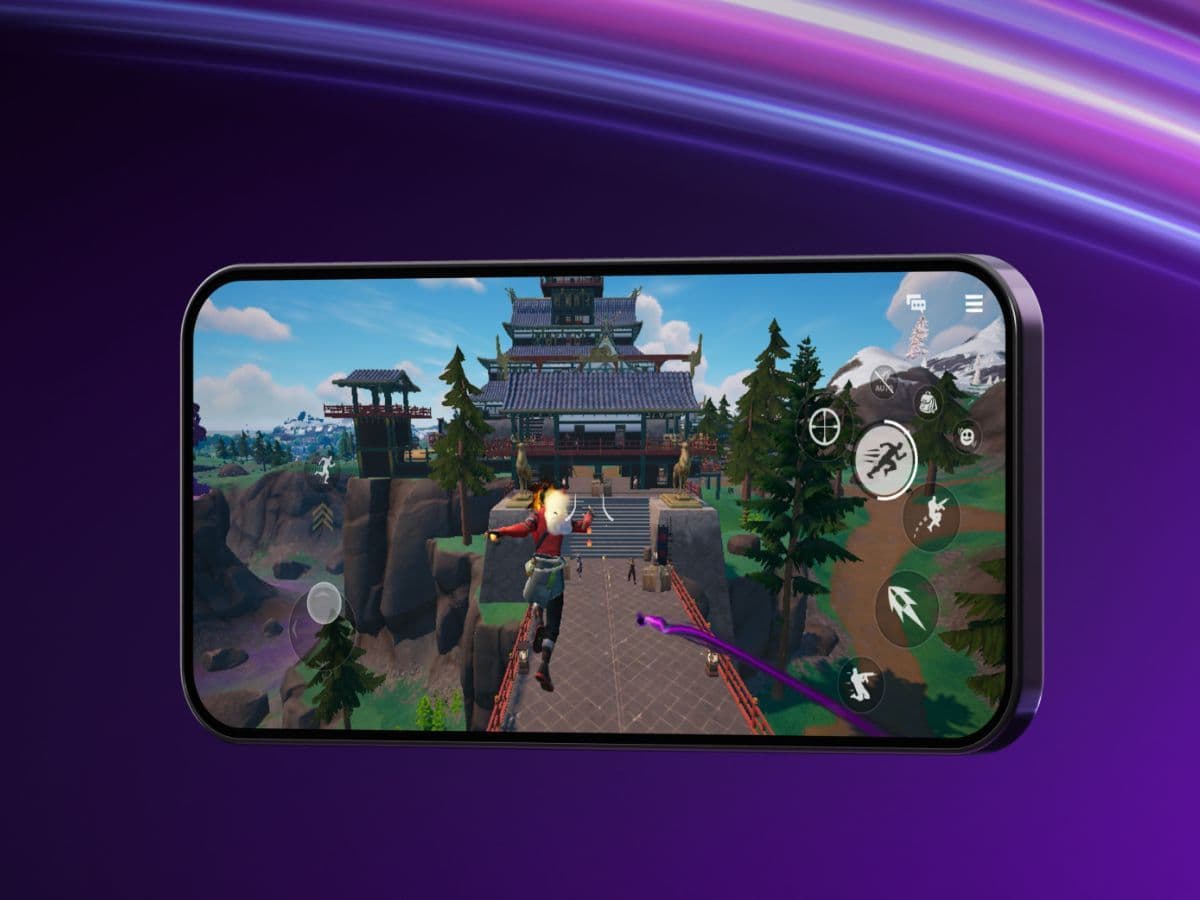
Fortnite Mobile gives players the full battle royale experience on the go. But for many users, crashes have become a serious issue. The game shuts down during matches or sometimes does not even start. The good news is that most of these issues can be fixed. You do not always need a new phone or tablet. A few changes in settings or updates often solve the problem. So, if you're asking yourself, “Why is my Fortnite crashing?” give this guide a read, as we have listed all the possible reasons and fixes for you.
Why is my Fortnite Mobile crashing?
There are many reasons Fortnite Mobile crashes. A while ago, Fortnite made its return to Apple Iphone iOS, but some players still can’t enjoy it due to their Fortnite Mobile crashing at times. Below are the most common ones explained simply:
Using a beta or an unsupported operating system
If your phone runs a beta version of iOS or Android, Fortnite may not work properly. These versions are not stable, and the game does not fully support them.
Outdated app or phone software
If you use an old version of Fortnite or your phone’s system, the game might crash. New updates often fix bugs and improve stability.
Low memory or full storage
Fortnite uses a lot of memory. If your device has low RAM or not enough storage, the game may close itself.
Performance mode problems
Some players turn on performance mode to get better frame rates. But this setting can put too much pressure on the phone’s processor, which causes crashes.
Corrupt game data or cache
When game files or temporary data get damaged, Fortnite might stop working. This often happens after a bad update or if the app is forced to close.
Other apps running in the background
If other apps are open while you play Fortnite, they may take up memory and cause the game to crash. This is common with screen recorders and heavy apps.
Old or unsupported phone hardware
Fortnite needs at least 4 GB of RAM and a 64-bit processor. If your phone is too old, it may not run the game well, even if it installs.
Overheating
Long gaming sessions can heat up your phone. When the phone gets too hot, it may shut apps to protect the device.
How to fix Fortnite Mobile crashing errors
You can try these fixes to stop Fortnite Mobile from crashing. Follow the steps for your device type.
Check for Software Updates (iOS & Android)
Running the latest version of your operating system and Fortnite helps avoid bugs.
On iOS:
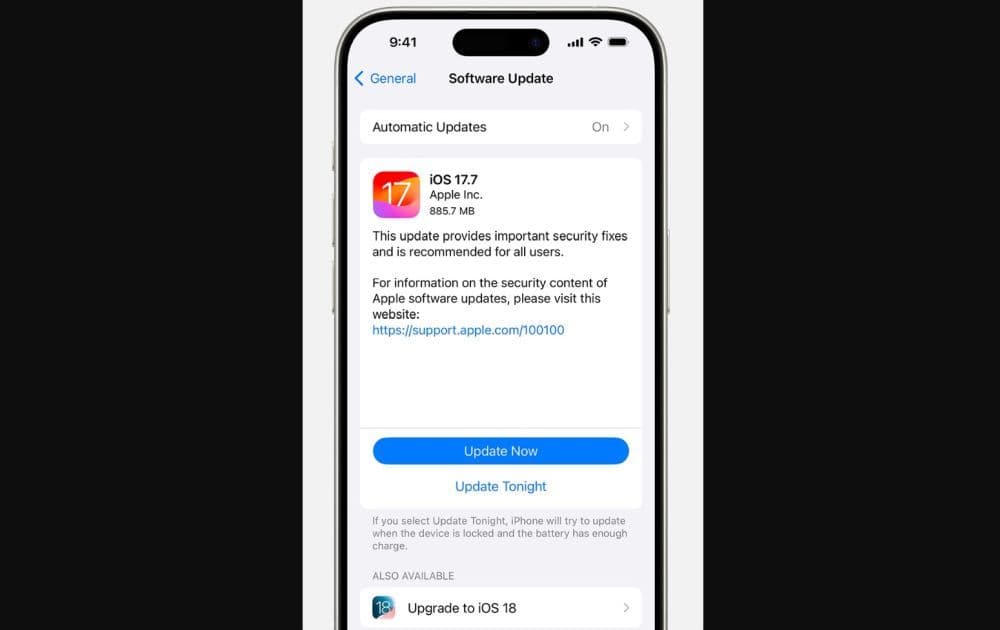
- Go to Settings > General > Software Update.
- Install the latest official update (avoid beta versions).
- Open the App Store and update Fortnite if available.
On Android:
- Go to Settings > Software Update.
- Install the latest stable Android version.
- Update Fortnite from the Epic Games App or Samsung Galaxy Store.
Restart your device and close other apps
- Restarting clears memory and resets temporary issues.
- Hold the power button
- Choose “Restart” or turn it off, then back on
- Launch Fortnite again
If you are on an iPhone, you can also try this:
- Press the volume up button and release it.
- Press the volume down button and release it.
- Press and hold the side button until you see the Apple logo on your screen (This step may take around 10 seconds, don’t let the button go)
- Once you see the Apple logo, release the button and wait for your phone to launch again.
Clear Fortnite cache (Android only)
Old cache data can cause crashes. You can remove it without losing your game progress.
- Go to Settings > Apps > Fortnite
- Tap Storage
- Select Clear Cache
- Open the game again
- If problems continue, you can also tap Clear Data, but this may reset some in-app settings.
Reinstall the game
If none of the steps work, reinstalling Fortnite can help.
- Delete the app from your device
- Restart your phone
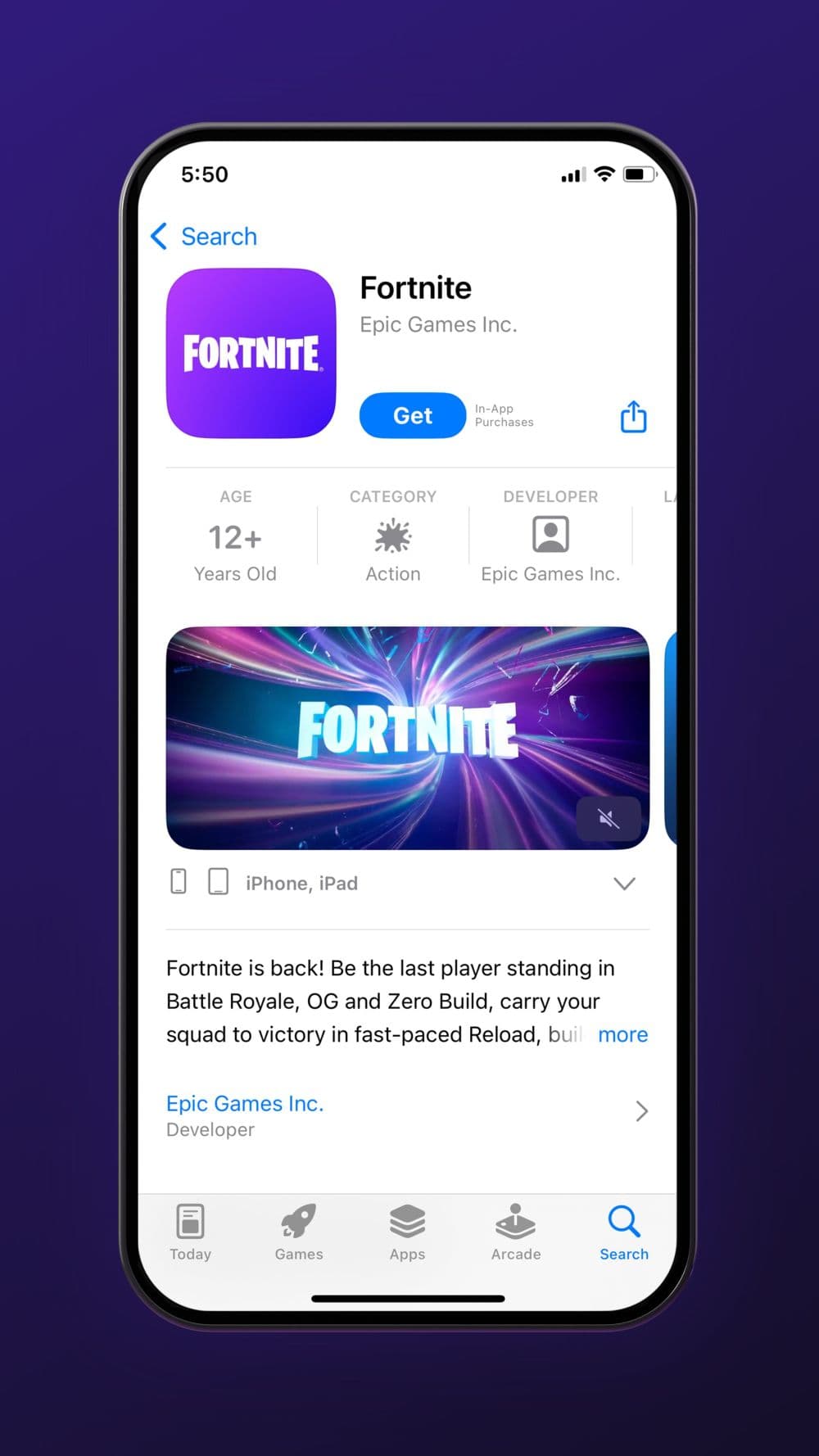
- Download Fortnite again from the Epic Games App or App Store
- Log back in to your Epic account
This clears any damaged files and gives you a fresh start.
Turn off battery saver and performance modes (Android Only)
These settings limit phone performance and may affect Fortnite.
- Go to Settings > Battery > Battery Saver
- Turn it off
- Go to Settings > Device Care > Performance Mode
- Choose High Performance or Optimized
Now, try launching the game again.
Free up storage space
You need enough free space for the game to run well.
- Keep at least 10 GB free on your device.
- Delete unused apps or media.
Stop using beta OS versions
Beta systems often cause issues with Fortnite.
- If you use a developer beta, go back to the latest public OS version.
- This is very important for iOS users.
Check if your phone meets the game’s requirements
Make sure your phone can run Fortnite. Here are the offiicla system requirements for Android and iOS:
Android
- 64-bit Android on an ARM64 processor
- Android OS 10.0 or higher
- 4GB of RAM or more
- GPU: Adreno 530 or higher, Mali-G71 MP20, Mali-G72 MP12 or higher
iOS
- iOS 17.6.1 or above
- iPhone 11 or newer models (With the exception of iPhone SE Generation 2)
- 4GB RAM or more
Will clearing my cache delete anything?
No, clearing the cache on Android does not delete your personal data, progress, or account settings.
The cache only stores temporary files used by Fortnite to load faster. When these files get corrupted, they may cause crashes. Clearing the cache removes these files and allows the app to recreate them the next time you launch it.
Here is what happens when you clear the cache:
- You may notice slower loading the first time you open the app
- Your login, account, and game data stay the same
- In-app settings (like graphics or controls) stay unchanged
If you tap “Clear Data” instead of “Clear Cache,” it may reset your settings and require you to log in again. Only use “Clear Data” if the cache clear does not solve the issue.
On iOS, there is no direct way to clear an app’s cache. To remove all temporary data, you need to reinstall the app.
Fortnite Mobile crashes can happen for many reasons, but most issues are easy to fix. Whether the problem comes from an outdated OS, damaged app data, or limited device power, you can take action quickly. Always keep your software up to date, manage your phone’s storage, and avoid beta OS versions. Also, check these guides too:
- Fortnite X-Wing locations and use in Chapter 6 Season 3 (+Tie Fighters)
- Emma Frost in Fortnite: Exploring fan ideas for a new skin
- Navigating Shogun's Arena in Fortnite: How to find and survive on it
- Do you need Xbox Live to play Fortnite?
- How old do you have to be to play Fortnite?
Featured Image Credit: Epic Games/Fortnite
All Related Guides
 Fortnite Droid Tycoon Chips guide: Best ways to farm chips fastFortnite Droid Tycoon Chips guide: best farming methods, upgrades, Rebirth tips, and how to use Chips wisely....
 5 best Fortnite Star Wars games you can play right now Best Fortnite Star Wars games: Galactic Siege, Escape Vader, Droid Tycoon, creator islands, and how to play th...
 How to ride on a player's shoulders in FortniteHow to ride on a player's shoulders in Fortnite: steps, controls, quest completion tips, and how Shoulder Ride...
 All Garden vs. Brainrot codes in Fortnite: Updated listLooking for Fortnite Garden vs Brainrot codes? Get every working code, learn how to redeem them, and boost you...
 Latest Fortnite Steal the Brainrot codes (May 2026)Find all active Fortnite Steal the Brainrot codes to summon Brainrot Gods and boost rewards fast....
 Fortnite Karaoke mode explained: How to play?Discover Fortnite Karaoke mode in Fortnite Festival, including Pro Vocals, Mic Vocals setup, supported songs, ...
 How to get a refund for D4VD Fortnite cosmeticsThis guide explains the D4VD Fortnite cosmetics refund, including refund steps, eligible items, Locker Bundle ...
 Veno’s Fortnite settings: Who is he and what is his setupFind Veno Fortnite settings for mouse, keyboard, video, gear, DPI, sensitivity, and competitive setup....
- 1
- 2
- 3
- 4
- 5
- 6
- 7
- 8
- 9
- 10
- 11
- 12
- 13
- 14
- 15
- 16
- 17
- 18
- 19
- 20