What is the “getsockopt” error in Minecraft and how to fix it
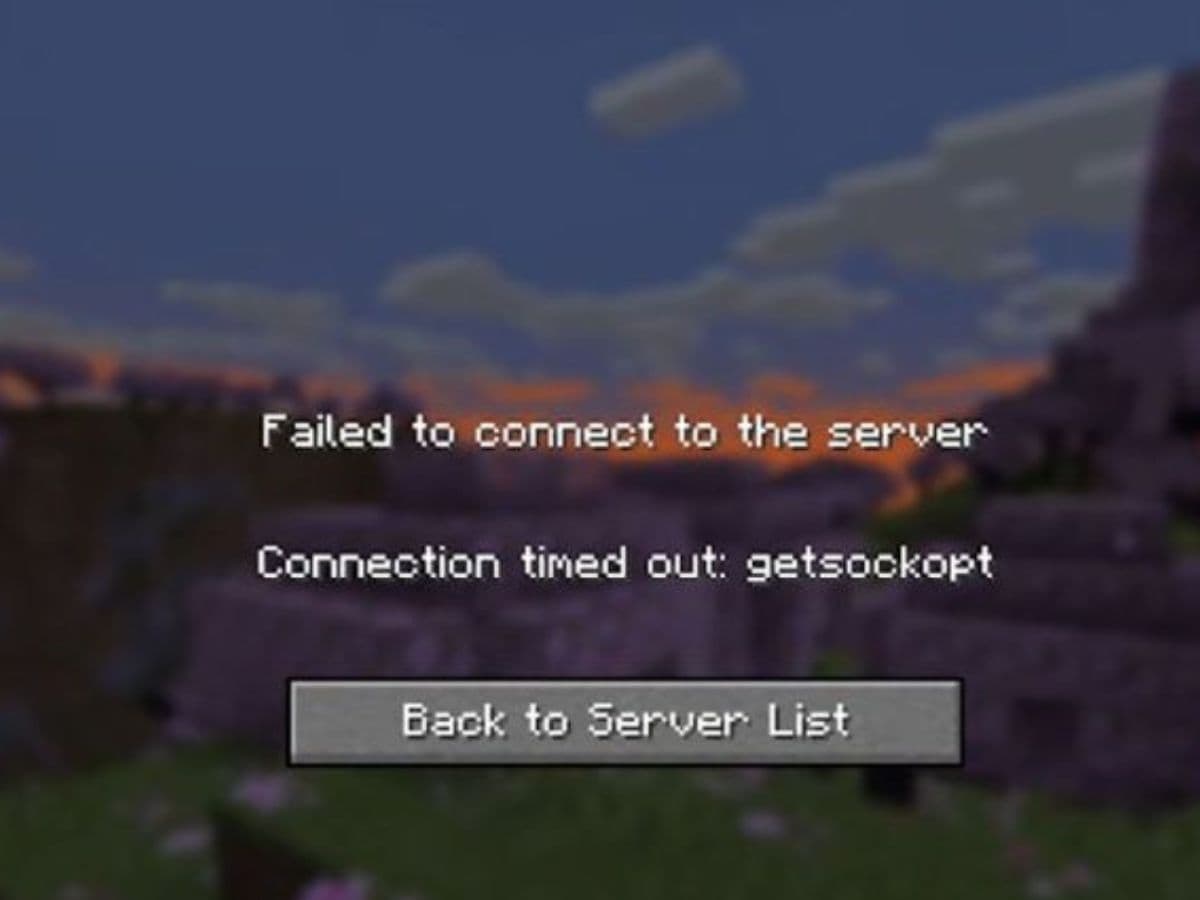
There are many errors players face that makes it impossible to play Minecraft, and today we will talk about one of them. The getsockopt Minecraft error usually appears when Minecraft Java Edition cannot connect to a multiplayer server in time. Players often see it as “connection timed out getsockopt Minecraft” when they try to join a server, LAN world, or hosted multiplayer session. This piece explains what it is, how to fix it, and more!
What is the “getsockopt” error in Minecraft?
The “getsockopt” error is a network connection error in Minecraft Java Edition. It comes from the Java networking system that Minecraft uses to connect to servers. In simple terms, the game sends a request to a server, waits for a response, and fails when that response does not arrive in time.
This does not usually mean your Minecraft account has a problem. It also does not usually mean your world, launcher, or game files are broken. The error points to a blocked, delayed, or failed connection between your device and the server.
The message often appears in these cases:
- You try to join a Minecraft server from the multiplayer menu.
- You connect to a LAN world on the same network.
- You join a private server from a hosting service.
- You use the wrong IP address, port, or subdomain.
- Your firewall blocks Java or Minecraft.
How to fix the “getsockopt” Minecraft error
Start with the simple fixes first. Most players do not need advanced router changes to solve the getsockopt Minecraft error.
1. Restart Minecraft and your device
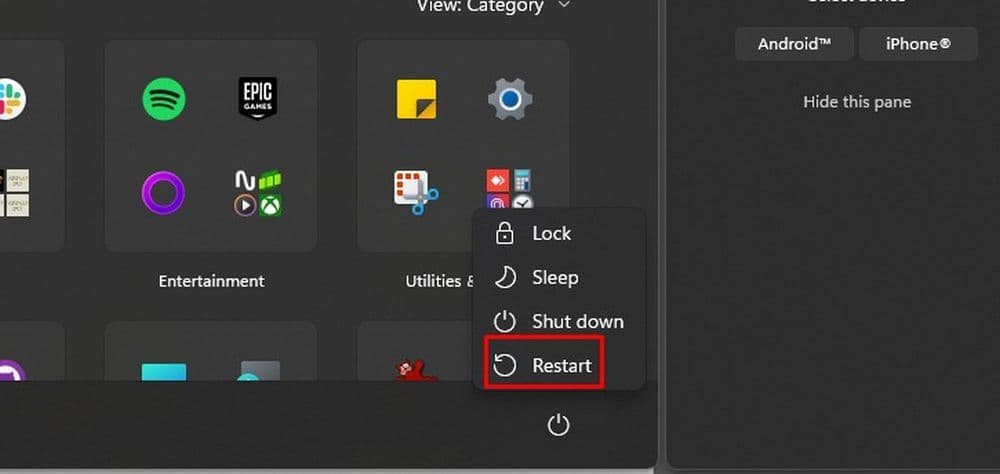
Close Minecraft and the launcher fully. Then restart your PC. This clears temporary connection problems and stops stuck Java processes that may block a new connection attempt.
After that, open Minecraft again and try to join the server. If the same error appears, restart your router as well. Turn it off, wait around 30 seconds, and turn it back on.
2. Check the server address and port
A wrong server address can trigger the error. Copy the server IP, subdomain, or port again and make sure there is no extra space or typo.
Minecraft Java servers often use port 25565, but many hosted servers use a custom port. If the server owner gave you an address with a colon and numbers at the end, keep the full address.
Example:
- play.example.net:25570
You can also try the Direct Connection button in the Multiplayer menu. This can help if your saved server entry has old or incorrect data.
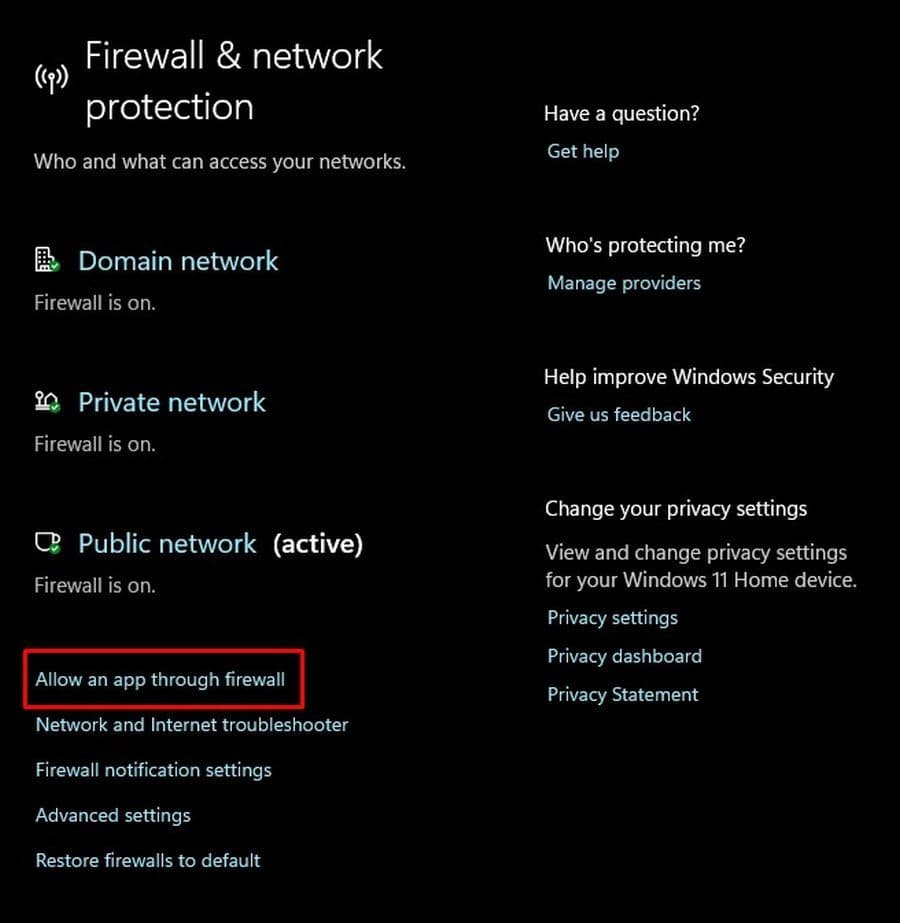
3. Allow Minecraft and Java through your firewall
Windows Firewall or antivirus software can block Minecraft’s connection. This is one of the most common causes of the error, especially for LAN worlds and private servers.
On Windows, check these items in your firewall settings:
- Minecraft Launcher
- Java Platform SE Binary
- javaw.exe
Allow them on Private networks. If you play on a trusted home network, this setting usually makes the most sense.
Do not leave your firewall turned off as a long-term fix. You can test with it off for a short time, but the safer solution is to allow Minecraft and Java through the firewall.
4. Flush DNS and reconnect
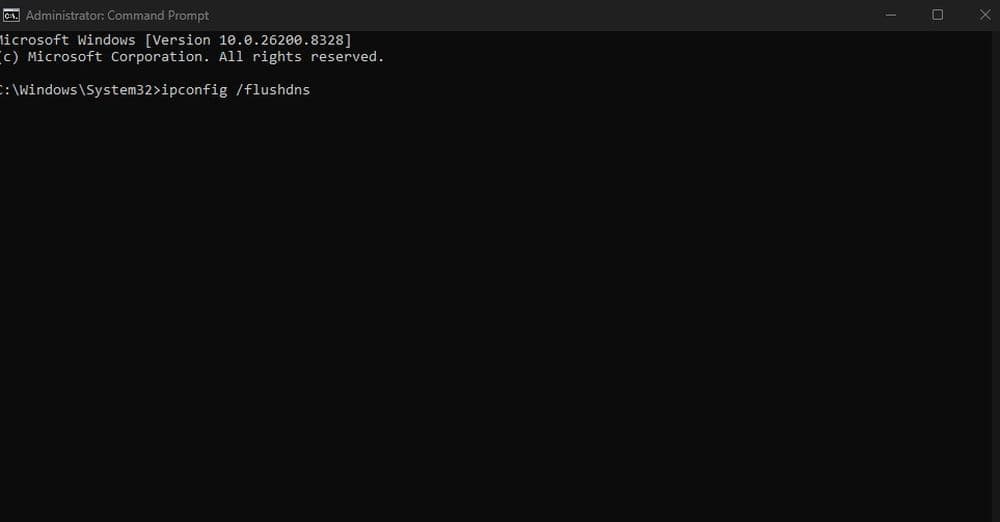
A bad DNS cache can send your connection request to the wrong place or delay it. You can clear it with a quick command on Windows.
Open Command Prompt as administrator and enter:
- ipconfig /flushdns
Then restart Minecraft and try again. This step is simple, safe, and useful when the server address worked before but suddenly stopped.
5. Try another network
If Minecraft still shows the error, test another connection. A mobile hotspot works well for this.
If the server works on a hotspot but not on your home Wi-Fi, your router, ISP, or local network settings may cause the issue. If you use school, work, hotel, or public Wi-Fi, the network may block Minecraft traffic.
VPNs can also cause connection problems. Turn your VPN off and test the server again. If the server only works without the VPN, keep it off while you play.
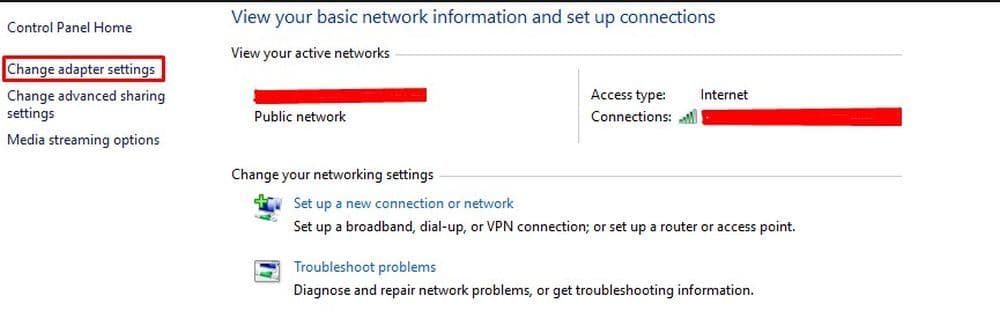
Getsockopt Minecraft error on LAN worlds
LAN worlds need special attention because both devices must connect through the same local network. If one device uses Wi-Fi and the other uses a guest network or different router, Minecraft may fail to connect.
The host computer also matters. If your friend hosts the LAN world, their firewall must allow Java through. Your own firewall settings may be correct, but the host device can still block the connection.
For LAN play, check these points:
- Both devices use the same network.
- The host PC allows Java through the firewall.
- The network profile uses Private, not Public.
- Minecraft uses the same game version on both devices.
- The LAN world stays open while the second player joins.
If the LAN world keeps failing, restart both devices and reopen the world to LAN.
Reinstalling Minecraft should be your last step. The getsockopt Minecraft error usually comes from the network, not from the game installation.
Before you reinstall, check the server address, restart your router, allow Java through the firewall, flush DNS, test another network, and confirm that the server is online. In most cases, one of these steps fixes the connection and lets Minecraft reach the server again.
More Minecraft guides:
- How to change skin in Minecraft (Java, Bedrock, PC, and Console)
- How to TP in Minecraft: Teleportation explained (Coordinates, Villages, Death Location)
- How to tame Parrots in Minecraft: Seeds, advantages, and more
- Smelting in Minecraft: A complete guide to furnaces, fuels, and efficiency tips for 2025
- Minecraft enchanting table recipe, setup, language & everything you need to know
Featured Image Credit: Mojang
All Related Guides
 How to breed frogs in MinecraftBreed frogs in Minecraft with this simple guide to slimeballs, frogspawn, tadpoles, frog variants, and common ...
 Best Minecraft PS5 seeds in 2026 - Version 26.2Discover the best Minecraft PS5 seeds in 2026, with strong Bedrock worlds for survival and creative projects....
 Best Minecraft PS5 seeds in 2026 - Version 26.2Find the best Minecraft PC seeds in 2026, with great worlds for survival, villages, building, exploration, and...
 Top 5 Minecraft 26.1 seeds you must try todayFind the best Minecraft 26.1 seeds for villages, rare biomes, island survival, and creative builds, with seed ...
 How to turn on keep inventory in MinecraftUse the correct Keep Inventory command in Minecraft and learn how it works across Java, Bedrock, servers, and ...
 How to breed tropical fish in MinecraftCan you breed tropical fish in Minecraft? Here is the clear answer, plus how to catch, move, and use tropical ...
 Minecraft Chaos Cubed guide: Everything new in the 2026 updateExplore everything new in Minecraft Chaos Cubed, including Sulfur Caves, Sulfur Cubes, geysers, new blocks, co...
 How to change render distance in MinecraftChange render distance in Minecraft with simple steps for Java and Bedrock, plus tips to balance better visibi...
- 1
- 2
- 3
- 4
- 5
- 6
- 7
- 8
- 9