How to change skin in Minecraft (Java, Bedrock, PC, and Console)
Customize your Minecraft character now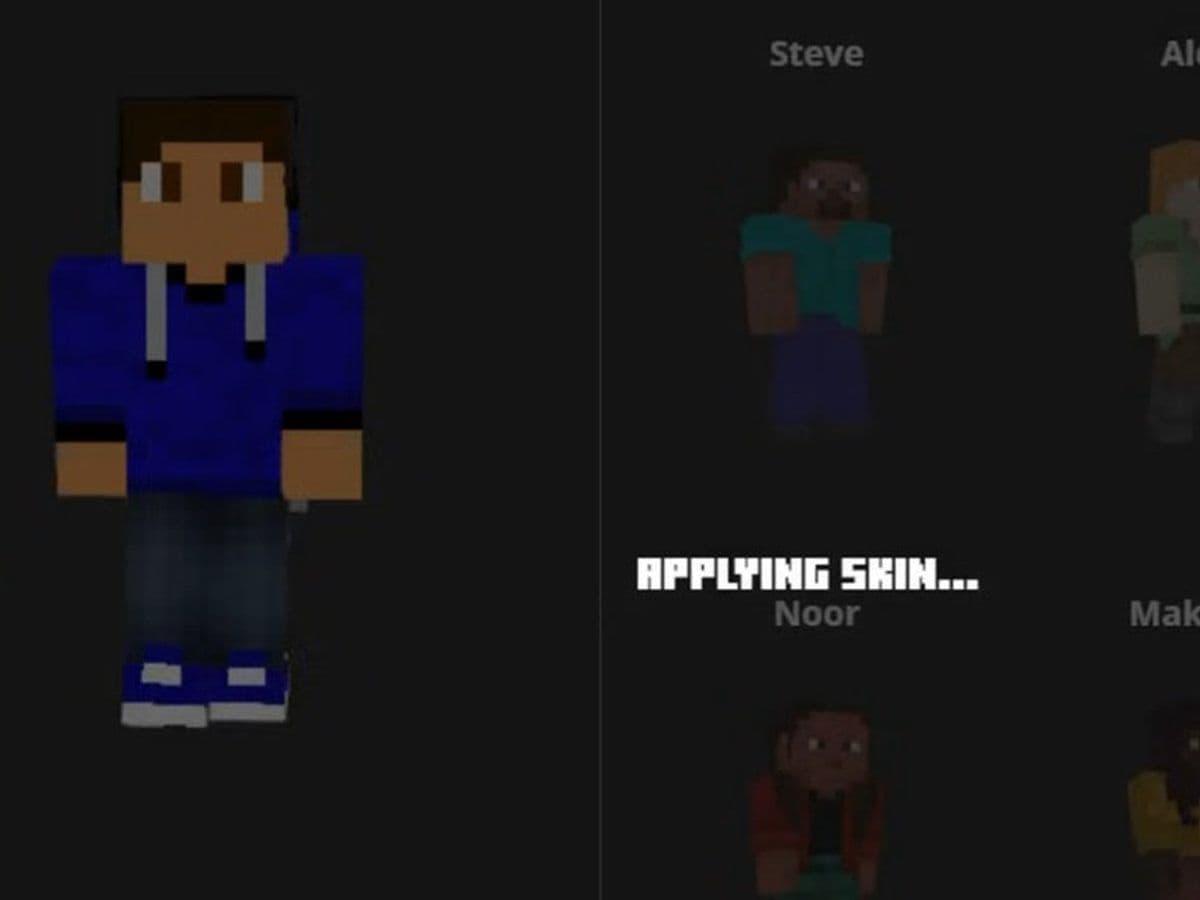
Changing your character’s appearance is one of the easiest ways to personalize your experience in Minecraft. If you’re wondering how to change skin in Minecraft, this guide will walk you through every step, whether you play on PC, mobile, Xbox, PlayStation, or Nintendo Switch.
Minecraft skins explained
A Minecraft skin is a PNG image file that changes how your character looks in the game. It wraps around your character model and replaces the default characters, Steve or Alex.
There are two body types:
- Classic (Steve) – wider arms
- Slim (Alex) – thinner arms
Choosing the correct model is important. If you select the wrong one, the arms may look broken or distorted.
How to get a skin in Minecraft?
Before you can change your skin, you need a skin file. You can either:
- Download a skin from third-party websites
- Create a custom skin using editors.
How to change skin in Minecraft Java Edition (PC)
Minecraft Java Edition is the version for Windows, Mac, and Linux.
Method 1: Change skin using the Minecraft Launcher
This is the easiest and most common method.
- Open the Minecraft Launcher
- Click the Skins tab at the top
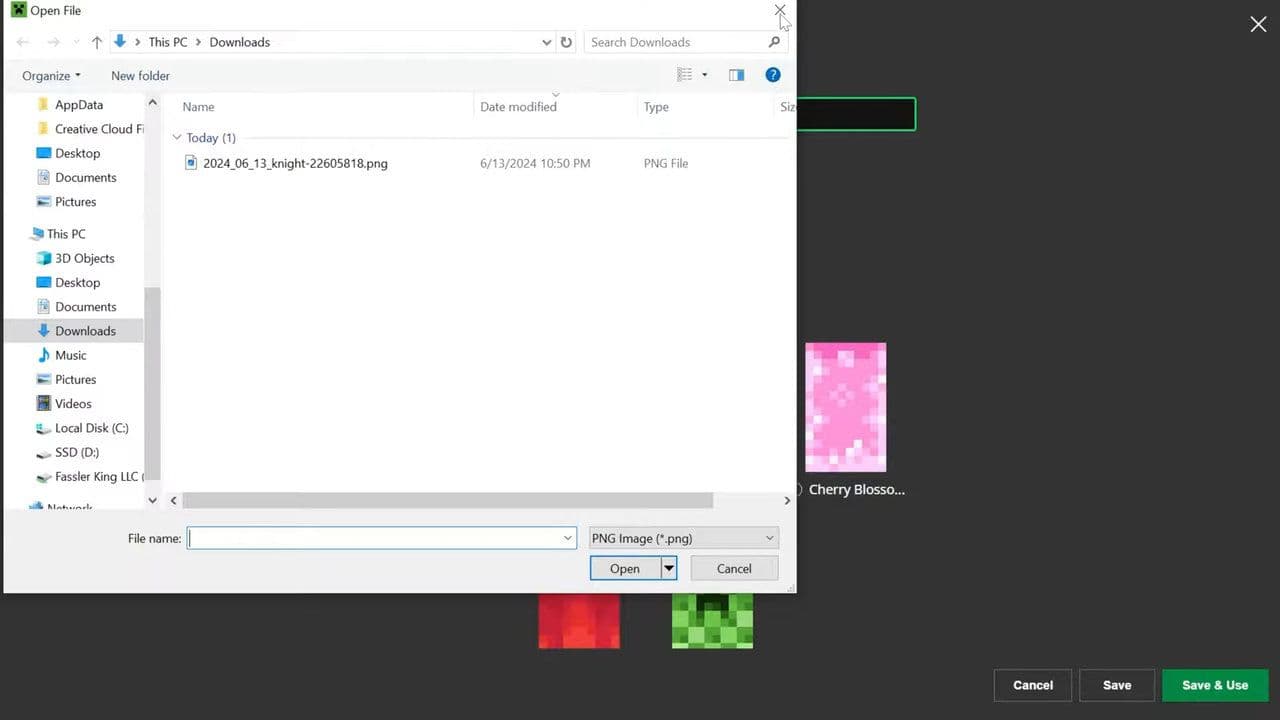
- Click + New Skin
- Click Browse
- Select your downloaded skin file
- Choose:
- Classic (Steve), or
- Slim (Alex)
- Click Save & Use
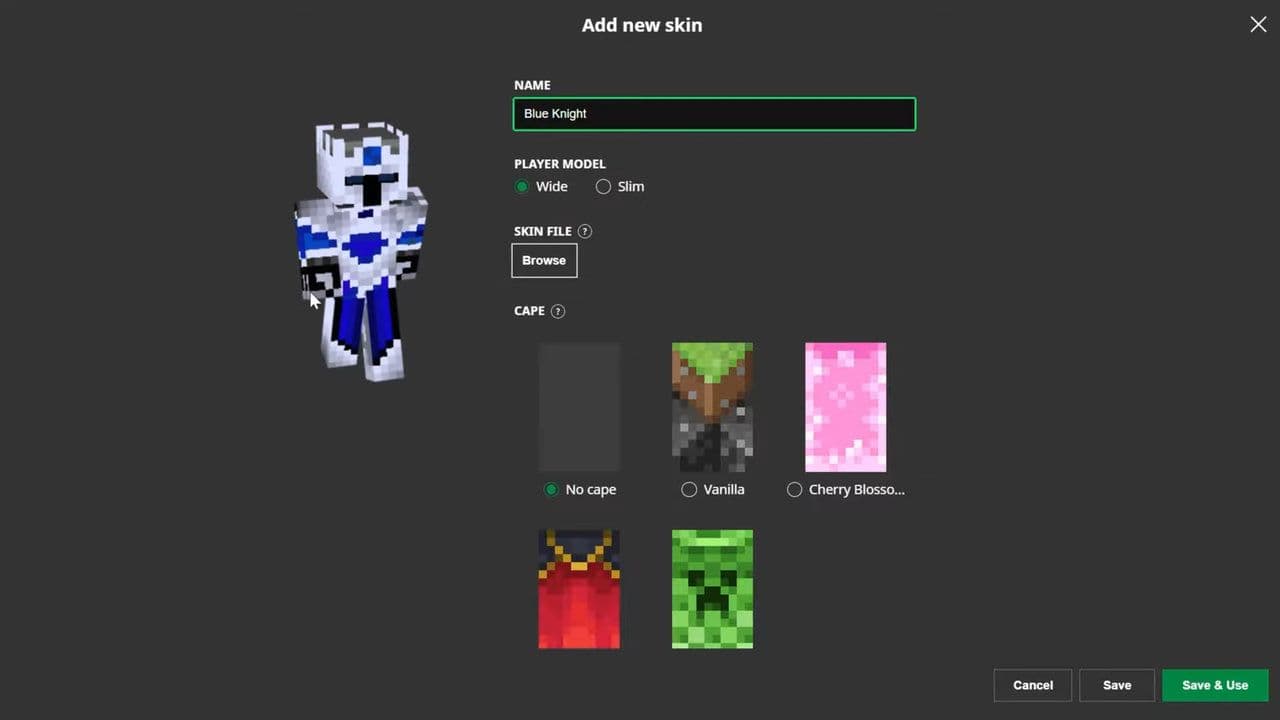
Your skin will now appear in the game.
Method 2: Change skin using Minecraft.net
You can also upload your skin through the official website
- Go to the Minecraft website
- Log in to your account
- Go to Profile
- Find the Skin section
- Click Upload Skin
- Select your PNG file
- Choose Classic or Slim
- Click Save
Open the game, and your skin will update.
How to change skin in Minecraft Bedrock Edition
Here are the steps to change skin in Bedrock Edition:
- Open Minecraft
- Go to the Main Menu
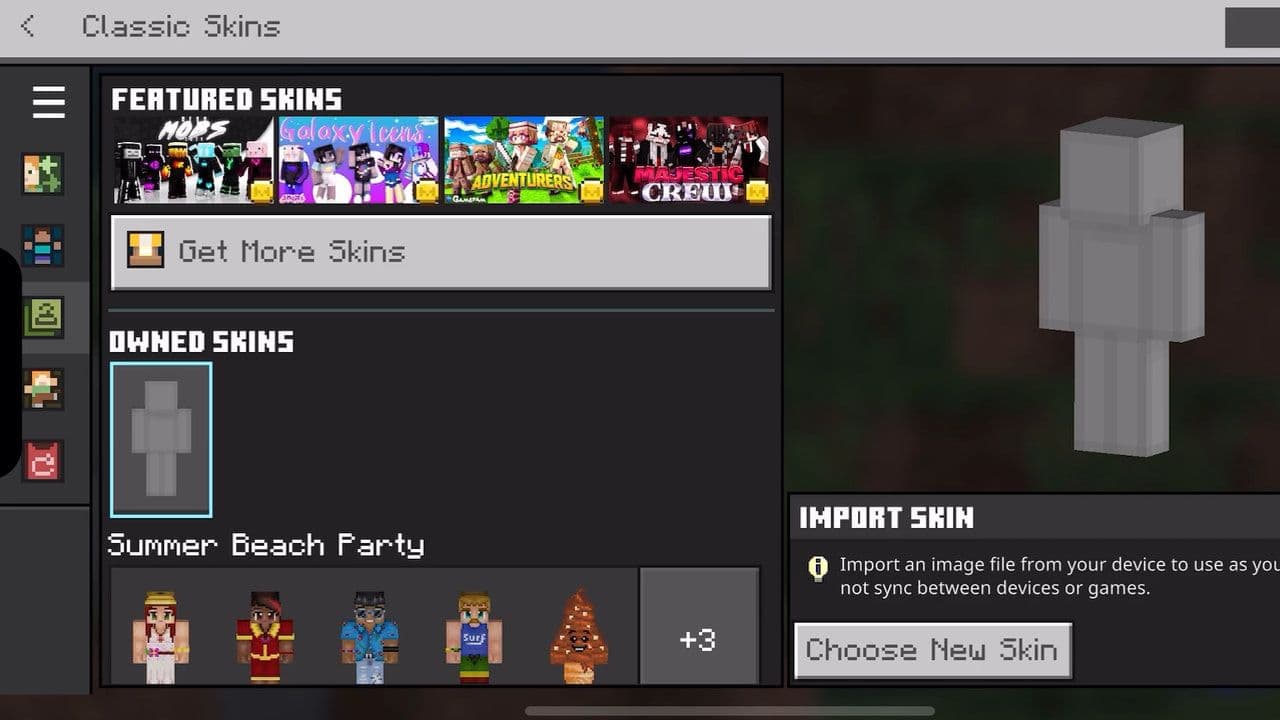
- Click Dressing Room
- Click Edit Character
- Click Import
- Click Choose New Skin
- Select your skin file
- Choose Classic or Slim
- Confirm and apply
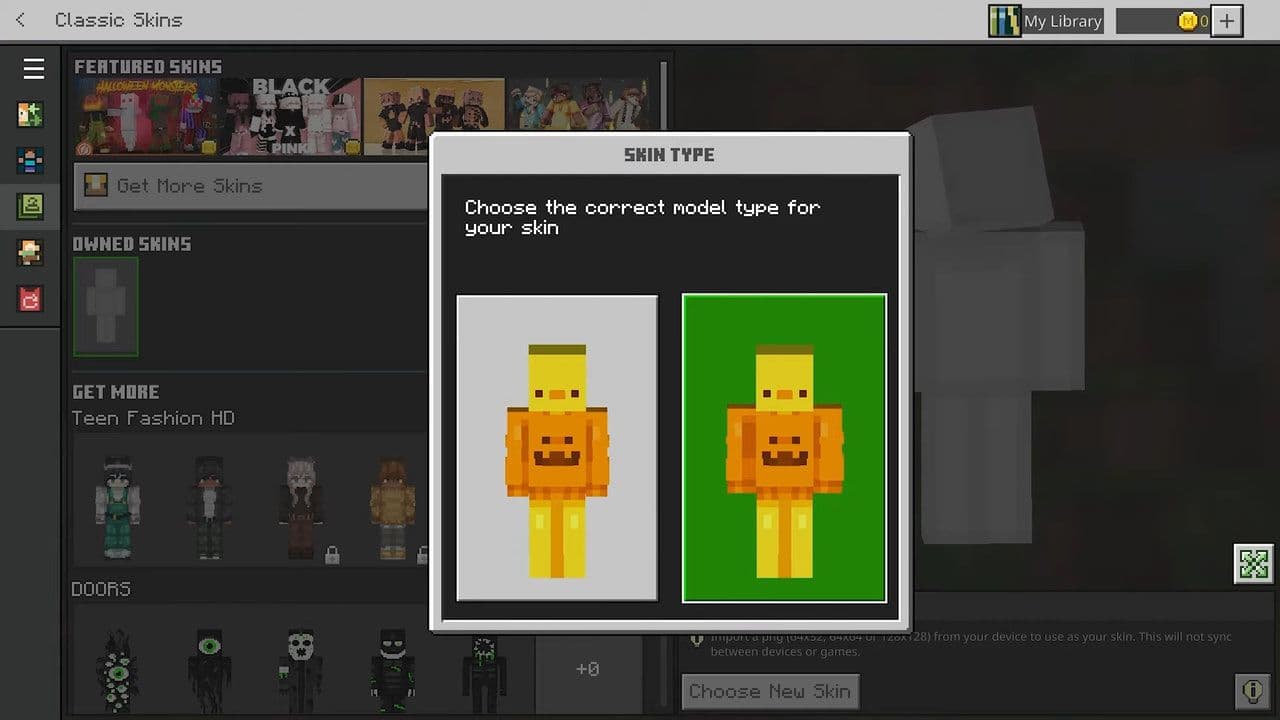
Your character will now use the new skin.
Bedrock Edition includes:
- Windows 10 / 11
- Xbox
- PlayStation
- Nintendo Switch
- Android
- iPhone / iPad
The process is done inside the game using the Dressing Room.
How to change skin in Minecraft on console
On consoles, you have two options:
Option 1: Import custom skin
Some versions support custom skins. Steps:
- Open Minecraft
- Go to Dressing Room
- Select Import
- Upload skin file
Option 2: Use Marketplace skins
If custom Minecraft skins are not supported:
- Go to Dressing Room
- Click Marketplace
- Buy or select a skin
- Apply it
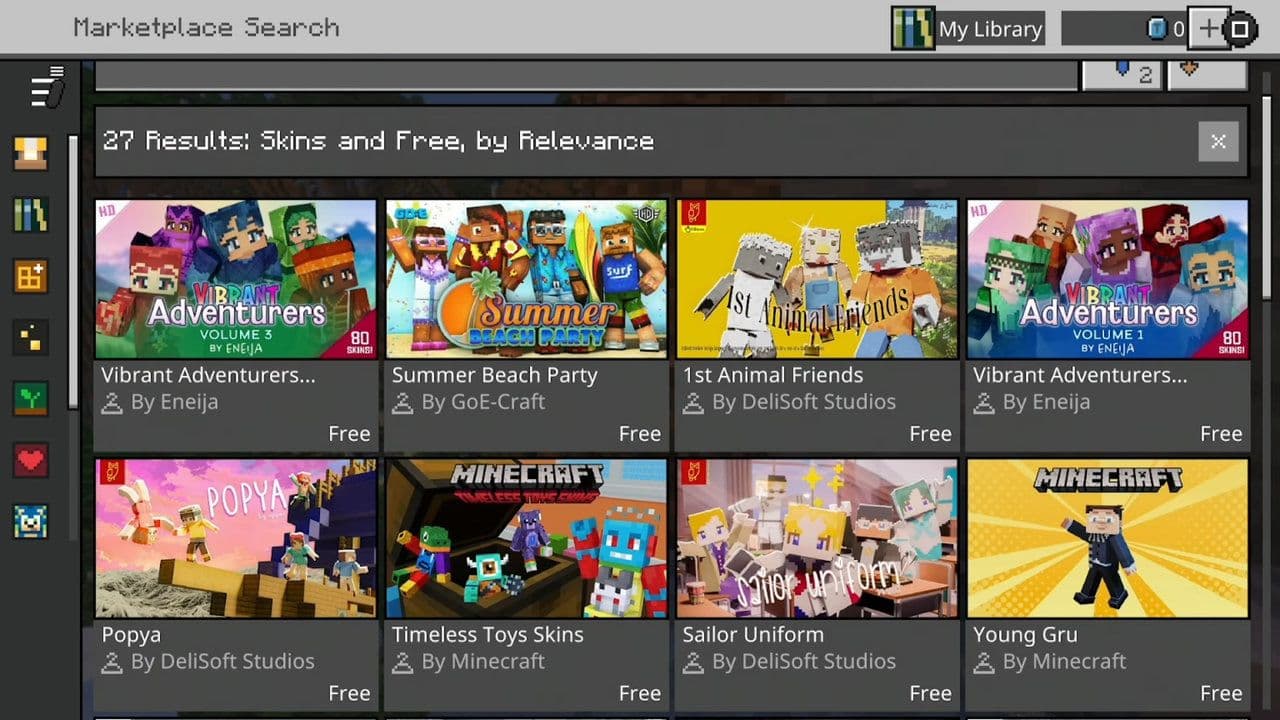
How to change skin in Minecraft Mobile
Steps are the same as Bedrock:
- Open Minecraft
- Tap Dressing Room
- Tap Edit Character
- Tap Import
- Select skin
- Apply
Is your Minecraft skin not changing?
If your skin does not appear, try these fixes:
- Restart Minecraft: Close and reopen the game.
- Check file format: Make sure:
- File is PNG
- File size is correct (64x64)
- Check model type: Make sure Slim or Classic matches the skin.
- Check Internet connection: Your skin needs internet to load.
Now you know exactly how to change skin in Minecraft on Java, Bedrock, PC, console, and mobile. Just:
- Download or create skin
- Upload it in launcher or Dressing Room
- Select correct model
- Apply and play
The process only takes a few minutes, but it completely changes your in-game identity.
That’s all for today! Looking for more Minecraft guides? Check out these:
- Minecraft Phonk Edits Mod: Integrating viral phonk music and visual effects into gameplay
- Finding diamonds in Minecraft: Everything you need to know
- Minecraft Orbital Railgun Mod: Complete guide to download, craft and use the weapon
- Exploring the best Minecraft shaders for enhanced visuals
- Minecraft Controlify Mod: How to install and use
All Related Guides
 How to start a raid in Minecraft: Java and Bedrock guideLearn how to start a raid in Minecraft Java and Bedrock, get Ominous Bottles, trigger Raid Omen, prepare villa...
 How to breed frogs in MinecraftBreed frogs in Minecraft with this simple guide to slimeballs, frogspawn, tadpoles, frog variants, and common ...
 Best Minecraft PS5 seeds in 2026 - Version 26.2Discover the best Minecraft PS5 seeds in 2026, with strong Bedrock worlds for survival and creative projects....
 Best Minecraft PS5 seeds in 2026 - Version 26.2Find the best Minecraft PC seeds in 2026, with great worlds for survival, villages, building, exploration, and...
 Top 5 Minecraft 26.1 seeds you must try todayFind the best Minecraft 26.1 seeds for villages, rare biomes, island survival, and creative builds, with seed ...
 How to turn on keep inventory in MinecraftUse the correct Keep Inventory command in Minecraft and learn how it works across Java, Bedrock, servers, and ...
 How to breed tropical fish in MinecraftCan you breed tropical fish in Minecraft? Here is the clear answer, plus how to catch, move, and use tropical ...
 Minecraft Chaos Cubed guide: Everything new in the 2026 updateExplore everything new in Minecraft Chaos Cubed, including Sulfur Caves, Sulfur Cubes, geysers, new blocks, co...
- 1
- 2
- 3
- 4
- 5
- 6
- 7
- 8
- 9