How to watch replays in Fortnite
Watch matches from any angleON THIS PAGE:
- What is Fortnite Replay Mode?
- How to watch replays in Fortnite
- How to enable replay mode in Fortnite
- Fortnite Replay controls explained
- How to save Fortnite Replays
- Are Fortnite Replays not working?
- Can you watch old Fortnite Replays?
- How to create clips using Fortnite Replay Mode
- Best Fortnite Replay settings
- Is Fortnite Replay Mode worth using?
Want to review your matches, analyze your mistakes, or capture epic clips? Learning how to watch replays in Fortnite is one of the best ways to improve your gameplay. Fortnite's built-in Replay Mode allows players to revisit previous matches from different camera angles, slow down key moments, and create cinematic footage without needing third-party recording software.
In this guide, we'll explain how to watch replays in Fortnite, how Replay Mode works, where to find saved matches, and what to do if replays aren't showing up.
What is Fortnite Replay Mode?
Replay Mode is a built-in Fortnite feature that automatically records your recent matches and lets you watch them later. Instead of viewing gameplay from your original perspective, you can freely move the camera around the map and observe the action from different angles.
Replay Mode is commonly used for:
- Improving gameplay and reviewing mistakes
- Learning from opponents
- Creating cinematic videos and screenshots
- Recording highlights and funny moments
- Studying building and editing techniques
The feature is available on PC, PlayStation, and Xbox, but it is not supported on Nintendo Switch or mobile versions of Fortnite.
How to watch replays in Fortnite in 5 easy steps
If Replay Mode is enabled, follow these steps to access your saved matches:
- Open Fortnite and wait for the main menu to load.
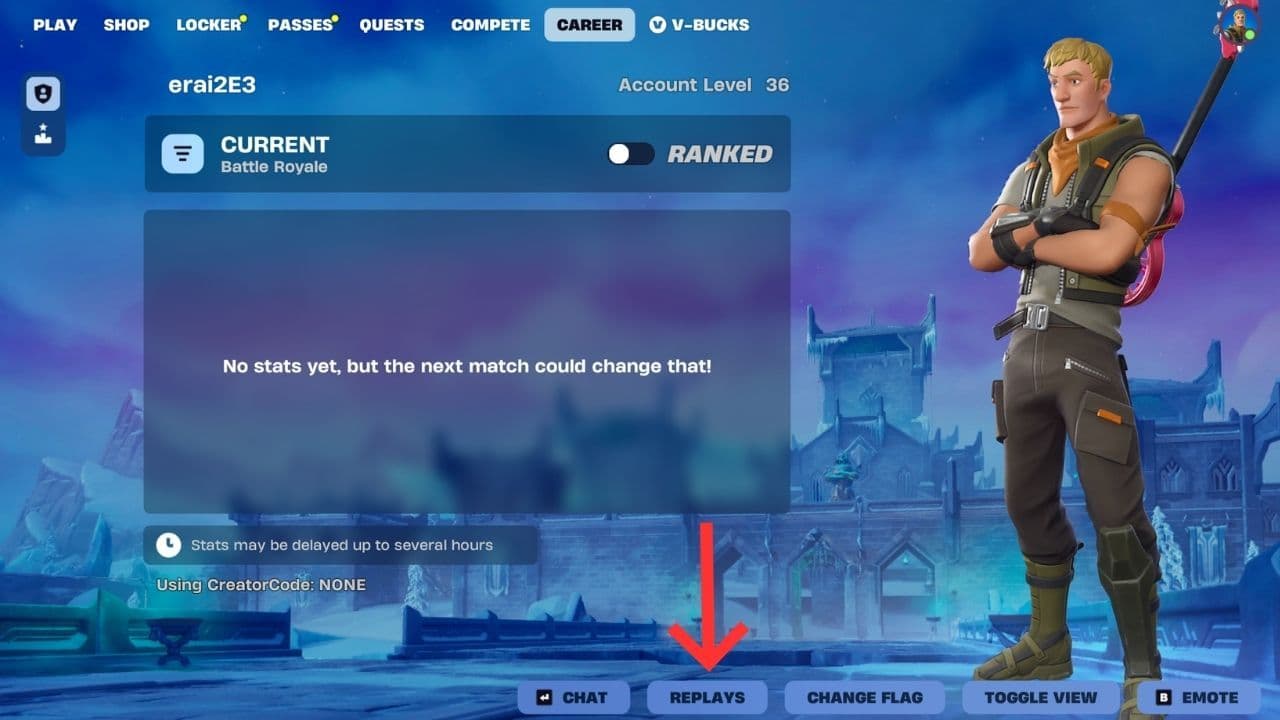
- From the top navigation menu, select the Career tab.
- Click Replays to view your recently recorded matches.
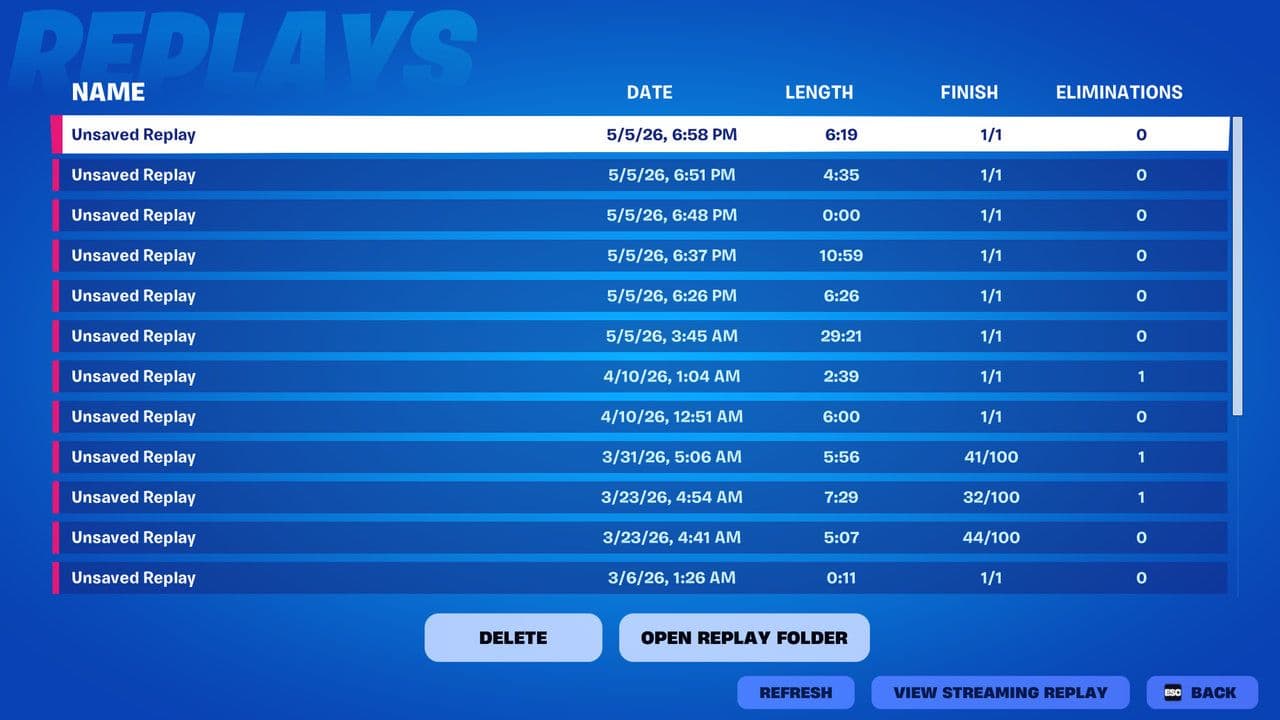
- Select the replay you want to watch from the list.
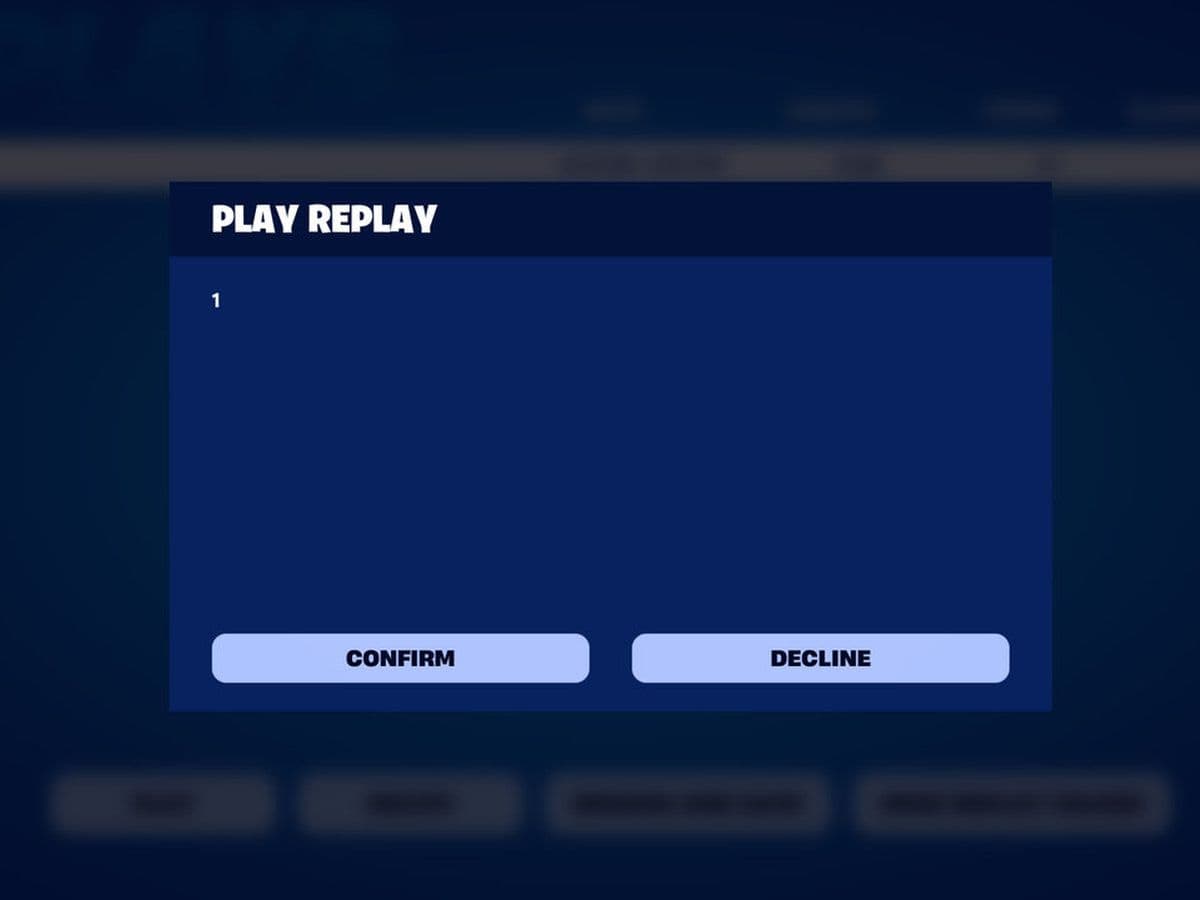
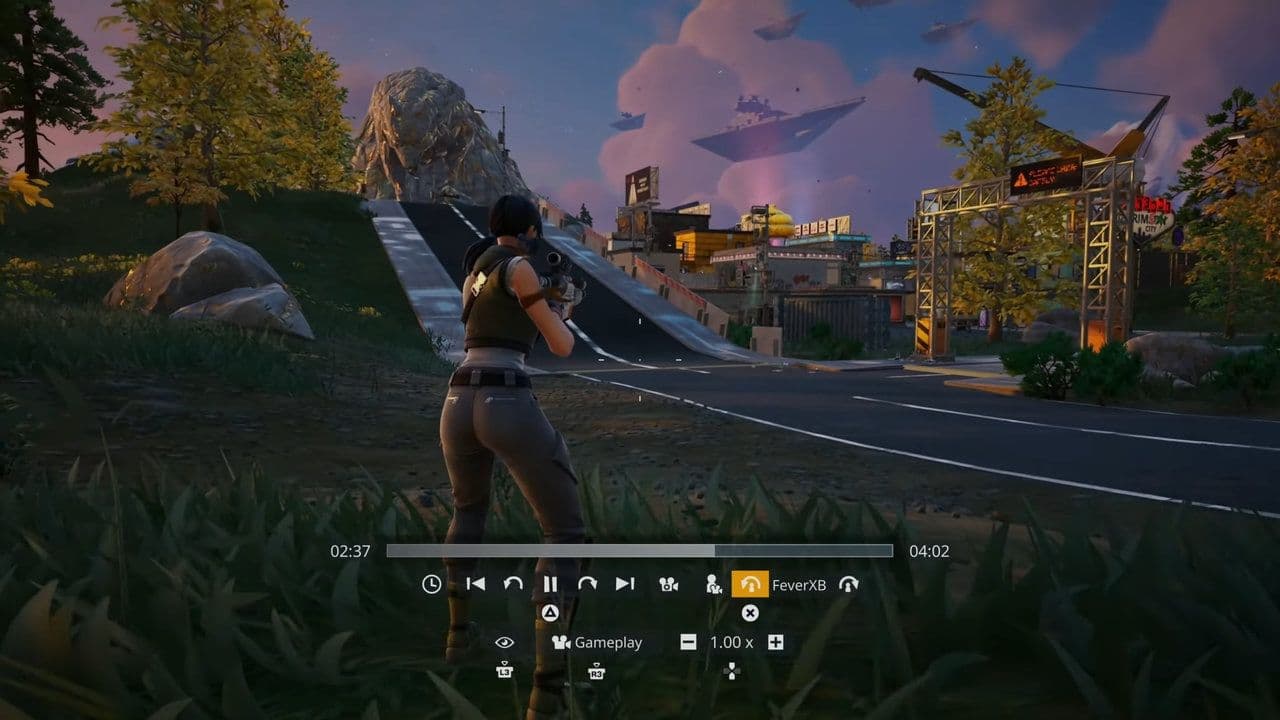
- Click the replay and wait for Fortnite to load the match. Once loaded, you may wait a little long, you'll be able to move the camera freely and use all Replay Mode controls.
How to enable replay mode in Fortnite
If you don't see any saved replays, Replay Mode may be disabled.
Here's how to turn Fortnite Replay mode on:
- Open Fortnite.
- Click the Menu button.
- Select Settings.
- Navigate to the Game tab.
- Scroll to the Replays section.
- Enable the following options:
- Record Replays
- Record Large Team Replays
- Record Creative Replays
- Record Battle Royale Replays
- Apply your settings.
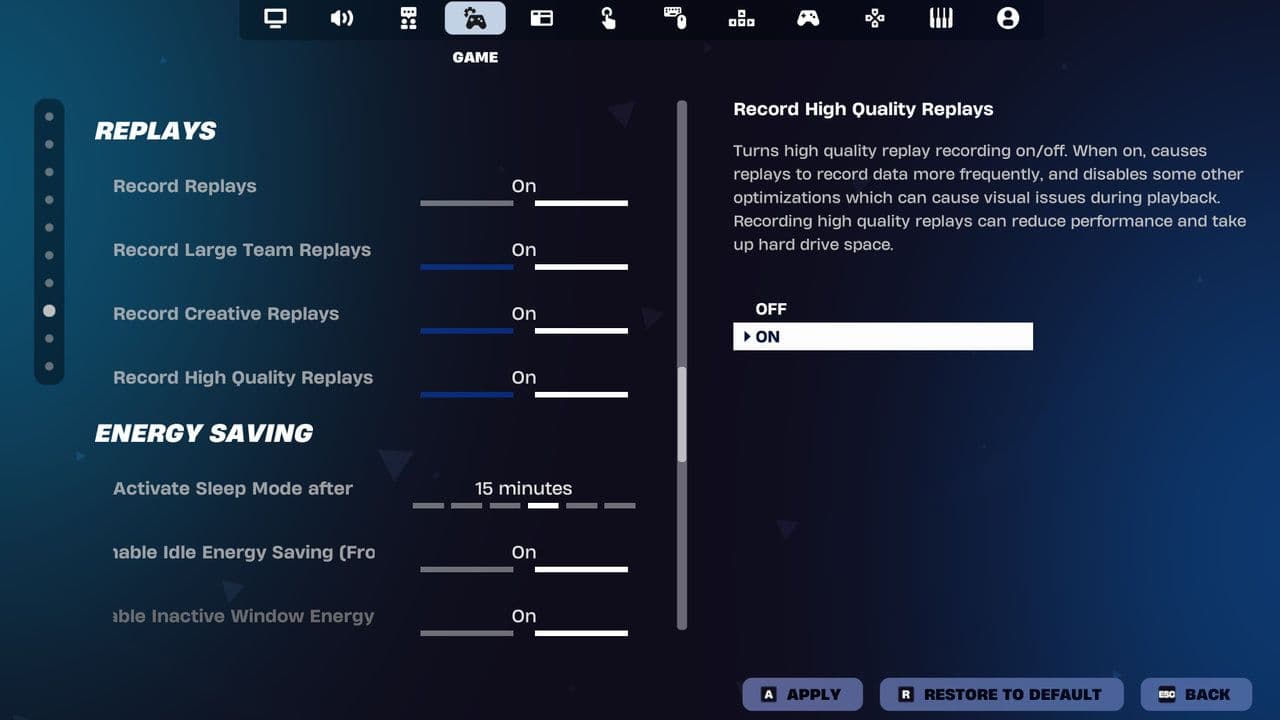
Future matches will now be recorded automatically.
Fortnite Replay controls explained
Replay Mode includes several useful tools for reviewing gameplay.
Camera Modes
You can switch between multiple camera views:
- Third Person: Follow players around the map.
- Drone Follow: Automatically tracks selected players.
- Drone Attach: Attaches the camera directly to a player.
- Drone Free: Allows complete camera freedom.
- Gameplay Camera: Shows the original player's perspective.
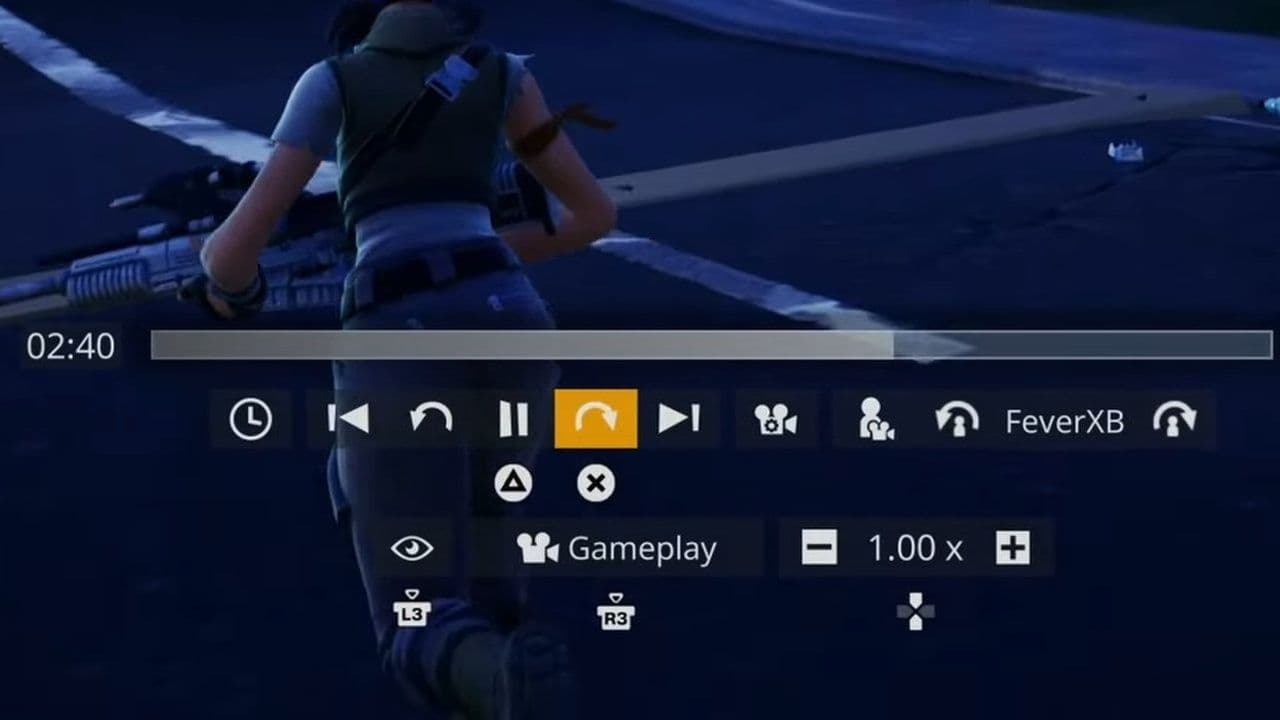
Playback Controls
Replay Mode also lets you:
- Pause gameplay
- Fast-forward
- Rewind
- Slow down footage
- Skip to specific moments
These tools make it easier to analyze fights and key moments.
How to save Fortnite Replays
Fortnite only stores a limited number of recent matches.
To prevent a replay from being deleted:
- Open the Replays menu.
- Select the replay you want to keep.
- Click Rename and Save.
- Enter a custom name.
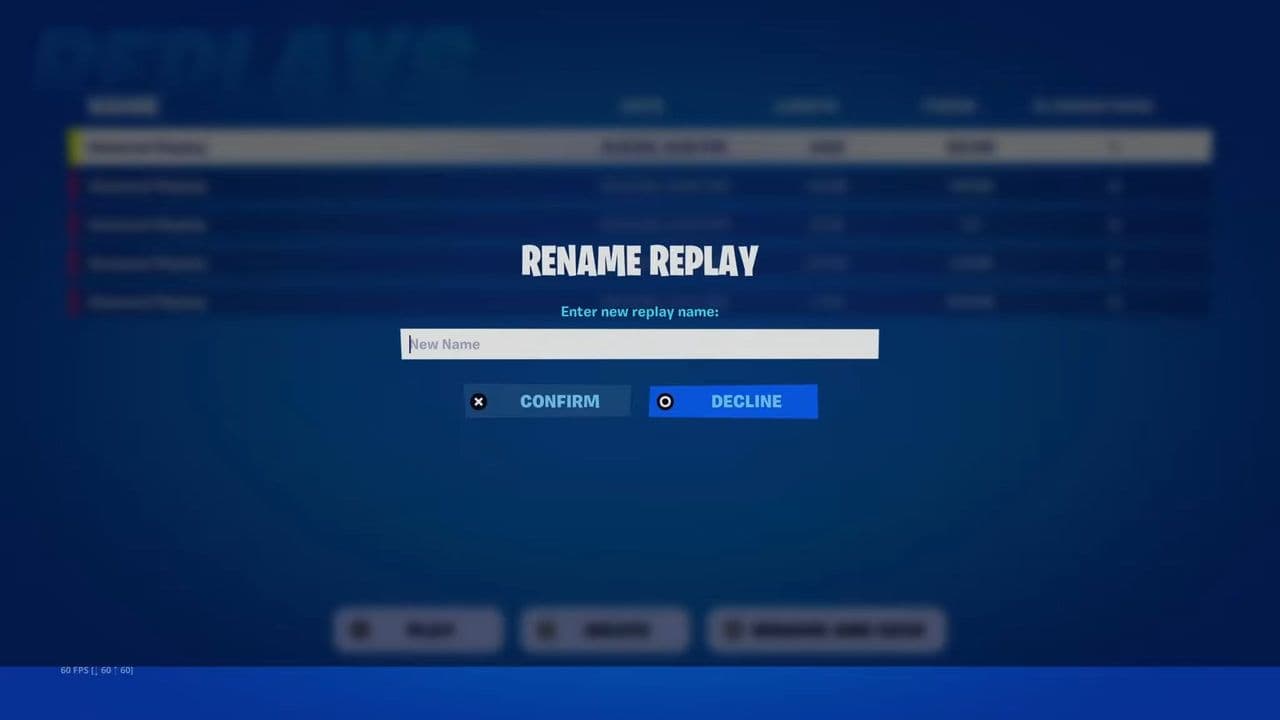
Saved replays remain available until a major game update makes them incompatible.
Are Fortnite Replays not working?
If your replays aren't showing up, several issues could be causing the problem.
Replay mode is disabled
The most common reason is that replay recording is turned off in the settings menu.
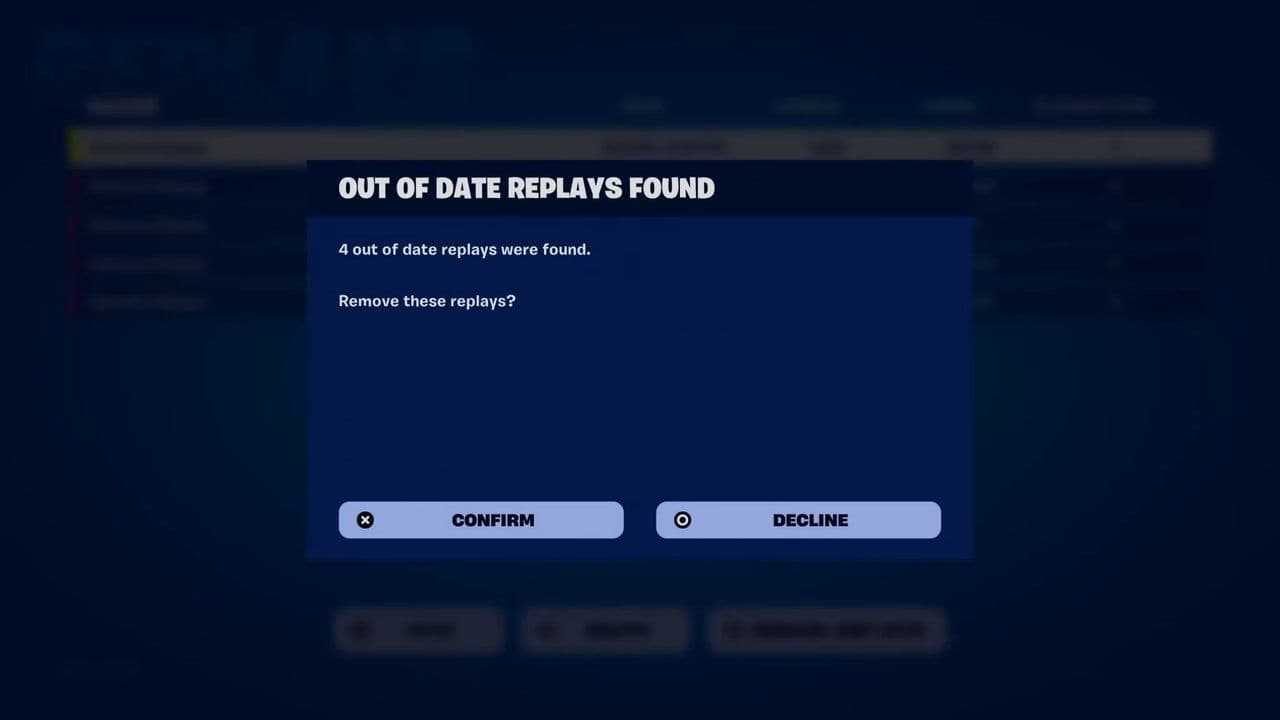
Game update removed older replays
Major Fortnite updates often make old replay files incompatible with the latest version.
Storage limit reached
Fortnite automatically deletes older replays when the replay limit is reached.
Corrupted replay file
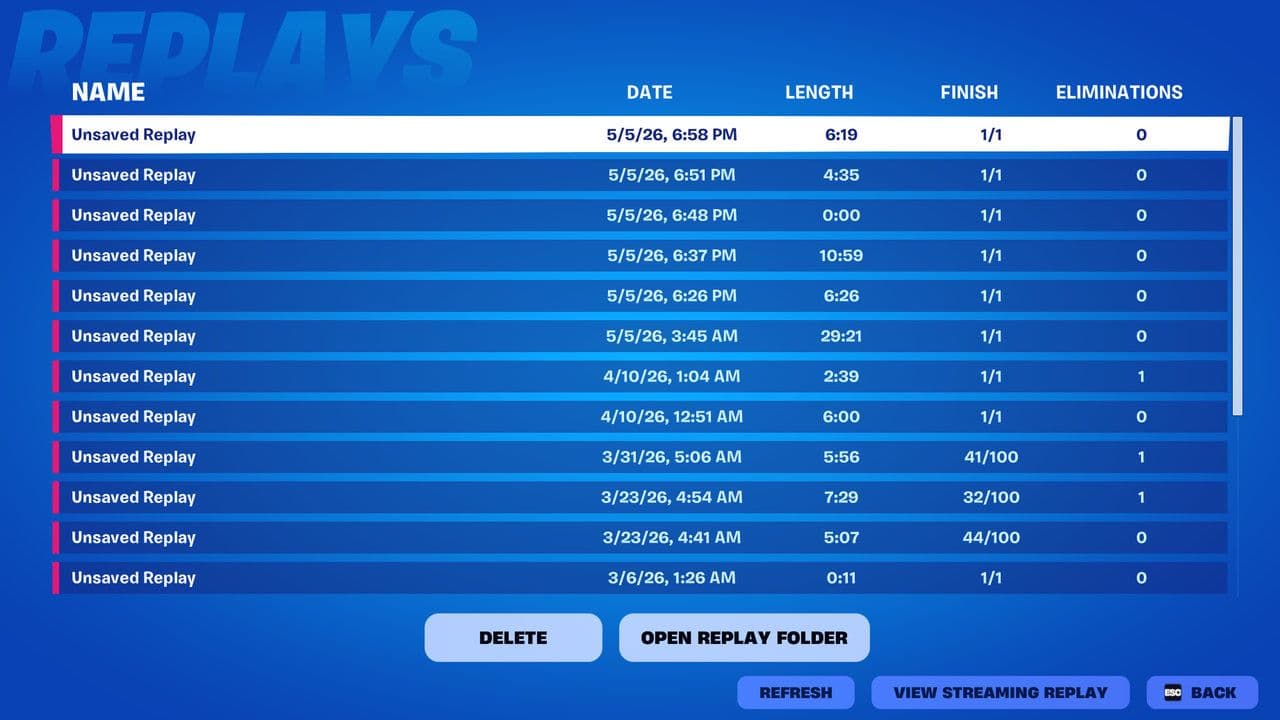
Sometimes, a replay file may become corrupted, preventing it from loading correctly and causing the Play option to be unavailable.
If that happens, open your Fortnite Replay folder and check whether the replay file is still there. You may be able to recover or access the replay directly from the folder.
Unsupported platform
Replay Mode is not available on Nintendo Switch or mobile devices.
Can you watch old Fortnite Replays?
You can only watch replays that were recorded on the current game version. After major patches, older replay files often stop working because Fortnite's map, weapons, and game data change significantly between updates.
For this reason, it's a good idea to export important clips or record videos before a major update arrives.
How to create clips using Fortnite Replay Mode
Many content creators use Replay Mode to capture professional-looking footage.
Some popular techniques include:
- Slow-motion eliminations
- Cinematic camera flyovers
- Creative montage clips
- Team fight highlights
- Social media content
- Thumbnail screenshots
Using the free camera controls can dramatically improve the quality of your videos compared to standard gameplay recordings.
Best Fortnite Replay settings
Is Fortnite Replay Mode worth using?
Absolutely. Replay Mode is one of Fortnite's most useful features for both casual and competitive players. Whether you're trying to improve your aim, study your positioning, review building mistakes, or create cinematic content, the feature provides valuable insights that aren't possible during live gameplay.
For competitive players, replay analysis can help identify recurring mistakes and improve decision-making. For content creators, Replay Mode offers powerful camera tools that make it easy to capture high-quality footage without additional software.
If you've never used it before, enabling Replay Mode is one of the easiest ways to get more value out of every Fortnite match.
That’s all for today! Looking for more Fortnite guides? Check out these:
- All Fortnite bosses & how to defeat them
- What are Accolades in Fortnite and how to get them
- Best Fortnite map codes with additional bonus maps
- How to start a custom game in Fortnite: Private 1v1, errors and fixes
- How to disable simple edit in Fortnite (PC, PlayStation, Xbox, Nintendo Switch, and mobile)
All Related Guides
 How to get the Ironmouse Sprite in FortniteLearn how to get the Ironmouse Sprite in Fortnite, where to find it, how to extract it, and the best way to fa...
 How to get a Lucky Locator in FortniteLearn how to get a Lucky Locator in Fortnite, unlock it at Sprite Mastery level 50, and use it to find a missi...
 Fortnite Lancehead clip quest explainedComplete the Fortnite Lancehead Clip quest fast. Find a Lancehead Pistol, learn how the thrown magazine works,...
 How to get more Portable Extractors in FortniteLearn how to get more Portable Extractors in Fortnite, where to buy them, how much they cost, and the best tim...
 Fortnite Mastery Monday guide: Schedule, bonuses & moreLearn how Fortnite Mastery Monday works, including its weekly schedule, 2x Sprite leveling, double Sprite Dust...
 All Garden vs. Brainrot codes in Fortnite: Updated listLooking for Fortnite Garden vs Brainrot codes? Get every working code, learn how to redeem them, and boost you...
 Latest Fortnite Steal the Brainrot codes (August 2026)Find all active Fortnite Steal the Brainrot codes to summon Brainrot Gods and boost rewards fast....
 How to use a Gizmo in Fortnite (Sprite extraction tools)Learn how to use a Gizmo in Fortnite, activate the Gizmo Wheel, unlock Sprite tools, and complete the "Use a G...
- 1
- 2
- 3
- 4
- 5
- 6
- 7
- 8
- 9
- 10
- 11
- 12
- 13
- 14
- 15
- 16
- 17
- 18
- 19
- 20
- 21
- 22
- 23
- 24